
Introduction
Welcome to the user manual for your Dell UP3218K UltraSharp 32" 8K Monitor. This document provides essential information for setting up, operating, maintaining, and troubleshooting your monitor. Please read this manual thoroughly before using your monitor to ensure proper functionality and safety.
Important Safety Information
- Always disconnect the power cable from the wall outlet before cleaning the monitor.
- Do not expose the monitor to rain or moisture to avoid fire or shock hazards.
- Do not open the monitor casing. There are no user-serviceable parts inside.
- Ensure proper ventilation around the monitor. Do not block ventilation openings.
- Use only the power adapter and cables provided with your monitor.
Package Contents
Verify that all components are present in your monitor package:
- Dell UP3218K UltraSharp 32" 8K Monitor
- Monitor Stand (Base and Riser)
- Power Cable
- 2x DisplayPort Cables (required for 8K resolution)
- USB Cable
Setup Instructions
1. Assembling the Monitor Stand
Attach the monitor panel to the stand riser, then securely fasten the stand base to the riser. Ensure all connections are firm.
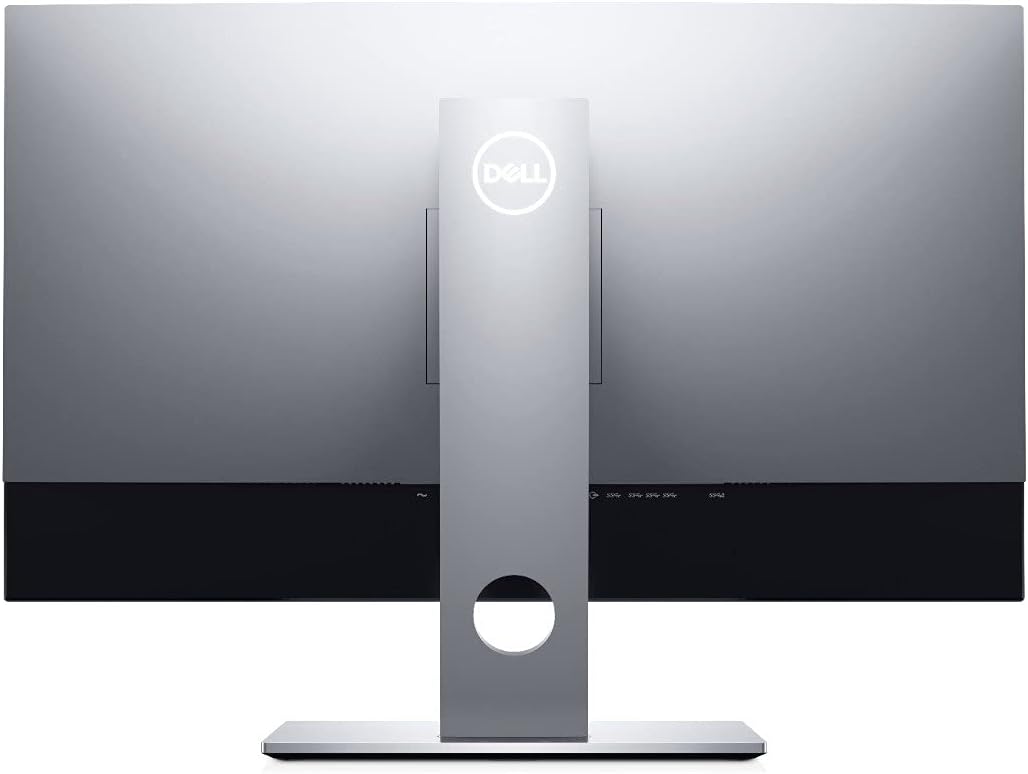
Image: Rear view of the Dell UP3218K monitor with its silver stand securely attached. The Dell logo is visible on the back of the monitor.
2. Connecting the Monitor
For optimal 8K (7680x4320) resolution at 60Hz, connect two DisplayPort cables from your computer's graphics card to the DisplayPort inputs on the monitor.
Connect the USB cable from your computer to the monitor's upstream USB port to enable the integrated USB hub.
Plug the power cable into the monitor's power port and then into a wall outlet.

Image: Close-up of the rear input panel of the Dell UP3218K monitor, displaying ports for power, DisplayPort, HDMI, and multiple USB connections.
3. Initial Power On
Press the power button located on the monitor to turn it on. The monitor will automatically detect the input signal.

Image: Side view of the Dell UP3218K monitor, highlighting the slim bezel and the control buttons located on the right-hand side edge.
Operating Your Monitor
On-Screen Display (OSD) Menu
Use the control buttons on the monitor's right edge to navigate the OSD menu. This menu allows you to adjust various display settings.
Adjusting Display Settings
- Brightness/Contrast: Adjust the overall luminance and difference between light and dark areas.
- Color Settings: Select preset color modes (e.g., Standard, Movie, Game, Custom Color) or fine-tune individual color channels. The monitor supports 100% Adobe RGB, 100% sRGB, 98% DCI-P3, and 100% Rec 709 color gamuts.
- Input Source: Manually select between DisplayPort and HDMI inputs if auto-detection fails.
Ergonomic Adjustments
The monitor stand allows for height, tilt, swivel, and pivot adjustments to optimize your viewing comfort.

Image: The Dell UP3218K monitor is displayed in three different ergonomic positions: standard landscape, tilted upwards, and pivoted 90 degrees to a portrait orientation, demonstrating its versatile stand.
USB Hub Usage
The monitor features a built-in USB 3.0 hub with multiple ports for connecting peripherals such as keyboards, mice, and external storage devices.
Technical Specifications
| Feature | Specification |
|---|---|
| Model | UP3218K |
| Screen Size | 31.5 Inches |
| Resolution | 7680x4320 (8K UHD) |
| Refresh Rate | 60Hz |
| Aspect Ratio | 1.78:1 |
| Brightness | 400 cd/m² |
| Contrast Ratio | 1300:1 |
| Color Support | 1.07 billion colors (100% Adobe RGB, 100% sRGB, 98% DCI-P3, 100% Rec 709) |
| Connectivity | 2x DisplayPort, 1x HDMI, 1x USB 3.0 Upstream, 4x USB 3.0 Downstream |
| Item Weight | 24 pounds |
| Product Dimensions | 3.44 x 11.17 x 7.73 inches |

Image: The Dell UP3218K monitor displayed with its physical dimensions (width, height, depth) clearly labeled in inches.
Care and Maintenance
Cleaning the Monitor
- Always unplug the monitor before cleaning.
- Use a soft, lint-free cloth lightly dampened with water or a non-ammonia-based glass cleaner.
- Do not spray cleaner directly onto the screen.
General Care
- Avoid placing heavy objects on the monitor or its cables.
- Keep the monitor away from direct sunlight and heat sources.
- Ensure adequate airflow around the monitor to prevent overheating.
Troubleshooting
No Image on Screen
- Check if the monitor is powered on.
- Verify that the DisplayPort cables are securely connected to both the monitor and your computer. Remember, 8K requires two DisplayPort cables.
- Ensure the correct input source is selected in the OSD menu.
Flickering or Distorted Image
- Check cable connections for looseness or damage.
- Ensure your graphics card drivers are up to date.
- Reduce the display resolution or refresh rate in your computer's display settings to see if the issue persists.
USB Ports Not Functioning
- Ensure the USB upstream cable is connected from the monitor to your computer.
- Restart your computer.
Warranty and Technical Support
Your Dell UP3218K monitor comes with a standard manufacturer's warranty. For detailed warranty information, please refer to the documentation included in your product package or visit the official Dell support website.
For technical assistance, driver downloads, or further troubleshooting, please visit the Dell Support Website.


