
ALIGATOR A321
Aligator A321 Mobile Phone for Seniors User Manual
Model: A321 | Brand: ALIGATOR
1. Introduction
This manual provides comprehensive instructions for the safe and efficient use of your Aligator A321 mobile phone. Designed with seniors in mind, the A321 features large buttons, a clear display, and an essential SOS function for emergencies. Please read this manual thoroughly before operating your device.
2. Package Contents
Please check the box for the following items:
- Aligator A321 Mobile Phone
- Battery
- Charging Adapter
- USB Charging Cable
- User Manual (this document)
If any items are missing or damaged, please contact your retailer.
3. Phone Overview
Familiarize yourself with the key components of your Aligator A321 phone.

Image 1: Aligator A321 Front View. This image displays the front of the Aligator A321 mobile phone, showing the screen, large numeric keypad, call and end call buttons, and navigation keys. The brand "ALIGATOR" is visible below the screen.
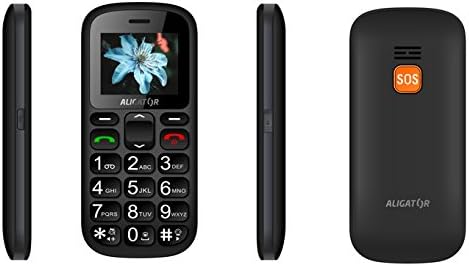
Image 2: Aligator A321 Side and Back View. This image shows multiple views of the Aligator A321. From left to right: left side profile, front view, right side profile, and the back of the phone. The back view prominently features the orange SOS button and the "ALIGATOR" logo.
Key Components:
- Display Screen: 1.8-inch color screen for viewing menus, contacts, and messages.
- Numeric Keypad: Large, easy-to-press buttons for dialing numbers and typing messages.
- Call/End Call Buttons: Green button to initiate calls, red button to end calls or return to the home screen.
- Navigation Keys: Up, Down, Left, Right, and OK/Confirm button for menu navigation.
- SOS Button: Located on the back of the phone, used for emergency calls and SMS (see Section 5.4).
- Flashlight: Integrated light for convenience.
- Charging Port: Located at the bottom for connecting the charging cable.
4. Setup
4.1. Inserting the SIM Card(s) and Battery
- Carefully remove the back cover of the phone.
- If the battery is already inserted, remove it by gently lifting it from the notch.
- Locate the SIM card slot(s). The Aligator A321 supports Dual SIM. Insert your SIM card(s) into the designated slot(s) with the gold contacts facing down, ensuring it clicks into place.
- Insert the battery, aligning the gold contacts on the battery with those in the phone.
- Replace the back cover, pressing firmly until it snaps securely.
4.2. Inserting a MicroSD Card (Optional)
The phone supports MicroSD cards for additional storage (e.g., for photos or music).
- Remove the back cover and battery as described above.
- Locate the MicroSD card slot.
- Insert the MicroSD card with the gold contacts facing down until it is securely in place.
- Replace the battery and back cover.
4.3. Charging the Battery
Before first use, fully charge the phone's battery.
- Connect the USB charging cable to the charging adapter.
- Plug the charging adapter into a standard wall outlet.
- Connect the other end of the USB cable to the charging port at the bottom of your phone.
- The battery indicator on the screen will show charging status. Disconnect the charger once the battery is full.
4.4. Powering On/Off
- To Power On: Press and hold the Call button (green button) until the screen lights up.
- To Power Off: Press and hold the End Call button (red button) until the power-off options appear, then confirm.
5. Operating Instructions
5.1. Making and Receiving Calls
- To Make a Call: Enter the phone number using the numeric keypad and press the Call button.
- To Answer a Call: When the phone rings, press the Call button.
- To End a Call: Press the End Call button.
5.2. Sending and Receiving SMS Messages
- To Send an SMS: Navigate to the "Messages" menu, select "New Message," enter the recipient's number and your message, then send.
- To Read an SMS: New messages will typically display a notification. Navigate to the "Messages" menu to view your inbox.
5.3. Managing Contacts (Phonebook)
The phonebook can store up to 500 entries.
- To Add a Contact: Go to "Contacts" or "Phonebook," select "Add New," enter the name and phone number, then save.
- To Call a Contact: Go to "Contacts," select the desired contact, and press the Call button.
5.4. SOS Emergency Function
The SOS button is a critical safety feature. It allows you to quickly contact pre-set emergency numbers and send an SOS message with your location.
- Setting Up SOS Numbers: Access the "SOS Settings" menu. You can typically add up to 5 emergency contact numbers. These numbers will be called sequentially until one answers.
- Activating SOS: In an emergency, press and hold the SOS button on the back of the phone for a few seconds.
- SOS Action: The phone will automatically:
- Send an emergency SMS message to all pre-set SOS numbers.
- Initiate calls to the pre-set SOS numbers in a loop until one is answered.
- Activate the SOS Locator function (see Section 5.5).
5.5. SOS Locator
The SOS Locator feature sends your phone's approximate location via SMS to your emergency contacts when the SOS button is activated. This allows the recipient to view your location on a map (if their device supports it).
- This function is automatically triggered when the SOS button is pressed.
- Ensure your phone has network coverage for the SMS to be sent successfully.
5.6. Other Features
- Flashlight: Often activated by a dedicated side button or through the menu.
- FM Radio: Requires headphones (not included) to be plugged in as an antenna. Access via the "Multimedia" or "Tools" menu.
- Alarm Clock: Set multiple alarms through the "Tools" or "Settings" menu.
- Calculator: Basic arithmetic functions available in the "Tools" menu.
6. Maintenance and Care
- Cleaning: Use a soft, dry cloth to clean the phone's surface. Avoid liquid cleaners.
- Battery Care:
- Do not expose the battery to extreme temperatures.
- Avoid fully discharging the battery frequently.
- If the phone will not be used for an extended period, charge it partially before storing.
- Water Resistance: This phone is not waterproof. Keep it away from water and moisture.
- Impact: Avoid dropping the phone or subjecting it to strong impacts.
7. Troubleshooting
| Problem | Possible Cause | Solution |
|---|---|---|
| Phone does not power on. | Battery is discharged or not inserted correctly. | Charge the battery. Ensure the battery is correctly inserted. |
| Cannot make or receive calls. | No network signal, SIM card not inserted, or SIM card issue. | Check network signal strength. Reinsert SIM card. Contact your service provider. |
| SOS function not working. | SOS numbers not set, no network, or button not pressed long enough. | Ensure SOS numbers are configured. Check network coverage. Press and hold the SOS button for several seconds. |
| Battery drains quickly. | Heavy usage, old battery, or background processes. | Reduce usage. Consider replacing the battery if it's old. Close unused applications. |
8. Specifications
| Feature | Detail |
|---|---|
| Brand | ALIGATOR |
| Model Name | A321 |
| Color | Black |
| Product Type | Mobile Phone (Feature Phone) |
| Operating System | KaiOS |
| Screen Size | 1.8 Inches |
| Cellular Technology | 2G (GSM) |
| Connectivity Technology | 2G (GSM) |
| Number of SIM Slots | Dual SIM |
| Phonebook Capacity | 500 entries |
| Talk Time | Up to 4 hours |
| Standby Time | Up to 240 hours |
| Special Features | SOS Button, SOS Locator, Large Keys, Flashlight, FM Radio, Alarm Clock, Calculator, Micro SD Card Support |
| Compatible Devices | A321 |
9. Warranty and Support
Your Aligator A321 mobile phone comes with a standard manufacturer's warranty. Please refer to the warranty card included in your package for specific terms and conditions, including the warranty period and coverage details.
Customer Support:
For technical assistance, troubleshooting beyond this manual, or warranty claims, please contact your retailer or the official ALIGATOR customer support. Contact information can usually be found on the manufacturer's website or on the packaging.
When contacting support, please have your product model (A321) and purchase details ready.
Related documentsA321


Ask a question about this manual
Ask about setup, troubleshooting, compatibility, parts, safety, or missing instructions. Manuals+ will review the question and use this page’s manual context to help answer it.