
1. Introduction
This manual provides detailed instructions for the installation, operation, and maintenance of your Montavue MTIP80824B4E 8-Channel 4K Ultra HD NVR Security System. This system includes an 8-channel Network Video Recorder (NVR) and eight 4MP IP cameras (four bullet and four dome cameras), designed to provide comprehensive surveillance for your home or business.

Image 1.1: Montavue MTIP80824B4E Security System components, including the NVR and eight IP cameras (four bullet and four dome models).
2. Package Contents
Verify that all items listed below are present in your package:
- 1x Montavue 4K Ultra HD 8-Channel NVR (Model: MNR8082-8) with 2TB pre-installed HDD
- 4x Montavue 4MP 2K Resolution IP Dome Cameras (Model: MTE4870)
- 4x Montavue 4MP 2K Resolution IP Bullet Cameras (Model: MTB4870)
- 8x 100ft Cat5e Ethernet Cables
- Power Adapter for NVR
- USB Mouse
- Quick Start Guide
3. NVR Overview
3.1 Front Panel

Image 3.1: Front view of the Montavue NVR, showing the power indicator, status lights, and a USB port for mouse or backup devices.
3.2 Rear Panel

Image 3.2: Rear view of the Montavue NVR, displaying various connection ports including power input, Ethernet ports for cameras, network port, USB ports, HDMI, and VGA outputs.
The rear panel provides all necessary connections for power, network, cameras, and display outputs. Refer to the labels on the NVR for specific port functions.
4. Camera Overview
4.1 Bullet Cameras (MTB4870)

Image 4.1: Side view of a Montavue MTB4870 bullet camera, highlighting its robust housing and adjustable mounting bracket.

Image 4.2: Front view of a Montavue MTB4870 bullet camera, showing the lens and infrared (IR) LEDs for night vision.
The MTB4870 bullet cameras are designed for outdoor use with an IP67 rating. They feature 4MP resolution, 130ft IR night vision, and color night optics.
4.2 Dome Cameras (MTE4870)
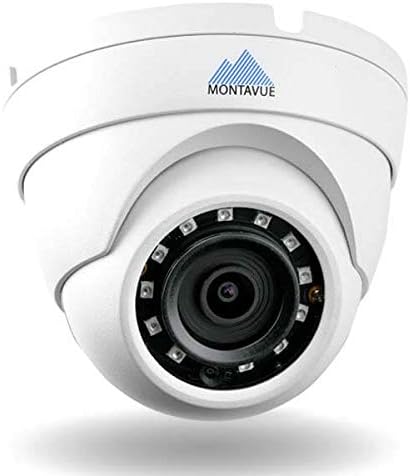
Image 4.3: Front view of a Montavue MTE4870 dome camera, illustrating its discreet design and wide field of view.
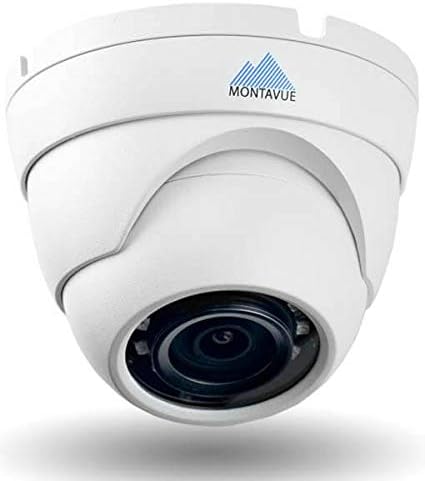
Image 4.4: Side view of a Montavue MTE4870 dome camera, showing its compact form factor suitable for various mounting locations.
The MTE4870 dome cameras also offer 4MP resolution, 130ft IR night vision, and color night optics, suitable for both indoor and outdoor applications.
5. System Setup
5.1 NVR Connection
- Connect the included USB mouse to a USB port on the NVR.
- Connect a monitor to the NVR's HDMI or VGA output port.
- Connect the NVR to your local network using an Ethernet cable from the NVR's LAN port to your router or switch.
- Connect the NVR power adapter to the NVR's power input and then to a power outlet. The NVR will power on automatically.
5.2 Camera Installation
- Determine optimal mounting locations for each camera, ensuring clear line of sight and adequate coverage.
- Mount the cameras securely using appropriate hardware for your chosen surface.
- Connect each camera to one of the NVR's PoE (Power over Ethernet) ports using the provided 100ft Cat5e Ethernet cables. The cameras will receive power and data through this single cable.
- Adjust the camera angles to achieve the desired viewing area.
5.3 Initial Configuration
Upon first boot, the NVR will guide you through an initial setup wizard. Follow the on-screen prompts to:
- Set up an administrator password.
- Configure date and time settings.
- Perform network settings (DHCP is usually sufficient).
- Verify camera connections. The NVR should automatically detect and display video feeds from connected cameras.
6. System Operation
6.1 Live View
After initial setup, the NVR will display the live video feeds from all connected cameras. You can switch between single-camera view, multi-camera grid view, and customize display layouts using the NVR's on-screen interface.
6.2 Recording
The NVR is pre-configured for continuous recording. You can access recording settings to configure motion-detection recording, scheduled recording, or adjust recording quality and frame rates. The H.265 compression technology helps optimize storage space on the 2TB hard drive.
6.3 Playback and Backup
To review recorded footage, access the playback menu on the NVR. You can search by date, time, and event type. Footage can be backed up to a USB drive connected to the NVR's USB port.
6.4 Remote Access (MontavueGO App)
The MontavueGO mobile application allows you to view live feeds, play back recordings, and manage your security system remotely from your iPhone, iPad, Android smartphone or tablet, and PC/Mac computers. Download the free MontavueGO app from your device's app store and follow the in-app instructions to add your NVR.
7. Maintenance
- Regular Cleaning: Periodically clean camera lenses and housings with a soft, damp cloth to remove dust and debris. Do not use harsh chemicals.
- Firmware Updates: Check the Montavue website or your NVR's system settings for available firmware updates to ensure optimal performance and security.
- Hard Drive Health: The NVR's 2TB hard drive is designed for continuous operation. Monitor its health through the NVR's system information menu.
- Cable Inspection: Periodically inspect all cables for signs of wear or damage, especially outdoor camera cables.
8. Troubleshooting
| Issue | Possible Cause | Solution |
|---|---|---|
| No video output on monitor | Loose cable, incorrect input, NVR not powered | Check HDMI/VGA cable connections. Ensure monitor is on correct input. Verify NVR power. |
| Camera not displaying video | Loose Ethernet cable, camera power issue, network conflict | Check the Ethernet cable connection at both the camera and NVR. Ensure the NVR's PoE port is functioning. Reboot the NVR. |
| Remote access not working | NVR not connected to internet, incorrect app settings, firewall issues | Verify NVR has internet access. Double-check MontavueGO app settings and NVR network configuration. Consult your router's manual for firewall settings. |
| Poor night vision | Dirty lens, IR obstruction, insufficient ambient light | Clean the camera lens. Ensure no objects are blocking the IR LEDs. Adjust camera position if necessary. |
For further assistance, refer to the Montavue support website or contact technical support.
9. Specifications
| Feature | Detail |
|---|---|
| Brand | Montavue |
| Model Number | MTIP80824B4E |
| NVR Model | MNR8082-8 |
| Number of Channels | 8 |
| NVR Recording Resolution | Up to 4K (8MP) on all channels |
| Memory Storage Capacity | 2 TB (expandable to 12TB) |
| Camera Resolution | 4MP (2K) @ 30fps |
| Camera Field of View | 87 degrees |
| Night Vision | 130ft IR Night Vision & Color Night Optics |
| Video Compression | H.265 |
| Power Source | Corded Electric |
| Compatible Devices | Smartphones, Tablets, PC/Mac computers |
| NVR Dimensions (L x W x H) | Approximately 20 x 18 x 18 inches (System package dimensions) |
| Item Weight | 40 pounds (System package weight) |
| UPC | 653559942019 |
10. Warranty and Support
Your Montavue security system comes with a standard 2-year warranty. This warranty can be extended to 3 or 5 years within one year of the purchase date. Montavue also provides LIFETIME US-Based Technical Support for this product.
For technical assistance, warranty claims, or to inquire about warranty extensions, please visit the official Montavue website or contact their customer support directly.


