
1. Product Overview
The Arlo SmartHub Plus (model VMB5000) is a central control unit designed to securely connect your Arlo cameras to the internet via your home router. It enhances the connectivity range and improves battery life for compatible Arlo cameras. This SmartHub supports local video storage via a microSD card and offers high-resolution video recording up to 4K.
It is compatible with a wide range of Arlo cameras, including Ultra, Ultra 2, Ultra 2 XL, Pro, Pro2, Pro3, Pro 4, Pro4XL, Pro5, Essential 1, Essential 1 XL, Essential Indoor, Essential 1 Doorbell, and Floodlight cameras.
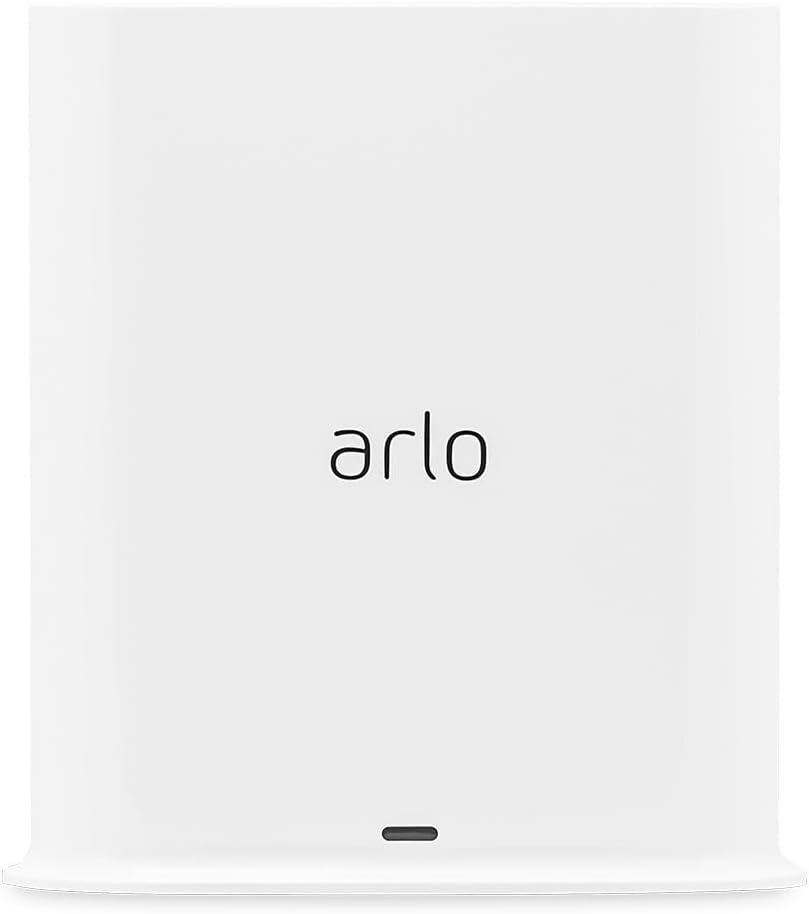
Figure 1.1: Front view of the Arlo SmartHub Plus. This image displays the sleek, white design of the SmartHub with the Arlo logo prominently displayed on its front face.

Figure 1.2: Arlo SmartHub Plus in a home environment. The SmartHub is shown on a desk, illustrating its compact size and how it blends into typical home decor.
2. Setup Guide
Follow these steps to set up your Arlo SmartHub Plus:
- Unpack the Contents: Ensure you have the Arlo SmartHub Plus (VMB5000), power adapter, and Ethernet cable.
- Connect to Power: Plug the power adapter into the SmartHub's power port and then into a wall outlet.
- Connect to Router: Use the provided Ethernet cable to connect the SmartHub's LAN port to an available Ethernet port on your home router.
- Download the Arlo App: If you haven't already, download the Arlo app from your mobile device's app store (iOS or Android).
- Add Device in App: Open the Arlo app, log in or create an account, and follow the on-screen instructions to add your new SmartHub. The app will guide you through the pairing process with your Arlo cameras.
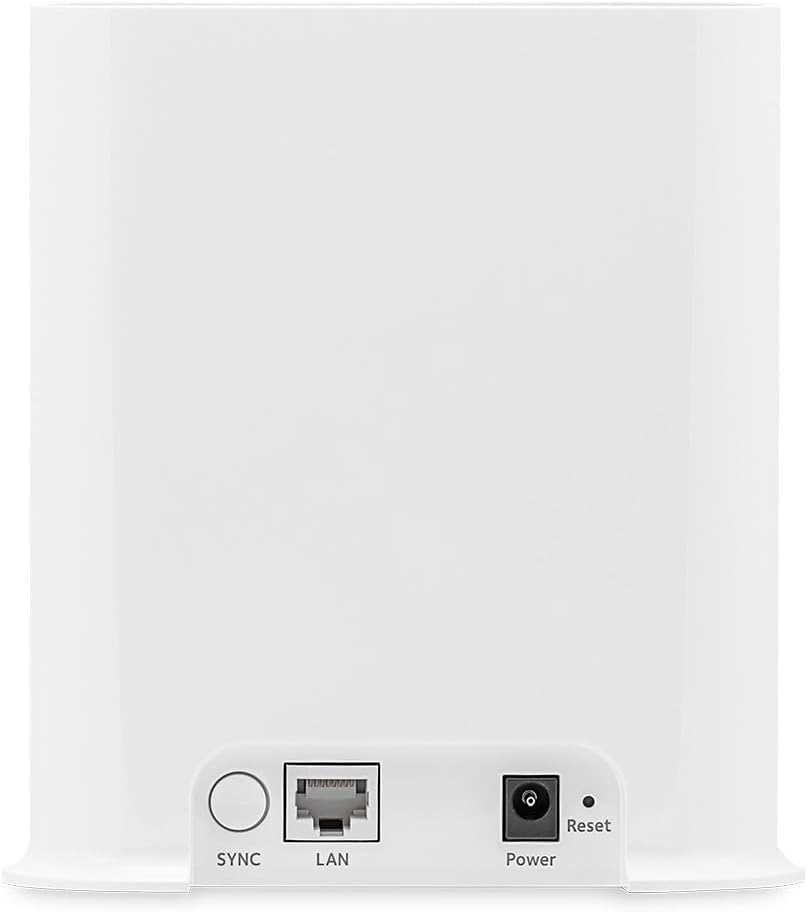
Figure 2.1: Rear ports of the Arlo SmartHub Plus. This image highlights the connectivity options on the back of the device, including the SYNC button, LAN port for Ethernet connection, Power port, and Reset button.
3. Operation
3.1 Camera Connectivity
The SmartHub Plus securely connects your Arlo cameras to the internet, providing extended range and improved battery life for your cameras. It supports dual-band Wi-Fi (2.4 GHz and 5 GHz) for a stable and secure connection.
- Supported Cameras: Arlo Ultra, Ultra 2, Ultra 2 XL, Pro, Pro2, Pro3, Pro 4, Pro4XL, Pro5, Essential 1, Essential 1 XL, Essential Indoor, Essential 1 Doorbell, and Floodlight.
- High-Resolution Video: View and record videos in high resolution, up to 4K, depending on your connected camera model.
3.2 Local Storage
The SmartHub Plus features a microSD card slot for local video storage. This allows you to store recordings directly on the device, providing a backup or primary storage solution without relying solely on cloud services.
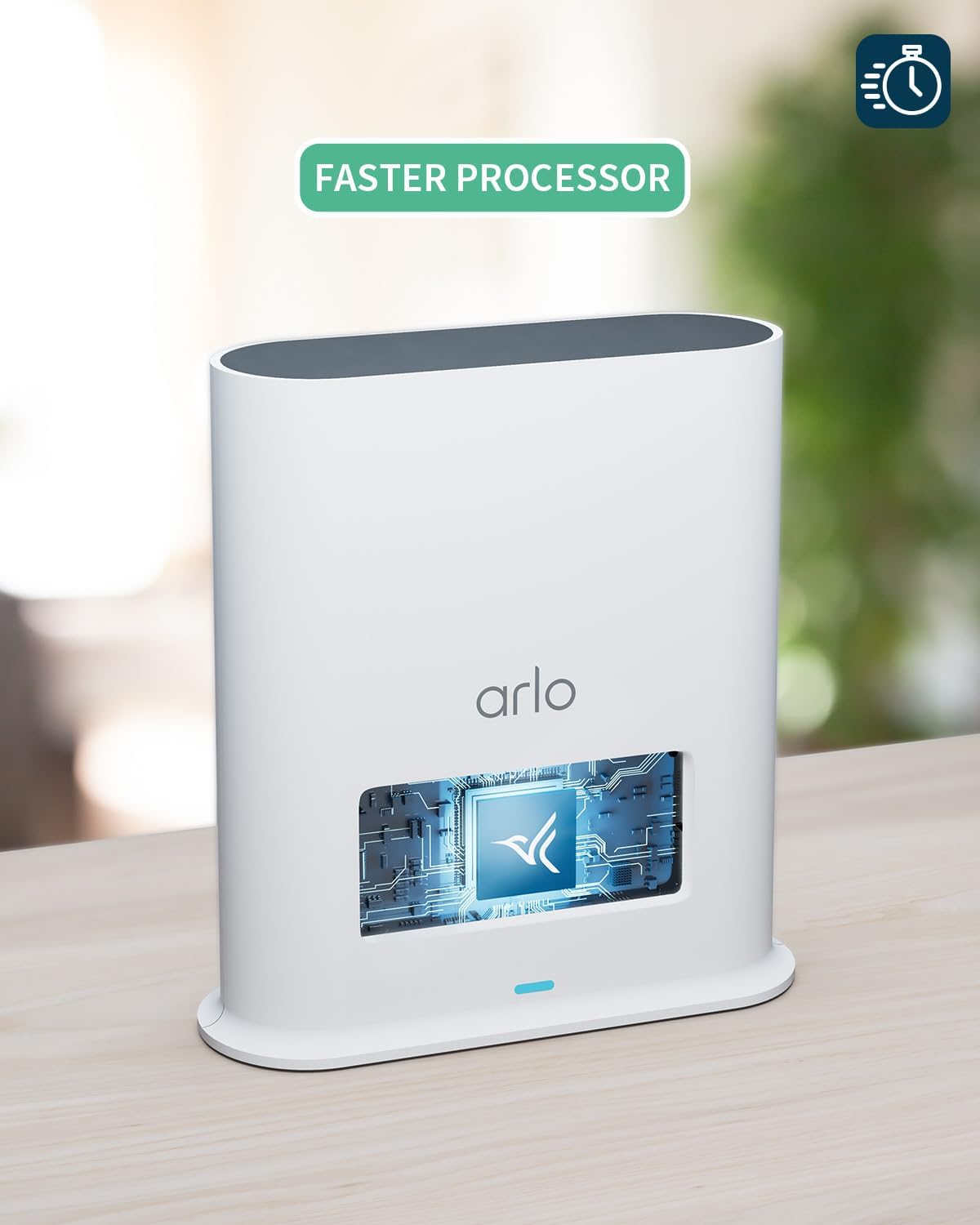
Figure 3.1: MicroSD card insertion. This image demonstrates how to insert a microSD card into the dedicated slot on the SmartHub for local video storage.
3.3 Smart Home Integration
The SmartHub Plus offers additional connectivity with popular smart home platforms when connected to certain Arlo cameras:
- Apple HomeKit: Integrate your Arlo system with Apple HomeKit for seamless control and automation within your Apple ecosystem.
- Amazon Alexa: Use voice commands via Amazon Alexa-enabled devices to control your Arlo cameras.
- Google Assistant: Control your Arlo system using Google Assistant voice commands.
- IFTTT (If This Then That): Create custom automations and connections with other smart devices and services.

Figure 3.2: Smart Home Integration. This image illustrates the compatibility of the Arlo system with various smart home platforms, including Google Assistant, Amazon Alexa, and Apple HomeKit.
4. Maintenance
4.1 General Care
- Keep the SmartHub in a dry, well-ventilated area, away from direct sunlight and extreme temperatures.
- Clean the exterior with a soft, dry cloth. Do not use liquid cleaners or aerosols.
- Ensure all cables are securely connected and free from damage.
4.2 MicroSD Card Management
To ensure optimal performance and prevent data loss, regularly manage your microSD card:
- Insertion: Gently insert a compatible microSD card into the designated slot until it clicks into place.
- Removal: To remove, gently push the microSD card inward until it springs out, then pull it out. Always ensure the SmartHub is powered off or safely unmounted the card via the Arlo app before removal to prevent data corruption.
- Formatting: Format the microSD card through the Arlo app for best compatibility and performance.
- Capacity: The SmartHub supports various microSD card capacities. Refer to Arlo's official support for maximum supported size.
5. Troubleshooting
If you encounter issues with your Arlo SmartHub Plus, try the following troubleshooting steps:
| Problem | Possible Cause | Solution |
|---|---|---|
| SmartHub not powering on | Power adapter not connected or faulty outlet. | Ensure the power adapter is securely plugged into the SmartHub and a working wall outlet. Try a different outlet. |
| Cameras not connecting to SmartHub | SmartHub not connected to internet, cameras out of range, or pairing issue. |
|
| No local recording to microSD card | MicroSD card not inserted correctly, not formatted, or full. |
|
| Poor video quality | Weak Wi-Fi signal or network congestion. |
|
If these steps do not resolve the issue, please refer to the Support section for further assistance.
6. Technical Specifications
| Feature | Detail |
|---|---|
| Model Number | VMB5000-100EUS |
| Dimensions (L x W x H) | 5.3 x 14 x 15.2 cm (2.09 x 5.51 x 5.98 inches) |
| Weight | 316 grams (0.7 lbs) |
| Power | 18 Watts (Power adapter included) |
| Wireless Technology | Wi-Fi (2.4 GHz & 5 GHz dual-band) |
| Connectivity | Wired (Ethernet) |
| Compatible Devices | Arlo Ultra, Ultra 2, Ultra 2 XL, Pro, Pro2, Pro3, Pro 4, Pro4XL, Pro5, Essential 1, Essential 1 XL, Essential Indoor, Essential 1 Doorbell, Floodlight cameras |
| Local Storage | MicroSD card slot (card not included) |
| Video Recording Resolution | Up to 4K (with compatible cameras) |
| Special Features | Integrated Alarm |
| Included Components | Arlo VMB500-100EUS SmartHub, Power adapter, Ethernet cable, Quickstart guide, Window decal |
| Manufacturer | Arlo |
| Country of Origin | Vietnam |
7. Warranty and Support
7.1 Warranty Information
Arlo products typically come with a limited manufacturer's warranty. For specific warranty terms and conditions applicable to your region and product, please refer to the warranty card included with your product or visit the official Arlo support website.
7.2 Customer Support
For technical assistance, product registration, or to access frequently asked questions and detailed guides, please visit the official Arlo support website or contact Arlo customer service.
You can find more information and support resources by visiting the Arlo Brand Store on Amazon.


