1. Introduction
This manual provides essential information for setting up, operating, and maintaining your Lenovo ThinkCentre M710T desktop computer. Please read these instructions carefully before using your device to ensure optimal performance and longevity.
The Lenovo ThinkCentre M710T is designed to maximize productivity with independent display support for up to two monitors, offering an expanded work area and easier navigation between applications. This feature helps reduce errors and improve productivity by extending your desktop across multiple monitors.
2. Package Contents
Verify that all items are present in the package:
- 1 x Lenovo ThinkCentre M710T Desktop Computer
- 1 x Mouse
- 1 x Keyboard
- Power Cable
- Documentation (this user manual)
3. Product Overview
Familiarize yourself with the components of your ThinkCentre M710T desktop.
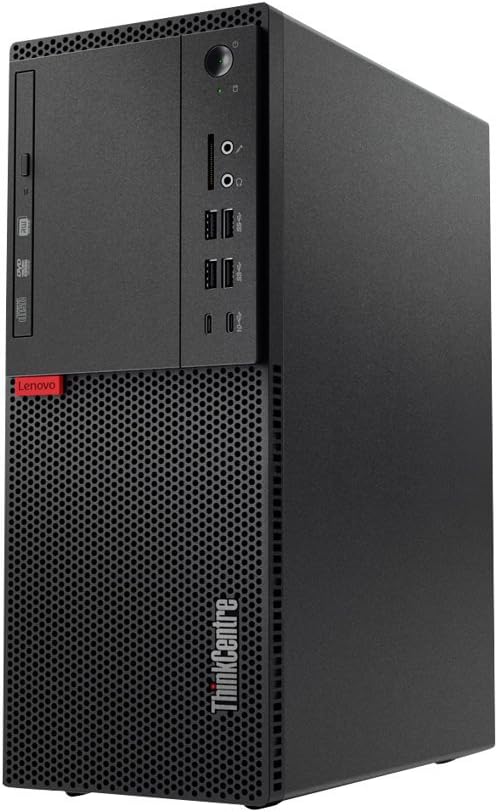
Figure 1: Front view of the Lenovo ThinkCentre M710T desktop computer. This image displays the optical drive bay, various front-facing ports including USB and audio jacks, the power button, and the prominent ventilation grille at the bottom front.
3.1 Front Panel Features
- Optical Drive: For reading and writing CDs/DVDs.
- Power Button: To turn the computer on or off.
- Audio Jacks: Headphone and microphone ports.
- USB Ports: Multiple USB 3.0 ports for connecting peripherals.
- Card Reader: For memory cards.
- Ventilation Grille: Ensures proper airflow for cooling.
3.2 Rear Panel Features (General)
The rear panel typically includes additional ports for display, network, USB, and power. Refer to the labels on your specific unit for exact port identification.
- Video Output Ports: DisplayPort, HDMI, or VGA for connecting monitors.
- USB Ports: Additional USB 2.0 and USB 3.0 ports.
- Ethernet Port: For wired network connection.
- Audio Ports: Line-in, line-out, microphone.
- Power Connector: For the power cable.
4. Setup
- Unpack the Computer: Carefully remove the desktop computer, mouse, keyboard, and any other accessories from their packaging.
- Connect Peripherals:
- Connect the mouse and keyboard to the available USB ports.
- Connect your monitor(s) to the appropriate video output ports on the rear panel.
- If using a wired network, connect an Ethernet cable to the network port.
- Connect Power: Plug the power cable into the power connector on the rear of the computer, then plug the other end into a grounded electrical outlet.
- Power On: Press the power button on the front panel of the computer. The system will boot up.
- Initial Setup: Follow the on-screen instructions to complete the Windows 10 Pro operating system setup, including language, region, and user account creation.
5. Operating Instructions
5.1 Basic Operation
- Turning On/Off: Press the power button to turn on. To turn off, click the Start button in Windows, then select Power > Shut down.
- Restarting: From the Start menu, select Power > Restart.
- Sleep Mode: From the Start menu, select Power > Sleep.
5.2 Connecting to the Internet
- Wired Connection: If an Ethernet cable is connected, your computer should automatically connect to the network.
- Wireless Connection (Bluetooth): This model supports Bluetooth. To connect to a Bluetooth device, go to Settings > Devices > Bluetooth & other devices and follow the on-screen instructions.
5.3 Using Multiple Displays
The ThinkCentre M710T supports independent display output for up to two monitors. Connect your monitors to the available video output ports (e.g., DisplayPort, HDMI, VGA) on the rear of the computer. Windows will automatically detect the displays. You can configure display settings by right-clicking on the desktop and selecting "Display settings" to extend or duplicate your desktop.
6. Maintenance
- Cleaning: Use a soft, dry cloth to clean the exterior of the computer. For stubborn dirt, slightly dampen the cloth with water. Avoid using harsh chemicals or abrasive cleaners.
- Ventilation: Ensure that the ventilation openings are not blocked to prevent overheating. Regularly clean dust from the vents using compressed air.
- Software Updates: Regularly update your Windows operating system and drivers to ensure security and optimal performance.
- Data Backup: Periodically back up important data to an external drive or cloud storage to prevent data loss.
7. Troubleshooting
| Problem | Possible Solution |
|---|---|
| Computer does not power on. |
|
| No display on monitor. |
|
| Peripherals (mouse/keyboard) not responding. |
|
| System is slow or unresponsive. |
|
8. Specifications
| Feature | Detail |
|---|---|
| Model | Lenovo ThinkCentre M710T (10M9000RUS) |
| Processor | Intel Core i5-7400 (3 GHz) |
| RAM | 8 GB DDR4 (2400 MHz), Max Memory: 64 GB |
| Hard Drive | 1 TB HDD (Serial ATA-600, 7200 RPM) |
| Graphics | Integrated Intel HD Graphics 630 (1 GB RAM) |
| Operating System | Windows 10 Pro x64 |
| Optical Drive | DVD-RW |
| USB Ports | 6 x USB 3.0, 2 x USB 2.0 |
| Wireless Type | Bluetooth |
| Dimensions (LxWxH) | 14.4 x 5.7 x 11.5 inches |
| Item Weight | 14.28 pounds |
| Hardware Platform | PC; Mac; Unix; Linux |
9. Warranty and Support
Your Lenovo ThinkCentre M710T comes with a 3-Year Onsite Warranty. For warranty claims or technical support, please contact Lenovo customer service. Keep your purchase receipt and product serial number readily available when contacting support.
For further assistance, visit the official Lenovo support website or refer to the documentation included with your product.


