
1. Introduction
The GOLDEN BLUE GM1365 Data Logger is a low-power consumption device designed for precise measurement and recording of temperature and humidity. It integrates signal sampling, display, data storage, and analysis functionalities, making it suitable for various applications including medicine, food processing, agricultural research, laboratories, electronics, air-conditioning, weather services, and archives management.
This device features a high-sensitivity detector for quick response and high precision readings. It can display current, maximum, minimum, upper limit, and lower limit data. Data is automatically recorded and stored, and can be easily transferred to a PC via a USB interface for further analysis and configuration of sampling periods, storage intervals, and alarm settings.

Figure 1: Overview of the GM1365 LCD Humidity Temperature Data Logger with its USB connector exposed.
2. Package Contents
Please verify that all items listed below are present in your package:
- 1 x GM1365 Temperature and Humidity Data Logger
- 1 x Protective Cover
- 1 x Mounting Bracket
- 1 x Software CD
- 2 x Screws (for bracket mounting)
- 1 x User Manual (English)
- 1 x 1/2AA 3.6V Lithium Battery (may be pre-installed or included separately)
3. Setup
3.1 Battery Installation
The GM1365 Data Logger requires one 1/2AA 3.6V Lithium Battery. Ensure correct polarity when inserting the battery.
- Carefully remove the battery compartment cover, usually located at the rear or side of the device.
- Insert the 1/2AA 3.6V Lithium Battery, observing the polarity markings (+/-).
- Replace the battery compartment cover securely.
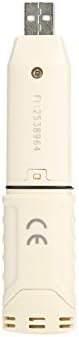
Figure 2: Rear view of the data logger, indicating the battery compartment.
3.2 Software Installation
To configure the data logger and retrieve recorded data, you need to install the provided software on your PC.
- Insert the included Software CD into your computer's CD/DVD drive.
- Follow the on-screen instructions to install the data logger software. If auto-run does not start, navigate to the CD drive and run the setup file (e.g., setup.exe).
- Once installed, connect the GM1365 Data Logger to an available USB port on your PC. The device will be recognized by the software.

Figure 3: The GM1365 Data Logger with its USB connector ready for PC connection.
4. Operating Instructions
4.1 Basic Operation
The GM1365 automatically records temperature and humidity data based on the configured settings.
- Power On: The device powers on automatically once the battery is installed.
- Display: The LCD screen displays current temperature and humidity readings.
- Button Function: A button is present on the device, typically used to cycle through display modes (e.g., current, max, min readings) or to switch between Celsius and Fahrenheit.

Figure 4: Detailed view of the LCD display and control button.
4.2 Data Logging and Configuration
To set logging parameters and retrieve data, use the PC software.
- Connect the data logger to your PC via USB.
- Launch the installed software.
- Within the software, you can:
- Set the sampling period (how often data is recorded).
- Define storage intervals.
- Configure upper and lower alarm limits for temperature and humidity.
- Download recorded data from the device to your PC.
- View historical data, generate reports, and export data for analysis.

Figure 5: The LCD display showing temperature and humidity readings, along with battery indicator.
5. Maintenance
- Cleaning: Use a soft, dry cloth to clean the device. Do not use abrasive cleaners or solvents.
- Storage: When not in use for extended periods, store the data logger in a cool, dry place. Consider removing the battery if storing for very long durations to prevent leakage.
- Protection: Use the provided protective cover to shield the device from moisture and dust, especially the USB port.
6. Troubleshooting
| Problem | Possible Cause | Solution |
|---|---|---|
| Device does not power on. | Battery is dead or incorrectly installed. | Check battery polarity. Replace with a new 1/2AA 3.6V Lithium Battery. |
| Software does not recognize the device. | Software not installed correctly, USB connection issue, or driver problem. | Reinstall the software from the CD. Try a different USB port. Ensure the USB connection is secure. Restart your computer. |
| Inaccurate readings. | Sensor obstruction or environmental interference. | Ensure the sensor vents are clear. Avoid placing the device near heat sources, direct sunlight, or strong air currents. |
| Data not logging. | Logging not started or memory full. | Check software settings to ensure logging is enabled. Download and clear existing data if memory is full. |
7. Specifications
| Feature | Detail |
|---|---|
| Measuring Range (Temperature) | -30°C to +80°C (-22°F to +176°F) |
| Measuring Range (Humidity) | 0% to 100% RH |
| Accuracy Error (Temperature) | ±0.3°C (Typical) |
| Accuracy Error (Humidity) | ±2% RH (Typical) |
| Repeatability | ±0.1 |
| Recording Capacity | (Not specified in detail, typically thousands of readings) |
| Power Source | 1/2AA 3.6V Lithium Battery |
| Connectivity | USB |
| Product Dimensions | 126 x 28 x 22 mm (4.96 x 1.1 x 0.87 inches) |
| Item Weight | 40g (1.41 oz) |
| Manufacturer | China |
| Model Number | GM1365 |
8. Warranty and Support
Warranty information for the GOLDEN BLUE GM1365 Data Logger is typically provided with your purchase documentation or can be found on the manufacturer's official website. Please retain your proof of purchase for warranty claims.
For technical support, software updates, or further assistance, please refer to the contact information provided in the original product packaging or visit the GOLDEN BLUE official website.
Note: Specific warranty terms and support channels may vary by region and retailer.