
ZTE MF65
User Manual
ZTE MF65 Router
1. Introduction
Thank you for choosing the ZTE MF65 Router. This mobile 3G WiFi hotspot allows you to connect multiple devices to the internet on the go. This manual provides essential information for setting up, operating, maintaining, and troubleshooting your device. Please read this manual carefully before using the device to ensure proper and safe operation.
Important Note: This device is designed for use with specific network frequencies and DOES NOT WORK IN THE USA.
2. Safety Information
- Do not expose the device to extreme temperatures, direct sunlight, or high humidity.
- Use only original or authorized accessories, including the battery and charger.
- Avoid dropping, hitting, or bending the device.
- Keep the device away from water and liquids.
- Do not attempt to disassemble or modify the device.
- Dispose of batteries and the device according to local regulations.
3. Package Contents
Please check the package contents. If any item is missing or damaged, contact your retailer.
- ZTE MF65 Router Unit
- Lithium Ion Battery
- USB Cable
- Quick Start Guide (This Manual)
4. Product Overview
The ZTE MF65 is a compact and portable 3G mobile Wi-Fi hotspot, designed to provide wireless internet access for up to 5 devices simultaneously. It features a simple design with essential indicators and controls.
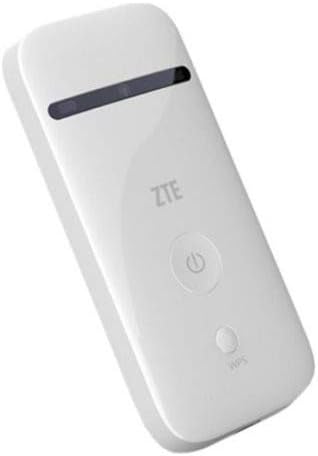
Figure 1: Front view of the ZTE MF65 Router. The device is white and rectangular, featuring a black indicator strip near the top, a prominent circular power button with a power symbol, and a smaller oval button labeled 'WPS' below the power button. The ZTE logo is visible above the power button.
Key Features:
- Mobile 3G Connectivity: Provides internet access via a 3G cellular network.
- Wi-Fi Hotspot: Creates a Wi-Fi network for multiple devices.
- WPS Functionality: Supports Wi-Fi Protected Setup for easy connection.
- LED Display: Indicators for status updates.
- USB Connectivity: Can be connected to a computer via USB.
5. Setup
5.1. Inserting the SIM Card and Battery
- Remove the back cover of the device.
- Carefully insert your 3G SIM card into the SIM card slot with the gold contacts facing down and the notched corner aligned correctly.
- Insert the provided Lithium Ion battery into its compartment, ensuring the contacts align.
- Replace the back cover until it clicks into place.
5.2. Charging the Device
Before first use, fully charge the device. Connect the USB cable to the device's USB port and the other end to a power adapter or a computer's USB port. The LED indicator will show charging status.
5.3. Powering On/Off
- To Power On: Press and hold the Power button (circular button with power symbol) for a few seconds until the LED indicators light up.
- To Power Off: Press and hold the Power button again until the LED indicators turn off.
6. Operating Instructions
6.1. Connecting Devices via Wi-Fi
- Ensure the ZTE MF65 Router is powered on.
- On your Wi-Fi enabled device (e.g., smartphone, laptop, tablet), search for available Wi-Fi networks.
- Select the network name (SSID) of your ZTE MF65 Router. The default SSID and Wi-Fi key (password) are usually found on a label inside the battery compartment or on the device packaging.
- Enter the Wi-Fi key when prompted.
- Once connected, your device will have internet access through the ZTE MF65 Router.
6.2. Using WPS (Wi-Fi Protected Setup)
WPS allows for a quick and secure connection without manually entering the Wi-Fi key.
- Ensure your client device (e.g., laptop) supports WPS.
- Press the WPS button (smaller oval button) on the ZTE MF65 Router for a few seconds.
- Within two minutes, activate the WPS function on your client device. The devices should automatically connect.
6.3. Connecting via USB
You can connect the ZTE MF65 Router to a personal computer via the USB cable to use it as a USB modem or to access its web management interface.
- Connect the device to your computer using the provided USB cable.
- The computer may automatically install necessary drivers. Follow any on-screen prompts.
6.4. LED Indicators
The LED display provides visual cues about the device's status:
- Signal Indicator: Shows network signal strength.
- Wi-Fi Indicator: Indicates Wi-Fi network activity.
- Battery Indicator: Displays battery level and charging status.
7. Maintenance
- Cleaning: Use a soft, dry cloth to clean the device. Do not use liquid cleaners or aerosols.
- Battery Care: To prolong battery life, avoid fully discharging the battery frequently. If storing the device for a long period, charge the battery to about 50% and store it in a cool, dry place.
- Storage: Store the device in a dry environment, away from dust and direct sunlight.
8. Troubleshooting
If you encounter issues with your ZTE MF65 Router, try the following solutions:
- Device not powering on: Ensure the battery is correctly inserted and charged. Try charging the device for at least 30 minutes.
- Cannot connect to Wi-Fi: Check if the Wi-Fi indicator is on. Verify the Wi-Fi password. Restart both the router and your client device.
- No internet access: Check the signal indicator. Ensure your SIM card is active and has a data plan. Try restarting the device.
- Slow internet speed: Check signal strength. Move to an area with better network coverage. Reduce the number of connected devices.
- Device freezes or becomes unresponsive: Press and hold the Power button until the device turns off, then power it on again.
9. Specifications
| Feature | Description |
|---|---|
| Model Number | MF65 |
| Product Dimensions | 4.01 x 0.53 x 1.96 inches |
| Item Weight | 2.39 ounces |
| Batteries | 1 Lithium Ion battery (included) |
| Connectivity Technologies | Wi-Fi, USB |
| Special Features | WPS |
| Display Technology | LED |
| Other Display Features | Wireless |
| Manufacturer | ZTE |
| Date First Available | February 14, 2017 |
| Frequency Band Class | Single-Band |
| Wireless Communication Standard | 802.11b |
| Compatible Devices | Personal Computer |
| Recommended Uses | Home, Business |
| Control Method | Voice |
10. Warranty and Support
For warranty information and technical support, please refer to the warranty card included with your product or visit the official ZTE website. Keep your proof of purchase for warranty claims.
Related documentsMF65


Ask a question about this manual
Ask about setup, troubleshooting, compatibility, parts, safety, or missing instructions. Manuals+ will review the question and use this page’s manual context to help answer it.