
TP-Link ARCHER C50 V6
TP-Link Archer C50 Wireless Dual Band Router User Manual
Model: ARCHER C50 V6
Introduction
The TP-Link Archer C50 Wireless Dual Band Router is designed to provide a high-performance Wi-Fi experience for your home or office network. Featuring 802.11ac Wi-Fi technology, it delivers fast and reliable connections across both 2.4GHz and 5GHz bands, ideal for smooth HD streaming and online gaming. This manual provides comprehensive instructions for setting up, operating, maintaining, and troubleshooting your Archer C50 router.
Product Features
- Dual Band Wi-Fi: Experience smoother HD streaming and online gaming with high-performance AC1200 Wi-Fi, delivering up to 1200Mbps of Wi-Fi speed over dual 5GHz (867Mbps) and 2.4GHz (300Mbps) bands.
- Optimal Coverage: Four external antennas provide stable wireless connections and optimal coverage throughout your space.
- Advanced Technology: Upgrades networks to powerful 802.11ac Wi-Fi technology for enhanced performance.
- Traffic Management: Give every device the bandwidth it needs, setting limits and controlling traffic with IP-based QoS (Quality of Service).
- Parental Controls: Set limits on when and how devices can connect to the internet and keep children safe with parental controls.
Package Contents
Before you begin, please verify that your package contains the following items:
- TP-Link Archer C50 Wireless Dual Band Router
- Power Adapter
- Ethernet Cable
- Quick Installation Guide

Image: Retail box of the TP-Link Archer C50 router, showing the product and its key features.
Physical Overview
Front Panel: LED Indicators

Image: Front view of the TP-Link Archer C50 router, displaying the status LED indicators.
The front panel of the Archer C50 router features several LED indicators that provide information about the device's status and network activity. These typically include Power, System, Wi-Fi (2.4GHz and 5GHz), Internet, and LAN port indicators.
Rear Panel: Ports and Buttons
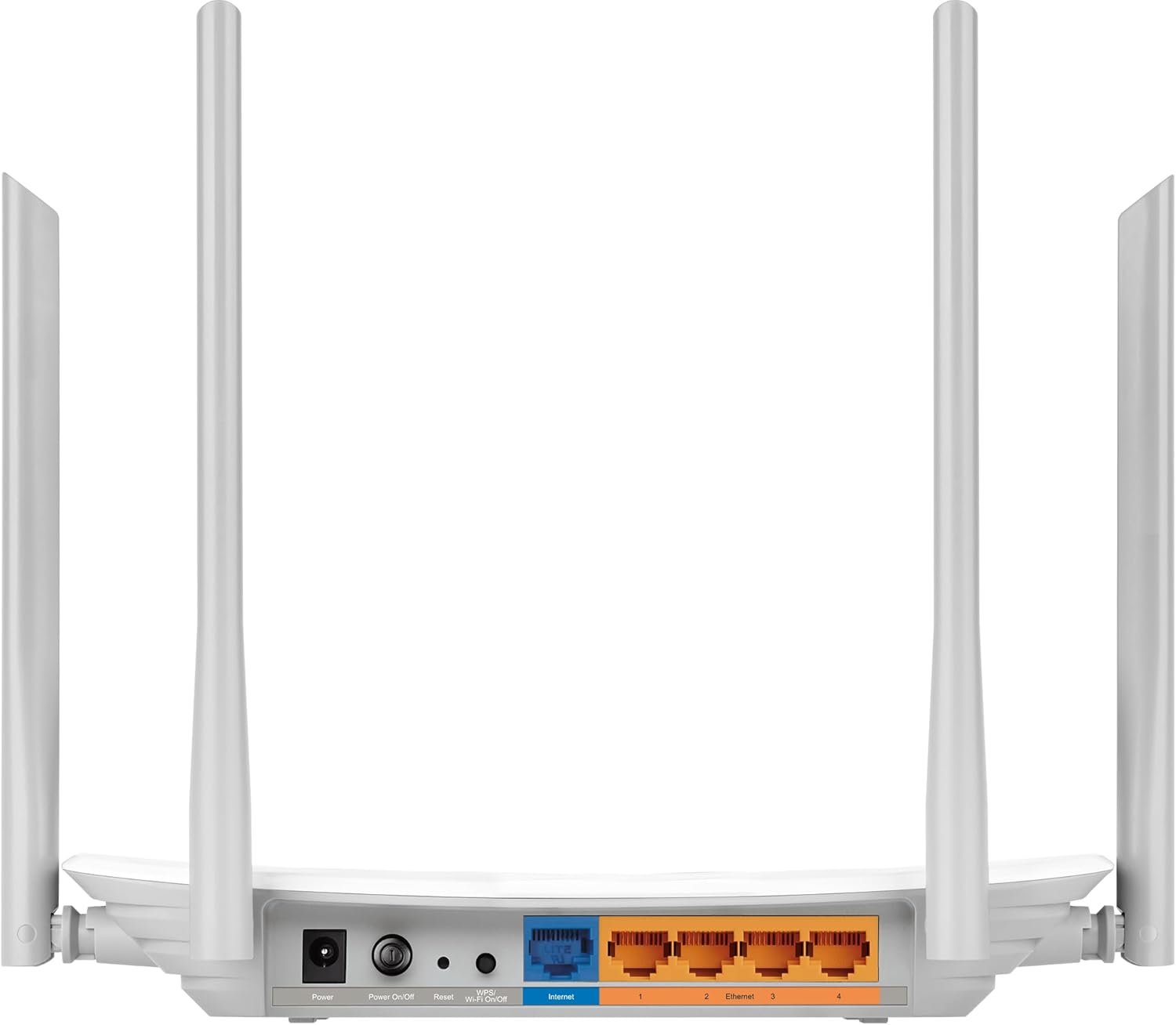
Image: Rear view of the TP-Link Archer C50 router, showing the power input, power button, WPS/Reset button, Internet port, and four Ethernet LAN ports.
- Power Port: Connects to the included power adapter.
- Power On/Off Button: Used to turn the router on or off.
- WPS/Reset Button: Press briefly for WPS (Wi-Fi Protected Setup) to quickly connect devices. Press and hold for approximately 10 seconds to reset the router to factory default settings.
- Internet Port (WAN): Connects to your modem or the Ethernet cable from your internet service provider (ISP).
- Ethernet Ports (LAN): Four ports for connecting wired devices such as computers, gaming consoles, or smart TVs.
Setup Guide
Step 1: Connect the Hardware
- Power Off: Disconnect the power from your modem and router (if you have an existing router).
- Connect Modem to Router: Connect one end of the Ethernet cable (provided) to the Internet (WAN) port on your Archer C50 router and the other end to your modem's Ethernet port.
- Connect Power: Connect the power adapter to the router's power port and plug it into a power outlet.
- Power On: Power on your modem first, wait for it to fully boot up (usually indicated by stable lights), then power on your Archer C50 router.
- Connect Device (Optional): For initial setup, you can connect a computer directly to one of the router's LAN ports using an Ethernet cable, or connect wirelessly using the default Wi-Fi SSID and password printed on the router's label.
Step 2: Configure the Router
- Access Web Management Page: Open a web browser (e.g., Chrome, Firefox, Edge) on a device connected to the router. In the address bar, type http://tplinkwifi.net or http://192.168.0.1 and press Enter.
- Login: You will be prompted to create a new login password for the router. If you have previously set one, use that. The default username and password for older models might be admin for both, but for security, newer models require you to create a unique password upon first access.
- Run Quick Setup: Follow the on-screen instructions of the Quick Setup Wizard. This wizard will guide you through configuring your internet connection type (e.g., Dynamic IP, Static IP, PPPoE) and setting up your wireless network (SSID and password).
- Save Settings: Once the setup is complete, save your settings. Your router should now be connected to the internet, and your Wi-Fi network will be active.
Operating the Router
Wireless Network Configuration
- Changing Wi-Fi Name (SSID) and Password: Access the web management page. Navigate to the Wireless section (2.4GHz and 5GHz). You can change the Network Name (SSID) and Wireless Password. It is recommended to use a strong, unique password for security.
- Guest Network: The Archer C50 supports a Guest Network feature, allowing visitors to access the internet without sharing your main network resources. This can be configured in the Guest Network settings.
Parental Controls
The Parental Controls feature allows you to manage and monitor internet access for specific devices. You can set time limits, block websites, and restrict access to certain content categories. Access this feature through the router's web management interface under the Parental Controls section.
Quality of Service (QoS)
QoS allows you to prioritize network traffic for specific applications or devices. For example, you can give higher priority to gaming or video streaming to ensure a smoother experience. Configure QoS settings via the router's web management page.
Maintenance
- Firmware Updates: Regularly check the TP-Link official website for firmware updates for your Archer C50. Firmware updates can improve performance, add new features, and fix security vulnerabilities. Download the correct firmware for your model and follow the update instructions carefully.
- Regular Reboot: Periodically rebooting your router (unplugging the power for 10-15 seconds and plugging it back in) can help clear its memory and resolve minor performance issues.
- Physical Cleaning: Keep the router in a well-ventilated area and periodically clean dust from its vents to prevent overheating. Use a soft, dry cloth.
Troubleshooting
- No Internet Access:
- Check if the Internet LED on the router is solid green. If not, ensure the Ethernet cable from your modem is securely connected to the router's Internet (WAN) port.
- Reboot your modem and router.
- Verify your internet connection type settings in the router's web management page match those provided by your ISP.
- Slow Wi-Fi Speed:
- Ensure your devices are connected to the appropriate band (5GHz for faster speeds, 2.4GHz for wider coverage).
- Reduce interference by moving the router away from other electronic devices (microwaves, cordless phones).
- Check for firmware updates.
- Consider the number of devices connected and their activities.
- Cannot Access Router Management Page:
- Ensure your device is connected to the router (wired or wirelessly).
- Verify you are typing the correct address: http://tplinkwifi.net or http://192.168.0.1.
- Try a different web browser.
- If you forgot your login password, you may need to perform a factory reset using the WPS/Reset button on the rear panel. Note that a factory reset will erase all your custom settings.
Specifications
| Feature | Detail |
|---|---|
| Brand | TP-Link |
| Model Name | ARCHER C50 |
| Item Model Number | ARCHER C50 V6 |
| Product Dimensions | 9.06 x 5.67 x 1.45 inches |
| Item Weight | 1.1 pounds |
| Connectivity Technology | Wi-Fi |
| Wireless Communication Standard | 802.11ac |
| Frequency Band Class | Dual-Band (2.4 GHz and 5 GHz) |
| Frequency | 2.4 GHz |
| Special Feature | WPS |
| Compatible Devices | Personal Computer |
| Manufacturer | TP-Link |
| Date First Available | August 19, 2017 |
Warranty and Support
The TP-Link Archer C50 Wireless Dual Band Router is manufactured by TP-Link. For detailed warranty information, please refer to the warranty card included with your product or visit the official TP-Link website.
For technical support, troubleshooting assistance, or to download the latest drivers and firmware, please visit the TP-Link support page on their official website. You can typically find FAQs, support forums, and contact information for customer service there.
TP-Link Official Website: www.tp-link.com
Related documentsARCHER C50 V6


Ask a question about this manual
Ask about setup, troubleshooting, compatibility, parts, safety, or missing instructions. Manuals+ will review the question and use this page’s manual context to help answer it.