
Ewent EW7012
Ewent EW7012 USB 3.1 Gen1 Docking Station User Manual
Model: EW7012 | Brand: Ewent
1. Introduction and Overview
The Ewent EW7012 USB 3.1 Gen1 Docking Station provides a convenient and efficient solution for connecting 2.5-inch and 3.5-inch SATA hard disk drives (HDDs) or solid-state drives (SSDs) to your computer via a USB port. This docking station is ideal for quick data transfers, backups, and accessing data from multiple drives without needing to install them internally. It supports SuperSpeed USB 3.1 Gen1 (USB 3.0) for high-speed data transfer and is backward compatible with USB 2.0.

Figure 1: Front view of the Ewent EW7012 USB 3.1 Gen1 Docking Station with its blue LED indicator.
2. What's in the Box
Please check the package contents to ensure all items are present:
- Ewent EW7012 USB 3.1 Gen1 Docking Station
- USB 3.1 Gen1 (USB 3.0) Cable
- AC Power Adapter
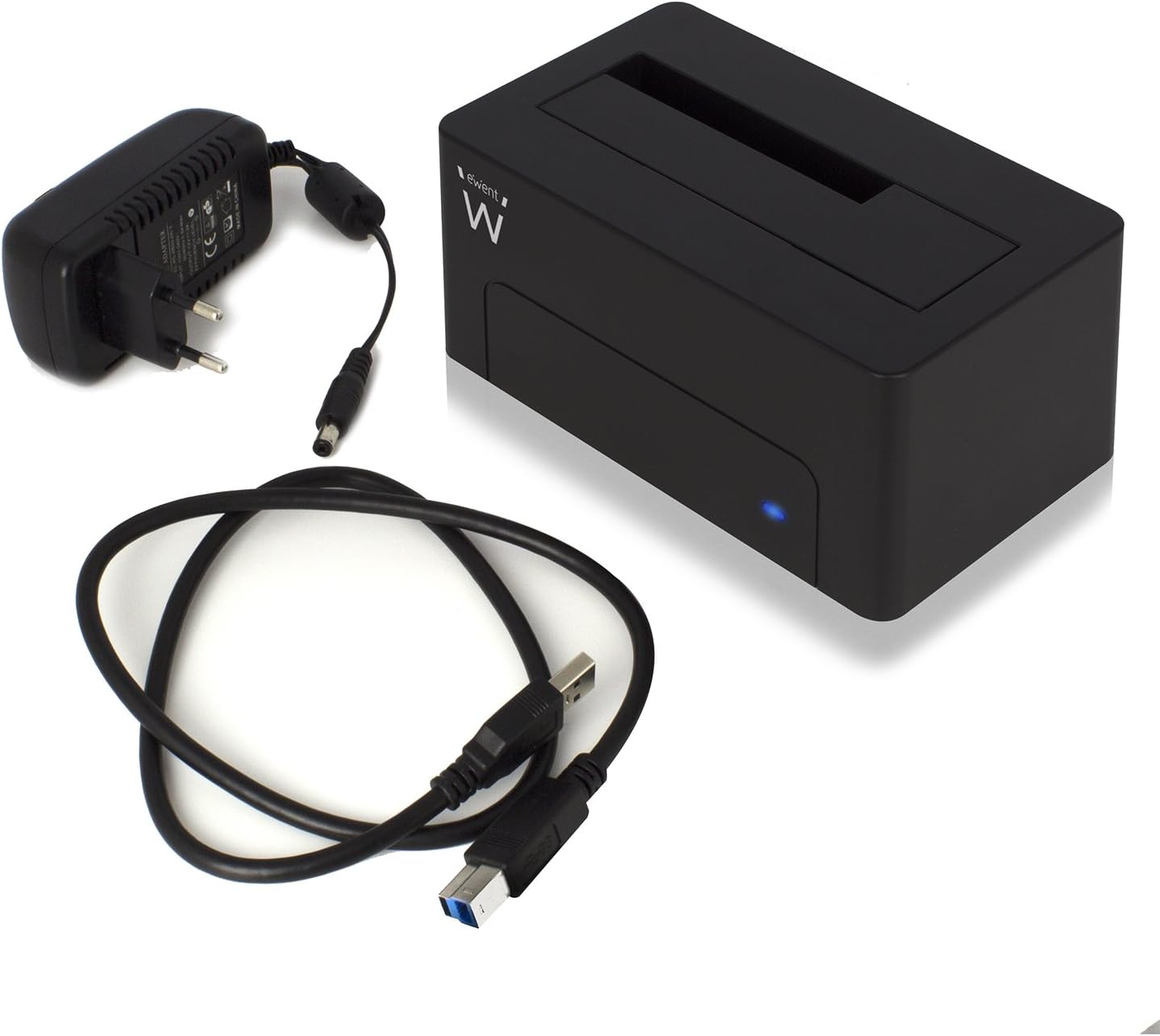
Figure 2: The Ewent EW7012 docking station, USB 3.1 Gen1 cable, and AC power adapter included in the package.
3. Features
- Universal Compatibility: Supports both 2.5-inch and 3.5-inch SATA I/II/III HDDs and SSDs.
- SuperSpeed Data Transfer: Equipped with USB 3.1 Gen1 (USB 3.0) interface, offering data transfer rates up to 5 Gbps.
- Backward Compatibility: Fully compatible with USB 2.0 ports, though at USB 2.0 speeds.
- Plug & Play: No driver installation required for most operating systems.
- LED Indicator: A blue LED light indicates power status and data activity.
- Compact Design: Space-saving and portable, with dimensions of approximately 4.92 x 2.91 x 2.24 inches.
- External Power Supply: Includes an AC adapter for stable power delivery to the drive.
4. Setup Guide
- Connect Power: Plug the AC power adapter into the "POWER" port on the back of the docking station. Connect the other end of the adapter to a wall outlet.
- Connect to Computer: Connect one end of the supplied USB 3.1 Gen1 cable to the "USB 3.1" port on the back of the docking station. Connect the other end of the USB cable to an available USB port on your computer. For optimal performance, use a USB 3.0 or USB 3.1 port.
- Insert Hard Drive: Gently slide your 2.5-inch or 3.5-inch SATA HDD/SSD into the top slot of the docking station, ensuring the SATA connectors align properly. Apply gentle pressure until the drive is fully seated.
- Power On: Flip the "ON/OFF" switch on the back of the docking station to the "ON" position. The blue LED indicator on the front will illuminate, indicating the device is powered on.

Figure 3: Rear view of the docking station showing the USB 3.1 port, power input, and ON/OFF switch.

Figure 4: A 3.5-inch hard drive being inserted into the docking station.
5. Operating Instructions
Once the docking station is set up and powered on, your operating system should automatically detect the connected hard drive. The blue LED on the front will blink during data transfer activity.
- Accessing Data: The connected drive will appear as a removable disk in your computer's file explorer (e.g., "This PC" on Windows, "Finder" on macOS). You can then access, copy, or move files as you would with any other storage device.
- Data Backup: The docking station is ideal for creating backups of your valuable photos, videos, and files. Simply drag and drop files to and from the docked drive.
- Removing a Drive: Before removing a drive, always safely eject it from your operating system to prevent data corruption. On Windows, use the "Safely Remove Hardware and Eject Media" icon in the system tray. On macOS, drag the drive icon to the Trash or use the Eject button in Finder. Once safely ejected, gently pull the drive out of the docking station.

Figure 5: A hard drive fully inserted into the docking station, ready for use. Note the QR code on the drive for additional information: http://qr.wdc.com/wdred
6. Maintenance
To ensure the longevity and optimal performance of your Ewent EW7012 docking station, follow these simple maintenance guidelines:
- Cleaning: Use a soft, dry, lint-free cloth to clean the exterior of the docking station. Do not use liquid cleaners or aerosols.
- Storage: When not in use, store the docking station in a cool, dry place away from direct sunlight and extreme temperatures.
- Handling: Handle the device with care. Avoid dropping it or subjecting it to strong impacts.
- Ventilation: Ensure the docking station is placed in an area with adequate ventilation to prevent overheating, especially during prolonged use.
7. Troubleshooting
| Problem | Possible Cause | Solution |
|---|---|---|
| Drive not detected by computer. |
|
|
| Slow data transfer speeds. |
|
|
| Blue LED not illuminating. |
|
|
8. Specifications
| Model Number | EW7012 |
| Brand | Ewent |
| Compatible Drive Types | 2.5-inch and 3.5-inch SATA I/II/III HDD/SSD |
| Max Storage Capacity | Up to 4 TB (as per listed specifications) |
| Interface | USB 3.1 Gen1 (USB 3.0) |
| Data Transfer Rate | Up to 5 Gbps (USB 3.1 Gen1) |
| Material | Plastic |
| Color | Black |
| Product Dimensions (L x W x H) | 4.92 x 2.91 x 2.24 inches (12.5 x 7.4 x 5.7 cm) |
| Item Weight | 8.7 ounces (248 grams) |
| Power Supply | AC Adapter (included) |
| Operating System Compatibility | Windows, macOS, Linux (Plug & Play) |
9. Warranty and Support
The Ewent EW7012 USB 3.1 Gen1 Docking Station comes with a 5-year warranty, ensuring peace of mind regarding its quality and durability.
For technical support, product information, or warranty claims, please visit the official Ewent website:

Figure 6: Product packaging highlighting the 5-year warranty and website address.
Related documentsEW7012


Ask a question about this manual
Ask about setup, troubleshooting, compatibility, parts, safety, or missing instructions. Manuals+ will review the question and use this page’s manual context to help answer it.