
Introduction
The FeinTech FPS00200 is a USB fingerprint reader designed to enable biometric login via Windows Hello on compatible Windows 10 systems. This device provides a secure and convenient alternative to traditional password entry, enhancing user experience and system security.
Key features include:
- USB connectivity for easy integration.
- Compatibility with Windows Hello for biometric authentication.
- 360° surface sensor for quick and accurate fingerprint recognition.
- Compact design, minimizing protrusion from the USB port.
- Support for multiple fingerprint registrations and intelligent learning for improved detection.

Image: The FeinTech FPS00200 USB Fingerprint Reader, a compact black device with a metallic USB connector.
Setup
The FeinTech FPS00200 is designed for plug-and-play functionality with Windows 10. No additional software installation is typically required, as drivers are either included with Windows or automatically downloaded via Windows Update.
- Connect the Device: Insert the FPS00200 into an available USB 2.0 or USB 3.0 port on your computer.
- Driver Installation: Windows 10 should automatically detect the device and install the necessary drivers. If an internet connection is available, Windows Update may download updated drivers if needed.
- Configure Windows Hello:
- Go to Settings > Accounts > Sign-in options.
- Under "Windows Hello Fingerprint," click Set up.
- Follow the on-screen prompts to scan your fingerprint. You will be asked to scan your finger multiple times from different angles to ensure accurate recognition.
- You can register up to 5 different fingerprints, allowing for multiple fingers or multiple users to access the system.

Image: A graphic representation of a fingerprint, symbolizing biometric authentication.

Image: The compact fingerprint reader plugged into a laptop's USB port, showing its minimal protrusion.

Image: The Windows Hello for Business and Windows 10 logos, indicating compatibility with the operating system's biometric features.
Operating Instructions
Once configured, the FPS00200 allows for quick and secure login to your Windows 10 system and compatible applications.
- Logging In: At the Windows login screen, place a registered finger on the sensor. The device will recognize your fingerprint and log you in within approximately one second.
- 360° Recognition: The sensor is designed to recognize your fingerprint regardless of the angle at which you place your finger.
- Application Support: In addition to Windows login, the fingerprint reader can be used with applications that support Windows Hello, such as Microsoft Edge and various password managers (e.g., Enpass, RoboForm).
- Device Removal: If the fingerprint sensor is removed from the computer, Windows will revert to requiring a password or PIN for login. Re-inserting the device will automatically reactivate fingerprint login without needing to repeat the setup process.
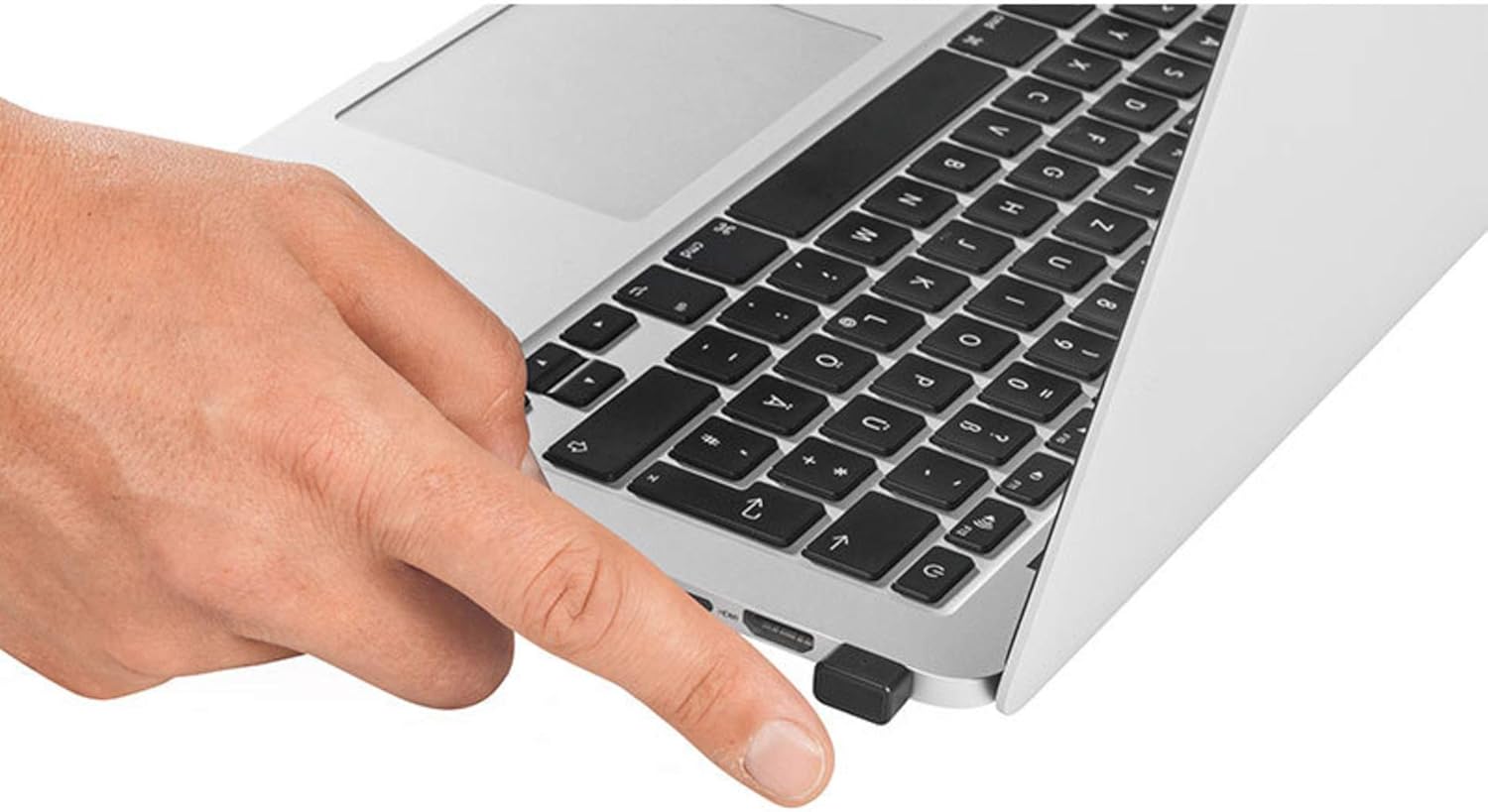
Image: A user's finger positioned on the FeinTech FPS00200 fingerprint reader, which is plugged into a laptop.
Maintenance
To ensure optimal performance and longevity of your FeinTech FPS00200 fingerprint reader, follow these maintenance guidelines:
- Cleaning: Gently wipe the sensor surface with a soft, dry, lint-free cloth. Avoid using abrasive materials, harsh chemicals, or liquids directly on the sensor.
- Storage: When not in use, store the device in a clean, dry environment away from extreme temperatures and direct sunlight.
- Handling: Avoid dropping the device or subjecting it to strong impacts, which could damage internal components.
- USB Port: Ensure the USB port on your computer is clean and free of debris before inserting the fingerprint reader.
Troubleshooting
If you encounter issues with your FeinTech FPS00200, consider the following troubleshooting steps:
- Device Not Recognized:
- Try plugging the device into a different USB port.
- Ensure your computer's USB drivers are up to date.
- Restart your computer.
- Fingerprint Not Recognized:
- Ensure your finger is clean and dry.
- Place your finger firmly and completely on the sensor surface.
- Try scanning a different registered finger.
- Re-register your fingerprint in Windows Hello settings. The intelligent learning algorithm improves recognition over time, but re-registration can help if issues persist.
- Windows Hello Setup Issues:
- Ensure your Windows 10 operating system is fully updated.
- Verify that you have an active internet connection for driver downloads if necessary.
- Check Windows Device Manager for any errors related to the fingerprint reader.
- Compatibility: This device is designed for Windows 10 (32 and 64 bit). It is not guaranteed to work with other operating systems like Linux.
Specifications
| Feature | Detail |
|---|---|
| Brand | FeinTech |
| Model Number | FPS00200 |
| Color | Black |
| Connectivity Technology | USB (2.0 / 3.0 compatible) |
| Operating System | Windows 10 (32 and 64 bit) |
| Special Features | Biometric, 360° recognition |
| Compatible Devices | Personal Computer |
| Manufacturer | FeinTech |
| Country of Origin | China |
Warranty Information
The FeinTech FPS00200 USB Fingerprint Reader comes with a 2-year manufacturer's warranty. Please retain your proof of purchase for warranty claims. For specific terms and conditions, refer to the warranty documentation provided with your product or contact FeinTech customer support.
Support
For further assistance or detailed video instructions on setting up your device, please refer to the QR code provided on the product packaging. This QR code links to official support resources. For additional inquiries, please contact FeinTech customer support directly.


