
1. Introduction
The ABKO Hacker K600 Hades RGB Mechanical Keyboard is designed to provide a responsive and customizable typing and gaming experience. Featuring durable blue mechanical switches and vibrant RGB backlighting, this keyboard offers both performance and aesthetic appeal. This manual provides essential information for setting up, operating, maintaining, and troubleshooting your K600 Hades keyboard to ensure optimal performance and longevity.
2. Package Contents
Please verify that all items are present in your package:
- ABKO Hacker K600 Hades RGB Mechanical Keyboard
- User Manual
3. Product Overview
The ABKO Hacker K600 Hades keyboard features a full-size layout with dedicated function keys and a numeric keypad. It utilizes blue mechanical switches known for their tactile feedback and audible click. The keyboard is equipped with customizable RGB backlighting, offering various lighting effects and colors.
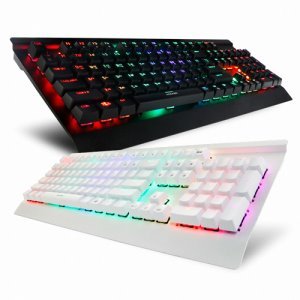
Image 1: Angled view of the ABKO Hacker K600 Hades RGB Mechanical Keyboard, showcasing its full layout and RGB lighting.

Image 2: Front view of the ABKO Hacker K600 Hades RGB Mechanical Keyboard, highlighting the vibrant RGB backlighting across all keys.
4. Setup
Follow these steps to set up your ABKO Hacker K600 Hades keyboard:
- Unpack the keyboard and ensure all package contents are present.
- Locate an available USB-A port on your computer.
- Plug the USB-A connector of the keyboard cable into the USB-A port on your computer.
- Your operating system should automatically detect and install the necessary drivers. The keyboard is plug-and-play, requiring no additional software for basic functionality.
- Once installed, the keyboard's default RGB lighting will illuminate, indicating it is ready for use.
5. Operating Instructions
5.1 Basic Keyboard Functions
The ABKO Hacker K600 Hades functions as a standard QWERTY keyboard for typing and general computer use.
5.2 RGB Lighting Control
The keyboard features various RGB lighting modes and customization options. Use the following key combinations to adjust the lighting:
- Fn + Ins/Home/PgUp/Del/End/PgDn: Cycle through different RGB lighting effects and modes.
- Fn + Arrow Up/Down: Adjust the brightness level of the backlighting.
- Fn + Arrow Left/Right: Adjust the speed of dynamic lighting effects.
- Fn + PrtSc: Toggle between various static color presets.
5.3 Multimedia and Function Keys
Combine the Fn key with the F1-F12 keys to access multimedia controls and other functions:
- Fn + F1-F12: Specific functions may vary, but commonly include media playback controls (play/pause, stop, previous/next track), volume control (mute, volume up/down), and launching applications. Refer to the keycap legends for exact functions.
6. Maintenance
Proper maintenance ensures the longevity and performance of your keyboard:
- Cleaning: Use a soft, dry cloth to wipe the surface of the keyboard. For dust and debris between keycaps, use compressed air. For stubborn dirt, a slightly damp cloth with mild soap solution can be used, ensuring no liquid enters the keyboard.
- Keycap Removal: If necessary, keycaps can be carefully removed using a keycap puller (not included) for deeper cleaning. Exercise caution to avoid damaging the switches.
- Storage: When not in use for extended periods, store the keyboard in a clean, dry environment away from direct sunlight and extreme temperatures.
7. Troubleshooting
If you encounter issues with your ABKO Hacker K600 Hades keyboard, refer to the following common solutions:
- Keyboard Not Responding:
- Ensure the USB cable is securely connected to both the keyboard and the computer.
- Try plugging the keyboard into a different USB port on your computer.
- Restart your computer.
- Test the keyboard on another computer to determine if the issue is with the keyboard or the computer's port/drivers.
- Keys Not Registering:
- Check for any debris or foreign objects lodged under the keycap.
- If a specific key is not working, it might indicate a faulty switch.
- RGB Lighting Issues:
- Ensure the keyboard is properly connected.
- Cycle through lighting modes and brightness levels using the Fn key combinations (refer to Section 5.2).
- If the lighting is completely off, check if it has been accidentally turned off.
8. Specifications
| Feature | Description |
|---|---|
| Brand | ABKO |
| Model | K600 Hades |
| Connectivity Technology | USB-A (Wired) |
| Keyboard Description | Gaming, Mechanical |
| Switch Type | Blue Switch |
| Keyboard Backlighting | RGB |
| Color | Black |
| Material | Acrylonitrile Butadiene Styrene |
| Special Feature | Ergonomic |
| Compatible Devices | Gaming Console, Laptop, PC, Smartphone, Tablet |
| Date First Available | June 11, 2017 |
9. Warranty and Support
This product is covered by a standard manufacturer's warranty. For detailed information regarding warranty terms, conditions, and duration, please refer to the warranty card included with your purchase or visit the official ABKO website. For technical support, troubleshooting assistance, or any product-related inquiries, please contact ABKO customer service through their official channels.