
1. Introduction
This manual provides essential information for the safe operation and maintenance of your Force1 X5UW RC Quadcopter Drone. The X5UW is a beginner-friendly drone equipped with a 720p HD camera for live video streaming (FPV) and photo/video capture. It features Altitude Hold, Headless Mode, 360-degree flips, and can be controlled via a 2.4 GHz transmitter or a mobile app with custom route mode. Please read this manual thoroughly before operating the drone to ensure proper usage and to prevent damage or injury.
2. Package Contents
Verify that all items listed below are included in your package. If any items are missing or damaged, please contact Force1 customer support.
- Force1 X5UW RC Quadcopter Drone
- 2.4 GHz Remote Controller
- 720p HD Camera (pre-installed or separate)
- Rechargeable Drone Batteries (x3)
- USB Charging Cable
- Spare Propellers (x4)
- Screwdriver
- Propeller Guards (x4)

Image: All components included in the Force1 X5UW package, showing the drone, remote controller, three batteries, USB charging cable, screwdriver, and spare propellers.
3. Setup Guide
3.1. Battery Installation
Drone Battery:
- Ensure the drone is powered off.
- Locate the battery compartment on the underside of the drone.
- Carefully insert a fully charged drone battery into the compartment, ensuring the connector is properly aligned.
- Close the battery compartment cover securely.
- Open the battery cover on the back of the remote controller.
- Insert the required batteries (usually AA, check controller markings) according to the polarity indicators.
- Close the battery cover securely.
3.2. Propeller Installation (if not pre-installed)
Each propeller is marked with an 'A' or 'B'. Match the propeller type to the corresponding motor shaft on the drone.
- Gently push the propeller onto the motor shaft until it is seated firmly.
- Ensure propellers spin freely without obstruction.
3.3. Propeller Guard Installation
Attach the propeller guards to the drone's arms by snapping them into place. This provides protection during flight.
3.4. Camera Connection
If your camera is not pre-installed, connect the camera module to the designated port on the underside of the drone. Ensure a secure connection for stable video transmission.

Image: The Force1 X5UW drone highlighting its key features including Smartphone Wi-Fi FPV, 720p HD Camera, Smartphone App Control, and Altitude Hold.
4. Operating Instructions
4.1. Pairing the Drone and Remote Controller
- Place the drone on a flat, level surface.
- Turn on the drone's power switch. The LED lights will flash.
- Turn on the remote controller.
- Push the left joystick (throttle) all the way up, then all the way down. The drone's LED lights will become solid, indicating successful pairing.
4.2. Take-off and Landing
- Manual Take-off: Push both joysticks to the bottom-outer corners to start the propellers. Slowly push the left joystick (throttle) up to ascend.
- One-Key Lift/Land: Press the One-Key Take-off/Landing button on the remote. The drone will automatically take off and hover at a set altitude, or land gently.
Video: Demonstration of the Force1 X5UW drone's Altitude Hold and One-Key Lift/Land features, along with an overview of its 2.4 GHz transmitter and 720p HD camera.
4.3. Basic Flight Controls
| Control | Action |
|---|---|
| Left Joystick Up/Down | Ascend/Descend (Throttle) |
| Left Joystick Left/Right | Rotate Left/Right (Yaw) |
| Right Joystick Up/Down | Move Forward/Backward (Pitch) |
| Right Joystick Left/Right | Move Left/Right (Roll) |
4.4. Special Features
- Altitude Hold: The drone will maintain its current altitude when the left joystick is released.
- Headless Mode: Press the Headless Mode button. In this mode, the drone's orientation is relative to the pilot, regardless of its actual front. Press again to exit.
- 360° Flips: Fly the drone to a height of at least 3 meters. Press the 360° Flip button, then push the right joystick in any direction to perform a flip.
- FPV (First Person View) & Custom Route Mode:
- Download the Force1 drone app on your smartphone.
- Connect your smartphone to the drone's Wi-Fi network (usually named "Force1-X5UW-XXXX").
- Open the app to view the live camera feed and access advanced controls like Custom Route Mode, where you can draw a flight path on your screen.
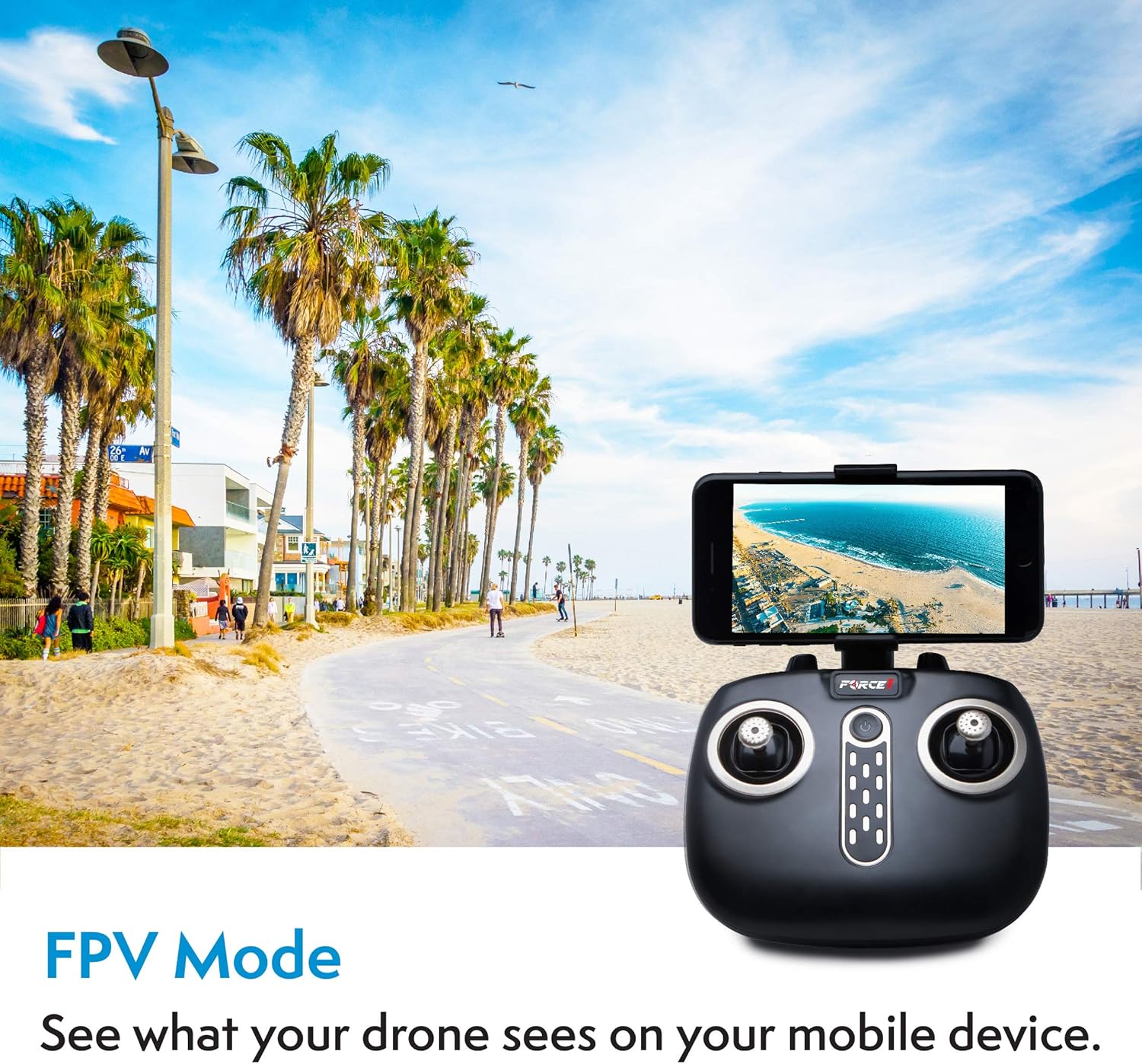
Image: The remote controller with a smartphone attached, showing the First Person View (FPV) from the drone's camera.

Image: The Force1 X5UW drone alongside a smartphone displaying the drone's control application, which includes a live camera feed and flight path drawing capabilities.
Video: A demonstration of the Force1 X5UW drone's live camera feed, Altitude Hold, One-Key Control, Headless Mode, 360 Flips, and LED lights, suitable for beginners.
5. Maintenance
- Cleaning: Use a soft, dry cloth to clean the drone and remote controller. Avoid water or harsh chemicals.
- Propeller Replacement: If propellers are damaged, replace them with spare parts. Ensure correct 'A' and 'B' propeller types are installed on the corresponding motor shafts.
- Battery Care:
- Always use the provided USB charging cable.
- Do not overcharge or over-discharge batteries.
- Store batteries in a cool, dry place away from direct sunlight.
- Remove batteries from the drone and controller when not in use for extended periods.
6. Troubleshooting
| Problem | Possible Cause | Solution |
|---|---|---|
| Drone does not respond to controller. | Not paired; low battery in drone or controller; out of range. | Re-pair drone and controller; charge/replace batteries; ensure drone is within operating range. |
| Drone flies erratically or drifts. | Not calibrated; damaged propeller; strong wind. | Calibrate the drone on a flat surface; replace damaged propellers; fly in calm conditions. |
| Camera live feed is unstable or not showing. | Loose camera connection; Wi-Fi interference; app issue. | Check camera connection; ensure strong Wi-Fi signal; restart app and drone. |
| Short flight time. | Battery not fully charged; old battery. | Ensure batteries are fully charged before flight; consider replacing old batteries. |
7. Specifications
| Feature | Detail |
|---|---|
| Brand | Force1 |
| Model Name | X5UW |
| Video Capture Resolution | 720p HD |
| Connectivity Technology | USB, Wi-Fi (2.4 GHz) |
| Special Features | VR stunt capability, HD camera with live video, Wi-Fi FPV, custom route mode via mobile app, Altitude Hold, Headless Mode, 360 Flips |
| Skill Level | Beginner |
| Item Weight | 1.6 Pounds |
| Battery Capacity | 500 Milliamp Hours (per battery) |
| Control Type | Remote Control, App Control, Touch |
| Material | Plastic |
| Age Range | 10+ |
8. Safety Guidelines
Adhere to the following safety guidelines to ensure a safe and enjoyable flight experience:
- Fly in open, unobstructed areas, away from people, animals, buildings, and power lines.
- Do not fly in strong winds, rain, or other adverse weather conditions.
- Maintain a safe distance from the drone during operation.
- Always keep the drone within your line of sight.
- Ensure all propellers are securely attached and undamaged before each flight.
- Do not touch the propellers when they are spinning.
- Supervise children during drone operation. Recommended for ages 10 and up.
- Comply with all local regulations and laws regarding drone operation.
9. Warranty and Support
For warranty information, technical support, or replacement parts, please contact Force1 customer service. Refer to the product packaging or the official Force1 website for the most current contact details.


