
Gembird MUSG-04
Gembird MUSG-04 USB Optical Gaming Mouse User Manual
1. Introduction
This manual provides detailed instructions for the Gembird MUSG-04 USB Optical Gaming Mouse. It covers product features, setup procedures, operational guidelines, maintenance tips, and troubleshooting information to ensure optimal use of your device.

Image 1.1: The Gembird MUSG-04 Gaming Mouse presented in its retail packaging, highlighting the product's design and branding.
2. Product Features
The Gembird MUSG-04 is designed for gaming, offering a range of features for enhanced control and customization:
- Programmable 8-Button Design: Provides extensive customization options for various in-game actions.
- Adjustable DPI: Quick DPI button allows on-the-fly sensitivity adjustments from 1200 to 3200 DPI.
- Macro Programming: Dedicated software enables creation and assignment of complex macro commands to buttons.
- Illuminated Elements: Features an illuminated scroll wheel, logo, and side accents for visual feedback and aesthetic appeal.
- Ergonomic Right-Handed Design: Shaped for comfortable use during extended gaming sessions.
- USB Connectivity: Standard USB interface for broad compatibility.
- Durable Cable: 1.5-meter braided cable for reliable connection and longevity.
- Wide Operating System Support: Compatible with Windows 10 and other recent Windows operating systems.

Image 2.1: A side view of the Gembird MUSG-04 mouse, showcasing its ergonomic contours and button placement designed for right-handed users.
3. Package Contents
Verify that your package contains the following items:
- Gembird MUSG-04 USB Optical Gaming Mouse
- User Manual (this document)
- Macro Programming Software (typically available via download or included on a mini-CD)

Image 3.1: The side of the Gembird MUSG-04 retail box, displaying key features and specifications of the gaming mouse.
4. Setup Instructions
4.1. Hardware Connection
- Locate an available USB port on your computer.
- Plug the USB connector of the Gembird MUSG-04 mouse into the USB port.
- Your operating system will typically detect the mouse automatically and install the necessary drivers. This process may take a few moments.
4.2. Software Installation (Optional for Macro Programming)
To utilize the programmable buttons and macro features, install the dedicated software:
- If a mini-CD is included, insert it into your computer's optical drive and follow the on-screen instructions.
- Alternatively, download the latest software from the official Gembird support website.
- Run the installer and follow the prompts to complete the software installation.
- Restart your computer if prompted.
5. Operating the Mouse
5.1. Button Functions
The Gembird MUSG-04 features 8 buttons with default functions:
- Left Button: Primary click function.
- Right Button: Secondary click function (context menu).
- Scroll Wheel: Scrolls content up/down. Pressing it acts as a middle click.
- DPI Button: Cycles through preset DPI sensitivity levels (e.g., 1200, 1600, 2400, 3200 DPI).
- Forward/Backward Buttons: Navigate web pages or folders.
- Fire Button: Often used for rapid-fire actions in games.
- Macro Buttons: Customizable via software for specific commands or macros.
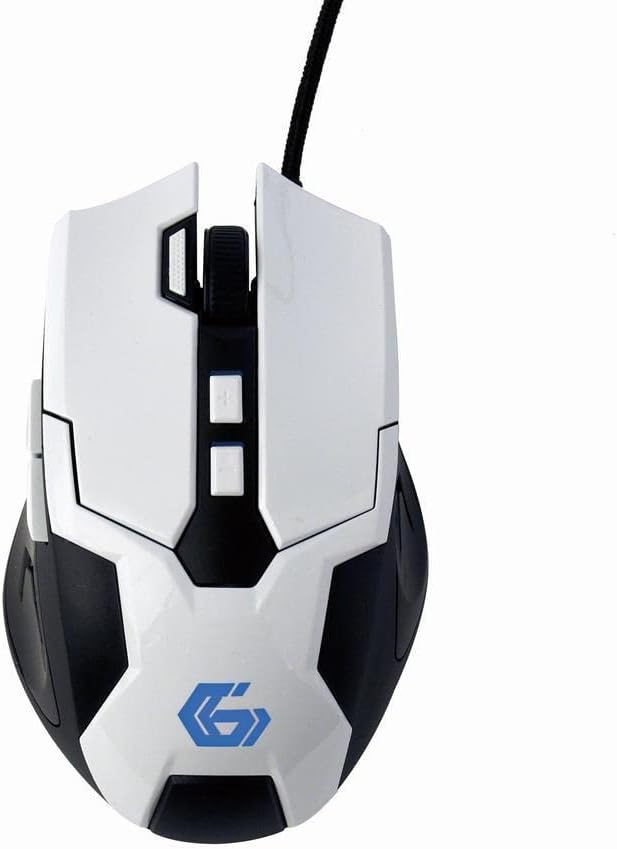
Image 5.1: A top-down view of the Gembird MUSG-04 mouse, illustrating the placement of its various buttons, including the left, right, scroll wheel, DPI, and side buttons. The Gembird logo is illuminated in blue.
5.2. Adjusting DPI
Press the DPI button (usually located behind the scroll wheel) to cycle through the available sensitivity settings. Each press will switch to the next DPI level, indicated by a change in the mouse's illumination color or pattern (if supported).
5.3. Macro Programming
The included macro programming software allows you to customize button functions and create complex sequences of commands. Refer to the software's built-in help or the Gembird support website for detailed instructions on macro creation and assignment.
5.4. Illumination
The mouse features dynamic illumination on its scroll wheel, logo, and side accents. These lights may change color based on the selected DPI setting or can be customized via the macro programming software.

Image 5.2: The Gembird MUSG-04 mouse with its logo and side accents illuminated in green, demonstrating the customizable lighting feature.
6. Maintenance
To ensure the longevity and optimal performance of your Gembird MUSG-04 mouse, follow these maintenance guidelines:
- Cleaning: Use a soft, dry, lint-free cloth to wipe the surface of the mouse. For stubborn dirt, slightly dampen the cloth with water or a mild cleaning solution. Avoid harsh chemicals or abrasive materials.
- Optical Sensor: Periodically clean the optical sensor area on the underside of the mouse with a cotton swab to prevent tracking issues.
- Cable Care: Avoid sharply bending or twisting the USB cable. Store the mouse in a way that prevents stress on the cable connection.
- Storage: When not in use for extended periods, store the mouse in a clean, dry environment away from direct sunlight and extreme temperatures.
7. Troubleshooting
If you encounter issues with your Gembird MUSG-04 mouse, refer to the following common problems and solutions:
- Mouse Not Responding:
- Ensure the USB cable is securely plugged into a working USB port.
- Try plugging the mouse into a different USB port on your computer.
- Test the mouse on another computer to determine if the issue is with the mouse or the computer.
- Restart your computer.
- Erratic Cursor Movement:
- Clean the optical sensor on the underside of the mouse.
- Ensure you are using the mouse on a suitable surface (e.g., a mouse pad). Avoid highly reflective or transparent surfaces.
- Check for any software conflicts or outdated drivers.
- Buttons Not Working/Macros Not Activating:
- Verify that the macro programming software is correctly installed and running.
- Check the button assignments within the software.
- Ensure the software profile is active.
- Illumination Not Working:
- Check software settings for illumination control.
- Ensure the mouse is receiving sufficient power from the USB port.
8. Specifications
| Feature | Specification |
|---|---|
| Brand | Gembird |
| Model | MUSG-04 |
| Connectivity Technology | USB |
| Movement Detection Technology | Optical |
| DPI Sensitivity | Adjustable (1200-3200 DPI) |
| Number of Buttons | 8 (Programmable) |
| Cable Length | 1.5 meters |
| Operating System Support | Windows 10 and later |
| Product Dimensions (LxWxH) | 4.96 x 3.19 x 1.61 inches (12.6 x 8.1 x 4.1 cm) |
| Item Weight | 8.3 ounces (235 grams) |
9. Warranty and Support
For warranty information, please refer to the documentation provided with your purchase or visit the official Gembird website. Technical support and driver downloads can also be found on the Gembird support portal.
For further assistance, please contact Gembird customer service through their official channels.
Related documentsMUSG-04


Ask a question about this manual
Ask about setup, troubleshooting, compatibility, parts, safety, or missing instructions. Manuals+ will review the question and use this page’s manual context to help answer it.