
1. Product Overview
The Sony DPTA-RS1 is a replacement stylus designed for use with compatible Sony Digital Paper devices and other touchscreen displays. This stylus provides a precise writing and drawing experience. It comes with various tips to suit different user preferences.
The stylus is powered by a rechargeable Lithium-Ion battery.

Image 1.1: Sony DPTA-RS1 Replacement Stylus. This image displays the full length of the stylus, highlighting its sleek design and the Sony branding.
2. Package Contents
Verify that all items listed below are included in your package:
- Stylus (1) (Felt tip is attached to stylus.)
- Replacement felt tip (gray) (1)
- Replacement POM tips (black) (2)
- Tip puller (1)
- User Guide (1)
- Warranty Card (1)
3. Initial Setup
3.1. Charging the Stylus
Before initial use, fully charge the stylus. The stylus contains a built-in Lithium-Ion battery.
- Locate the charging port on the stylus, typically covered by a protective cap.
- Connect a compatible USB charging cable (not included) to the stylus charging port.
- Connect the other end of the USB cable to a powered USB port (e.g., computer, USB wall adapter).
- Allow the stylus to charge until the charging indicator (if present) signals a full charge, or for the recommended duration in the full user guide.
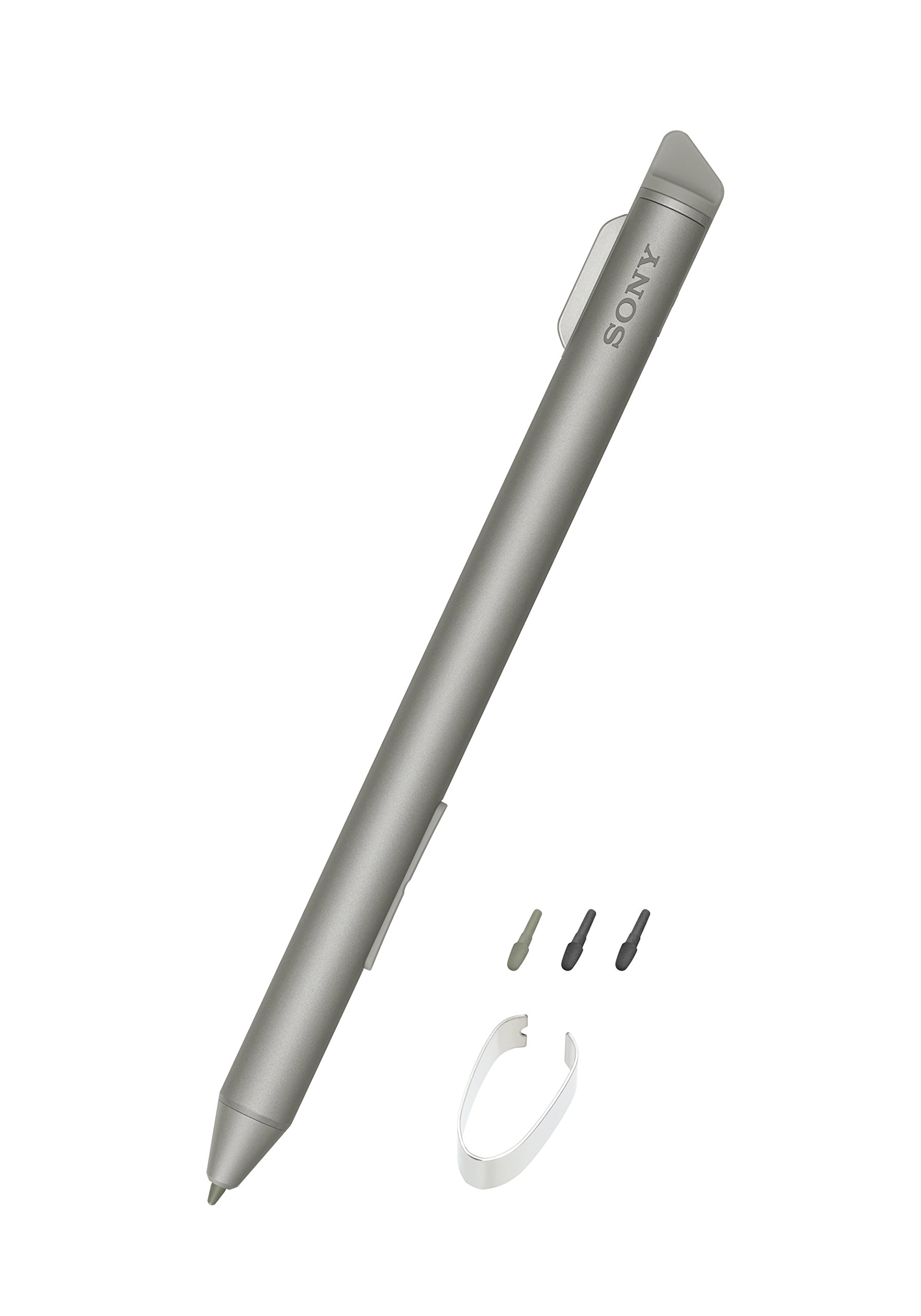
Image 3.1: Sony DPTA-RS1 Stylus connected to a charging cable. This image illustrates the micro-USB charging port located at the top of the stylus, with a USB cable plugged in for charging.
3.2. Attaching/Replacing Tips
The stylus comes with a felt tip pre-attached. Replacement felt and POM (Polyoxymethylene) tips are included for different writing sensations.
- To remove a tip, gently pull it straight out from the stylus. If the tip is stuck or broken, use the provided tip puller.
- To attach a new tip, align the base of the desired tip with the stylus opening and push it firmly until it is securely seated.
4. Operation
4.1. Using the Stylus
The DPTA-RS1 stylus is designed for intuitive use with compatible devices.
- Ensure your compatible device (e.g., Sony Digital Paper, other touchscreen displays) is powered on and ready for stylus input.
- Hold the stylus as you would a regular pen.
- Touch the stylus tip to the screen to interact with the device, write, draw, or select items.
- Refer to your device's user manual for specific stylus compatibility and functionality.
4.2. Tip Replacement
Tips may wear down over time or become damaged. Replace them as needed for optimal performance.
- Grasp the worn tip firmly and pull it straight out from the stylus body. Avoid twisting.
- If the tip is difficult to remove or has broken off inside, use the provided tip puller. Insert the puller around the tip and gently extract it.
- Select a new felt or POM tip.
- Insert the new tip into the stylus opening, pushing it in until it is snug and secure.
5. Care and Maintenance
5.1. Cleaning
To clean the stylus, wipe it gently with a soft, dry cloth. Do not use abrasive cleaners, solvents, or harsh chemicals, as these can damage the stylus finish or internal components.
5.2. Storage
Store the stylus in a safe place when not in use to prevent damage. Avoid exposing it to extreme temperatures, direct sunlight, or high humidity. Keep it away from liquids and magnetic fields.
6. Troubleshooting
6.1. Stylus Not Responding
- Check Battery Level: Ensure the stylus is sufficiently charged. Connect it to a power source and allow it to charge.
- Device Compatibility: Verify that your device is compatible with the Sony DPTA-RS1 stylus.
- Restart Device: Try restarting the compatible device to refresh its connection.
- Check Tip: Ensure the stylus tip is properly seated and not damaged. Replace if necessary.
6.2. Broken or Stuck Tip
If a tip breaks off inside the stylus, it can prevent new tips from being inserted.
- Use Tip Puller: Carefully use the provided tip puller to extract the broken piece. Insert the puller around the stuck fragment and gently pull it straight out.
- Avoid Force: Do not use excessive force or sharp objects, as this may damage the stylus mechanism.
- If unable to remove, contact Sony customer support for assistance.
6.3. Battery Not Charging
- Check Cable and Port: Ensure the USB charging cable is fully inserted into both the stylus and the power source. Try a different USB cable or power adapter.
- Power Source: Confirm the USB power source is active and providing power.
- Charging Indicator: Observe if any charging indicator light on the stylus activates. If not, the battery or charging circuit may be faulty.
7. Product Specifications
| Feature | Specification |
|---|---|
| Model Number | DPTA-RS1 |
| Brand | Sony |
| Color | Dark grey |
| Material | Plastic |
| Item Weight | 15.97 g |
| Item Dimensions (L x W x H) | 6.89 x 2.36 x 1.06 inches |
| Compatible Devices | Tablets, Touchscreen Displays (e.g., Sony Tablet S) |
| Battery Type | 1 Lithium Ion battery (included) |
| UPC | 027242900837 |
| Manufacturer | Sony |
8. Warranty and Support
8.1. Warranty Information
This Sony DPTA-RS1 Replacement Stylus comes with a FULL 30 DAY WARRANTY. Please refer to the included Warranty Card for detailed terms and conditions.
8.2. Customer Support
For further assistance, technical support, or warranty claims, please contact Sony customer support. Contact information can typically be found on the official Sony website or on the Warranty Card provided with your product.
You may also visit the official Sony store on Amazon for product information: Sony Store


