
1. Introduction
The AVerMedia AM310 is a plug-and-play USB microphone designed for high-quality audio recording. It is suitable for various applications including podcasting, streaming, gaming, and vocal performances. This manual provides detailed instructions for setting up, operating, and maintaining your AM310 microphone to ensure optimal performance.

Figure 1: AVerMedia AM310 USB Microphone
2. Product Overview
2.1 Key Features
- Driver-Free and Plug-and-Play: Easy setup on PC or Mac without additional driver installation.
- Cardioid Condenser Microphone: Records sound sources directly in front of the microphone, providing detailed and clear audio.
- 3.5mm Headphone Jack: Allows real-time audio monitoring or playback of computer audio.
- Integrated Controls: Features a volume knob and mute button for convenient audio management.
2.2 Components
Familiarize yourself with the main components of your AM310 microphone:

Figure 2: Labeled components of the AM310 USB Microphone
- LED Indicator: Displays microphone status (Blue: Powered on, Red: Muted).
- Headphone Volume Knob: Adjusts the volume for the connected headphones.
- Mount: Connects the microphone to the base or other compatible stands.
- Base and Shaft: Provides stable support for the microphone.
- Headphone Mode Switch: Toggles between PC Audio Playback and Microphone Monitoring.
- 3.5mm Headphone Jack: Output for connecting headphones.
3. Setup
The AVerMedia AM310 is designed for quick and easy setup. Follow these steps to get started:
- Assemble the Microphone: Attach the microphone unit to the provided base and shaft. Ensure it is securely fastened.
- Connect to Computer: Plug the USB cable from the AM310 microphone into an available USB port on your PC or Mac. The microphone is driver-free and will be automatically recognized by your operating system.
- Connect Headphones (Optional): If you wish to monitor your audio, plug your 3.5mm headphones into the headphone jack on the microphone.
- Select as Input Device: In your computer's sound settings, select the AVerMedia AM310 as your default audio input device.

Figure 3: Connection diagram for AM310 USB Microphone

Figure 4: AM310 compatibility with Mac and Windows operating systems
3.1 Setup Video Guide
For a visual guide on setting up and using your AVerMedia AM310 microphone, please watch the official product video below.
Video 1: AVerMedia AM310 USB Microphone Overview and Setup
4. Operating Instructions
4.1 Adjusting Volume and Muting
The AM310 features an integrated volume knob and mute button for easy control:
- Volume Knob: Rotate the knob to adjust the headphone output volume.
- Mute Button: Press the knob to mute or unmute the microphone. The LED indicator will change from blue (powered on) to red (muted) when activated.

Figure 5: Volume knob and LED indicator
4.2 Headphone Monitoring
The 3.5mm headphone jack allows you to monitor your audio in two modes:
- PC Audio Playback: Slide the switch to the 'PC' position to hear audio playing from your computer through your headphones.
- Microphone Monitoring: Slide the switch to the 'MONITOR' position to hear your own voice in real-time through your headphones, which is useful for adjusting your speaking volume and clarity.

Figure 6: Headphone mode switch (PC/Monitor)

Figure 7: User utilizing the AM310 for streaming with headphones
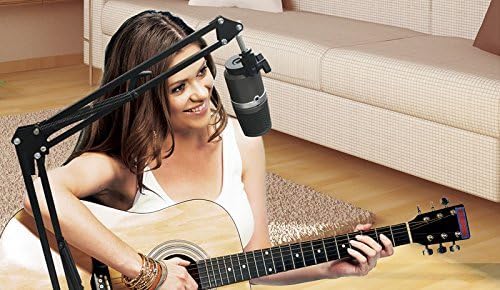
Figure 8: User recording music with the AM310 microphone
5. Specifications
Below are the technical specifications for the AVerMedia AM310 USB Microphone:
| Feature | Specification |
|---|---|
| Type | Uni-directional Condenser Microphone |
| Polar Pattern | Cardioid |
| Sample Rate | 48 kHz |
| Bit Rate | 16-bit |
| Power Required | USB (5V DC) |
| Sensitivity | -60 ± 5 dB (at 1 kHz) |
| Frequency Response | 20–20,000 Hz |
| Audio Sensitivity | 60 Decibels |
| Impedance | 600 Ohms |
| Signal-to-Noise Ratio | 80 dB |
| Hardware Platform | PC |
| Number of Channels | 1 |
| Connectivity Technology | USB |
| Connector Type | USB |
| Item Weight | 1.03 Pounds |
| Product Dimensions | 10 x 4 x 6 inches |
| Material | Aluminum |
6. Troubleshooting
If you encounter issues with your AVerMedia AM310 microphone, please refer to the following common troubleshooting steps:
- No Sound Input:
- Ensure the microphone is securely plugged into a USB port.
- Verify that the AM310 is selected as the default input device in your computer's sound settings.
- Check if the microphone is muted (red LED indicator). Press the volume knob to unmute.
- Try a different USB port or a different computer to isolate the issue.
- Low Volume:
- Adjust the input gain for the microphone in your computer's sound settings or recording software.
- Ensure you are speaking directly into the front of the microphone, as it has a cardioid polar pattern.
- Static or Noise:
- Ensure the USB cable is not damaged and is properly connected.
- Avoid placing the microphone near sources of electromagnetic interference (e.g., power cables, unshielded electronics).
- Consider using a pop filter to reduce plosive sounds and a shock mount to minimize vibrations.
- Headphone Monitoring Issues:
- Check the headphone volume knob on the microphone.
- Verify the Headphone Mode Switch is set to the desired position (PC or MONITOR).
- Ensure your headphones are fully plugged into the 3.5mm jack.
7. Maintenance
To ensure the longevity and optimal performance of your AVerMedia AM310 USB Microphone, follow these maintenance guidelines:
- Cleaning: Use a soft, dry cloth to clean the exterior of the microphone. Avoid using liquid cleaners or solvents, as they may damage the finish or internal components.
- Storage: When not in use, store the microphone in a cool, dry place away from direct sunlight and extreme temperatures.
- Handling: Handle the microphone with care. Avoid dropping it or subjecting it to strong impacts, which can damage the sensitive internal components.
- Cable Care: Do not bend or crimp the USB cable excessively. Always grasp the plug, not the cable, when disconnecting.
8. Warranty and Support
For warranty information, technical support, or further assistance with your AVerMedia AM310 USB Microphone, please visit the official AVerMedia website or contact their customer support.
You can find more information and support resources at the AVerMedia Store.


