
1. Introduction
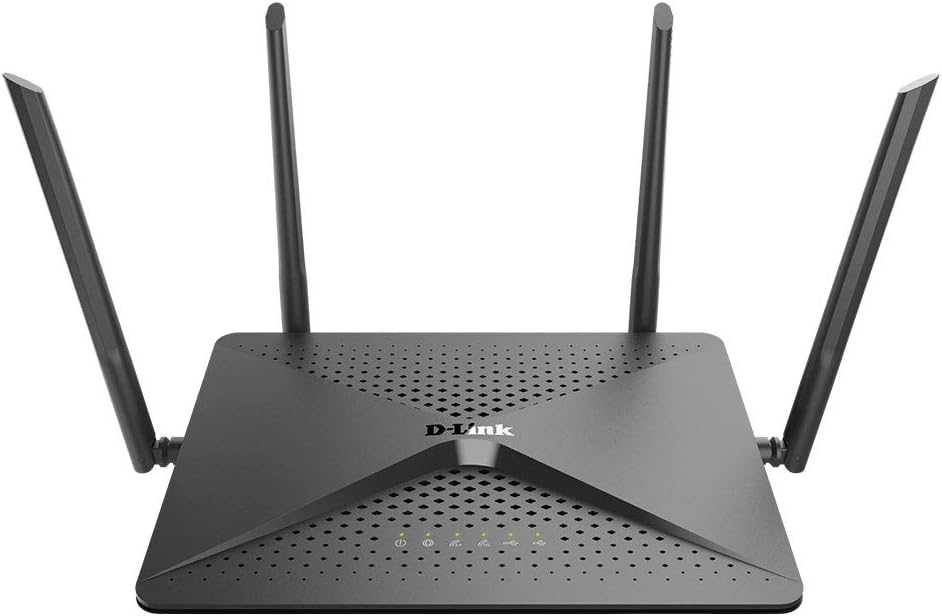
The D-Link DIR-882-US AC2600 MU-MIMO Wi-Fi Wireless Router is designed to provide high-performance wireless connectivity for demanding home network tasks such as HD streaming, online gaming, and supporting multiple connected devices. It features dual-band Wi-Fi with speeds up to 2,533 Mbps (800 Mbps on 2.4GHz and 1,733 Mbps on 5GHz), a powerful dual-core processor, AC Smart Beam Technology, and Intelligent Quality of Service (QoS) for traffic prioritization. Four high-performance external antennas ensure maximum wireless range and coverage throughout your home.
2. Package Contents
Verify that all items are present in your product package:
- DIR-882-US device
- Power Adapter
- Ethernet Cable (RJ45 Cable)
- Quick Install Guide
3. Setup Guide
3.1. Physical Connections
Follow these steps to connect your router:
- Position the Antennas: Ensure all four external antennas are securely attached and oriented for optimal signal coverage.
- Connect to Power: Plug the power adapter into the router's power port and then into a wall outlet. Ensure the power button is pressed if applicable.
- Connect to Modem: Connect one end of the provided Ethernet cable to the Gigabit WAN Port (usually labeled 'Internet') on the router and the other end to your modem's Ethernet port.
- Connect Devices (Optional): For wired connections, connect your computer or other network devices to any of the 4 Gigabit LAN Ports using Ethernet cables.

3.2. Initial Configuration
After physical setup, configure your router using the web-based interface:
- Access the Router: Open a web browser on a computer connected to the router (either via Wi-Fi or Ethernet).
- Enter Router Address: In the browser's address bar, type
http://dlinkrouter.local./or192.168.0.1and press Enter. - Login: When prompted, the default username is
Admin. Leave the password field blank. - Follow Setup Wizard: The D-Link setup wizard will guide you through configuring your internet connection, Wi-Fi network name (SSID), and password. It is highly recommended to change the default Wi-Fi password and router login password for security.

4. Operating the Router
4.1. Wi-Fi Connectivity
The DIR-882-US operates on dual bands (2.4GHz and 5GHz) and utilizes advanced technologies for optimal performance:
- Dual Band: Creates two separate networks for faster speeds and flexibility, allowing older devices to connect to 2.4GHz and newer, high-bandwidth devices to 5GHz.
- 4x4 Data Streams: Supports four simultaneous data streams for increased throughput, enabling more devices to connect without slowing down the Wi-Fi.
- MU-MIMO Technology: Enables the router to send and receive data from multiple devices simultaneously, significantly improving efficiency and performance in multi-device environments.
- AC Smart Beam: Tracks your connected devices to enhance Wi-Fi speed and range throughout your home, directing Wi-Fi signals directly to your devices.
- Smart Connect: Automatically assigns devices to the optimal Wi-Fi band (2.4GHz or 5GHz) for the best performance.


4.2. USB Port Usage
The router includes two USB ports (one USB 3.0 and one USB 2.0) for connecting external storage devices. This allows you to share files, media, and documents across your network, creating a personal cloud storage solution.
4.3. Performance and Processing
Equipped with a powerful dual-core processor, the DIR-882-US significantly boosts both wired and wireless performance, ensuring smooth operation even under heavy network load.

4.4. Recommended Usage
The D-Link DIR-882-US is suitable for various demanding home network activities:

5. Maintenance
To ensure optimal performance and longevity of your D-Link DIR-882-US router, consider the following maintenance practices:
- Firmware Updates: Regularly check the D-Link support website for the latest firmware updates. Updating firmware can improve performance, add new features, and address security vulnerabilities.
- Regular Reboots: Periodically rebooting your router (unplugging it from power for 10-15 seconds and plugging it back in) can help clear its memory and resolve minor performance issues.
- Physical Cleaning: Keep the router clean and free of dust. Use a soft, dry cloth to wipe the exterior. Ensure ventilation holes are not obstructed to prevent overheating.
- Secure Placement: Place the router in a central location, away from obstructions, direct sunlight, and heat sources.
6. Troubleshooting
This section provides solutions to common issues you might encounter with your D-Link DIR-882-US router.
| Problem | Possible Solution |
|---|---|
| No Internet connection. | Check if the WAN port LED is lit. Ensure the Ethernet cable from the modem is securely connected. Reboot both the modem and the router. Contact your Internet Service Provider (ISP) if the issue persists. |
| Slow Wi-Fi speeds or intermittent connection. | Ensure your devices are connected to the appropriate Wi-Fi band (5GHz for faster speeds). Reduce interference by moving the router away from other electronics. Check for firmware updates. Consider adjusting the MTU value in router settings (Settings > Internet > Advanced) if webpages load slowly or images are missing. The optimal MTU value is often 1500. |
| Cannot access router's web interface. | Ensure your device is connected to the router's network. Try using a different web browser. Verify the router's IP address (default is 192.168.0.1 or dlinkrouter.local./). If you forgot the password, perform a factory reset (see manual for specific steps). |
| Wi-Fi signal is weak in certain areas. | Reposition the router to a more central location. Adjust antenna orientation. Consider using a Wi-Fi extender or mesh system for larger homes. |
7. Technical Specifications
| Feature | Detail |
|---|---|
| Model Number | DIR-882-US |
| Product Dimensions | 9 x 7 x 1.8 inches |
| Item Weight | 1.25 pounds |
| Wireless Standard | 802.11ac, 802.11b, 802.11g, 802.11n |
| Frequency Band Class | Dual-Band (2.4 GHz & 5 GHz) |
| Wi-Fi Speeds | Up to 2600 Mbps (800 Mbps in 2.4GHz + 1733 Mbps in 5GHz) |
| Processor | Dual-Core Processor |
| Ethernet Ports | 4 x Gigabit LAN, 1 x Gigabit WAN |
| USB Ports | 1 x USB 3.0, 1 x USB 2.0 |
| Antennas | 4 High-Performance External Antennas |
| Special Features | MU-MIMO, AC Smart Beam, Intelligent QoS, WPS |
| Security | WPA/WPA2 Encryption |
| Included Components | DIR-882-US device, Power Adapter, Ethernet Cable (RJ45 Cable), Quick Install Guide, Gift Box |
8. Warranty and Support
For warranty information and technical support, please refer to the documentation included with your product or visit the official D-Link support website. The website typically provides FAQs, troubleshooting guides, driver downloads, and contact information for customer service.


