
DOOGEE F7
DOOGEE F7 Smartphone User Manual
Model: F7
1. Introduction
This user manual provides essential information for the safe and efficient operation of your DOOGEE F7 smartphone. Please read this manual thoroughly before using your device to ensure proper functionality and to prevent damage. Keep this manual for future reference.
2. Safety Information
- Do not attempt to disassemble or modify the device. Unauthorized modifications can void your warranty and may result in damage or injury.
- Use only original or certified accessories (charger, USB cable, etc.) to avoid damage to the device and ensure safety.
- Avoid exposing the device to extreme temperatures, direct sunlight, or high humidity.
- Keep the device away from water and other liquids. If the device gets wet, power it off immediately and do not attempt to use it until it is completely dry.
- Do not use the device while driving or operating heavy machinery. Always prioritize safety.
- Dispose of the device and its battery responsibly according to local regulations. Do not dispose of in household waste.
3. Package Contents
Upon opening the package, please verify that all items listed below are present and in good condition:
- 1 x DOOGEE F7 Smartphone
- 1 x Power Adapter
- 1 x USB Cable
If any item is missing or damaged, please contact your retailer or DOOGEE customer support.
4. Device Overview
Familiarize yourself with the physical components of your DOOGEE F7 smartphone.

Figure 4.1: Front, back, and side view of the DOOGEE F7 smartphone. This image provides a comprehensive look at the device's design, including the display, rear camera, fingerprint sensor, and side buttons.

Figure 4.2: Front view of the DOOGEE F7 smartphone, highlighting the 5.5-inch display and front-facing camera.
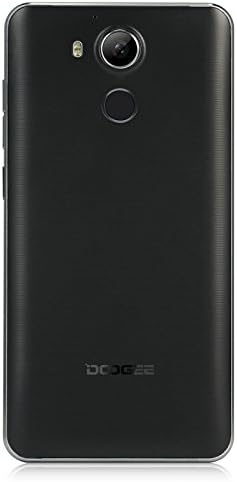
Figure 4.3: Back view of the DOOGEE F7 smartphone, showing the rear camera, LED flash, and fingerprint sensor placement.
The DOOGEE F7 features a sleek design with a 5.5-inch display on the front. The rear panel houses the main camera and a circular fingerprint sensor for secure unlocking. Volume and power buttons are located on the side for easy access.
5. Setup
5.1. Installing SIM Cards and SD Card
The DOOGEE F7 supports dual Micro SIM cards for flexible network usage and a microSD card for expandable storage.
- Locate the SIM/SD card tray on the side of the device.
- Insert the SIM ejector tool (if provided) into the small hole next to the tray to pop it open.
- Carefully pull out the tray.
- Place your Micro SIM cards and/or microSD card into the designated slots on the tray, ensuring correct orientation as indicated on the tray.
- Gently push the tray back into the device until it clicks into place.
5.2. Initial Power On
To power on your DOOGEE F7 for the first time:
- Press and hold the Power button (located on the side) until the DOOGEE logo appears on the screen.
- Follow the on-screen instructions to complete the initial setup, including language selection, Wi-Fi connection, and Google account setup.
5.3. Charging the Battery
Before first use, it is recommended to fully charge the device battery.
- Connect the USB cable to the charging port on your phone.
- Connect the other end of the USB cable to the power adapter.
- Plug the power adapter into a wall outlet.
- The charging indicator will appear on the screen. Once fully charged, disconnect the charger.
The DOOGEE F7 is equipped with a 3400mAh Li-polymer battery.
6. Operating Your Device
6.1. Basic Functions
- Power On/Off: Press and hold the Power button. Select "Power off" or "Restart" from the options.
- Screen Lock/Unlock: Briefly press the Power button to lock or unlock the screen.
- Volume Control: Use the Volume Up and Volume Down buttons on the side to adjust media, call, and alarm volumes.
6.2. Calls and Messaging
Utilize the Phone and Messaging applications for communication. The device supports dual SIM functionality, allowing you to manage two numbers simultaneously.
6.3. Internet Connectivity
Connect to the internet via Wi-Fi or mobile data (4G FDD-LTE, 3G WCDMA, 2G GSM). Navigate to Settings > Wi-Fi or Settings > Data usage to manage your connections.
6.4. Camera Functions
The DOOGEE F7 is equipped with a 13.0MP rear camera with PDAF (Phase Detection Auto Focus) and a 5.0MP front camera.

Figure 6.1: The DOOGEE F7 camera in action, demonstrating its ability to capture dynamic scenes with its 13.0MP PDAF rear camera for faster and more stable focusing.
Open the Camera application to capture photos and videos. The PDAF technology ensures quick and accurate focusing, even in challenging lighting conditions.
6.5. Fingerprint Scanner
The integrated fingerprint scanner provides a secure and convenient way to unlock your device and authorize purchases. It supports 360-degree identification for rapid and accurate recognition.

Figure 6.2: Close-up of the DOOGEE F7's rear fingerprint sensor, illustrating its position relative to the camera. The image also shows the Android 6.0 software interface with various application icons.
To set up your fingerprint, navigate to Settings > Security > Fingerprint and follow the on-screen instructions.
6.6. Gesture Control
The DOOGEE F7 incorporates several gesture controls for enhanced usability:
- Double Tap: Double-tap the screen to quickly light it up.
- Gesture Start APP: Configure specific gestures to launch applications directly from the locked screen.
- Contactless Control: Utilize air gestures for certain functions without touching the screen.
- Direct Calling: Initiate calls by bringing the phone to your ear when viewing a contact.
- Contactless Hands-Free Mode: Answer calls or control media with specific hand movements.
6.7. Android 6.0 Operating System
Your DOOGEE F7 runs on Android 6.0, offering a user-friendly interface and access to a wide range of applications via the Google Play Store.
7. Maintenance
- Cleaning: Use a soft, dry, lint-free cloth to clean the device. Avoid using harsh chemicals or abrasive materials.
- Storage: Store the device in a cool, dry place away from direct sunlight and extreme temperatures when not in use for extended periods.
- Software Updates: Regularly check for and install software updates to ensure optimal performance and security.
8. Troubleshooting
If you encounter issues with your DOOGEE F7, try the following basic troubleshooting steps:
- Device not turning on: Ensure the battery is charged. Connect the charger and wait a few minutes before attempting to power on again.
- Apps crashing or freezing: Close the problematic app and reopen it. If the issue persists, restart the device.
- Poor network signal: Check your SIM card insertion. Move to an area with better network coverage.
- Battery draining quickly: Reduce screen brightness, close unused apps, or disable features like Wi-Fi/Bluetooth when not needed.
- Fingerprint recognition issues: Ensure your finger is clean and dry. Re-register your fingerprint if necessary.
For more complex issues, refer to online resources or contact DOOGEE customer support.
9. Specifications
| Feature | Description |
|---|---|
| Model | F7 |
| CPU | Helio X20 (MTK6797) Deca Core |
| Operating System | Android 6.0 |
| RAM | 3GB |
| ROM | 32GB |
| Display | 5.5 inch IPS, 1920 x 1080 pixels |
| Front Camera | 5.0MP |
| Back Camera | 13.0MP (with PDAF) |
| Battery Capacity | 3400mAh Li-polymer |
| SIM Quantity | Dual SIM (Micro SIM) |
| Network Bands | 2G: GSM 850/900/1800/1900MHz 3G: WCDMA 850/1900/2100MHz 4G: FDD-LTE 800/1800/2100/2600MHz |
| Sensors | G-sensor, Light sensor, Proximity sensor, Gesture Sensor, Hall sensor |
| Dimensions | 153 x 77 x 9.0mm |
| Color | Black |
10. Warranty and Support
Your DOOGEE F7 smartphone is covered by a standard manufacturer's warranty. Please refer to the warranty card included in your package for specific terms and conditions. In general, the product is subject to a return policy of 30 days for refund or replacement, as offered by Amazon.
For technical support, troubleshooting assistance, or warranty claims, please contact DOOGEE customer service or your point of purchase. Keep your purchase receipt as proof of purchase.
Related documentsF7

Ask a question about this manual
Ask about setup, troubleshooting, compatibility, parts, safety, or missing instructions. Manuals+ will review the question and use this page’s manual context to help answer it.