Introduction
The ELEGOO Mega2560 Starter Kit is a high-quality electronic project kit designed for beginners. It provides all the components, sensors, wires, and boards needed to start programming, learn electronics, and create IoT projects. This manual offers essential information for setting up, operating, maintaining, and troubleshooting your kit.
For detailed lessons and project guides, please refer to the official PDF tutorial available for download from the ELEGOO website. This kit is an excellent resource for exploring the world of microcontrollers and embedded systems.
Setup
1. Kit Contents
Before beginning, verify that all components are present in your kit. The ELEGOO Mega2560 Starter Kit includes over 200 components to facilitate various projects.

Image: Overview of the kit contents, showing the Mega2560 board, various sensors, wires, and a quick start guide.

Image: The kit box opened, displaying the organized compartments with various electronic components.
2. Software Installation
To program the Mega2560 board, you will need to install the Arduino IDE (Integrated Development Environment) on your computer. This software is compatible with Windows, macOS, and Linux operating systems.
- Download the latest version of the Arduino IDE from the official Arduino website.
- Follow the installation instructions provided on the Arduino website for your specific operating system.
- Install the necessary drivers for the Mega2560 board. These are typically included with the Arduino IDE installation or can be found on the ELEGOO website.
3. Accessing Tutorials
The kit includes a comprehensive PDF tutorial with over 35 lessons. This tutorial is crucial for understanding how to use the components and build projects. A physical CD is not included; the tutorial must be downloaded.
- Locate the download instructions in the quick start guide provided with your kit.
- Visit the official ELEGOO website (www.elegoo.com) to download the latest version of the PDF tutorial and example code.
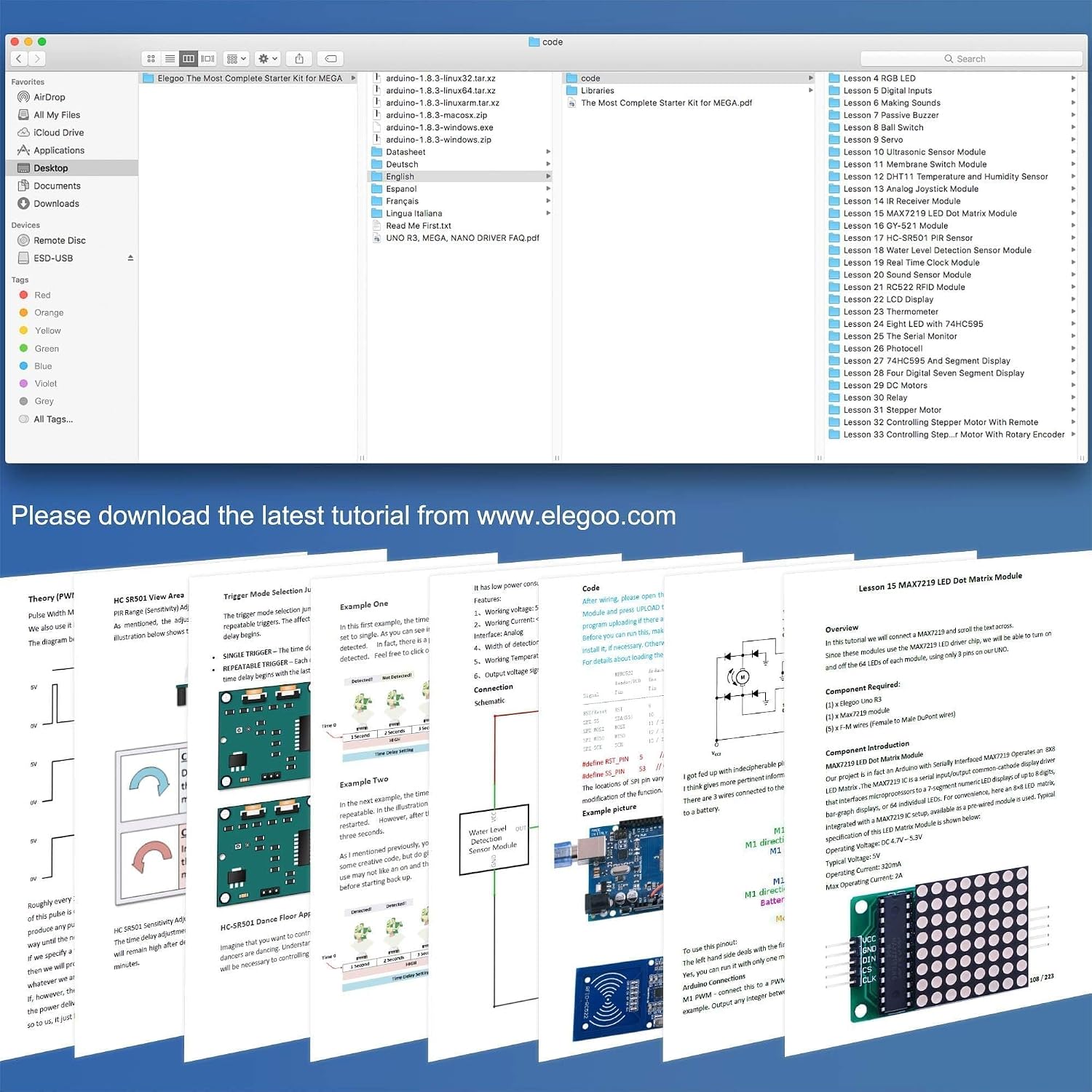
Image: A computer screen showing the downloaded tutorial files and example code for various lessons.
Operating Instructions
The ELEGOO Mega2560 board is the central component of this kit. It functions as a microcontroller that can be programmed to interact with various electronic components.
1. Connecting the Board
Connect the Mega2560 board to your computer using the provided USB cable. This connection powers the board and allows you to upload your programs (sketches) from the Arduino IDE.
2. Uploading Your First Sketch
- Open the Arduino IDE.
- Select the correct board type (Arduino Mega2560) from the "Tools > Board" menu.
- Select the correct serial port from the "Tools > Port" menu.
- Open one of the example sketches from the downloaded tutorial or a basic example like "Blink" (File > Examples > 01.Basics > Blink).
- Click the "Upload" button (right arrow icon) to compile and upload the sketch to your Mega2560 board.
3. Building Projects
Each lesson in the tutorial guides you through building a specific circuit and writing the corresponding code. Pay close attention to the wiring diagrams and component values.

Image: Example circuit diagrams illustrating how to connect various components like LEDs, sensors, and motors to the Mega2560 board.
Always double-check your wiring before powering on your circuit to prevent damage to components.
Maintenance
Proper care and maintenance will extend the lifespan of your ELEGOO Mega2560 Starter Kit components.
- Storage: Store all components in their original packaging or a dedicated storage box to prevent loss and damage. Keep them away from dust, moisture, and extreme temperatures.
- Handling: Handle electronic components with care. Avoid bending pins excessively. When inserting components into a breadboard, apply gentle, even pressure.
- Cleaning: If necessary, gently clean the boards and components with a soft, dry cloth. Avoid using liquids or abrasive cleaners.
- Power Supply: Always use the recommended power supply for the Mega2560 board. Incorrect voltage can damage the board and connected components.
Troubleshooting
Encountering issues is a normal part of learning electronics. Here are some common problems and solutions:
- Board Not Recognized:
- Ensure the USB cable is securely connected to both the board and your computer.
- Verify that the correct drivers are installed. Reinstall them if necessary.
- Check if the correct serial port is selected in the Arduino IDE (Tools > Port).
- Code Compilation Errors:
- Carefully review your code for typos, missing semicolons, or incorrect syntax.
- Ensure all necessary libraries are installed. For example, some projects might require specific libraries like "pitches.h". In the Arduino IDE, go to "Sketch > Include Library > Manage Libraries..." to search and install. If a library is provided as a .zip file, use "Sketch > Include Library > Add .ZIP Library...".
- Refer to the error messages in the Arduino IDE's console for clues.
- Circuit Not Working:
- Double-check all wiring against the tutorial's circuit diagram. Ensure wires are in the correct holes and components are oriented correctly.
- Verify that components are functional. For example, if an LED doesn't light up, try it in a simple "Blink" circuit to confirm it's not faulty.
- Ensure power connections are correct and sufficient.
- For resistors, use a multimeter to confirm their values, as color codes can sometimes be difficult to read, especially for precision metal film resistors.
- Tutorial Language Issues:
- If the tutorial's translation is unclear, try to cross-reference with diagrams and code examples.
- Many online communities and forums exist for Arduino and ELEGOO kits; searching for specific lesson numbers or component issues can provide additional clarity.
If you continue to experience issues, please refer to the support section for contact information.
Specifications
| Feature | Detail |
|---|---|
| Brand | ELEGOO |
| Model Number | JP-EL-KIT-008 |
| Product Dimensions | 34.8 x 21.34 x 4.7 cm |
| Item Weight | 36 g |
| CPU Manufacturer | Atmel |
| RAM Memory Technology | DDR3 |
| Processor Count | 1 |
| Compatible Operating Systems | Windows, macOS, Linux |
| Batteries Included | Yes |
| Batteries Required | Yes |
Warranty and Support
ELEGOO is committed to providing high-quality products and customer satisfaction. For any questions, technical assistance, or issues regarding your ELEGOO Mega2560 Starter Kit, please contact ELEGOO customer support.
- Online Support: Visit the official ELEGOO website (www.elegoo.com) for FAQs, forums, and contact information.
- Email Support: Refer to the quick start guide or the ELEGOO website for specific customer service email addresses (e.g., service@elegoo.com or euservice@elegoo.com for European and Asian customers, as indicated in product images).
- Product Registration: Register your product on the ELEGOO website to receive updates and support.
Please retain your proof of purchase for warranty claims.


