
1. Introduction
Thank you for purchasing the iHome IB90 Bluetooth Headphones. These headphones are designed to provide rich, detailed sound with an enhanced bass response, offering a comfortable listening experience with wireless freedom and extended battery life. This manual will guide you through the setup, operation, and maintenance of your new headphones.
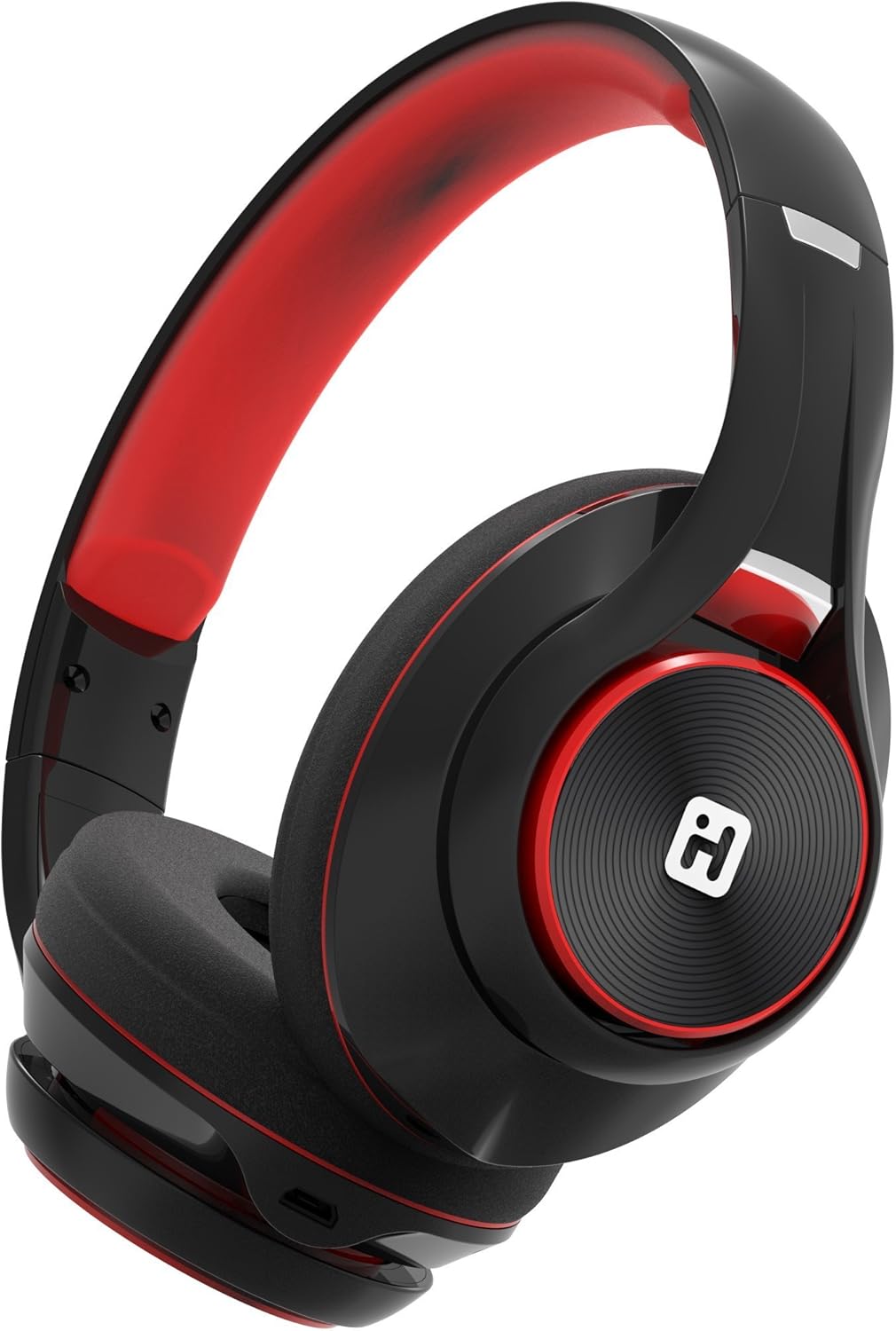
Image: iHome IB90 Bluetooth Headphones, featuring a comfortable over-ear design in black and red.
2. Package Contents
- iHome IB90 Bluetooth Headphones
- Audio Cable (for wired mode)
- USB Charging Cable (not explicitly listed but implied for rechargeable battery)
3. Setup
3.1 Charging the Headphones
Before initial use, fully charge your headphones. The extra-long life rechargeable battery provides up to 46 hours of continuous use on a single charge. A 10-minute charge can provide 1 hour of play when the battery is low.
- Connect the provided USB charging cable to the charging port on the headphones.
- Connect the other end of the USB cable to a powered USB port (e.g., computer, wall adapter).
- The charging indicator light will illuminate during charging and turn off when fully charged.
3.2 Bluetooth Pairing
Pair your iHome IB90 headphones with your Bluetooth-enabled device to enjoy wireless audio.
- Ensure the headphones are charged and powered off.
- Press and hold the Power/Bluetooth button on the headphones until the indicator light flashes, indicating pairing mode. Voice prompts will confirm Bluetooth connection status.
- On your device (smartphone, tablet, computer), go to the Bluetooth settings and enable Bluetooth.
- Select "iHome IB90" (or similar model name) from the list of available devices.
- Once connected, a voice prompt will confirm successful pairing, and the indicator light will change.
3.3 Melody Voice Assistant Setup
The iHome IB90 headphones are compatible with the free Melody voice-powered personal music assistant app, allowing you to control music from services like Spotify and iHeartRadio using voice commands. The voice control button on the earcup also works with Siri and Google Assistant.
Image: Melody Personal Music Assistant app logo.
- Download the Melody app from your device's app store (App Store for iOS, Google Play for Android).
- Open the Melody app and follow the on-screen instructions to set up your account and link your preferred music streaming services.
- Ensure your headphones are paired with your device.
- Use the voice control button on the earcup to activate Melody or your device's native voice assistant (Siri/Google Assistant) and issue commands.
Video: This video demonstrates the features and functionality of the Melody voice-powered personal music assistant, highlighting its integration with iHome products for hands-free music control and access to various streaming platforms.
4. Operating the Headphones
4.1 On-Ear Remote Control
The earcup features convenient controls for managing your audio and calls:
- Play/Pause: Press the designated button to play or pause audio.
- Track Selection: Use the track buttons to skip forward or backward.
- Volume Control: Adjust the volume using the volume buttons.
- Answer/End Calls: The built-in echo-cancelling microphone allows for hands-free phone calls. Press the call button to answer or end a call.

Image: Close-up of the iHome IB90 headphone earcup, illustrating the location of control buttons.
4.2 Voice Control
Activate your personal voice assistant (Melody, Siri, or Google Assistant) by pressing the dedicated voice control button on the earcup. You can then use voice commands to:
- Play specific songs, artists, albums, or playlists.
- Check weather, set reminders, and make phone calls (via Siri/Google Assistant).
- Access music from various streaming platforms (via Melody app).
4.3 Wired Mode
The headphones can also be used in wired mode with the provided audio cable, ensuring you can continue listening even if the battery is depleted. Simply connect the audio cable to the headphone's audio input and your device's audio output.
5. Maintenance
5.1 Cleaning
To maintain the condition of your headphones:
- Wipe the earcups and headband with a soft, dry cloth.
- Avoid using abrasive cleaners, solvents, or harsh chemicals.
- Do not immerse the headphones in water, as they are not water-resistant.
5.2 Storage
When not in use, store your headphones in a cool, dry place away from direct sunlight and extreme temperatures. The foldable design allows for compact storage and portability.
6. Troubleshooting
If you encounter issues with your iHome IB90 headphones, refer to the following common solutions:
- No Power: Ensure the headphones are fully charged. Connect them to a power source using the USB charging cable.
- Cannot Pair via Bluetooth: Make sure the headphones are in pairing mode (flashing indicator light). Turn off and on your device's Bluetooth, then try re-pairing. Ensure the headphones are not already connected to another device.
- No Sound or Low Volume: Check the volume levels on both the headphones and your connected device. Ensure the headphones are properly paired. If using wired mode, ensure the audio cable is securely connected.
- Microphone Not Working: Verify that the headphones are properly connected via Bluetooth. Check your device's audio input settings to ensure the headphone microphone is selected.
- Sound Leakage: The iHome IB90 headphones feature passive noise isolation, not active noise cancellation (ANC). While they provide an immersive sound environment, they may not completely block out all external noise, and some sound may be audible to others at higher volumes.
7. Specifications
| Feature | Detail |
|---|---|
| Brand | iHome |
| Model Number | IB90v2BRC |
| Ear Placement | Over Ear |
| Form Factor | On Ear |
| Noise Control | None (Passive Noise Isolation) |
| Connectivity Technology | Bluetooth |
| Wireless Technology | Bluetooth |
| Control Type | Remote Control |
| Built-In Media | Headphones |
| Item Weight | 0.5 Pounds |
| Enclosure Material | Plastic |
| Specific Uses For Product | Travel |
| Water Resistance Level | Not Water Resistant |
8. Warranty and Support
For warranty information and customer support, please refer to the documentation included with your product or visit the official iHome website. This manual does not contain specific warranty details.


