
Avery 5260
Avery Easy Peel Printable Address Labels with Sure Feed (Model 5260) - Instruction Manual
Brand: Avery
1. Introduction
This manual provides comprehensive instructions for the effective use of Avery Easy Peel Printable Address Labels with Sure Feed, Model 5260. These versatile labels are designed to simplify mailing, shipping, organization, and identification tasks.

Figure 1: Avery Easy Peel Printable Address Labels (Model 5260) 5-Pack.
Key Features:
- Versatile Application: Ideal for mailing, shipping, product labeling, organization, and identification.
- Sure Feed Technology: Engineered to reduce misalignments and printer jams, ensuring reliable feeding through laser printers.
- Easy Peel with Pop-up Edge: Facilitates quick and effortless label peeling for efficient application.
- Permanent Ultrahold Adhesive: Guarantees strong adhesion to most smooth surfaces including paper, cardboard, glass, and metal.
- Optimized for Laser Printers: Designed to prevent smearing or smudging, producing clear text and crisp graphics.
- Customization Options: Labels can be personalized by hand or through Avery Design & Print Online with various templates and tools.

Figure 2: Key Features of Avery Labels.

Figure 3: Versatile Applications of Avery Labels.
2. Setup & Preparation
Printer Compatibility:
Avery 5260 labels are specifically optimized for use with laser printers. While some inkjet printers may produce acceptable results, laser printers are recommended for optimal print quality and to prevent smearing or smudging.

Figure 4: Laser Printer Compatibility.
Loading Labels into Printer:
Ensure your printer's paper tray is clean and free of debris. Load the label sheets into the printer tray according to your printer's specific instructions for specialty media. The Sure Feed Technology on Avery labels is designed to minimize misalignments and jams during printing.
3. Printing Instructions (Operating)
Using Avery Design & Print Online:
Avery provides a free online tool, Avery Design & Print, to help you customize and print your labels. This tool offers thousands of available designs and easy-to-use features, including a Mail Merge function for importing names and addresses from spreadsheets.
- Access the Tool: Visit avery.com/templates in your web browser.
- Find Your Template: Enter the product number "5260" in the search bar to find the correct template for your labels.
- Choose a Design: Browse the available designs or upload your own.
- Customize Your Labels: Use the online editor to add text, images, and adjust fonts or colors.
- Preview and Print: Review your design before printing. Select "Print It Yourself" and follow the on-screen instructions to print using your laser printer.

Figure 5: Avery Design & Print Online Interface.
Benefits of Sure Feed Technology:
Avery's patented Sure Feed Technology is integrated into these label sheets to ensure a reliable feed through your printer. This technology significantly reduces common printing issues such as misalignments and printer jams, leading to crisp, professional-looking labels every time.
Video 1: Demonstrating Avery Labels with Sure Feed Technology, showing how it prevents misalignments and printer jams compared to generic labels.
Video 2: Guide on how to Customize Avery Products using Avery Templates and Design Tools, including finding product numbers and editing designs.
Video 3: Comparison of Avery White Address Labels: Matte vs. Glossy finishes, highlighting their appearance on different surfaces.
4. Application (Operating)
Easy Peel Feature:
The Easy Peel with Pop-up Edge feature allows for quick and hassle-free removal of labels from the sheet. Simply bend the sheet along the perforations to expose the label edges, then peel and apply.

Figure 6: The Avery Easy Peel Feature.
Applying Labels:
Once peeled, apply the label firmly to your desired clean, dry, and smooth surface. The Ultrahold permanent adhesive ensures the labels stick and stay securely.
5. Care & Storage (Maintenance)
To maintain the quality and adhesive properties of your Avery labels, store unused sheets in their original packaging in a cool, dry place away from direct sunlight and extreme temperatures. Avoid bending or creasing the label sheets to prevent damage to the labels or the Sure Feed edges.
6. Troubleshooting
Common Issues and Solutions:
| Issue | Possible Cause | Solution |
|---|---|---|
| Labels are misaligned during printing. | Incorrect printer settings, generic labels, or improper loading. | Ensure you are using Avery 5260 labels with Sure Feed Technology. Verify printer settings match label type. Load labels correctly into the printer tray. Use Avery Design & Print Online for precise alignment. |
| Printer jams when feeding label sheets. | Damaged label sheets, incorrect paper type setting, or printer issues. | Avery Sure Feed Technology is designed to prevent jams. Ensure label sheets are not bent or damaged. Check your printer's manual for recommended paper settings for labels. |
| Printed text or images are smeared/smudged. | Using an inkjet printer, incorrect ink type, or handling labels before ink dries. | These labels are optimized for laser printers. If using an inkjet printer, ensure it supports label printing and allow sufficient drying time. |
| Labels do not stick well. | Surface is dirty, oily, wet, or not smooth. | Ensure the application surface is clean, dry, and smooth. Apply firm pressure across the entire label surface. |
7. Specifications
| Attribute | Detail |
|---|---|
| Model Number | 5260 |
| Label Dimensions | 1" x 2-5/8" (2.54 cm x 6.67 cm) |
| Labels Per Sheet | 30 |
| Total Labels (5-Pack) | 3,750 |
| Color | White (Matte Finish) |
| Material Type | Paper |
| Adhesive Type | Ultrahold Permanent Adhesive |
| Printer Compatibility | Laser Printers (Optimized) |
| Item Weight | 10.4 ounces (approx. 295 grams) |
| Product Dimensions | 12.09 x 9.44 x 0.27 inches (approx. 30.7 x 24.0 x 0.7 cm) |
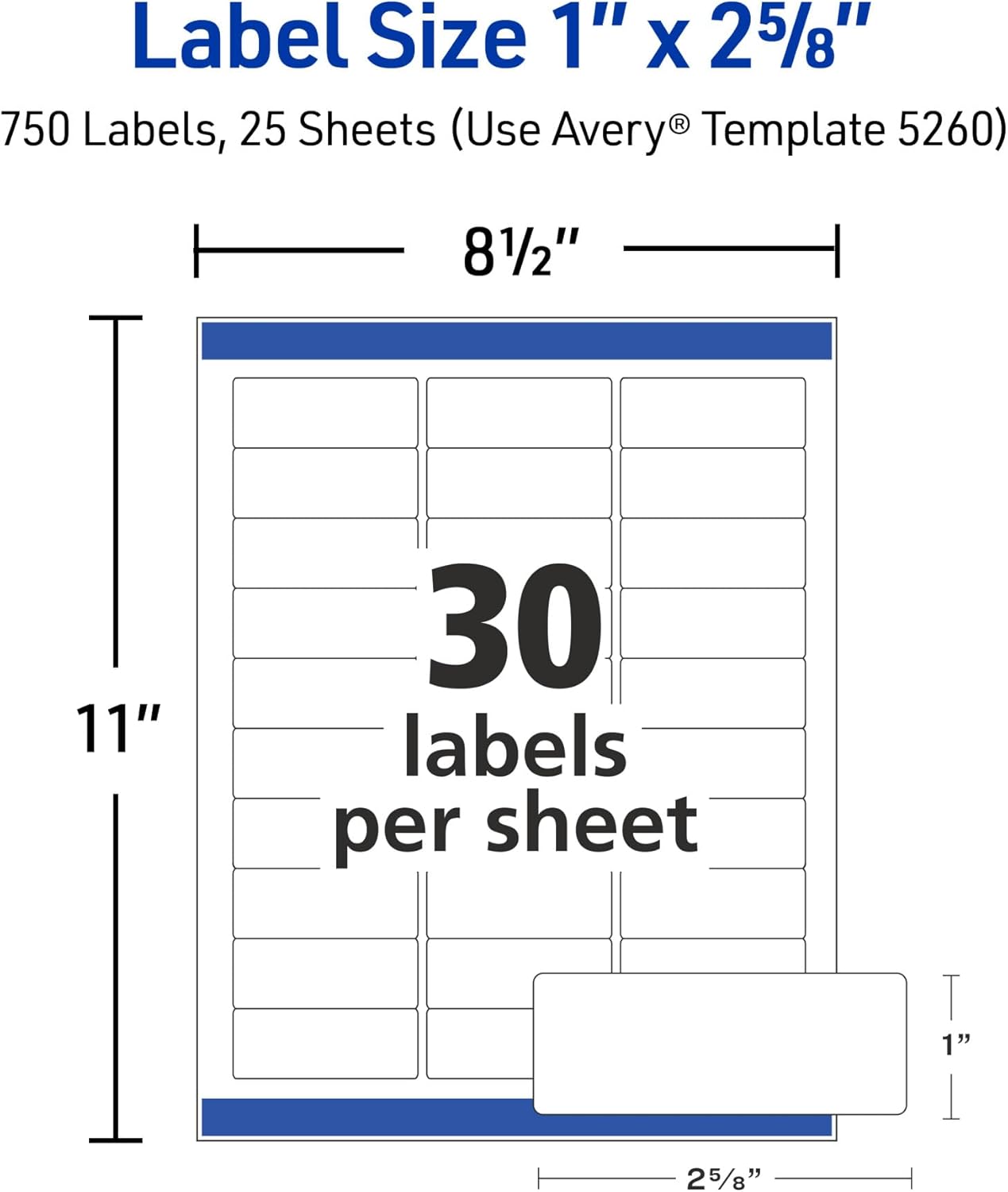
Figure 7: Label Sheet Dimensions (Model 5260).
8. Warranty & Support
Avery Customer Support:
Avery is committed to providing high-quality products. For technical assistance, product inquiries, or support with Avery Design & Print Online, please visit the official Avery website or contact their customer service department.
- Official Website: www.avery.com
- Templates & Software: avery.com/templates
- Contact Information: Refer to the Avery website for the most current contact details, including phone numbers and support hours.
Avery products are backed by a commitment to customer satisfaction. If you encounter any issues, please reach out to Avery support for assistance.
Related documents5260


Ask a question about this manual
Ask about setup, troubleshooting, compatibility, parts, safety, or missing instructions. Manuals+ will review the question and use this page’s manual context to help answer it.