
1. Introduction
The FIBARO KeyFob is a compact, ergonomic, hand-controlled device designed for remote management of devices connected to a central controller within a Z-Wave network. It allows for control through predefined scenes or direct device interaction. The KeyFob simplifies smart home control, enabling activation of up to 30 different actions, such as "good morning" or "good night" scenes, with ease.

Image 1: FIBARO KeyFob device. This image shows the compact, white, teardrop-shaped KeyFob with its six distinct buttons, designed for easy handling and control.
2. Key Features
- Scene and Device Control: Activates scenes or individual devices within your Z-Wave network.
- Multiple Actions: Six touch-intuitive buttons support up to 30 different actions, including single, double, triple clicks, and holding a button down. Additional sequences can be programmed.
- Customizable Scenes: Easily configure actions like turning off lights, locking doors, or arming alarms with a single click.
- Security: Features a customizable personal PIN code to prevent unauthorized use.
- Z-Wave Plus Certified: Ensures compatibility and reliable performance within Z-Wave Plus networks (ZC10-16125351).
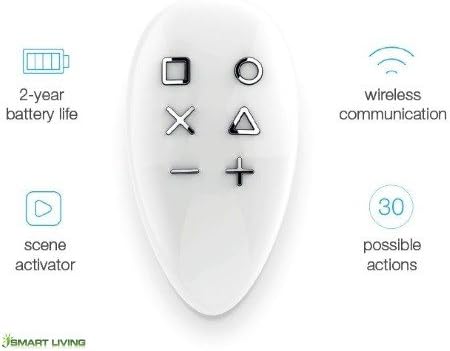
Image 2: KeyFob features overview. This graphic highlights key features such as 2-year battery life, wireless communication, scene activation, and 30 possible actions, illustrating the device's capabilities.
3. Setup and Installation
3.1 Package Contents
- FIBARO KeyFob
- Keychain
- CR2450 3.0V Battery (included)
- User Manual (this document)
3.2 Battery Installation
The KeyFob is powered by one CR2450 3.0V battery, which is typically included. If replacement is needed, carefully open the device as described in the maintenance section and insert a new CR2450 battery, ensuring correct polarity.
3.3 Adding to a Z-Wave Network (Inclusion)
- Ensure your Z-Wave gateway (e.g., FIBARO Home Center 2, Home Center Lite) is in inclusion mode. Refer to your gateway's manual for specific instructions.
- Bring the KeyFob within direct range of your Z-Wave gateway.
- Press any button on the KeyFob three times quickly. The KeyFob's LED indicator will confirm successful inclusion.
- Once included, the KeyFob will appear in your Z-Wave controller's device list.
Note: For optimal performance, ensure the KeyFob is within range of your Z-Wave network during inclusion and operation.
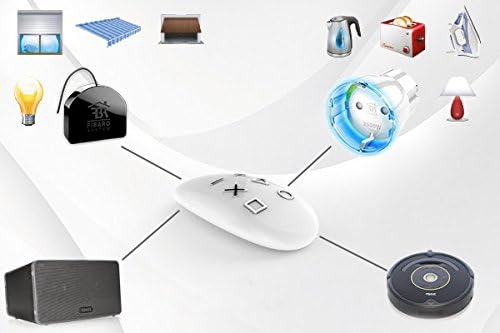
Image 3: KeyFob controlling smart devices. This image illustrates the KeyFob's central role in a smart home, showing it wirelessly connected to various devices like smart plugs, lights, and automated blinds.
4. Operating the KeyFob
4.1 Button Functions
The KeyFob features six distinct buttons, each capable of triggering multiple actions based on the press type:
- Single Click: Activates a primary action.
- Double Click: Activates a secondary action.
- Triple Click: Activates a tertiary action.
- Hold: Activates a continuous action or a specific scene.
These combinations allow for up to 30 unique actions to be programmed. Refer to your Z-Wave gateway's configuration interface to assign specific scenes or device controls to each button combination.
4.2 Scene Activation Examples
- "Good Morning" Scene: A single click on a designated button could open blinds, turn on lights to 50%, and start a coffee machine.
- "Good Night" Scene: A double click could turn off all lights, lock doors, and arm the security system.
- "Movie Time" Scene: Holding a button could dim lights, close curtains, and start your home theater system.
4.3 Automatic Key Lock Function
The KeyFob includes an automatic key lock function to prevent accidental presses. This feature can be configured via your Z-Wave gateway. When locked, a specific button sequence (e.g., holding two buttons simultaneously) may be required to unlock the device before use.
4.4 Status Monitoring via FIBARO App
When connected to a FIBARO Home Center gateway, the status of devices controlled by the KeyFob can be monitored through the FIBARO mobile application. This provides real-time feedback on your smart home environment.
Video 1: FIBARO KeyFob - Steer Your Way Through the Day. This official product video demonstrates the KeyFob's design, features, and how it can be used to manage smart devices and activate scenes in a smart home environment.
5. Maintenance
5.1 Battery Replacement
The KeyFob uses a CR2450 3.0V battery. When the battery level is low, the device's LED indicator may flash differently or the Z-Wave gateway may report a low battery status. To replace the battery:
- Carefully separate the two halves of the KeyFob casing.
- Remove the old CR2450 battery.
- Insert a new CR2450 3.0V battery, ensuring the positive (+) side faces up.
- Align the casing halves and gently press them together until they click securely.
Dispose of used batteries according to local regulations.
5.2 Cleaning
Clean the KeyFob with a soft, dry cloth. Avoid using abrasive cleaners, solvents, or harsh chemicals, as these can damage the device's surface or internal components.
6. Troubleshooting
| Problem | Possible Cause | Solution |
|---|---|---|
| KeyFob not responding | Low battery, out of Z-Wave range, not properly included in network, key lock active. | Replace battery. Move closer to Z-Wave gateway. Re-include the device. Unlock the KeyFob if the key lock function is enabled. |
| Actions not triggering scenes | Incorrect scene configuration, Z-Wave network issues, gateway offline. | Verify scene programming in your Z-Wave gateway. Check Z-Wave network health and gateway status. |
| LED indicator not lighting up | Dead battery, device malfunction. | Replace battery. If the issue persists, contact FIBARO support. |
| Difficulty pairing (inclusion) | Too far from gateway, gateway not in inclusion mode, interference. | Ensure KeyFob is close to the gateway. Confirm gateway is in inclusion mode. Try excluding the device first if it was previously paired. |
7. Specifications
| Model Number | FGKF-601 |
| Brand | FIBARO |
| Connectivity | Z-Wave Plus |
| Power Source | 1 x CR2450 3.0V Battery |
| Dimensions | 2.75 x 1.75 x 0.63 inches (70 x 44.45 x 16 mm) |
| Item Weight | 1.76 ounces (50g) |
| Color | White |
| Special Feature | PIN code for maximum security |
| Max Number of Supported Devices | 1 (as a controller for a Z-Wave network) |
| Date First Available | April 3, 2017 |

Image 4: KeyFob dimensions diagram. This diagram provides precise measurements of the KeyFob, including its length, width, and thickness, in both millimeters and inches.
8. Warranty Information
The FIBARO KeyFob FGKF-601 comes with a 1-year manufacturer's warranty from the date of purchase. This warranty covers defects in materials and workmanship under normal use. Please retain your proof of purchase for warranty claims. The warranty does not cover damage caused by misuse, accidents, unauthorized modifications, or normal wear and tear.
9. Support and Contact
For further assistance, technical support, or to access the latest documentation, please visit the official FIBARO website or contact their customer service department. You can find contact information and additional resources on the FIBARO Store on Amazon or the main FIBARO support portal.


