
Introduction
Welcome to your new Targus Compact Wireless Mouse. This manual provides essential information for proper setup, operation, and maintenance of your device. Please read these instructions carefully before use.
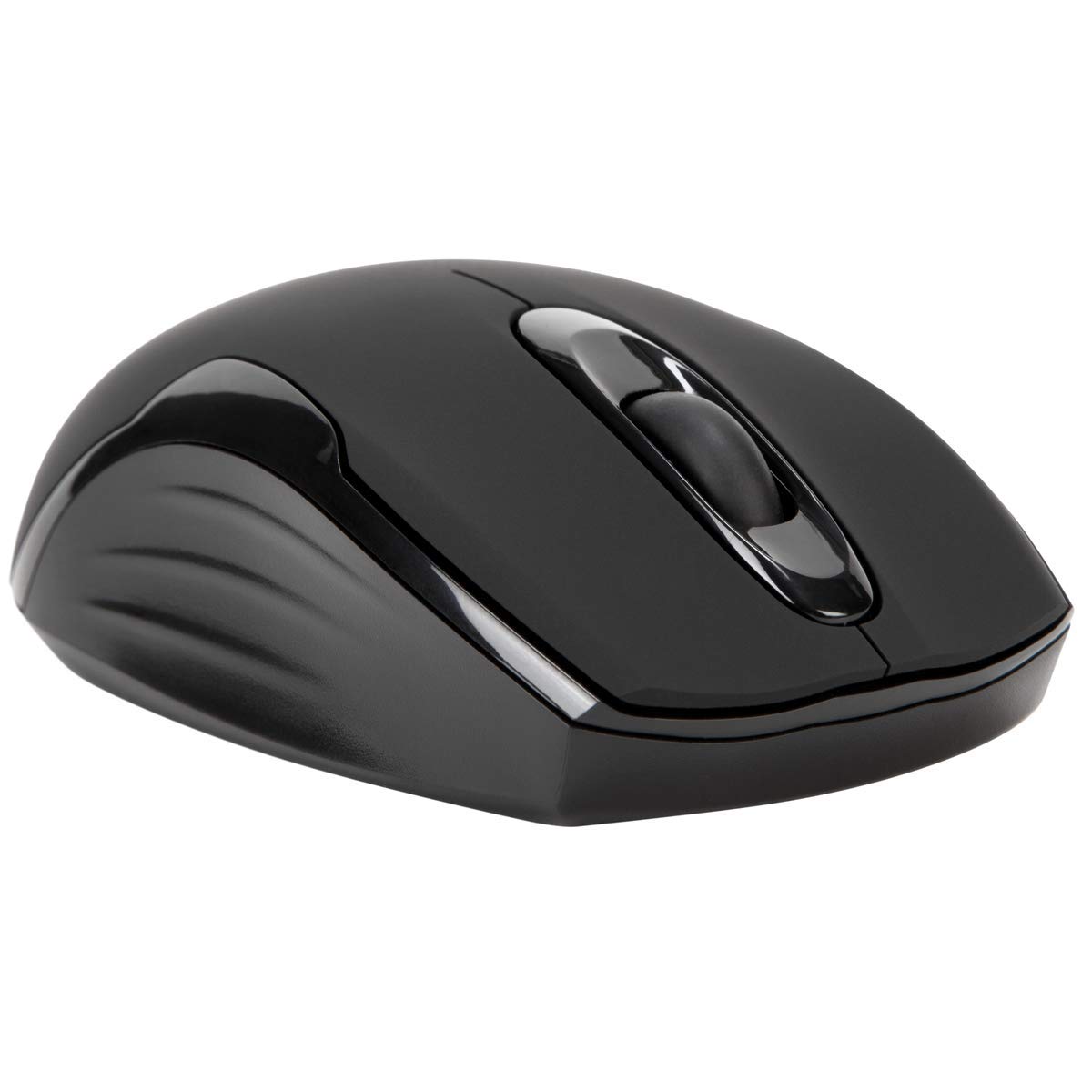
Package Contents
- Targus Compact Wireless Mouse
- USB Receiver
- 1 x AA Battery
- Instruction Manual (this document)
Setup
1. Install Battery
Locate the battery compartment on the underside of the mouse. Insert the provided 1 x AA battery, ensuring correct polarity (+/-). Close the battery compartment cover securely.

2. Connect USB Receiver
Remove the USB receiver from its storage compartment, typically located near the battery. Plug the USB receiver into an available USB port on your computer.


3. Power On
Turn on the mouse using the power switch, usually located on the underside. The mouse should automatically connect to the receiver, and you can begin using it.
Operation
Basic Functions
- Left Click: Use for primary selection, opening items, and activating functions.
- Right Click: Access contextual menus and additional options.
- Scroll Wheel: Navigate documents and web pages vertically. Pressing the scroll wheel typically functions as a middle-click.
Blue Trace Technology
The Targus Compact Wireless Mouse features Blue Trace Technology, which allows it to track accurately on a wider variety of surfaces compared to standard optical mice, including glass, granite, and wood.
DPI Sensitivity
The mouse is equipped with a 1,600 DPI (Dots Per Inch) optical sensor, providing a precise and responsive cursor movement for various tasks.
Maintenance
Battery Replacement
When the mouse performance degrades or if it stops responding, it may be time to replace the AA battery. The average battery life is approximately 6 months, but this can vary based on usage.
Cleaning
To clean the mouse, use a soft, dry cloth. For stubborn dirt, a slightly damp cloth can be used, ensuring no moisture enters the internal components. Avoid using harsh chemicals, solvents, or abrasive cleaners, as these can damage the mouse's surface or internal parts.
USB Receiver Storage
For convenient transport or storage, the USB receiver can be securely stored inside a dedicated compartment within the mouse itself. This helps prevent loss of the small receiver.
Troubleshooting
Mouse Not Responding
- Ensure the mouse is powered on using the switch on its underside.
- Check the battery level and replace the AA battery if necessary.
- Verify that the USB receiver is securely plugged into a working USB port on your computer.
- Try plugging the USB receiver into a different USB port on your computer.
- Restart your computer to refresh the connection.
Erratic Cursor Movement
- Clean the optical sensor on the underside of the mouse with a soft, dry cloth.
- Ensure the surface you are using the mouse on is clean, flat, and suitable for optical tracking. Avoid highly reflective or transparent surfaces.
- Move the mouse closer to the USB receiver to reduce potential wireless interference.
Connectivity Issues
The mouse uses 2.4 GHz wireless technology designed for stable connection. If you experience persistent connectivity issues, try to minimize other wireless devices operating in close proximity that might cause interference.
Specifications
| Brand | Targus |
| Model Name | AMW575TT |
| Connectivity Technology | USB (Wireless 2.4 GHz) |
| Movement Detection | Optical (Blue Trace Technology) |
| Button Quantity | 3 |
| Hand Orientation | Ambidextrous |
| Compatible Devices | Universal (Windows® 10/8.1/8/7/Vista/XP/2000, Mac OS® X 10.6-10.12.4) |
| Power Source | Battery Powered (1 AAA battery required, included) |
| Mouse Maximum Sensitivity | 1600 Dots per Inch (DPI) |
| Wireless Range | 33.0 feet (10 meters) |
| Battery Average Life | 6 months |
| Item Weight | 0.14 Pounds |
| Item Dimensions (L x W) | 4.4"L x 2.3"W |
| Enclosure Material | Plastic |
| Additional Features | 128-bit AES-CCM encryption |
Warranty & Support
Warranty Information
This Targus product is covered by a 1-year Manufacturer Warranty. Please retain your proof of purchase for any warranty claims. The warranty covers defects in materials and workmanship under normal use.
Customer Support
For further assistance, technical support, or to inquire about warranty services, please visit the official Targus website or contact their customer service department. Contact information can typically be found on the Targus website.
Note: Proposition 65 Warning: This product may contain chemicals known to the State of California to cause cancer and birth defects or other reproductive harm.


