
Introduction
This manual provides instructions for the installation, operation, maintenance, and troubleshooting of the TP-Link EAP110-Outdoor N300 Wireless Outdoor Access Point. The EAP110-Outdoor is designed to provide stable wireless coverage in outdoor environments, featuring high transmission power and high-gain omnidirectional antennas for a range of up to 200 meters. It is IP65 waterproof, making it suitable for various outdoor applications.
Package Contents
Verify that all items listed below are included in your package. If any item is missing or damaged, please contact your retailer.
- 300Mbps Wireless N Outdoor Access Point (EAP110-Outdoor)
- Passive PoE Adapter
- Power Cord
- Mounting Kits
- Waterproof Rubber Insert
- Waterproof Antennas
- Installation Guide
Product Overview
The EAP110-Outdoor is a robust outdoor access point designed for reliable Wi-Fi connectivity. Familiarize yourself with its components.

Image: Front and side view of the EAP110-Outdoor Access Point, showing its two detachable omnidirectional antennas and the TP-Link logo.
The bottom panel of the device houses the Ethernet port and a reset button, protected by a waterproof cover.
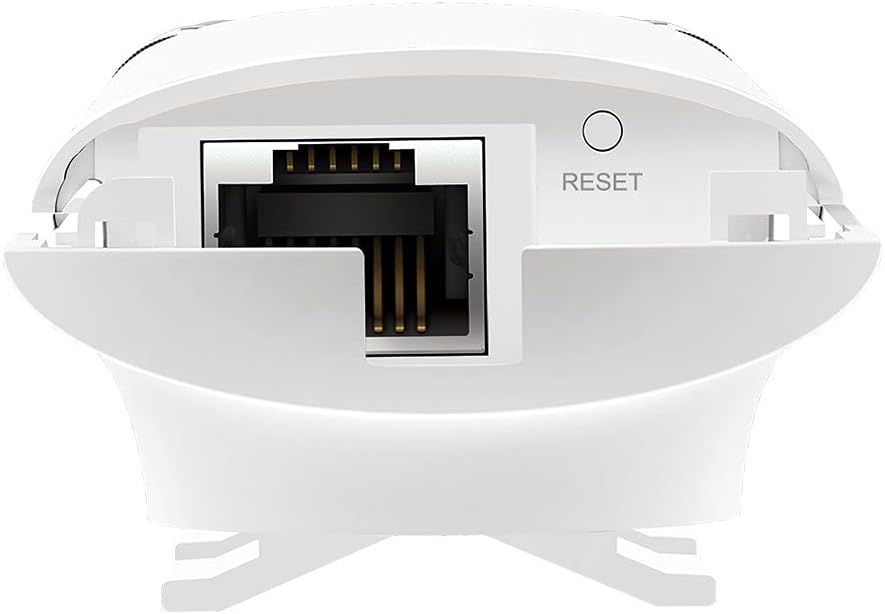
Image: Close-up of the bottom of the EAP110-Outdoor, revealing the Ethernet port and the recessed reset button.
Setup and Installation
The EAP110-Outdoor supports flexible deployment options, including pole and wall mounting. It uses Passive Power over Ethernet (PoE) for power and data transmission through a single Ethernet cable.
Physical Installation
- Mounting: Use the provided mounting kits to secure the EAP110-Outdoor to a pole or wall in your desired outdoor location. Ensure the device is positioned for optimal signal coverage.
- Antenna Attachment: Securely attach the two waterproof omnidirectional antennas to the connectors on the device.
- PoE Connection: Connect an Ethernet cable from your network router or switch to the "LAN" port on the Passive PoE Adapter. Then, connect another Ethernet cable from the "PoE" port on the adapter to the Ethernet port on the EAP110-Outdoor.
- Powering On: Plug the power cord into the Passive PoE Adapter and then into a power outlet. The device will power on automatically.
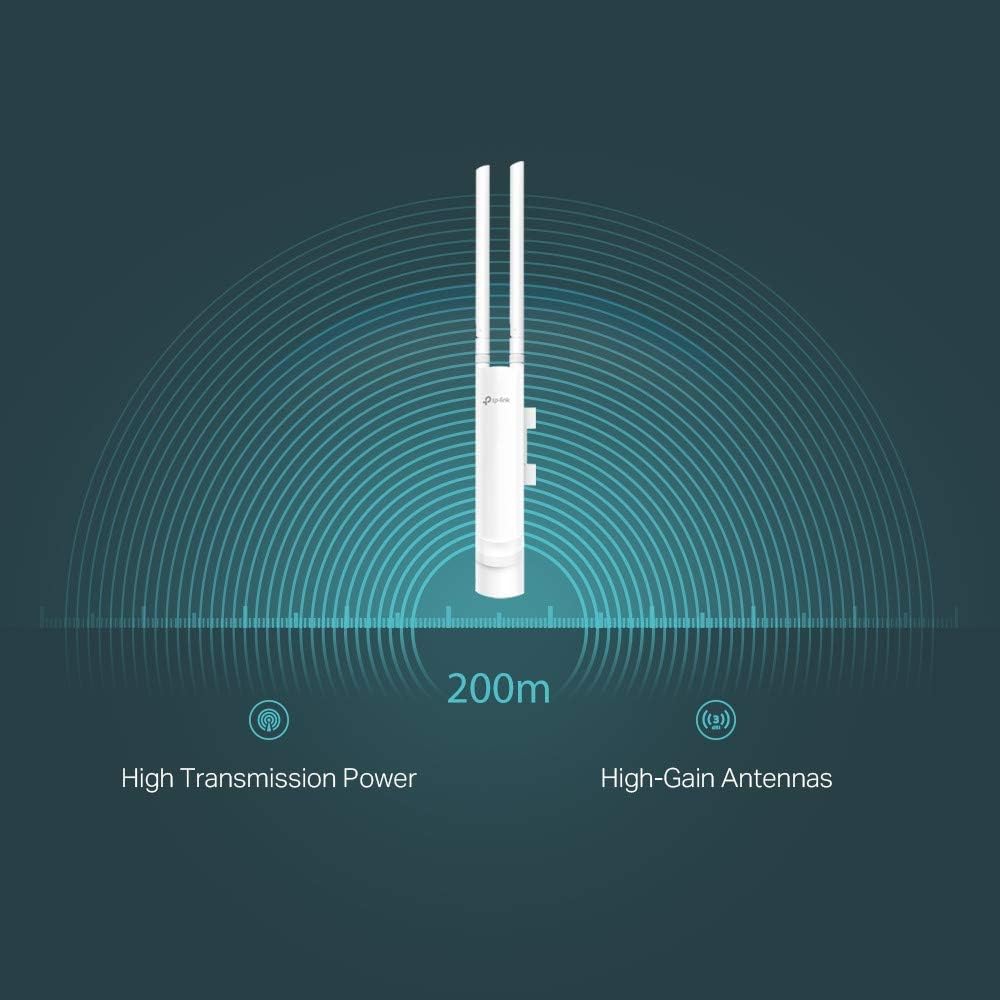
Image: The EAP110-Outdoor Access Point securely mounted on an outdoor pole, demonstrating a typical installation scenario.
Initial Configuration
The EAP110-Outdoor is managed using the free TP-Link Omada Controller Software (formerly Auranet Controller). Download the software from the TP-Link website and follow the on-screen instructions to discover and configure your access point. This software allows for centralized management of multiple EAPs.
- Set up Wi-Fi network names (SSIDs) and passwords.
- Configure security settings (WPA/WPA2-Enterprise, 802.1X).
- Manage client access and bandwidth limits.
- Utilize the captive portal for guest authentication.
Operating the Access Point
Once configured, the EAP110-Outdoor will broadcast your Wi-Fi network. Devices within range can connect using the configured SSID and password.
- Wireless Coverage: The device provides stable wireless coverage up to 200 meters in outdoor settings, thanks to its high transmission power and high-gain antennas.
- Speed: Supports up to 300Mbps Wi-Fi with 2x2 MIMO technology.
- Security: Features WPA/WPA2-Enterprise, 802.1X with RADIUS secure authentication, and rogue access point detection for enhanced network security.
- Guest Network: The captive portal feature allows for a convenient and secure method for guest authentication.
- Bandwidth Management: Rate limits can be applied per SSID to restrict the bandwidth of individual clients.

Image: A graphical representation showing the EAP110-Outdoor broadcasting a wireless signal with a range of 200 meters, highlighting its high transmission power and high-gain antennas.
Maintenance
Regular maintenance ensures optimal performance and longevity of your EAP110-Outdoor.
- Cleaning: Periodically clean the exterior of the device with a soft, dry cloth. Do not use liquid cleaners or aerosols.
- Firmware Updates: Check the TP-Link official website regularly for firmware updates. Keeping the firmware updated ensures you have the latest features, security patches, and performance improvements. Firmware updates are typically managed through the Omada Controller Software.
- Environmental Checks: Ensure the device remains securely mounted and that all cable connections are tight and free from damage, especially after severe weather conditions.
Troubleshooting
If you encounter issues with your EAP110-Outdoor, refer to the following common troubleshooting steps.
- No Power:
- Ensure the Passive PoE Adapter is correctly connected to a working power outlet.
- Verify that the Ethernet cables are securely connected between the adapter and the EAP.
- No Wi-Fi Signal or Poor Performance:
- Check the status LED on the EAP. Refer to the Installation Guide for LED indications.
- Ensure the EAP is within range of your client devices and free from major obstructions.
- Verify that the EAP is properly configured via the Omada Controller Software.
- Consider potential interference from other wireless devices.
- Check the Ethernet cable for damage.
- Cannot Access Omada Controller:
- Ensure your computer is on the same network as the EAP and the Omada Controller software is running.
- Check firewall settings on your computer.
- Resetting the Device: If the device is unresponsive or you need to restore factory default settings, use a paperclip to press and hold the recessed Reset button on the bottom of the device for approximately 10 seconds until the LED behavior changes.
Specifications
Key technical specifications for the TP-Link EAP110-Outdoor Access Point.
| Brand | TP-Link |
| Model Name | EAP110-Outdoor |
| Wireless Type | 802.11b, 802.11g, 802.11n |
| Frequency Band Class | Single-Band (2.4 GHz) |
| Connectivity Technology | Ethernet (Passive PoE) |
| Item Weight | 12.6 ounces (approx. 357 grams) |
| Product Dimensions (LxWxH) | 8.23 x 3.74 x 1.68 inches (approx. 209 x 95 x 43 mm) |
| Voltage | 24 Volts (via Passive PoE Adapter) |
| Operating System Compatibility | Windows 10, Windows Vista, Windows XP (for Omada Controller) |
| Recommended Use | Outdoor/Garden Wireless |
| Waterproof Rating | IP65 |
Warranty and Support
TP-Link provides comprehensive support for its products.
- Warranty: The EAP110-Outdoor comes with an industry-leading 2-year warranty.
- Technical Support: Unlimited 24/7 technical support is available. For assistance, please visit the official TP-Link support website: www.tp-link.com/support


