
1. Introduction
Welcome to the user manual for your Urbanears Stadion Active Wireless Bluetooth Headphones. This guide provides essential information on setting up, operating, maintaining, and troubleshooting your headphones to ensure optimal performance and longevity.
2. Product Overview
The Urbanears Stadion headphones are designed for active use, featuring a flexible neckband and secure ear-click technology.
2.1 Components
- Flexible Neckband: Adapts to head shape for a secure fit.
- Earbuds with Ear-Click Technology: Designed to stay in place during physical activity.
- Control Buttons: Integrated on the neckband for media and call management.
- Micro USB Charging Port: For recharging the internal battery.

Figure 1: Front view of the Urbanears Stadion headphones, showcasing the flexible neckband and earbuds.

Figure 2: Side view of the headphones, highlighting the earbud design and the coiled cable section.

Figure 3: Top view of the neckband, showing the integrated control buttons for volume and media playback.

Figure 4: Bottom view of the neckband, revealing the Micro USB charging port and product information.
3. Setup
3.1 Charging the Headphones
- Locate the Micro USB charging port on the underside of the neckband.
- Connect the included USB cable to the headphones and to a USB power source (e.g., computer, wall adapter).
- The LED indicator will show charging status.
- A full charge typically takes approximately 2 hours.
3.2 Bluetooth Pairing
- Ensure the headphones are turned off.
- Press and hold the power button (usually the center button on the control panel) until the LED indicator flashes blue to indicate pairing mode.
- On your Bluetooth-enabled device (smartphone, tablet, computer), go to the Bluetooth settings.
- Search for available devices and select "Urbanears Stadion" from the list.
- Once connected, the LED indicator will turn solid blue or off.
- If prompted for a passcode, enter "0000".
4. Operation
4.1 Power On/Off
- Power On: Press and hold the center control button for approximately 3 seconds until the LED indicator lights up.
- Power Off: Press and hold the center control button for approximately 5 seconds until the LED indicator turns off.
4.2 Music Playback
- Play/Pause: Press the center control button once.
- Next Track: Press and hold the '+' button.
- Previous Track: Press and hold the '-' button.
4.3 Call Management
- Answer/End Call: Press the center control button once.
- Reject Call: Press and hold the center control button for 2 seconds.
4.4 Volume Control
- Increase Volume: Press the '+' button.
- Decrease Volume: Press the '-' button.
5. Fit and Comfort
The Urbanears Stadion headphones are designed for a secure and comfortable fit during active use. The stretchy coils adapt to the shape of your head, while the ear-click technology helps the earbuds stay firmly in place.
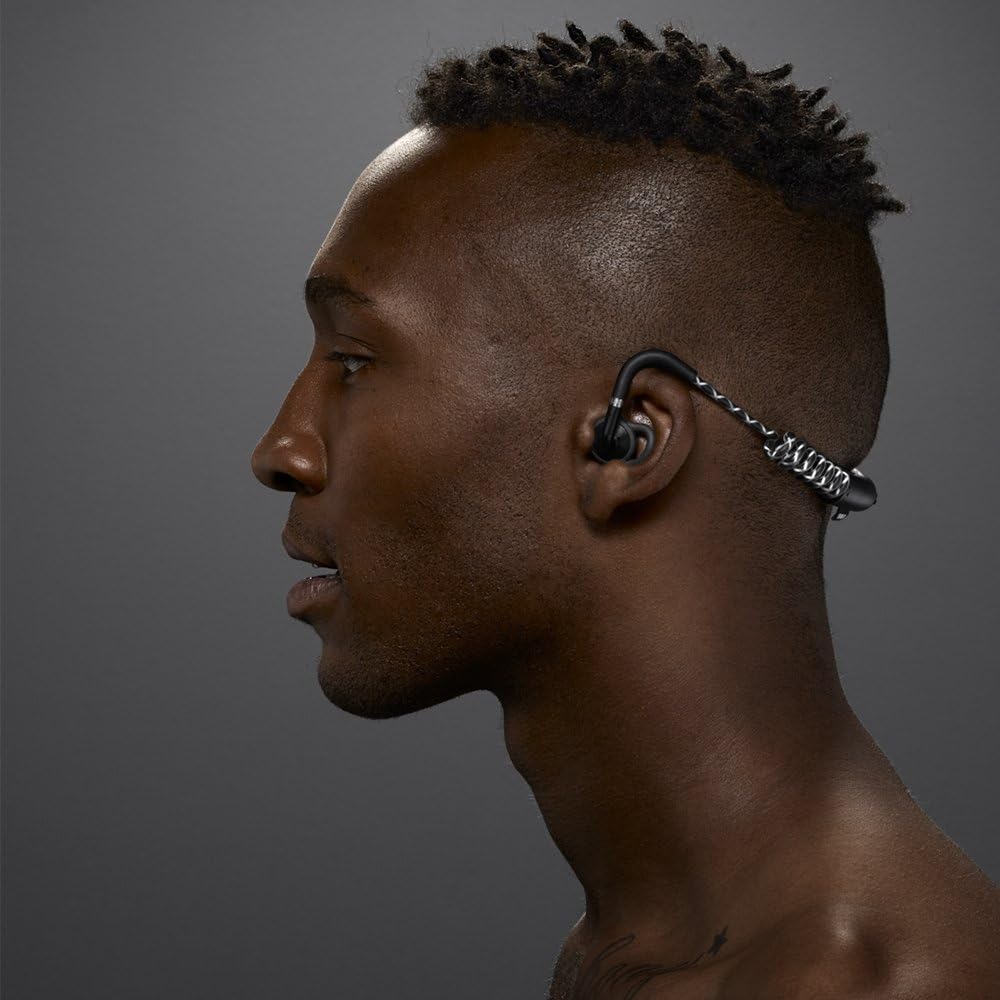
Figure 5: The headphones worn by a user, demonstrating the secure fit around the neck and in the ears.
Note: These headphones are designed to allow some ambient sound for safety during outdoor activities. They do not feature active noise cancellation.
6. Maintenance
6.1 Cleaning
- Wipe the headphones with a soft, dry cloth.
- For stubborn dirt, use a slightly damp cloth with mild soap, then wipe dry immediately.
- Do not use harsh chemicals or abrasive materials.
6.2 Storage
- Store the headphones in a cool, dry place away from direct sunlight and extreme temperatures.
- Avoid placing heavy objects on the headphones.
6.3 Water Resistance
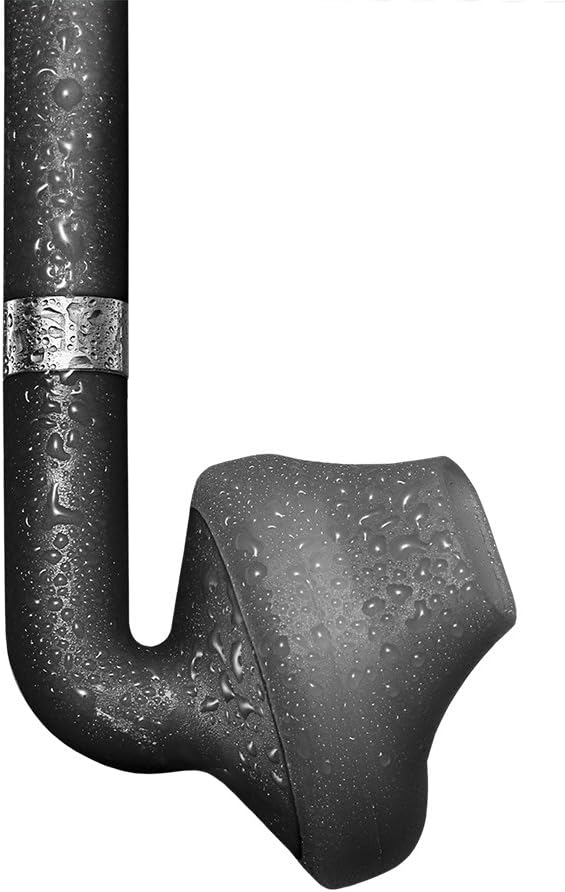
Figure 6: Close-up of an earbud, showing a surface with water droplets, indicating some level of splash resistance.
The Urbanears Stadion headphones are designed to withstand splashes and light sweat, making them suitable for workouts. However, they are not fully waterproof. Avoid submerging them in water or exposing them to heavy rain. Ensure the charging port cover is securely closed to prevent moisture ingress.
7. Troubleshooting
| Problem | Possible Cause | Solution |
|---|---|---|
| Headphones do not power on. | Low battery. | Charge the headphones fully. |
| Cannot pair with device. | Headphones not in pairing mode; device Bluetooth off; too far from device. | Ensure headphones are in pairing mode. Turn Bluetooth on your device. Move headphones closer to device. Try unpairing and re-pairing. |
| No sound or intermittent sound. | Volume too low; headphones not connected; interference. | Increase volume on headphones and device. Reconnect Bluetooth. Move away from other wireless devices. |
| Controls not responding. | Temporary software glitch. | Power off and then power on the headphones. |
8. Specifications
| Feature | Detail |
|---|---|
| Model Name | 04091872 |
| Connectivity Technology | Bluetooth 4.0 |
| Wireless Communication | Bluetooth |
| Headphones Jack | Micro USB (for charging) |
| Included Components | Headphones, USB charging cable |
| Material | Plastic |
| Specific Uses | Sports and Exercise |
| Control Type | Media Control |
| Cable Feature | Without Cable (wireless) |
| Item Weight | 0.6 Ounces (approx. 17 grams) |
| Product Dimensions | 5.87 x 1.97 x 5.75 inches |
| Batteries | 1 Lithium Polymer battery (included) |
| Ear Placement | In Ear |
| Form Factor | In Ear |
| Noise Control | Passive (allows ambient sound) |
9. Warranty and Support
For warranty information and customer support, please refer to the documentation included with your purchase or visit the official Urbanears website. Keep your proof of purchase for warranty claims.


