
1. Introduction and Overview
This manual provides instructions for the HP USB-C to USB-A Hub, Model Z8W90AA. This device expands a single USB-C port on your laptop into three USB-A 3.0 ports, allowing connection of multiple USB accessories such as a mouse, keyboard, or external hard drive. It is designed for seamless integration with compatible HP laptops and other USB-C enabled devices.

Figure 1: HP USB-C to USB-A Hub (Model Z8W90AA). This image shows the compact design of the hub with its integrated USB-C cable and three USB-A ports.
2. Package Contents
Verify that all items are present in the package:
- HP USB-C to USB-A Hub
- Quick start guide
- Product notice
- Warranty card
3. Setup Instructions
Follow these steps to set up your HP USB-C to USB-A Hub:
- Locate an available USB-C port on your laptop.
- Connect the USB-C connector of the HP Hub to the USB-C port on your laptop. Ensure the connection is firm.
- The hub is designed for plug-and-play functionality and typically does not require manual driver installation for compatible operating systems (Windows 7, Windows 10, Linux).
- Once connected, the hub is ready for use.

Figure 2: Setup and features of the HP USB-C to USB-A Hub. This image highlights the USB-C connection, the 12-inch cable length, and the three USB-A ports for connecting accessories.
4. Operating Instructions
The HP USB-C to USB-A Hub provides three USB 3.0 Type-A ports for connecting peripheral devices.
4.1. Connecting Devices
- Identify the USB-A connector on your peripheral device (e.g., mouse, keyboard, external hard drive, USB flash drive).
- Insert the USB-A connector into any of the three available USB-A ports on the HP Hub.
- The connected device should be recognized automatically by your operating system.
4.2. Data Transfer
The hub supports data transfer rates up to 5000 Megabits Per Second (5 Gbps) when connected to USB 3.0 compatible devices and a USB 3.0 compatible host port. For optimal performance, ensure both your peripheral and laptop's USB-C port support USB 3.0 or higher.
4.3. Fast Charging
The hub features fast charging capabilities for compatible devices connected to its USB-A ports, allowing for quicker power delivery to supported peripherals.
5. Maintenance
To ensure optimal performance and longevity of your HP USB-C to USB-A Hub, follow these guidelines:
- Keep the hub clean and free from dust. Use a soft, dry cloth for cleaning.
- Avoid exposing the hub to extreme temperatures, direct sunlight, or high humidity.
- Do not attempt to disassemble or modify the hub. This may void your warranty.
- When disconnecting, gently pull the USB-C connector from your laptop, rather than pulling on the cable itself.
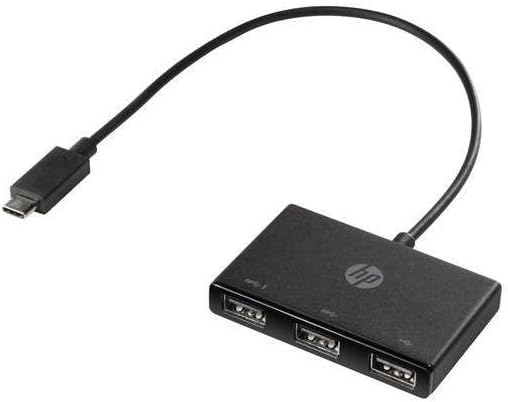
Figure 3: Angled view of the HP USB-C to USB-A Hub, clearly showing the three USB-A ports for connecting peripherals.
6. Troubleshooting
6.1. Device Not Recognized
- Ensure the HP Hub is securely connected to a functional USB-C port on your laptop.
- Try connecting the hub to a different USB-C port on your laptop, if available.
- Disconnect and reconnect the peripheral device from the hub.
- Restart your laptop.
- Verify that your laptop's operating system (Windows 7, Windows 10, Linux) is supported.
6.2. Slow Data Transfer
- Ensure both the connected peripheral device and your laptop's USB-C port support USB 3.0 for maximum speed.
- Avoid connecting multiple high-bandwidth devices simultaneously if performance issues occur.
6.3. Power Issues
- The hub draws power from the host laptop's USB-C port. Ensure your laptop has sufficient power, especially when connecting multiple devices.
- If connecting power-intensive devices, ensure your laptop is connected to its power adapter.
7. Specifications
| Feature | Detail |
|---|---|
| Model Number | Z8W90AA |
| Brand | HP |
| Color | Black |
| Hardware Interface | USB, USB Type C |
| Total USB Ports | 3 (USB 3.0 Type-A) |
| Data Transfer Rate | 5000 Megabits Per Second (5 Gbps) |
| Special Feature | Fast Charging |
| Compatible Devices | Keyboards, Laptops |
| Operating System Compatibility | Linux, Windows 10, Windows 7 |
| Enclosure Material | Plastic |
8. Warranty Information
This HP USB-C to USB-A Hub (Model Z8W90AA) is covered by an HP standard one-year limited warranty.
For detailed warranty terms and conditions, please refer to the included Warranty Card or visit the official HP support website. Keep your proof of purchase for warranty claims.
9. Support
For further assistance, technical support, or to access updated drivers and documentation, please visit the official HP support website: www.hp.com/support.
You may also refer to the "Product notice" and "Quick start guide" included in your package for additional information.


