
1. Introduction
The Rocketek TFU3R is a compact and portable USB 3.0 card reader designed for Micro SD (TF) cards. It allows for high-speed data transfer between your Micro SD card and USB-enabled devices such as laptops and tablets. This device supports plug-and-play functionality and hot-swapping, making it convenient for various applications.
Key Features:
- Small & Portable: Designed for easy portability, fitting conveniently in a wallet or pocket.
- Plug and Play: No drivers required for most operating systems.
- Hot Swapping: Allows insertion and removal of the device without restarting the computer.
- USB Powered: Operates without external power or batteries.
- SuperSpeed USB 3.0: Offers data transfer speeds up to 5 Gbps, backward compatible with USB 2.0/1.1.
- Durable Design: Constructed with an aluminum case for enhanced durability and efficient heat dissipation.
2. Setup Instructions
Follow these steps to set up and begin using your Rocketek TFU3R Micro SD Card Reader.
2.1 Inserting the Micro SD Card
- Locate the Micro SD card slot on the Rocketek TFU3R card reader.
- Gently insert your Micro SD (TF) card into the slot until it clicks into place. Ensure the card is oriented correctly to avoid damage.
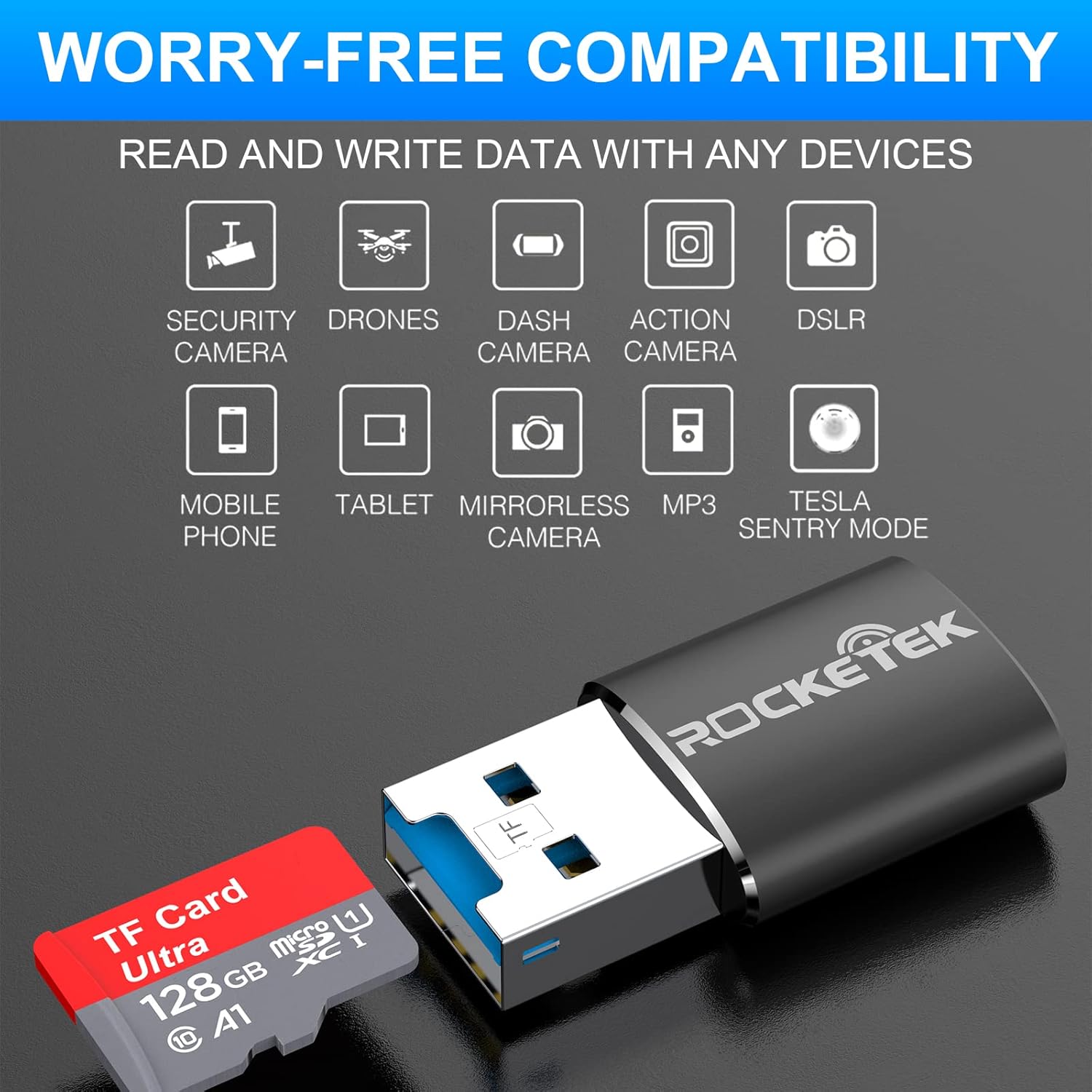
Image: Hands inserting a Micro SD card into the Rocketek TFU3R USB 3.0 card reader.
2.2 Connecting to Your Device
- Locate an available USB 3.0 or USB 2.0 port on your computer, laptop, or tablet.
- Plug the Rocketek TFU3R card reader, with the Micro SD card inserted, into the USB port.
- The device is plug-and-play; your operating system should automatically detect it and install any necessary generic drivers.
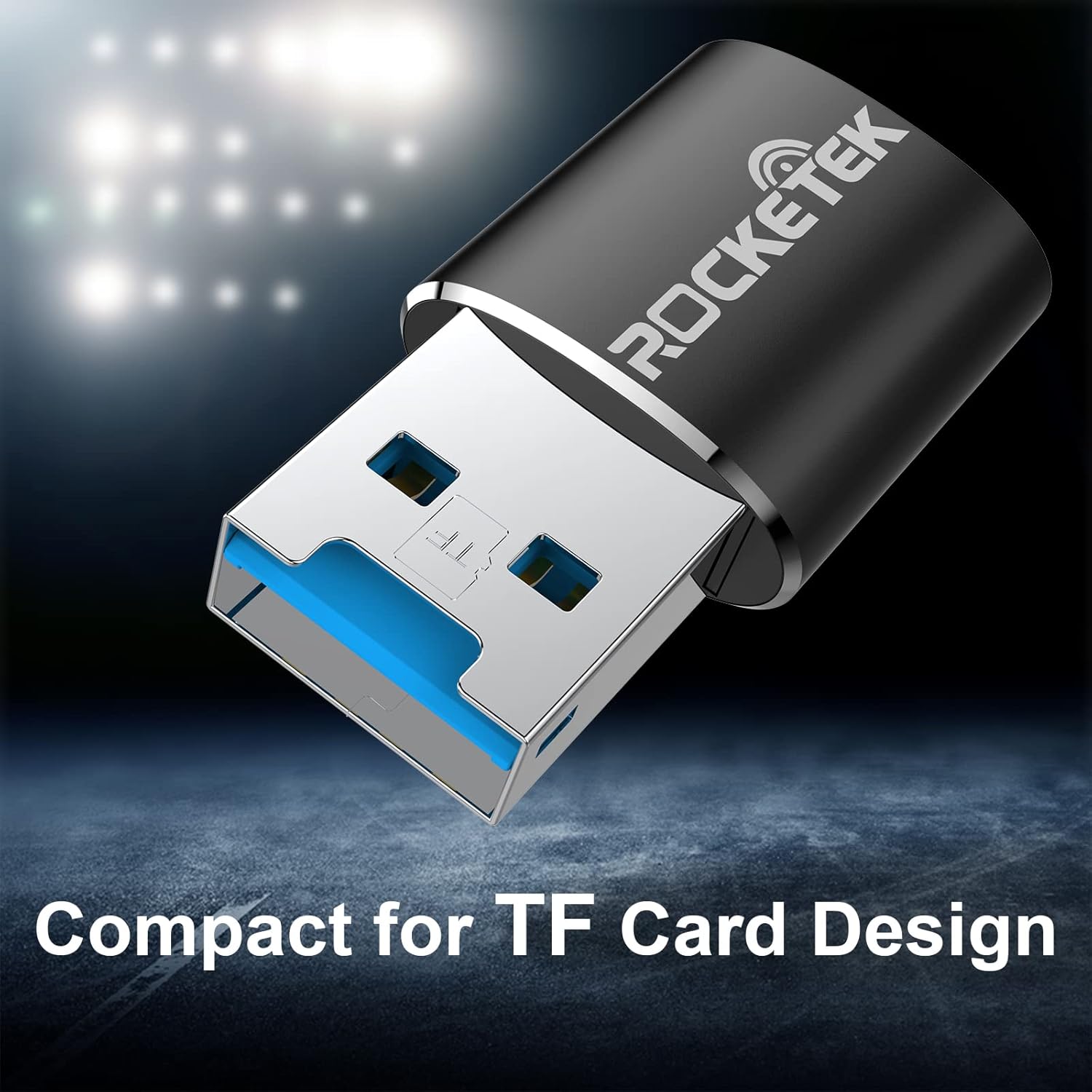
Image: Rocketek TFU3R USB 3.0 card reader plugged into a laptop's USB port, displaying 'Plug & Play'.
Video: A short demonstration showing how to insert a TF card into the Rocketek reader and connect it to a laptop for immediate use, highlighting its portability and plug-and-play functionality.
3. Operating Instructions
Once connected, the Rocketek TFU3R functions like any standard external storage device.
3.1 Data Transfer
- After connecting the card reader to your device, open your computer's file explorer (Windows) or Finder (Mac OS).
- The Micro SD card will appear as a removable drive.
- You can now drag and drop files to and from the Micro SD card, or use copy/paste functions to transfer data.
- The USB 3.0 interface provides SuperSpeed data transfer up to 5 Gbps, ensuring quick transfers of large files.
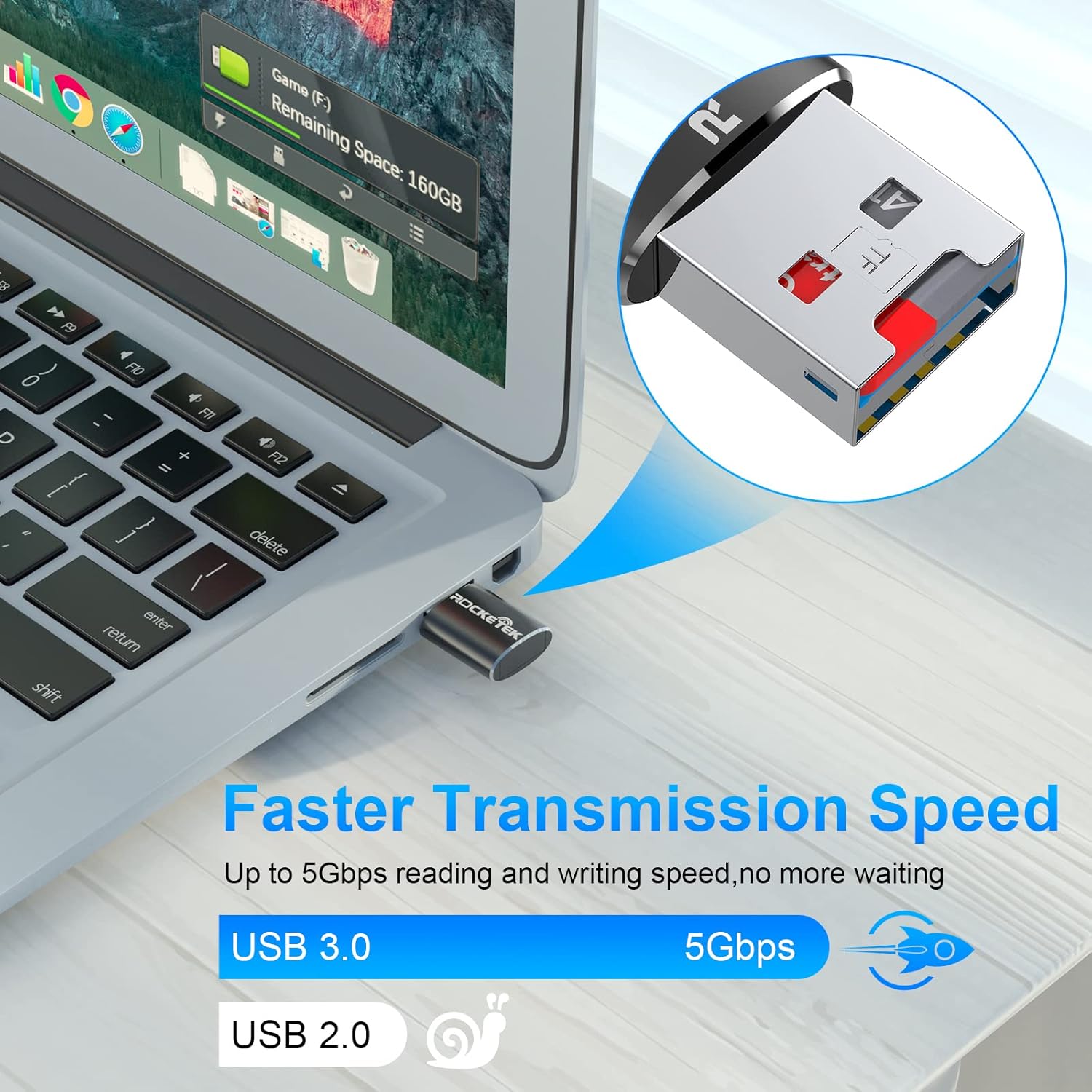
Image: Laptop screen showing file transfer with the Rocketek TFU3R plugged in, indicating 'Faster Transmission Speed' and 'USB 3.0 5Gbps'.
3.2 Safe Removal
To prevent data corruption, always safely remove the card reader before unplugging it from your computer.
- Windows: Right-click on the drive icon in 'This PC' or the taskbar's 'Safely Remove Hardware' icon, then select 'Eject'.
- Mac OS: Drag the drive icon to the Trash or click the Eject button next to the drive name in Finder.
4. Compatibility
The Rocketek TFU3R card reader offers broad compatibility with various devices and operating systems.
4.1 Supported Devices
- Laptops
- Tablets
- Desktop Computers
- Other USB-enabled devices

Image: Diagram illustrating the Rocketek TFU3R's compatibility with tablets and laptops, showing a Micro SD card being inserted.
4.2 Supported Operating Systems
- Windows 7 / 8 / 8.1 / 10+
- Mac OS
- Linux

Image: The Rocketek TFU3R is compatible with a wide range of devices, including security cameras, drones, dash cameras, action cameras, DSLRs, mobile phones, tablets, mirrorless cameras, MP3 players, and for Tesla Sentry Mode.
5. Specifications
| Feature | Detail |
|---|---|
| Model Number | TFU3R (RT-TFU3R-B) |
| Brand | Rocketek |
| Media Type | Micro SD (TF) |
| Connectivity Technology | USB |
| Hardware Interface | USB 3.0 (backward compatible with USB 2.0/1.1) |
| Data Transfer Rate | Up to 5 Gigabits Per Second (USB 3.0) |
| Slot Count | 1 (for Micro SD/TF cards) |
| Special Feature | Portable, Plug & Play, Hot Swapping |
| Material | Aluminum Case |
| Operating System Compatibility | Windows 7/8/8.1/10+, Mac OS, Linux |
6. Troubleshooting
If you encounter issues with your Rocketek TFU3R, refer to the following common troubleshooting steps.
6.1 Device Not Recognized
- Check Connection: Ensure the card reader is fully inserted into the USB port.
- Try Another USB Port: Connect the card reader to a different USB port on your computer.
- Try Another Device: Test the card reader on another computer or compatible device to rule out a port issue.
- Check Micro SD Card: Ensure the Micro SD card is properly inserted into the card reader and is not damaged. Test the Micro SD card in another device if possible.
- Restart Computer: Sometimes a simple restart can resolve detection issues.
6.2 Slow Data Transfer Speed
- Use USB 3.0 Port: For optimal speeds (up to 5 Gbps), ensure the card reader is plugged into a USB 3.0 port (often identified by a blue interior). Connecting to a USB 2.0 port will result in slower speeds.
- Check Micro SD Card Speed Class: The actual transfer speed is also limited by the speed class of your Micro SD card. Use a high-speed card for better performance.
- Avoid Other USB Devices: Disconnect other high-bandwidth USB devices if you are experiencing unusually slow speeds.
6.3 Card Not Reading
- Reinsert Card: Remove and reinsert the Micro SD card, ensuring it is seated correctly.
- Clean Contacts: Gently clean the metal contacts on the Micro SD card with a soft, dry cloth.
- Check Card Format: Ensure the Micro SD card is formatted in a file system compatible with your operating system (e.g., FAT32, exFAT, NTFS).
7. Maintenance
Proper care and maintenance will extend the lifespan of your Rocketek TFU3R card reader.
- Keep Dry: Avoid exposing the device to moisture or liquids.
- Clean Gently: Use a soft, dry cloth to clean the exterior. Do not use harsh chemicals or abrasive materials.
- Store Properly: When not in use, store the card reader in a cool, dry place away from direct sunlight and extreme temperatures.
- Handle with Care: Avoid dropping or subjecting the device to strong impacts.
8. Warranty and Support
Rocketek stands behind the quality of its products.
8.1 Warranty Information
The Rocketek TFU3R USB 3.0 Micro SD Card Reader comes with a hassle-free 24-month warranty from the date of purchase. This warranty covers manufacturing defects and ensures reliable performance under normal use. Please retain your proof of purchase for warranty claims.
8.2 Customer Support
For technical assistance, warranty claims, or any questions regarding your Rocketek TFU3R, please contact our customer support team:
- Email: support@rocketek.com (Example email, please refer to product packaging for actual contact)
- Website: Visit the official Rocketek website for FAQs and additional resources.