
1. Introduction
The Browning Defender 850 (BTC-9D) is a high-performance trail camera designed for capturing wildlife images and videos. Featuring 20-megapixel resolution, Full HD video recording, and advanced infrared technology, it provides clear and detailed footage day or night. Its compact, camouflage design allows for discreet placement in various outdoor environments. This manual provides essential information for setting up, operating, and maintaining your camera.
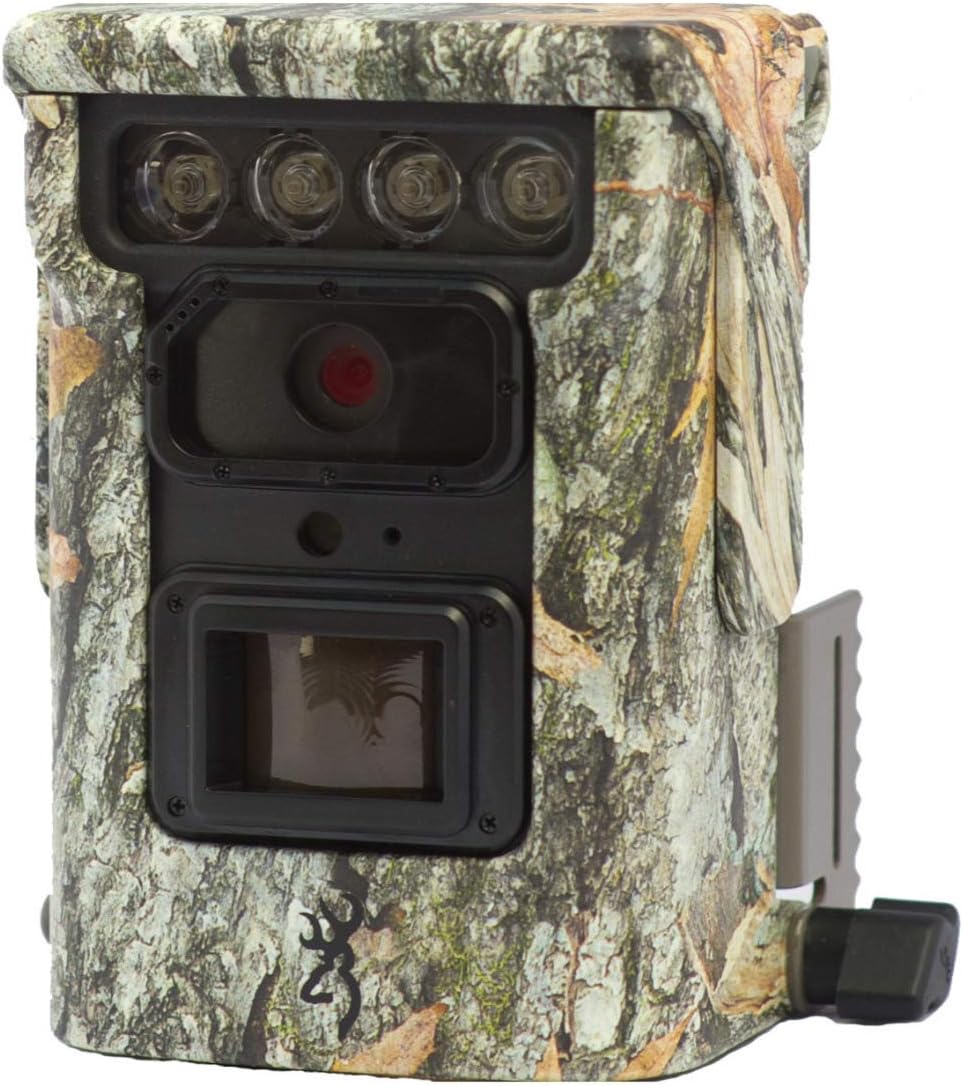
Image 1.1: Front view of the Browning Defender 850 trail camera, showcasing its lens, IR emitters, and camouflage casing.
2. Package Contents
Please verify that all items listed below are included in your package:
- 1x Browning Defender 850 Trail Camera (BTC-9D)
- 4x CR123 Lithium Batteries
- 1x 16GB SDXC SD Card
- CD with 'Time Lapse Viewer' Software
3. Key Features
The Browning Defender 850 is equipped with several advanced features to enhance your trail monitoring experience:
- High Resolution Imaging: Captures still images at 20 Megapixels.
- Full HD Video: Records 1920x1080 Full HD videos with sound.
- Fast Trigger Speed: Ultra-fast 0.4-second trigger speed to capture fast-moving subjects.
- Invisible IR Flash: Features 850 nm infrared flash for silent, nearly invisible night illumination up to 36 meters (120 feet).
- WiFi & Bluetooth Connectivity: Allows for wireless viewing and management of photos and videos via the Browning Trail Camera app on your smartphone or tablet.
- Multiple Capture Modes: Supports Photo, Video, Time-lapse, and Time-lapse Plus modes.
- Burst Mode: Captures 1-8 photos per trigger, with a fast burst option of 8 photos in 2 seconds.
- Data Overlay: Images and videos include time, date, camera ID, moon phase, and temperature stamps.
- Compact Design: Small and discreet camouflage housing.
4. Setup Guide
4.1. Battery Installation
The camera requires 4x CR123 Lithium batteries (included). To install:
- Locate the battery compartment on the camera.
- Open the compartment door.
- Insert the 4 CR123 batteries, ensuring correct polarity (+/-) as indicated inside the compartment.
- Close the battery compartment door securely.
4.2. SD Card Insertion
A 16GB SDXC SD card is included. The camera supports up to 128GB SDXC cards. To insert:
- Locate the SD card slot, typically near the battery compartment.
- Insert the SD card with the label facing the front of the camera until it clicks into place.
- To remove, press the card gently inward until it springs out.
4.3. Mounting the Camera
The Defender 850 features a 1/4" tripod thread for versatile mounting options. It also comes with an integrated mounting bracket.
- Use the included strap or a compatible mounting accessory to secure the camera to a tree or post.
- Ensure the camera is stable and pointed towards the desired monitoring area.
- For optimal performance, position the camera at a height of approximately 1-2 meters (3-6 feet) from the ground.

Image 4.1: Side view of the Browning Defender 850, illustrating the integrated mounting bracket.
5. Operating Instructions
5.1. Powering On/Off
Once batteries and SD card are installed, the camera will enter a ready state. Most configuration and operation are managed through the Browning Trail Camera app.
5.2. Connecting via WiFi and Bluetooth
The Defender 850 utilizes WiFi and Bluetooth for seamless connectivity with your smartphone or tablet.
- Download the official Browning Trail Camera App from your device's app store (iOS or Android).
- Ensure Bluetooth is enabled on your smartphone/tablet.
- Open the Browning Trail Camera App and follow the on-screen instructions to discover and connect to your BTC-9D camera via Bluetooth.
- Once connected via Bluetooth, the app will guide you to establish a WiFi connection for faster data transfer and live viewing (if supported).
5.3. Camera Modes and Settings
Through the Browning Trail Camera App, you can configure various settings:
- Capture Mode: Select between Photo, Video, Time-lapse, or Time-lapse Plus.
- Photo Resolution: Set to 20 Megapixels for highest quality.
- Video Resolution & Length: Choose 1920x1080 Full HD. Adjust video length (5/10/20/30 seconds, 1/2 minutes).
- Trigger Delay/Image Delay: Set the delay between detections (5/10/20/30 seconds, 1/5/10/30/60 minutes).
- Burst Settings: Configure the number of photos taken per trigger (1-8 photos).
- Time-lapse Interval: Define the interval for time-lapse captures (5/10/20/30 seconds, 1/2/5/10/30/60 minutes).
- IR Flash Power: Adjust the infrared flash power (Power Save, Long Range, Fast Motion) based on your needs.
- Date & Time: Synchronize the camera's clock with your device.
- Camera ID: Assign a unique ID to your camera for easier identification if you operate multiple units.
5.4. Viewing and Managing Files
The app allows you to view captured images and videos directly on your device without retrieving the SD card.
- Browse thumbnails of captured media.
- Download selected photos or videos to your device.
- Delete unwanted files from the SD card.
- For time-lapse sequences, use the included 'Time Lapse Viewer' software on a computer for optimal playback.
6. Maintenance
Proper maintenance ensures the longevity and optimal performance of your Browning Defender 850 camera.
- Cleaning: Gently wipe the camera lens and IR emitters with a soft, lint-free cloth. Avoid abrasive materials or harsh chemicals. Keep the casing clean from dirt and debris.
- Battery Care: Replace batteries when the low battery indicator appears in the app. Remove batteries if the camera will be stored for an extended period to prevent leakage.
- SD Card Management: Periodically format the SD card using the camera's app or a computer to maintain optimal performance and prevent data corruption. Back up important files before formatting.
- Storage: When not in use, store the camera in a cool, dry place away from direct sunlight and extreme temperatures.
7. Troubleshooting
If you encounter issues with your Browning Defender 850, refer to the following common troubleshooting steps:
- Camera Not Powering On:
- Ensure batteries are inserted correctly with proper polarity.
- Replace with fresh CR123 Lithium batteries.
- No Images/Videos Captured:
- Check if the SD card is properly inserted and not full.
- Ensure the SD card is formatted correctly (FAT32 or exFAT, depending on card size).
- Verify camera settings (e.g., trigger delay, operating schedule) via the app.
- Confirm the camera is in an active capture mode (Photo, Video, etc.).
- Poor Image/Video Quality:
- Clean the camera lens and IR emitters.
- Ensure the camera is not too close or too far from the subject.
- Check IR flash settings for night captures.
- Cannot Connect via App (WiFi/Bluetooth):
- Ensure Bluetooth and WiFi are enabled on your smartphone/tablet.
- Make sure the camera is powered on and within range.
- Restart both the camera (by removing/reinserting batteries) and your smartphone/tablet.
- Update the Browning Trail Camera App to the latest version.
- Time-lapse Viewer Software Issues:
- Ensure your computer meets the minimum system requirements for the software.
- Reinstall the software from the provided CD.
If problems persist, contact Browning customer support for further assistance.
8. Specifications
Detailed technical specifications for the Browning Defender 850 (BTC-9D) trail camera:
| Feature | Specification |
|---|---|
| Model Number | BTC-9D |
| Image Resolution | 20 Megapixels |
| Video Resolution | 1920x1080 Full HD with Sound |
| Trigger Speed | 0.4 seconds |
| IR Flash Type | 850 nm Infrared (Invisible) |
| IR Flash Range | 36 meters (120 feet) |
| Power Source | 4x CR123A Lithium Batteries (included) |
| External Power | 12 Volt connection |
| Memory Card Support | Up to 128GB SDXC (16GB included) |
| Connectivity | WiFi, Bluetooth, USB, TV Out |
| Dimensions (HxWxD) | 127mm x 102mm x 64mm (approx. 5 x 4 x 2.5 inches) |
| Weight | 453.59 g (approx. 1 lb) |
| Color | Camouflage |
| Operating Temperature | Not specified, typical for outdoor use. |
9. Warranty and Support
The Browning Defender 850 (BTC-9D) trail camera comes with a 24-month warranty from the date of purchase, covering manufacturing defects.
For technical support, warranty claims, or further inquiries, please contact Browning customer service. Refer to the official Browning website or product packaging for the most up-to-date contact information.
Note: Keep your proof of purchase for warranty validation.
