
Introduction
Welcome to the iRobot Roomba 890 Robot Vacuum User Manual. This guide provides essential information for setting up, operating, and maintaining your Roomba 890 to ensure optimal performance and longevity. The Roomba 890 is designed to deliver powerful cleaning with its Power-Lifting Suction and Premium 3-Stage Cleaning System, ideal for various floor types and pet hair. Its Wi-Fi connectivity allows for convenient control via the iRobot HOME App, and it is compatible with voice assistants like Amazon Alexa and Google Assistant.
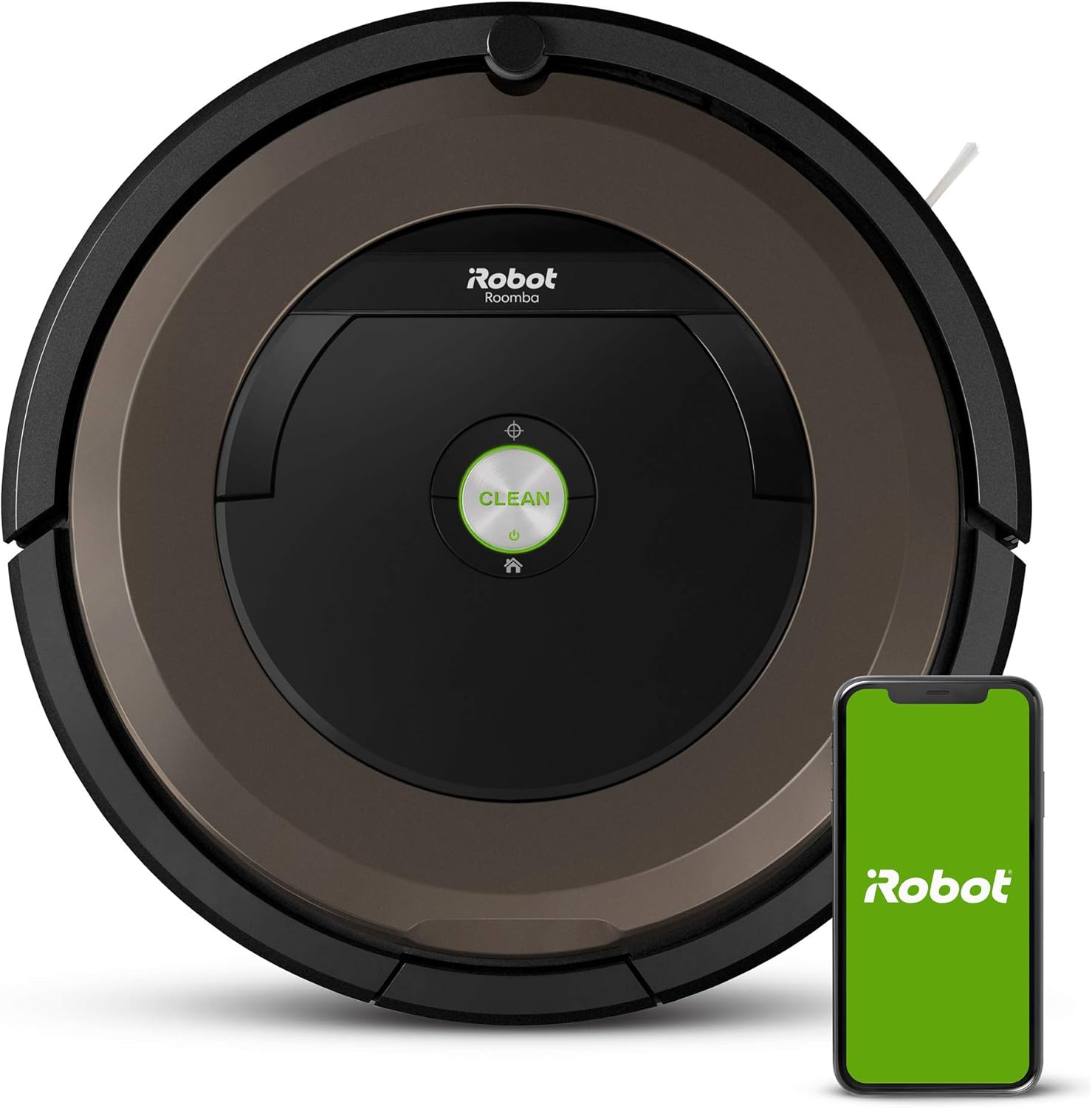
The iRobot Roomba 890 Robot Vacuum, shown with its companion mobile application.
Setup
1. Unboxing and Initial Charge
Carefully remove all components from the packaging. Ensure you have the Roomba 890 robot, Home Base charging station, power cord, and any included accessories. Place the Roomba on the Home Base to charge. The battery indicator will show charging status. Allow at least 3 hours for the initial full charge.
2. Positioning the Home Base
Proper placement of the Home Base is crucial for your Roomba's navigation and charging. Choose an open, uncluttered area with consistent Wi-Fi coverage.
- At least 1.5 feet (0.5 meters) on each side of the Home Base.
- At least 4 feet (1.2 meters) in front of the Home Base, and at least 4 feet (1.2 meters) away from stairs.
- At least 8 feet (2.4 meters) from Virtual Wall Barriers.
Always keep the Home Base plugged in. This allows Roomba to receive information via the iRobot HOME App.

Recommended distances for optimal Home Base positioning.

The Roomba 890 interacting with a Virtual Wall Barrier, demonstrating its navigation capabilities.
3. Connecting to Wi-Fi and iRobot HOME App
Download the iRobot HOME App from your device's app store. Follow the in-app instructions to connect your Roomba 890 to your home Wi-Fi network. This enables advanced features like scheduling, cleaning preferences, and remote control.

Controlling the Roomba 890 and accessing features through the iRobot HOME App.
Operating Your Roomba 890
1. Starting a Cleaning Cycle
Press the large CLEAN button on top of the robot or use the iRobot HOME App to start a cleaning cycle. Roomba will automatically adjust to different floor types, including carpets and hard floors, thanks to its Dual Multi-Surface Rubber Brushes.

The Roomba 890 effectively cleans both carpeted and hard floor areas.
2. Dirt Detect™ Technology
The Roomba 890 is equipped with patented Dirt Detect™ sensors that identify concentrated areas of dirt, such as high-traffic zones. When these areas are detected, Roomba will work harder, moving back and forth over the spot to ensure thorough cleaning.

Visual representation of Roomba's Dirt Detect Technology, highlighting its ability to focus on dirtier areas.
3. Navigation and Coverage
Roomba uses iAdapt® Navigation to clean your home efficiently. It adapts to its environment, navigating around furniture and obstacles. It is designed to clean along walls and into corners, ensuring comprehensive coverage.

The Roomba 890 effectively sweeps corners and cleans along walls.

The Roomba 890's low profile allows it to clean under and around furniture.
4. Scheduling and Voice Control
Use the iRobot HOME App to schedule cleaning cycles for specific times and days. You can also initiate or stop cleaning using voice commands with Amazon Alexa or Google Assistant, once integrated.
Maintenance
Regular maintenance ensures your Roomba 890 continues to perform at its best. Always turn off the robot and disconnect it from the Home Base before performing any maintenance.
1. Emptying the Dust Bin
The dust bin should be emptied after each cleaning cycle, especially if you have pets. Press the bin release button, pull out the bin, and open the bin door to empty debris. Tap the bin against a trash can to dislodge any trapped dirt.
2. Cleaning the Brushes
The Dual Multi-Surface Rubber Brushes should be cleaned weekly, or more often if you have pets. Remove the brush frame, then remove the brushes. Pull hair and debris from the brush ends and the yellow brush caps. Reinstall the brushes, ensuring they click into place.
3. Cleaning the Filter
The High-Efficiency Filter should be cleaned weekly and replaced every 2-3 months. Remove the filter from the dust bin and tap it against a trash can to remove debris. Do not wash the filter.
4. Cleaning Sensors and Charging Contacts
Wipe the charging contacts on the robot and Home Base with a clean, dry cloth monthly. Also, wipe the cliff sensors (located on the bottom of the robot) and the front bumper sensor window to ensure proper navigation.
Troubleshooting
If your Roomba 890 encounters an issue, consult this section for common solutions. For more detailed troubleshooting, refer to the iRobot HOME App or the iRobot support website.
Common Issues and Solutions:
- Roomba not charging: Ensure the Home Base is plugged in and the charging contacts on both the robot and Home Base are clean and free of debris.
- Roomba not starting or stopping unexpectedly: Check for tangled brushes or wheels. Empty the dust bin. Ensure the battery is charged.
- Error messages/lights: Consult the iRobot HOME App for specific error codes and recommended actions. Often, a simple restart (holding the CLEAN button for 10 seconds) can resolve minor issues.
- Poor cleaning performance: Clean the brushes, filter, and dust bin. Ensure the robot's sensors are clean.
Specifications
| Feature | Detail |
|---|---|
| Brand | iRobot |
| Model Name | iRobot® Roomba® 890 Robot Vacuum |
| Special Features | 90 min runtime, Thorough coverage, 5x stronger power, Ideal for pet hair, Wi-Fi connected |
| Color | Black/Brown W/ Extras |
| Product Dimensions | 13.9"L x 13.9"W x 3.6"H |
| Capacity Volume | 0.62 liters |
| Suction Power | 5X the suction* for improved pick-up performance |
| Cleaning System | Premium 3-Stage Cleaning System |
| Brushes | Dual Multi-Surface Rubber Brushes |
| Sensors | Patented Dirt Detect sensors |
| Connectivity | Wi-Fi Connected, Compatible with Amazon Alexa and Google Assistant |
Official Product Videos
No official product videos from the seller were available for embedding at this time. Please check the iRobot official website or app for any available video resources.
Warranty and Support
Warranty Information
Your iRobot Roomba 890 comes with a limited warranty. Please refer to the warranty card included in your product packaging or visit the official iRobot website for detailed terms and conditions regarding warranty coverage and duration.
Customer Support
For technical assistance, troubleshooting, or replacement parts, please contact iRobot Customer Care. You can find contact information and additional resources on the official iRobot website or through the iRobot HOME App.
- Online Support: Visit www.irobot.com/support
- iRobot HOME App: Access support resources directly within the app.