
Coolgear CG-4PU31C1B1
Coolgear USB C Hub 4 Port USB 3.1 Gen1 SuperSpeed Type-B Upstream User Manual
Model: CG-4PU31C1B1
1. Introduction
Thank you for choosing the Coolgear USB C Hub. This device is designed to expand your computer's connectivity by providing four additional USB 3.1 Gen1 SuperSpeed ports (one USB-C and three USB-A) from a single USB Type-B upstream connection. It is ideal for connecting multiple USB peripherals such as external hard drives, keyboards, mice, printers, and more, all while maintaining high-speed data transfer capabilities.
2. Features
- Compliant with USB 3.1 Gen 1 Specifications.
- Provides 4 (1 USB-C and 3 USB-A) downstream facing USB 3.1 ports.
- Supports 5Gbps (SuperSpeed), 480Mbps (High-Speed), 12Mbps (Full-Speed), and 1.5Mbps (Low-Speed) speeds.
- Supports 15KV ESD Surge Protection for enhanced durability.
- Supports USB battery charging: CDP (Charging Downstream Port) and DCP (Dedicated Charging Port) modes.
- Industrial-grade metal housing with mounting flanges for secure installation.
- Wide range 7-48V DC power input via terminal block.
3. Package Contents
Please verify that all items are present in your package:
- Coolgear USB C Hub (Model CG-4PU31C1B1)
- USB 3.1 Type-B to Type-A Cable
- Mounting Hardware (screws and clip)

Image: All components included in the Coolgear USB C Hub package.
4. Setup
Follow these steps to set up your Coolgear USB C Hub:
- Connect to Host Computer: Locate the USB 3.1 Type-B port on the hub (labeled '0' with a USB-B icon). Connect one end of the provided USB 3.1 Type-B to Type-A cable to this port. Connect the other end (Type-A) to an available USB 3.1 (or compatible) port on your host computer.
- Connect Peripherals: Connect your USB devices (e.g., flash drives, external hard drives, keyboards, mice) to the available downstream USB-A ports (labeled '2', '3', '4') or the USB-C port (labeled '1').
- Power Connection (Optional/Required for high-power devices): For stable operation, especially with multiple high-power devices, connect a 7-48V DC power supply to the terminal block on the hub. Ensure correct polarity (+ and -). The 'PWR' LED indicator will illuminate when power is supplied.
- Mounting (Optional): The hub features integrated mounting flanges. Use appropriate screws to secure the hub to a surface if permanent installation is desired.

Image: The USB 3.1 Type-B upstream cable connected to the hub.
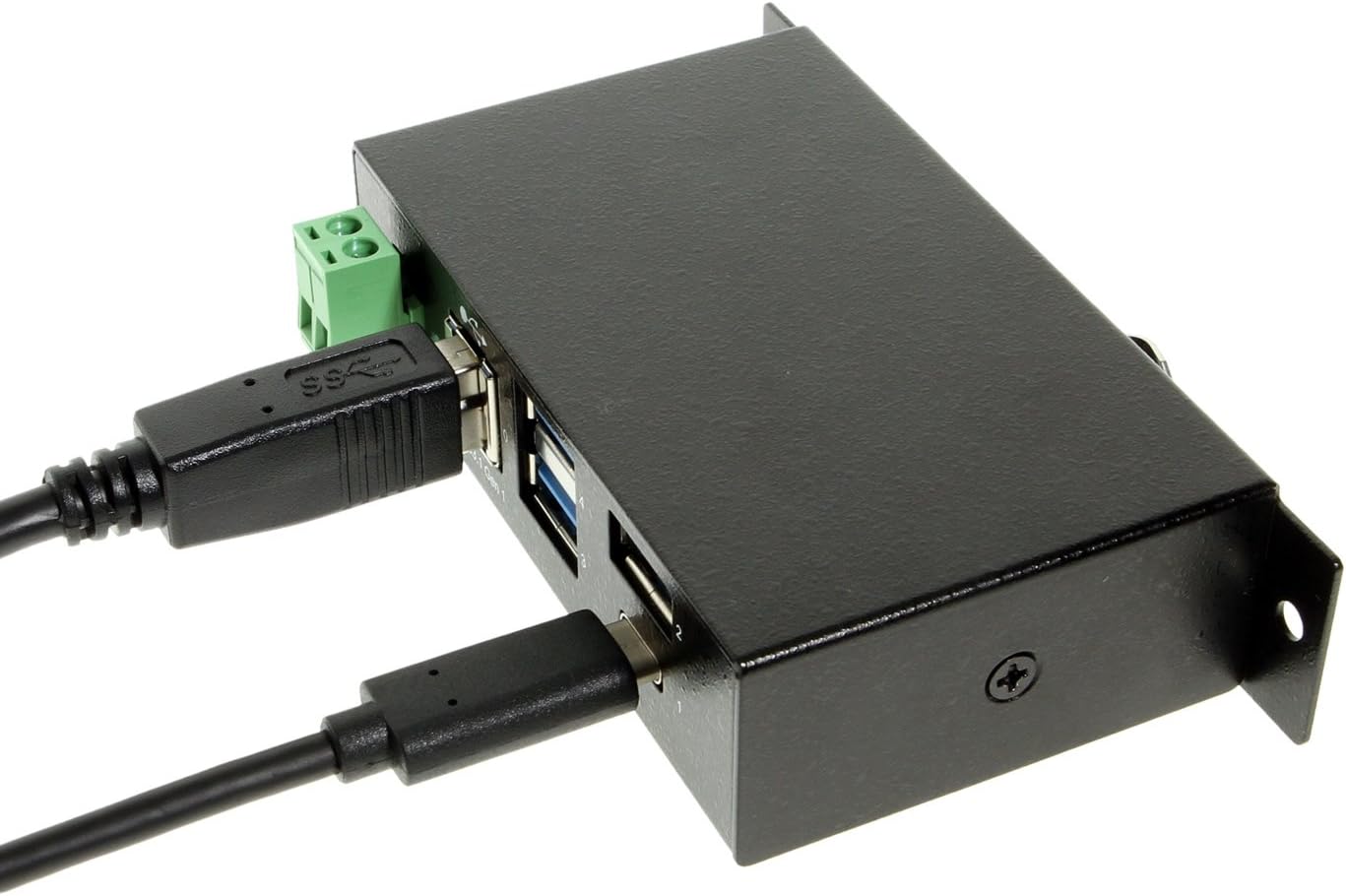
Image: The hub with both upstream (Type-B) and a downstream (Type-C) device connected.

Image: Front view of the hub, highlighting the power input terminal block and various USB ports.

Image: Side view of the hub demonstrating the integrated mounting bracket.
5. Operation
The Coolgear USB C Hub is a plug-and-play device, requiring no special drivers for most operating systems. Once connected, your computer should automatically detect the hub and any connected devices.
- Data Transfer: Enjoy SuperSpeed data transfer rates of up to 5Gbps with compatible USB 3.1 Gen1 devices. The hub is also backward compatible with USB 2.0 and USB 1.1 devices, operating at their respective speeds.
- Charging: The hub supports USB battery charging (CDP and DCP modes), allowing you to charge compatible devices connected to its downstream ports.
- LED Indicator: The 'PWR' LED indicates that the hub is receiving power.
6. Specifications
| Feature | Specification |
|---|---|
| Model Number | CG-4PU31C1B1 |
| Product Dimensions | 3.74 x 2.23 x 1.03 inches |
| Item Weight | 15 ounces |
| Brand | Coolgear |
| Color | Black |
| Hardware Interface | USB, USB Type C |
| Data Transfer Speed | Up to 5Gbps (USB 3.1 Gen1 SuperSpeed) |
| ESD Protection | 15KV |
| Power Input | +7~48V DC via Terminal Block |
| Compatible Devices | Laptops, Desktops, Keyboards, Mouse, Printers, Tablets |
7. Troubleshooting
If you encounter issues with your Coolgear USB C Hub, please refer to the following common problems and solutions:
- Device Not Recognized:
- Ensure all cables are securely connected to both the hub and the host computer.
- Try connecting the hub to a different USB port on your computer.
- If using an external power supply, ensure it is correctly connected and providing the specified voltage.
- Restart your computer.
- Slow Data Transfer Speeds:
- Verify that both your host computer's USB port and the connected device support USB 3.1 Gen1 (SuperSpeed).
- Ensure you are using a high-quality USB 3.1 cable.
- Avoid connecting too many high-bandwidth devices simultaneously.
- Power Issues / Devices Not Charging:
- Ensure an external power supply is connected if you are using high-power devices or charging.
- Check the power supply voltage and current to ensure it meets the hub's requirements.
- Some devices may require more power than the hub can provide, even with an external power supply.
8. Maintenance
To ensure the longevity and optimal performance of your Coolgear USB C Hub, follow these maintenance guidelines:
- Cleaning: Use a soft, dry cloth to clean the exterior of the hub. Do not use liquid cleaners or aerosols.
- Storage: Store the hub in a cool, dry place away from direct sunlight and extreme temperatures when not in use.
- Handling: Avoid dropping the hub or subjecting it to strong impacts. Do not attempt to disassemble the unit.
- Environment: Keep the hub away from water, moisture, and excessive dust.
9. Warranty and Support
Coolgear products are designed for reliability and performance. For specific warranty information, please refer to the documentation included with your purchase or visit the official Coolgear website. If you require technical assistance or have questions about your product, please contact Coolgear customer support through their official channels.
For more information and support, visit the Coolgear Store on Amazon.
Related documentsCG-4PU31C1B1


Ask a question about this manual
Ask about setup, troubleshooting, compatibility, parts, safety, or missing instructions. Manuals+ will review the question and use this page’s manual context to help answer it.