
1. Introduction
This manual provides detailed instructions for the installation, operation, and maintenance of your PRUVEEO H1 Dual Dash Cam. This device is designed to record video footage from both the front of your vehicle and its interior, offering enhanced security and evidence in case of incidents. It features built-in GPS, Wi-Fi, night vision, and a parking monitor function.
2. Package Contents
Please verify that all items listed below are included in your package:
- PRUVEEO H1 Dual Dash Cam Unit
- Suction Mount
- Car Charger Power Cable
- User Manual
Note: A Micro SD card (Class 10, U3 speed, up to 512GB) is required for operation and is not included in the package. It must be purchased separately.
3. Product Overview
Familiarize yourself with the components of your PRUVEEO H1 Dual Dash Cam.

Image: Front and side view of the PRUVEEO H1 Dual Dash Cam, showing the front lens, interior lens, and control buttons.

Image: The PRUVEEO H1 Dual Dash Cam attached to its suction mount, ready for windshield installation.
The dash cam features a front-facing camera and an interior-facing camera, both capable of high-definition recording. A 2.0-inch LCD screen provides a live view and access to settings. Control buttons are located below the screen for navigation. The device also includes a Micro SD card slot, power input, and a reset button.
4. Setup
4.1. Memory Card Installation and Formatting
- Ensure the dash cam is powered off.
- Insert a Class 10, U3 speed Micro SD card (up to 512GB) into the designated slot until it clicks into place.
- Power on the dash cam.
- Access the system settings menu.
- Locate and select the 'Format' option to format the Micro SD card. This prepares the card for optimal performance with the dash cam.
4.2. Mounting the Dash Cam
- Clean the desired area on your windshield thoroughly.
- Attach the suction mount to the dash cam.
- Press the suction cup firmly against the windshield and engage the locking mechanism to secure it.
- Adjust the angle of the dash cam to ensure a clear view for both the front and interior cameras.

Image: Diagram illustrating the recommended cable routing for a clean and secure dash cam installation on the windshield.
4.3. Power Connection
- Connect the car charger power cable to the dash cam's power input port.
- Plug the other end of the car charger into your vehicle's 12V power outlet (cigarette lighter socket).
- The dash cam will automatically power on and begin recording when the vehicle's engine starts, and power off when the engine is turned off.
4.4. Initial Settings
Upon first use or after a reset, configure basic settings:
- Date and Time: Set the correct date and time for accurate timestamps on recordings.
- Language: Select your preferred language for the menu interface.
- Video Resolution: Choose your desired recording resolution (e.g., 1440P+1440P dual channel, or 4K single channel).
5. Operating Instructions
5.1. Basic Recording (Loop Recording)
The dash cam automatically starts recording when powered on. It records video in continuous loops (e.g., 1, 2, or 3-minute segments). When the Micro SD card is full, the oldest unlocked files are overwritten by new recordings.

Image: Display showing simultaneous recording from the front camera (road view) and the interior cabin camera.
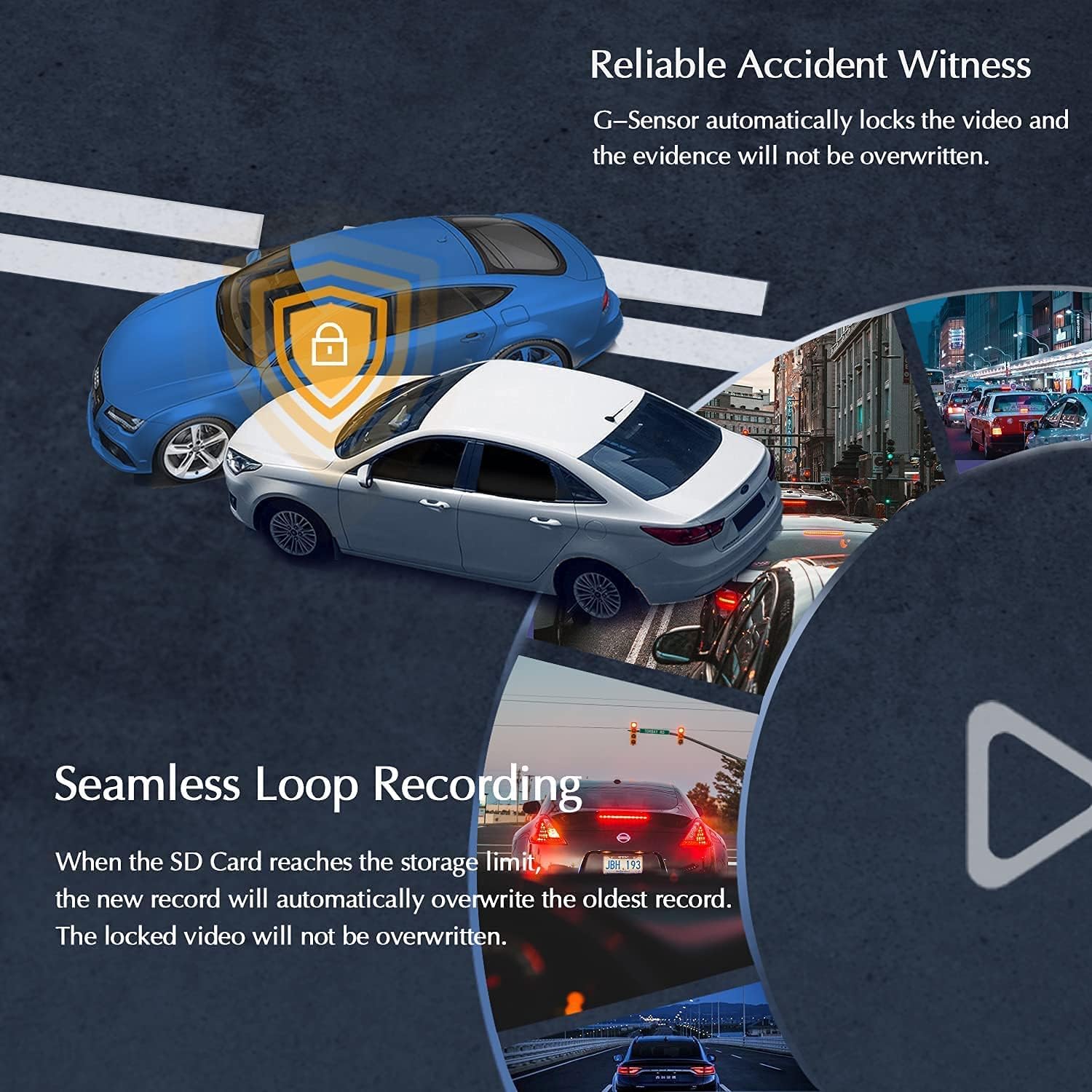
Image: Visual representation of loop recording overwriting old files and the G-Sensor locking incident footage.
5.2. G-Sensor (Emergency Accident Locks)
The built-in G-Sensor detects sudden impacts or collisions. When triggered, it automatically locks the current recording file to prevent it from being overwritten by loop recording. These locked files serve as crucial evidence.

Image: Graphic depicting two cars colliding, with a shield icon indicating G-Sensor activation and file locking.
5.3. 24H Parking Monitor
When enabled, the parking monitor function allows the dash cam to record events even when your vehicle is parked and the engine is off. This feature typically requires a dedicated ACC hardwire kit (not included) to provide continuous power and low battery voltage protection.

Image: Illustration of a parked car with motion detection waves, representing the parking monitor function.
5.4. Built-in GPS Functionality
The integrated GPS module accurately records your driving location and speed. This data can be viewed alongside your video footage using the dedicated mobile app or PC software, allowing you to track your route on Google Maps.

Image: Visualization of GPS tracking data displayed on a laptop and a smartphone, showing a car's route on a map.
5.5. Wi-Fi Connectivity and Mobile App
The built-in Wi-Fi allows you to connect your dash cam to a compatible smartphone via a free mobile app (available for iOS and Android). Through the app, you can:
- View live video feed.
- Playback recorded videos.
- Download videos directly to your phone.
- Adjust dash cam settings.
5.6. Superior Night Vision & WDR Technology
The PRUVEEO H1 features advanced night vision capabilities, including 4 infrared lights for the cabin camera and an F1.8 aperture, to capture clear video in low-light conditions. Wide Dynamic Range (WDR) technology automatically balances light and dark areas, ensuring optimal exposure and detail in challenging lighting environments.
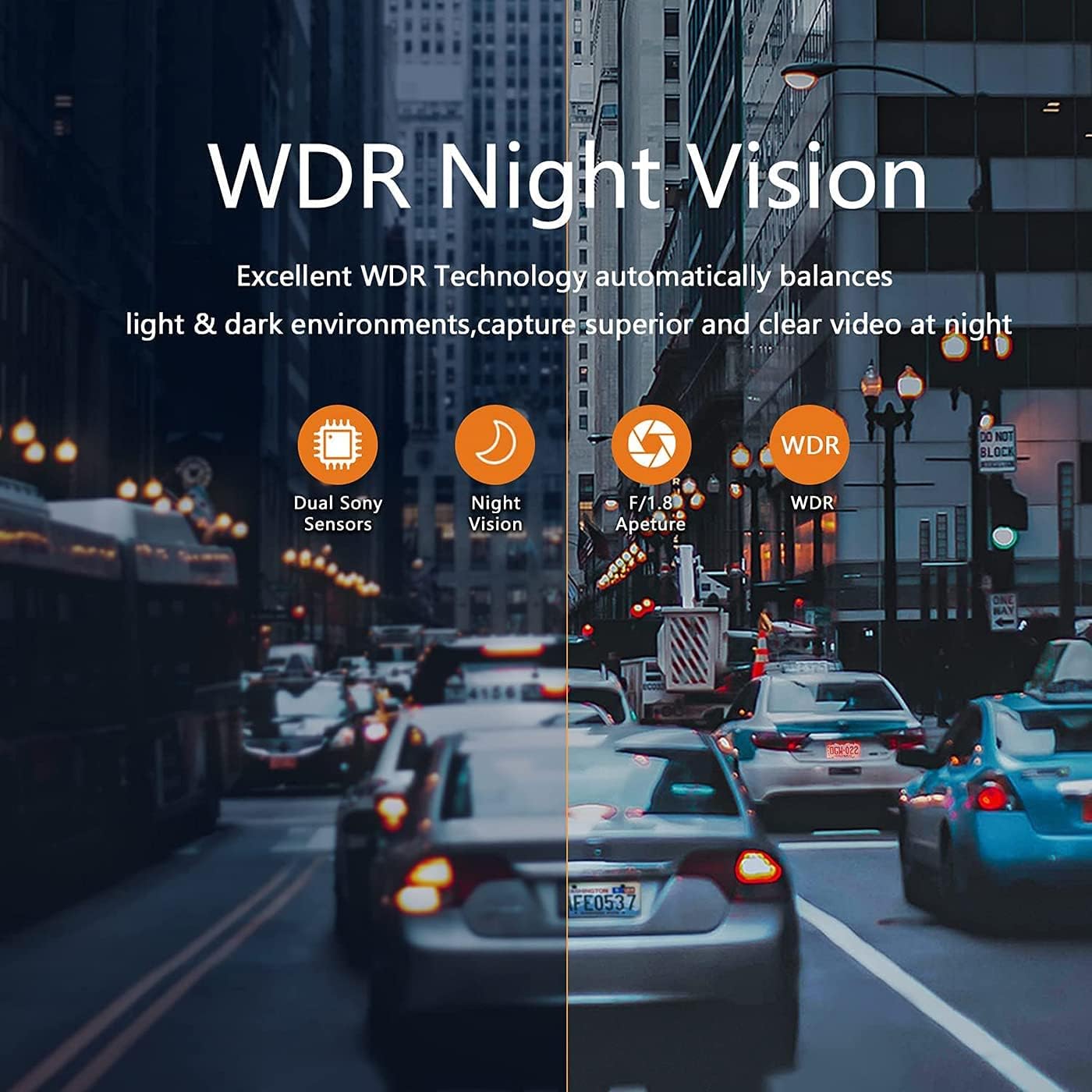
Image: Comparison showing the effectiveness of WDR technology in improving video clarity in varying light conditions, particularly at night.

Image: Example of night vision capturing clear details, such as a vehicle's license plate, in a dimly lit street.
6. Maintenance
6.1. Memory Card Management
Regularly format your Micro SD card (at least once a month) to maintain optimal recording performance and prevent data corruption. Back up any important footage before formatting.
6.2. Cleaning
Use a soft, dry cloth to clean the dash cam's lenses and screen. Avoid using abrasive cleaners or solvents that could damage the device.
7. Troubleshooting
- Dash Cam does not power on: Ensure the power cable is securely connected to both the dash cam and the vehicle's 12V power outlet. Check if the vehicle's power outlet is functioning.
- Dash Cam restarts unexpectedly: This can occur if the power supply is unstable. Ensure a secure connection. If using a hardwire kit, verify proper installation.
- Recording stops or files are corrupted: Format the Micro SD card regularly. Ensure you are using a Class 10, U3 speed Micro SD card from a reputable brand. Replace the card if issues persist.
- Wi-Fi connection issues: Ensure the mobile app is updated. Try restarting both the dash cam and your smartphone.
- GPS not recording data: Ensure the dash cam has a clear view of the sky for GPS signal acquisition.
Video: A short demonstration of the Pruveeo D30 2K dash cam's functionality, including its display and operation. This video is provided by PRUVEEO USA.
8. Specifications
| Model Number | H1 |
| Product Dimensions | 3 x 2 x 4 inches |
| Item Weight | 13.4 ounces |
| Video Capture Resolution | 4K (single channel), 1440P + 1440P (dual channel) |
| Field Of View | 150 Degrees (each camera) |
| Connectivity Technology | Wi-Fi |
| Special Features | Built-In GPS, G-Sensor, Loop Recording, Night Vision, 24H Parking Monitor (requires hardwire kit) |
| Mounting Type | Suction Mount |
| Supported Memory Card | Micro SD Card, Class 10 U3, up to 512GB (not included) |
9. Warranty and Support
For warranty information and technical support, please refer to the official PRUVEEO website or contact their customer service directly. Keep your purchase receipt for warranty claims.
