
1. Introduction
The MICROWARE BR116-US USB Audio Video Capture Card is designed to convert analog video and audio signals from sources like VHS, VCR, and TV into digital formats for storage and playback on your computer. This device facilitates the preservation of old video collections and is compatible with various operating systems and third-party software.
2. Safety Information
- Keep the device away from water and moisture.
- Avoid exposing the device to extreme temperatures.
- Do not attempt to open or repair the device yourself. Refer to qualified personnel for service.
- Use only compatible cables and accessories.
3. Package Contents
Verify that all items are present in your package:
- USB Audio Video Capture Card (Model: BR116-US)
- Installation Guide
- Software CD (for Windows)

Figure 3.1: Included Software CD
4. Setup
4.1 Physical Connection
Connect the capture card to your video source (e.g., VCR, camcorder) and your computer.
- Identify the output ports on your analog video source. These are typically RCA (yellow for video, white for left audio, red for right audio) or S-Video.
- Connect the corresponding RCA or S-Video cables from your analog source to the input ports on the BR116-US capture card. Ensure the colors match (yellow to yellow, white to white, red to red).
- Plug the USB 2.0 connector of the BR116-US capture card into an available USB port on your computer.
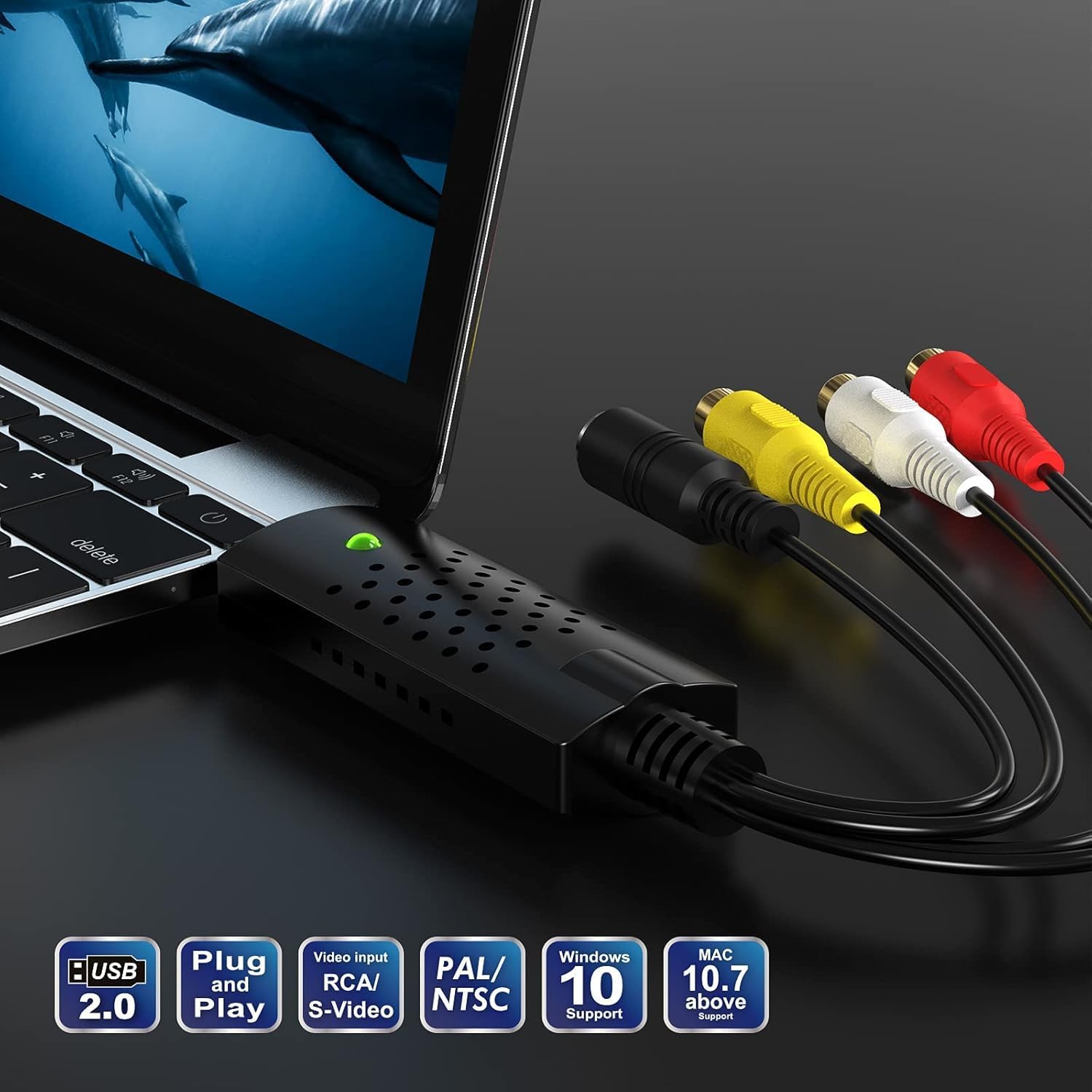
Figure 4.1: Capture card connected to a laptop and analog source.

Figure 4.2: Connection diagram for the capture card.

Figure 4.3: Capture card port diagram.

Figure 4.4: RCA and S-Video connectors.
4.2 Driver Installation
The BR116-US is generally plug-and-play for most modern Windows and Mac operating systems, meaning drivers should install automatically. However, it is good practice to verify the installation.
For Windows:
- After plugging in the device, right-click the Windows Start button and select 'Device Manager'.
- Expand 'Audio inputs and outputs' and 'Cameras'. You should see 'USB2.0 MIC' and 'AV TO USB2.0' listed, indicating successful driver installation.
For Mac:
- Go to 'About This Mac' > 'System Report' > 'Hardware' > 'Camera' and 'Audio'.
- Look for 'AV TO USB2.0' under Camera and 'USB2.0 MIC' under Audio.

Figure 4.5: Driver verification in Windows Device Manager.
5. Operating Instructions
The BR116-US capture card can be used with various software applications for video capture and editing. This section outlines common usage scenarios.
Video 5.1: Setup and Usage Guide for DIGITNOW USB Audio Video Capture Card. This video demonstrates connecting the device, verifying drivers, and using it with OBS Studio and PotPlayer on Windows, and QuickTime on Mac.
5.1 Using with OBS Studio (Recommended for Windows & Mac)
OBS Studio is a free, open-source software compatible with both Windows and Mac, offering extensive control over capture settings.
- Download and install OBS Studio from its official website.
- Open OBS Studio. In the 'Sources' panel, click the '+' icon and select 'Video Capture Device'.
- Create a new source or select an existing one. In the properties window, choose 'AV TO USB2.0' as the device.
- For audio, select 'USB2.0 MIC' under 'Audio Output Mode' or 'Audio Device' if using custom audio.
- Adjust resolution/FPS type and other settings as needed.
- Click 'Start Recording' in the 'Controls' panel to begin capturing your video.

Figure 5.1: OBS Studio interface and software compatibility.
5.2 Using with PotPlayer (Windows)
PotPlayer is a versatile media player that can also be used for video capture.
- Download and install PotPlayer.
- Open PotPlayer. Right-click on the player window, go to 'Open' > 'Device Settings'.
- In the 'Device Settings' window, select 'Webcam' tab. Choose 'AV TO USB2.0' as the video capture device and 'USB2.0 MIC' as the audio capture device.
- Select your desired format and click 'Open device'.
- To record, go to 'Video' > 'Video Recording' > 'Record Video'. Configure storage path and file settings, then click 'Start'.

Figure 5.2: PotPlayer (or similar software) video capture interface.

Figure 5.3: PotPlayer (or similar software) video editing interface.
5.3 Using with QuickTime Player (Mac)
QuickTime Player can be used on Mac for basic video capture.
- Open QuickTime Player.
- Go to 'File' > 'New Movie Recording'.
- Click the small arrow next to the record button to select 'AV TO USB2.0' as the camera and 'USB2.0 MIC' as the microphone.
- Click the record button to start and stop recording.
5.4 Using with Included Software (Windows Only)
The included software (VHS to DVD 3.0 or similar) provides a dedicated interface for capturing and burning videos to DVD.
- Insert the software CD and follow the on-screen instructions to install.
- Launch the software. Navigate to the 'Capture' tab.
- Ensure 'Video Device' is set to 'AV TO USB2.0' and 'Audio Device' to 'USB2.0 MIC'.
- Click 'Record' to start capturing. Use 'Stop' to end recording.
- For editing or burning, use the 'Edit' and 'Burn' tabs respectively.

Figure 5.4: Included software capture interface.
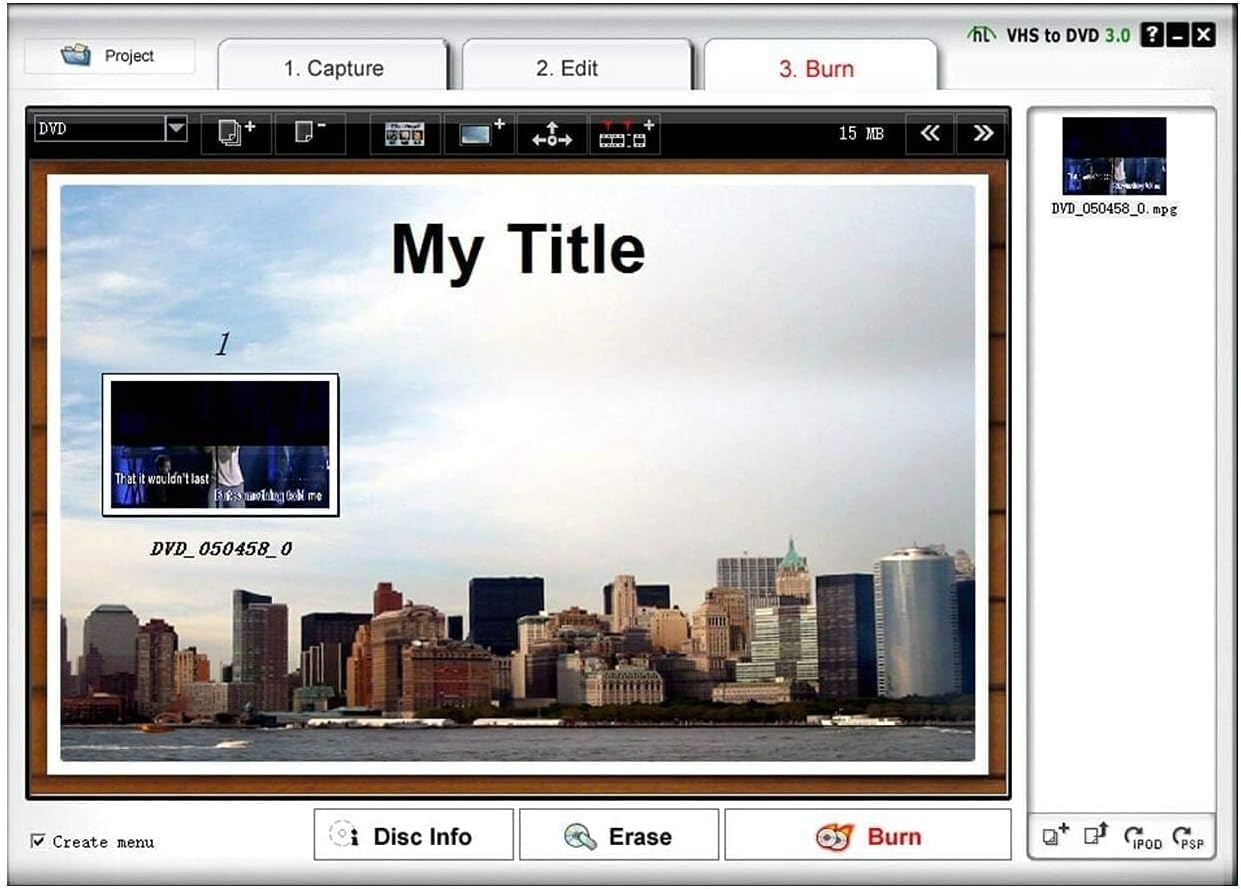
Figure 5.5: Included software DVD burning interface.
6. Maintenance
To ensure the longevity and optimal performance of your capture card:
- Keep the device clean by wiping it with a soft, dry cloth.
- Store the device in a cool, dry place when not in use.
- Avoid bending or straining the cables excessively.
7. Troubleshooting
If you encounter issues with your BR116-US capture card, refer to the following common solutions:
| Problem | Possible Solution |
|---|---|
| Device not detected by computer. |
|
| No video signal in software. |
|
| No audio signal. |
|
| Software crashes or freezes. |
|
| Poor video quality (e.g., flashing frame, grainy). |
|
| Device uses USB-A, but computer has USB-C. |
|
8. Specifications
| Feature | Detail |
|---|---|
| Model Number | BR116-US |
| Brand | MICROWARE |
| Manufacturer | DIGITNOW |
| Compatible Devices | Laptop, Personal Computer, Television |
| Connector Type | RCA, USB |
| Color | BLACK |
| Item Dimensions (L x W x H) | 3.94 x 0.79 x 1.06 inches |
| Item Weight | 50 Grams |
| Number of Ports | 4 |
| Input Voltage | 5 Volts |
| Current Rating | 1 Amps |
9. Warranty
The MICROWARE BR116-US USB Audio Video Capture Card comes with a 12-month warranty from the date of purchase. This warranty covers manufacturing defects and malfunctions under normal use. Please retain your proof of purchase for warranty claims.
10. Customer Support
For technical assistance or any questions regarding your product, please contact our professional technical team. We offer 24-hour technical support to ensure your pleasant experience.
Refer to the contact information provided with your product packaging or visit the official MICROWARE website for support details.