1. Introduction
This manual provides essential information for the safe and efficient use of your Lenovo Yoga Tab 3 10. Please read it thoroughly before operating your device and keep it for future reference. The Lenovo Yoga Tab 3 10 is designed for versatile multimedia consumption, offering a vibrant display, immersive audio, and a unique multi-mode design for enhanced usability.
2. What's in the Box
Verify that all items are present in your product packaging:
- Yoga Tab 3 10 Tablet
- USB Cable
- Charger
- User Guide
- Quick Start Guide
3. Product Overview
Familiarize yourself with the physical features and components of your Lenovo Yoga Tab 3 10.

Figure 3.1: Front view of the Lenovo Yoga Tab 3 10, showcasing its vibrant display and the integrated cylindrical battery/stand.

Figure 3.2: Rear view of the tablet, highlighting the adjustable kickstand and the 'YOGA' branding.

Figure 3.3: Detail of the unique 8MP 180-degree rotatable camera, integrated into the cylindrical hinge.
Key Components:
- Display: 10.1-inch HD IPS display.
- Cylindrical Hinge: Houses the battery, speakers, and the rotatable camera.
- Integrated Kickstand: Allows for multiple usage modes (Hold, Tilt, Stand, Hang).
- Speakers: Front-facing speakers with Dolby Atmos audio.
- Ports: Micro USB port for charging and data transfer, 3.5mm audio jack.
- Buttons: Power button, Volume rocker.
4. Setup
4.1 Initial Charging
Before first use, fully charge your tablet. Connect the provided USB cable to the tablet's micro USB port and the charger. Plug the charger into a power outlet. The charging indicator will illuminate.
4.2 Powering On/Off
- To Power On: Press and hold the Power button located on the cylindrical hinge until the Lenovo logo appears on the screen.
- To Power Off: Press and hold the Power button until the power options menu appears. Select 'Power off' and confirm.
4.3 Initial Setup Wizard
Upon first power-on, the tablet will guide you through an initial setup process. Follow the on-screen prompts to:
- Select your language.
- Connect to a Wi-Fi network.
- Sign in with your Google account or create a new one.
- Set up security features (e.g., PIN, pattern, password).
5. Operating Instructions
5.1 Basic Navigation
The tablet uses a touch-based interface. Common gestures include:
- Tap: To select an item or open an app.
- Swipe: To scroll through screens or lists.
- Pinch-to-zoom: To zoom in or out on images or web pages.
- Long press: To access contextual menus or move icons.

Figure 5.1: A user interacting with the tablet's touchscreen interface.
5.2 Connecting to Wi-Fi
To access the internet, connect to a Wi-Fi network:
- Go to Settings > Wi-Fi.
- Turn on Wi-Fi.
- Select your desired network from the list.
- Enter the password if prompted and tap Connect.
5.3 Using the Rotatable Camera
The Yoga Tab 3 10 features an 8MP camera integrated into the cylindrical hinge that can rotate 180 degrees. This allows it to function as both a front and rear camera.
- Open the Camera app.
- Physically rotate the camera module to face the desired direction (forward for selfies/video calls, backward for general photography).
- Tap the shutter button to capture photos or videos.
5.4 Audio and Dolby Atmos
The tablet is equipped with front-facing speakers and Dolby Atmos technology for an enhanced audio experience. You can adjust audio settings via the Dolby Atmos app or through the tablet's sound settings to optimize for movies, music, or custom profiles.
5.5 Multi-Mode Usage
The unique design of the Yoga Tab 3 10 allows for four distinct usage modes:

Figure 5.2: Hold Mode: The cylindrical side provides a comfortable grip for reading or browsing.

Figure 5.3: Tilt Mode: Lay the tablet down with the kickstand slightly extended for an optimal typing or drawing angle.

Figure 5.4: Stand Mode: Extend the kickstand fully to prop the tablet upright for hands-free viewing of videos or presentations.
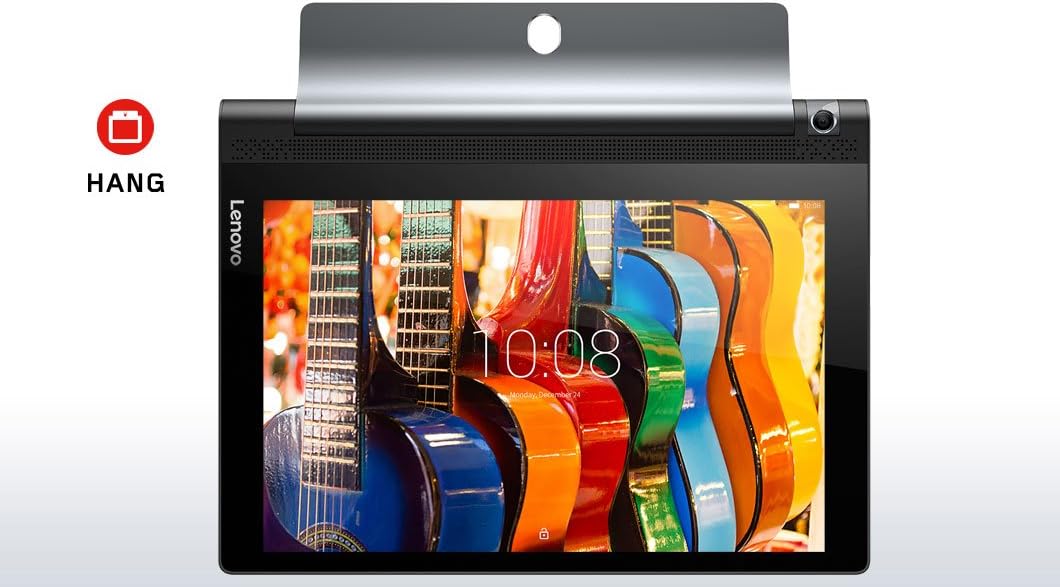
Figure 5.5: Hang Mode: Utilize the cutout in the kickstand to hang the tablet on a hook, ideal for kitchens or workshops.
6. Maintenance
6.1 Cleaning the Tablet
To clean your tablet, use a soft, lint-free cloth. For stubborn smudges, slightly dampen the cloth with water or a screen cleaner specifically designed for electronics. Avoid using harsh chemicals, abrasive cleaners, or aerosol sprays directly on the tablet.
6.2 Software Updates
Regularly check for and install software updates to ensure optimal performance, security, and access to new features. Go to Settings > About tablet > System updates.
6.3 Battery Care
To maximize battery life:
- Avoid extreme temperatures.
- Do not let the battery completely drain frequently.
- Use the original charger and cable.
- Reduce screen brightness and disable unnecessary features (e.g., Bluetooth, GPS) when not in use.
6.4 Storage Management
Periodically review your tablet's storage. Delete unused apps, clear cache data, and transfer large files (photos, videos) to cloud storage or an external device to free up space and improve performance.
7. Troubleshooting
This section addresses common issues you might encounter with your Lenovo Yoga Tab 3 10.
| Problem | Possible Solution |
|---|---|
| Tablet does not turn on. | Ensure the battery is charged. Connect the charger and wait a few minutes before attempting to power on again. If unresponsive, perform a forced restart by holding the Power button for 10-15 seconds. |
| Wi-Fi connection issues. | Check if Wi-Fi is enabled in Settings. Restart your Wi-Fi router. Forget the network and reconnect. Ensure you are within range of the Wi-Fi signal. |
| Slow performance or apps crashing. | Close unused apps. Clear app cache (Settings > Apps > [App Name] > Storage > Clear cache). Restart the tablet. Ensure sufficient free storage space. |
| Camera not working. | Ensure the camera module is rotated correctly. Restart the Camera app or the tablet. Check app permissions for the Camera app in Settings. |
| Battery drains quickly. | Reduce screen brightness. Disable Wi-Fi, Bluetooth, GPS when not in use. Close background apps. Check battery usage in Settings to identify power-hungry apps. |
7.1 Factory Reset
If issues persist, a factory reset may be necessary. Warning: This will erase all data on your tablet. Back up important data before proceeding. Go to Settings > Backup & reset > Factory data reset.
8. Specifications
Detailed technical specifications for the Lenovo Yoga Tab 3 10 (Model: ZA0H0064US):
| Feature | Detail |
|---|---|
| Display | 10.1 Inches IPS, 1280x800 Pixels Resolution |
| Processor | 1.3 GHz Qualcomm Snapdragon (Quad-core) |
| RAM | 2 GB LPDDR3_SDRAM |
| Storage | 16 GB Flash Memory Solid State |
| Operating System | Android 5.1 Lollipop |
| Camera | 8 MP Rear Webcam (180-degree rotatable) |
| Wireless Connectivity | 802.11bgn (2.4 GHz), Bluetooth 4.0 |
| Battery Life | Up to 18 Hours (Average) |
| Dimensions (LxWxH) | 9.96 x 7.28 x 0.28 inches |
| Item Weight | 1.27 pounds |
| Color | Slate Black |
9. Warranty and Support
9.1 Product Warranty
Your Lenovo Yoga Tab 3 10 comes with a standard limited warranty. The terms and conditions of this warranty are typically included in the warranty card provided with your product or can be found on the official Lenovo support website. Please retain your proof of purchase for warranty claims.
9.2 Technical Support
For technical assistance, troubleshooting beyond this manual, or to inquire about repairs, please visit the official Lenovo support website or contact their customer service. You will typically need your product's model number (ZA0H0064US) and serial number (if applicable) when seeking support.
Lenovo Support Website: support.lenovo.com


