
Introduction
This manual provides detailed instructions for the installation, operation, and maintenance of your FreedConn TCOM-VB Motorcycle Helmet Bluetooth Intercom System. Please read this manual thoroughly before using the device to ensure proper function and safety. The TCOM-VB system is designed to enhance your riding experience with communication, music, and navigation capabilities.
Package Contents
Verify that all items listed below are included in your package:
- FreedConn TCOM-VB Bluetooth Intercom Unit
- Stereo Headphones with Exchangeable Hard Mic and Soft Mic
- USB Charging Cable
- Helmet Mounting Clip (Screw-on type)
- Adhesive Mounting Bracket
- Screwdriver
- Felted Adhesive Earphone Pads (4x)
- User Manual

Image: Contents of the FreedConn TCOM-VB package, including the main unit, speakers, microphones, and mounting hardware.
Product Overview
The FreedConn TCOM-VB unit features an intuitive design for easy control while riding. Familiarize yourself with the buttons and ports:
- Multi-functional Button (MFB): Located on the side, used for power, pairing, call management, and music control.
- Jog Wheel: Used for volume adjustment, track skipping, and FM channel switching.
- Charge/Headphone Jack: For charging the unit and connecting the speaker/microphone assembly.
- Power/Intercom Button: Dedicated button for power and intercom activation.

Image: Diagram illustrating the control buttons and ports on the FreedConn TCOM-VB intercom unit.
Setup and Installation
Proper installation ensures optimal performance and comfort.
1. Mounting the Intercom Unit
Choose between the screw-on clip or the adhesive bracket for mounting the intercom unit to the side of your helmet. Ensure the unit is securely attached and does not obstruct your vision or helmet functionality.
2. Installing Speakers and Microphone
Place the speakers inside the helmet's ear pockets. Use the provided felted adhesive pads for a secure fit and to position the speakers directly over your ears for best audio quality. Connect the speaker/microphone assembly to the intercom unit's jack.
- Hard Mic: Recommended for 1/2 helmets or half helmets.
- Soft Mic: Recommended for full-face helmets.

Image: Step-by-step guide for installing the FreedConn TCOM-VB intercom unit and speakers onto a motorcycle helmet.

Image: Illustration of the hard boom microphone and soft wire microphone, demonstrating their use with different helmet types.
Charging the Device
Before first use, fully charge the TCOM-VB unit. Connect the USB charging cable to the unit's charge jack and a suitable USB power adapter (not included).
- Charging Time: Approximately 2.5 hours.
- Battery Life: Up to 10 hours for phone calls, 7-8 hours for intercom, and 300 hours standby.

Image: Visual representation of the TCOM-VB's battery capacity and estimated operating times for calls, intercom, and standby.
Operating Instructions
1. Power On/Off
- Power On: Press and hold the Power/Intercom button until the indicator light turns on.
- Power Off: Press and hold the Power/Intercom button until the indicator light turns off.
2. Bluetooth Pairing with Mobile Devices
To connect your TCOM-VB to a mobile phone, GPS, or MP3 player:
- Ensure the TCOM-VB unit is off.
- Press and hold the MFB until the indicator light flashes red and blue alternately, indicating pairing mode.
- On your mobile device, enable Bluetooth and search for available devices. Select "FreedConn TCOM-VB" from the list.
- Once paired, the indicator light will flash blue slowly.

Image: Diagram showing the FreedConn TCOM-VB pairing with a cell phone and GPS device.
3. Intercom Function (Rider-to-Rider)
The TCOM-VB supports pairing with up to 3 riders, with 2 riders communicating simultaneously over a maximum distance of 800 meters (2625 feet).
- Ensure both intercom units are powered on and not connected to other Bluetooth devices.
- On one unit, press and hold the Power/Intercom button until the indicator light flashes red and blue alternately.
- On the second unit, press the Power/Intercom button once.
- The units will automatically search and pair. Once connected, the indicator lights will flash blue slowly.
- To initiate a 3-rider connection, repeat the pairing process with a third unit. Only two units can actively communicate at any given time.
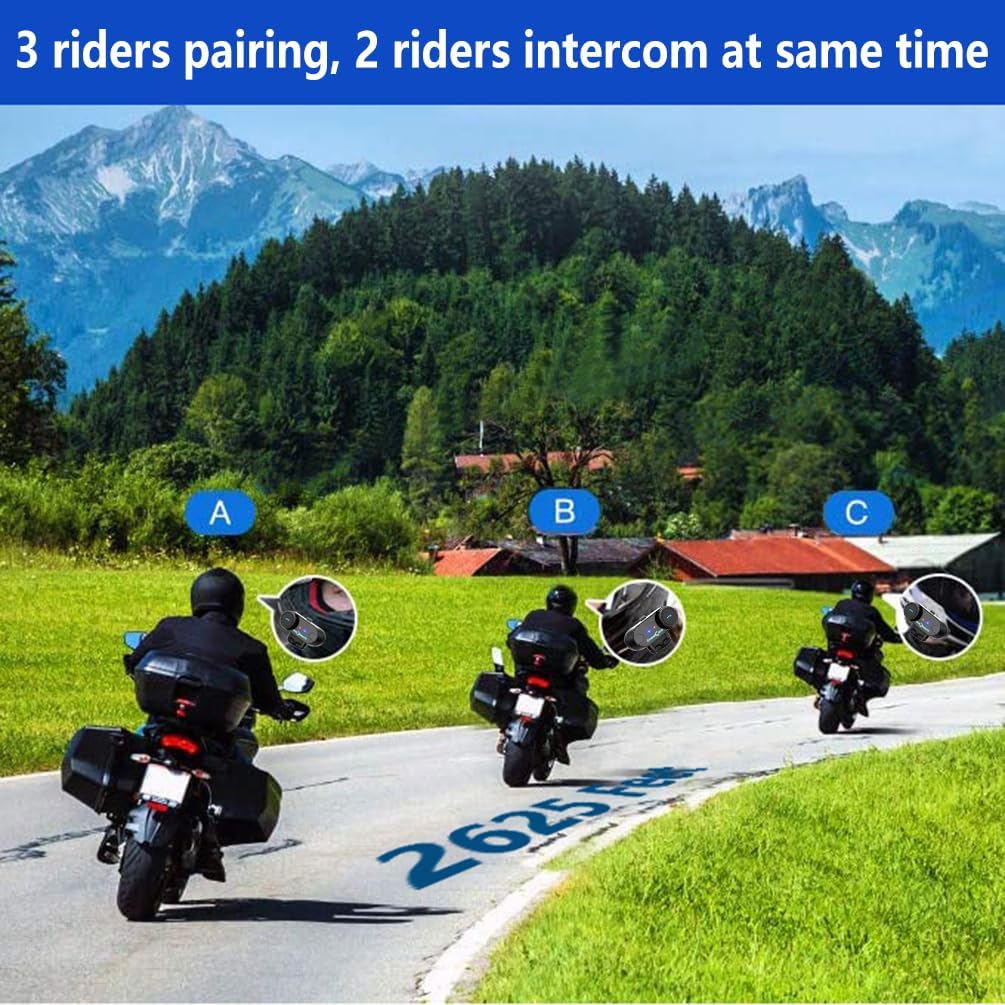
Image: Three motorcyclists on a road, illustrating the capability for 3 riders to pair and 2 to communicate via intercom simultaneously.
4. Phone Call Management
- Answer Call: Press the MFB once.
- Reject Call: Press and hold the MFB for 2 seconds.
- End Call: Press the MFB once during a call.
- Redial Last Number: Press and hold the MFB for 2 seconds when not on a call.
- Voice Dialing: (If supported by your phone) Press the MFB twice.
5. Music Playback and FM Radio
- Play/Pause Music: Press the MFB once.
- Next Track: Turn the Jog Wheel forward.
- Previous Track: Turn the Jog Wheel backward.
- Activate FM Radio: Double-press the MFB.
- Switch FM Channel: Turn the Jog Wheel forward or backward.
- Music Sharing: The system supports sharing music with a paired intercom unit.

Image: Two riders on a motorcycle, demonstrating the music sharing feature between two FreedConn TCOM-VB units.
6. Volume Control
Turn the Jog Wheel forward to increase volume and backward to decrease volume.
Maintenance
The FreedConn TCOM-VB is designed to be durable and waterproof, ensuring reliable performance in various weather conditions.
- Cleaning: Wipe the unit with a soft, damp cloth. Avoid using harsh chemicals or abrasive cleaners.
- Storage: Store the unit in a cool, dry place when not in use.
- Water Resistance: The unit is waterproof, but avoid prolonged submersion.
Troubleshooting
If you encounter issues with your TCOM-VB unit, refer to the following common solutions:
- No Sound or One Side Sound: Ensure the speaker cable is securely plugged into the unit. Verify that speakers are correctly positioned over your ears. If the issue persists, the speakers may need replacement.
- Intercom Not Connecting (3 Riders): The TCOM-VB supports 3 riders pairing, but only 2 riders can communicate simultaneously. Ensure you are attempting to connect only two units for active intercom.
- Bluetooth Connectivity Issues: Ensure the unit is in pairing mode (alternating red/blue light). Turn off and restart both the TCOM-VB and your mobile device. Clear previous Bluetooth pairings on your mobile device and try pairing again.
- Poor Audio Quality: Check speaker placement. Ensure the microphone is positioned correctly to minimize wind noise. The unit features DSP echo cancellation and noise suppression for clear audio at high speeds.
- Unit Not Powering On: Ensure the unit is fully charged.
Specifications
| Model Name | T-COM VB |
| Connectivity Technology | Wireless (Bluetooth 5.0) |
| Intercom Range | Up to 800m (2625 feet) |
| Max Speed for Intercom | 120 km/h (75 mph) |
| Battery Life (Phone) | Up to 10 hours |
| Battery Life (Intercom) | Up to 7-8 hours |
| Standby Time | Up to 300 hours |
| Charging Time | Approx. 2.5 hours |
| Water Resistance Level | Waterproof |
| Item Weight | 45 grams (1.59 ounces) |
| Product Dimensions | 81mm (L) × 31mm (W) × 25mm (H) / 3.23 x 1.26 x 0.98 inches |
| Compatible Devices | Bluetooth-enabled devices (Cell Phones, GPS, MP3 Players, FreedConn Helmet Intercoms) |
Warranty and Support
FreedConn products are designed for reliability and performance. For any issues or support inquiries, please contact FreedConn customer service. If you experience issues with speakers, contact support for assistance or replacement.
Please refer to the official FreedConn website or your purchase documentation for specific warranty terms and contact information.