
1. Introduction
This manual provides essential information for the proper use and maintenance of your RCA Voyager Pro 7-inch Tablet with Keyboard Case. Please read this manual thoroughly before operating your device to ensure optimal performance and longevity.
The RCA Voyager Pro is a 7-inch touchscreen tablet featuring a 1.2GHz Quad-Core processor, 1GB RAM, and 16GB of internal storage. It operates on Android 6.0 Marshmallow and includes Wi-Fi and Bluetooth connectivity. The tablet comes with a detachable keyboard case for enhanced productivity.

Figure 1.1: RCA Voyager Pro 7-inch Tablet with Keyboard Case
2. Package Contents
Verify that all items are present in your product package:
- RCA Voyager Pro 7-inch Tablet
- Detachable Keyboard Case
- Power Adapter
- USB Cable
- Quick Start Guide (if included)
3. Product Overview
3.1 Tablet Components
Familiarize yourself with the various ports and buttons on your tablet.
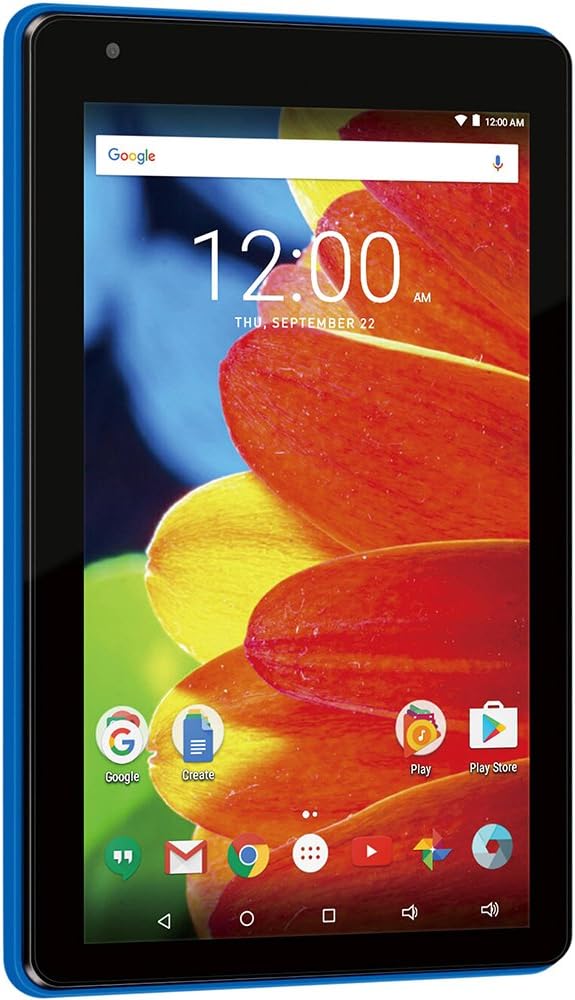
Figure 3.1: RCA Voyager Pro Tablet (Front View)
- Front Camera: For video calls and selfies.
- Power Button: Press and hold to turn on/off, short press to sleep/wake.
- Volume Buttons: Adjust audio volume.
- Micro USB Port: For charging and data transfer.
- Headphone Jack: For connecting audio devices.
- MicroSD Card Slot: For expandable storage.
3.2 Keyboard Case
The included keyboard case provides physical keys for typing and protects your tablet.

Figure 3.2: Detachable Keyboard Case
4. Setup
4.1 Charging the Tablet
Before first use, fully charge the tablet. Connect the power adapter to the tablet's Micro USB port and plug it into a power outlet. The battery indicator on the screen will show charging status.
4.2 Powering On/Off
- To Power On: Press and hold the Power button until the RCA logo appears.
- To Power Off: Press and hold the Power button until the power options menu appears, then select 'Power off'.
- Sleep/Wake: Briefly press the Power button to put the tablet to sleep or wake it up.
4.3 Initial Configuration
Upon first power-on, follow the on-screen prompts to set up your tablet:
- Select your preferred language.
- Connect to a Wi-Fi network.
- Sign in with your Google Account or create a new one.
- Review and accept the terms and conditions.
4.4 Attaching the Keyboard Case
To attach the tablet to the keyboard case:

Figure 4.1: Keyboard Case Attachment Steps
- Open the keyboard case.
- Align the tablet with the clips in the case.
- Gently push the tablet into the clips until it is securely seated.
- Ensure the tablet's charging port aligns with the case's connector for keyboard functionality.
5. Operating Your Tablet
5.1 Touchscreen Navigation
The tablet's 7-inch touchscreen supports various gestures:
- Tap: Select an item or open an application.
- Touch and Hold: Access contextual menus or move items.
- Swipe: Scroll through lists or switch between screens.
- Pinch: Zoom in or out on images and web pages.
5.2 Wi-Fi Connection
To connect to a wireless network:
- Go to Settings > Wi-Fi.
- Toggle Wi-Fi On.
- Select your desired network from the list.
- Enter the password if prompted, then tap Connect.
5.3 Bluetooth Pairing
To pair with a Bluetooth device:
- Go to Settings > Bluetooth.
- Toggle Bluetooth On.
- Ensure your Bluetooth device is in pairing mode.
- Select the device from the 'Available devices' list and follow any on-screen instructions.
5.4 Using the Keyboard
Once the tablet is securely attached to the keyboard case, the physical keyboard will function automatically for text input. Special function keys may be available for shortcuts (e.g., volume control, screen brightness).
5.5 App Management
Applications can be downloaded from the Google Play Store. To install an app, open the Play Store, search for the app, and tap 'Install'. To uninstall, go to Settings > Apps, select the app, and tap 'Uninstall'.
5.6 Storage Management
The tablet has 16GB of internal storage. You can expand storage by inserting a microSD card into the dedicated slot. To manage files, use the pre-installed 'Files' app or download a file manager from the Play Store.
6. Maintenance
6.1 Cleaning
Use a soft, lint-free cloth to clean the screen and tablet body. Do not use liquid cleaners or abrasive materials, as they may damage the device.
6.2 Battery Care
- Avoid exposing the tablet to extreme temperatures.
- Charge the battery regularly; avoid letting it fully discharge frequently.
- Use only the provided power adapter or a compatible charger.
6.3 Software Updates
Periodically check for system updates to ensure your tablet has the latest features and security enhancements. Go to Settings > About tablet > System updates.
7. Troubleshooting
If you encounter issues with your RCA Voyager Pro tablet, refer to the following common solutions:
| Problem | Solution |
|---|---|
| Tablet does not power on | Ensure the tablet is charged. Connect the power adapter and wait a few minutes before attempting to power on again. If unresponsive, press and hold the power button for 10-15 seconds to force a restart. |
| Wi-Fi connection issues | Check if Wi-Fi is enabled in Settings. Restart your Wi-Fi router. Forget the network and reconnect. Ensure you are within range of the Wi-Fi signal. |
| Slow performance | Close unused applications. Clear cache for frequently used apps (Settings > Apps > [App Name] > Storage > Clear cache). Consider uninstalling unnecessary apps or moving media files to a microSD card. Restart the tablet. |
| Keyboard not responding | Ensure the tablet is correctly seated in the keyboard case and the connection is secure. Restart the tablet. |
| Apps crashing or freezing | Clear the app's cache and data (Settings > Apps > [App Name] > Storage). Uninstall and reinstall the app. Ensure the tablet's software is up to date. |
8. Specifications
Key technical specifications for the RCA Voyager Pro 7-inch Tablet:
| Feature | Specification |
|---|---|
| Model Name | RCA Voyager |
| Screen Size | 7 Inches |
| Screen Resolution | 1024 x 600 |
| Processor | 1.2 GHz Quad-Core |
| RAM | 1 GB DDR_SDRAM |
| Internal Storage | 16 GB |
| Operating System | Android 6 Marshmallow |
| Wireless Type | 802.11ac Wi-Fi, Bluetooth |
| USB Ports | 1 (USB 2.0) |
| Item Weight | 1.1 pounds |
| Product Dimensions | 7.3 x 4.9 x 0.45 inches |
| Battery | 1 Lithium Ion battery (included) |
9. Warranty and Support
For warranty information and technical support, please refer to the warranty card included with your product or visit the official RCA support website. Keep your proof of purchase for warranty claims.


