
Olympus OM - D
Olympus OM-D E-M10 Mark III User Manual
Model: OM-D E-M10 Mark III
Introduction
The Olympus OM-D E-M10 Mark III is a Micro Four Thirds System Camera designed for capturing high-quality photos and 4K video. It features a 16-megapixel sensor, integrated five-axis image stabilization, and an electronic viewfinder. Its compact and lightweight design makes it highly portable, while automatic modes and Art Filters simplify creative photography.
What's in the Box

Image: Contents of the Olympus OM-D E-M10 Mark III box, including the camera body, battery, charger, USB cable, shoulder strap, and lens cap.
Upon opening the package, please verify that all the following items are included:
- Olympus E-M10 Mark III Body
- USB cable
- Shoulder strap
- Instruction manual
- Warranty card
- BLS-50 Li-ion battery
- BCS-5 Li-ion battery charger
Setup
1. Charging the Battery
Before first use, fully charge the supplied BLS-50 Li-ion battery using the BCS-5 Li-ion battery charger. Connect the charger to a power outlet and insert the battery. The charging indicator will show the charging status.
2. Inserting the Battery and Memory Card

Image: The bottom of the camera, illustrating the battery and SD card compartment.
- Open the battery/card compartment cover located on the bottom of the camera.
- Insert the charged BLS-50 battery into the battery slot with the correct orientation until it clicks into place.
- Insert a compatible SD card (not included) into the memory card slot until it clicks. Ensure the card is inserted correctly to avoid damage.
- Close the compartment cover securely.
3. Attaching a Lens (if applicable)

Image: Front view of the camera body, highlighting the Micro Four Thirds lens mount.
Align the white or red dot on the lens with the corresponding dot on the camera's lens mount. Rotate the lens clockwise until it locks into place. To remove, press the lens release button and rotate counter-clockwise.
4. Attaching the Shoulder Strap
Thread the shoulder strap through the strap lugs on both sides of the camera body. Secure the strap firmly to prevent accidental drops.
Operating the Camera
Power On/Off
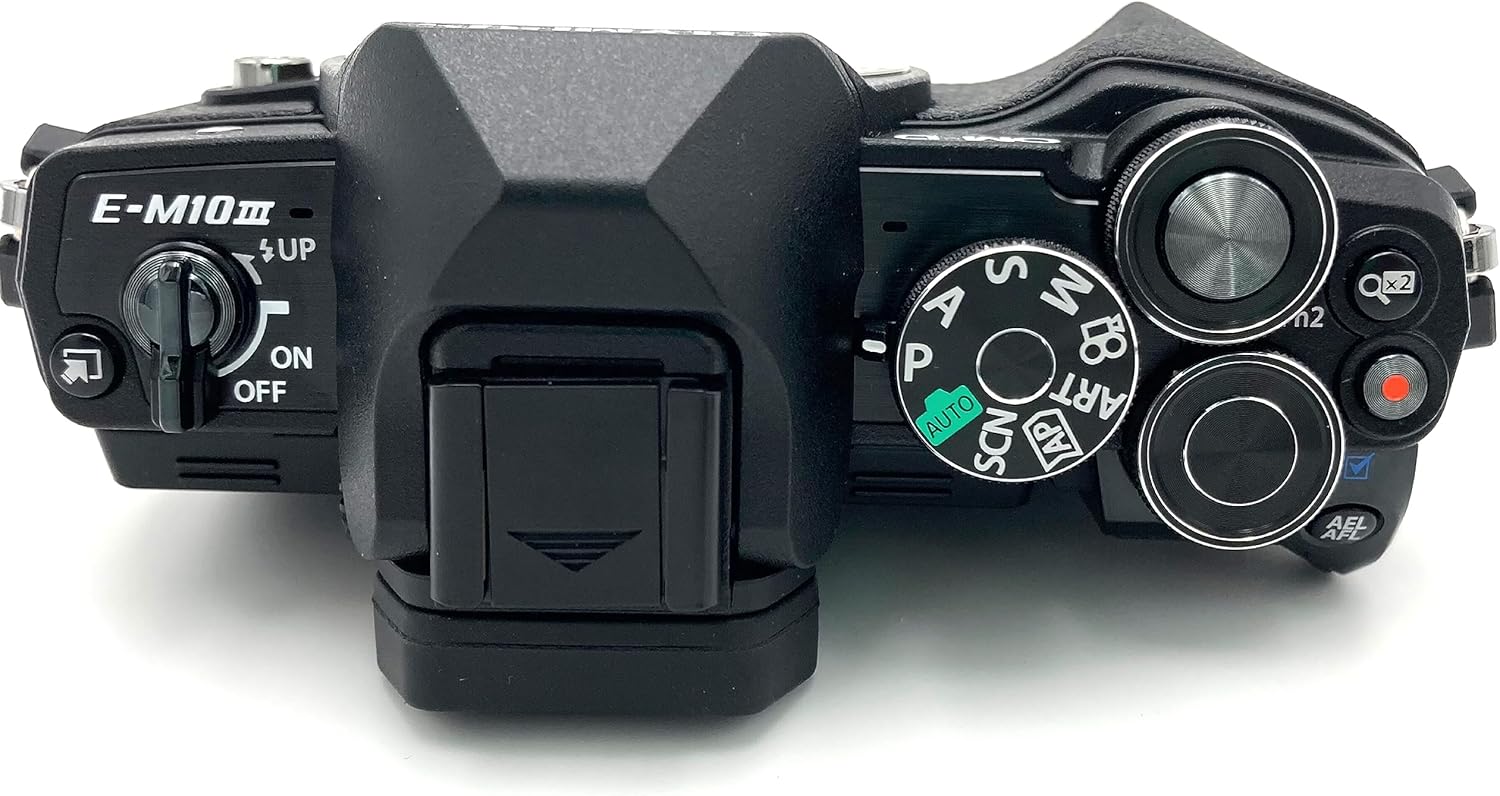
Image: Top view of the camera, showing the power switch and various control dials.
To power on the camera, slide the power switch located on the top left of the camera body to the "ON" position. To power off, slide it to "OFF".
Basic Controls and Display

Image: Rear view of the camera, displaying the LCD screen and various control buttons for navigation and settings.

Image: Rear view of the camera with the articulated LCD screen tilted for flexible viewing angles.
The camera features an electronic viewfinder and an articulated LCD screen for composing shots and reviewing images. Use the directional pad and 'OK' button to navigate menus and confirm selections. The 'MENU' button accesses the main settings, while 'INFO' cycles through display options.
Shooting Modes
Rotate the mode dial on the top of the camera to select your desired shooting mode:
- AUTO: Fully automatic mode for simple point-and-shoot operation.
- P (Program Auto): Camera sets aperture and shutter speed, but you can adjust other settings.
- A (Aperture Priority): You set the aperture, camera sets shutter speed.
- S (Shutter Priority): You set the shutter speed, camera sets aperture.
- M (Manual): You control both aperture and shutter speed.
- ART (Art Filter): Apply creative filters to your photos.
- SCN (Scene Modes): Pre-set modes for specific shooting situations (e.g., Portrait, Landscape).
- AP (Advanced Photo): Access advanced shooting functions.
- Video: For recording 4K video.
Image Stabilization
The OM-D E-M10 Mark III features integrated five-axis image stabilization with sensor shift. This technology helps to reduce camera shake, resulting in crisp, clear photos and stable video, even in low light or when using longer focal lengths.
Connectivity (WLAN)

Image: Side view of the camera, revealing the USB and HDMI ports for data transfer and external display.
The camera includes built-in WLAN for easy connectivity. You can connect to a smartphone or tablet using the dedicated Olympus app to transfer images, remotely control the camera, and share your moments instantly.
Maintenance
- Cleaning the Camera Body: Use a soft, dry cloth to wipe the camera body. For stubborn dirt, slightly dampen the cloth with water. Avoid using organic solvents.
- Cleaning the Lens: Use a lens brush or blower to remove dust. For smudges, use a specialized lens cleaning solution and a microfiber cloth. Never touch the lens surface with your fingers.
- Sensor Cleaning: The camera features an innovative dust removal system through a silent Super Sonic Wave Filter. If dust spots persist on images, consult a professional service center.
- Storage: When not in use for extended periods, remove the battery and store the camera in a cool, dry place, away from direct sunlight and extreme temperatures.
Troubleshooting
| Problem | Possible Cause / Solution |
|---|---|
| Camera does not power on. | Battery may be depleted. Ensure battery is charged and inserted correctly. Check battery contacts for dirt. |
| Images are blurry. | Check focus. Ensure image stabilization is enabled. Use a faster shutter speed or higher ISO in low light. Clean the lens. |
| Memory card error. | Reinsert the memory card. Try a different card. Format the card (this will erase all data). Ensure the card is compatible. |
| Cannot connect to Wi-Fi. | Ensure Wi-Fi is enabled on the camera and your smart device. Check network settings and password. Restart both devices. |
Specifications

Image: Technical diagram illustrating the dimensions and weight of the Olympus OM-D E-M10 Mark III camera body.
- Model: OM-D E-M10 Mark III (OM - D)
- Sensor: 16 Megapixels, MOS
- Image Stabilization: Integrated Five-Axis Sensor Shift Electronic Image Stabilization
- Video Resolution: 4K Video
- Viewfinder: Electronic Viewfinder
- Connectivity: Built-in WLAN
- Compatible Mountings: Micro Four Thirds
- Supported File Format: JPEG, RAW
- Product Dimensions: 4.92 x 1.95 x 3.29 inches
- Item Weight: 12.7 ounces
- Batteries: 1 Lithium Ion battery (included)
- First Available: March 1, 2017
- Manufacturer: Olympus
Warranty and Support
This product comes with a manufacturer's warranty. Please refer to the included warranty card for specific terms and conditions, including warranty period and coverage details. For technical support, service, or further inquiries, please visit the official Olympus support website or contact their customer service. Keep your purchase receipt as proof of purchase for warranty claims.
You can find more information and support resources on the official Olympus website: Olympus Support
Related documentsOM - D


Ask a question about this manual
Ask about setup, troubleshooting, compatibility, parts, safety, or missing instructions. Manuals+ will review the question and use this page’s manual context to help answer it.