
Introduction
This manual provides detailed instructions for the safe and efficient operation of your Proscan PDVD9325 9-Inch Portable DVD Player. Please read this manual thoroughly before using the device and retain it for future reference.
The Proscan PDVD9325 is designed for portable entertainment, featuring a 9-inch swivel screen, a built-in battery for extended playback, and multiple media input options.
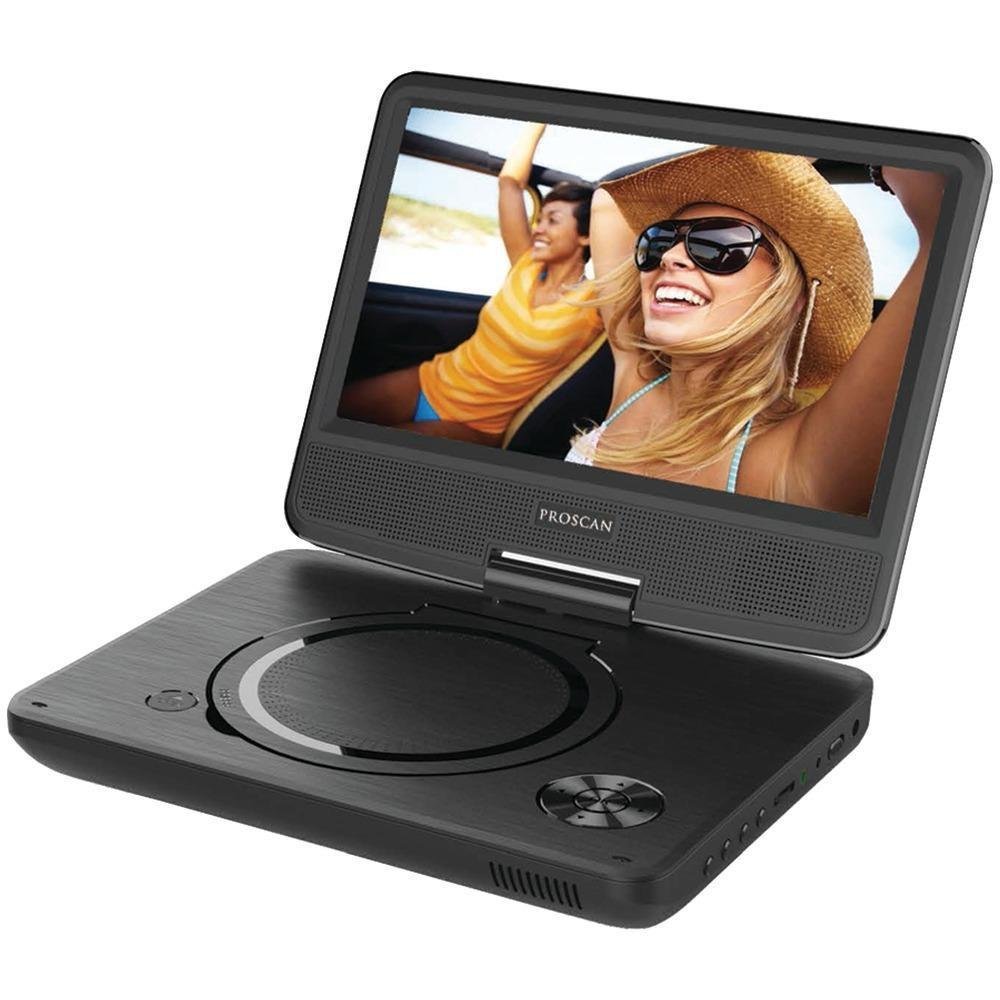
Image: The Proscan PDVD9325 portable DVD player with its screen swiveled open, showing the disc tray and control buttons.
Setup
1. Unpacking
Carefully remove all components from the packaging. Ensure all items listed in the packing contents are present. Keep packaging materials for future transport or storage.
2. Charging the Battery
- Connect the supplied AC adapter to the DC IN port on the DVD player.
- Plug the AC adapter into a standard wall outlet.
- The charging indicator light will illuminate. Allow approximately 3-4 hours for a full charge.
- Disconnect the AC adapter once charging is complete or when using the device on battery power. The built-in battery provides up to 5 hours of playback.
3. Initial Power On
Press and hold the POWER button located on the side or front of the unit until the screen illuminates. The device will boot up and display the main menu.
Operating Instructions
1. Inserting a DVD
- Gently open the disc cover.
- Place a DVD disc onto the spindle with the label side facing up.
- Press down gently on the center of the disc until it clicks into place.
- Close the disc cover firmly. The player will automatically begin reading the disc.
2. Basic Playback Controls
- PLAY/PAUSE: Press to start playback or pause a playing disc. Press again to resume.
- STOP: Press to stop playback. Pressing twice will return to the disc's main menu.
- PREV/NEXT: Press to skip to the previous or next chapter/track.
- FF/REW: Press and hold to fast forward or rewind through the content.
3. Using the Swivel Screen
The screen can be rotated up to 180 degrees clockwise and folded flat against the player's base, allowing for various viewing angles and compact storage. Exercise caution when swiveling the screen to avoid damage.
4. SD Card and USB Input
The player supports media playback from SD cards and USB flash drives. Insert your SD card into the SD CARD slot or your USB drive into the USB port. Use the menu navigation buttons to select the desired media source and browse files.
5. Volume Control and Headphones
Adjust the volume using the VOLUME dial or buttons on the unit. For private listening, plug standard 3.5mm headphones into the HEADPHONE jack.
Maintenance
1. Cleaning the Device
- Wipe the exterior of the player with a soft, dry cloth.
- For stubborn marks, slightly dampen the cloth with water; avoid harsh chemicals or abrasive cleaners.
- Clean the screen with a soft, lint-free cloth specifically designed for electronics screens.
- Do not spray cleaning solutions directly onto the device.
2. Battery Care
- To prolong battery life, avoid fully discharging the battery frequently.
- If storing the device for an extended period, charge the battery to approximately 50% before storage.
- Store in a cool, dry place.
3. Storage
When not in use, store the DVD player in a clean, dry environment, away from direct sunlight, extreme temperatures, and excessive dust. Ensure the screen is folded flat and secured.
Troubleshooting
| Problem | Solution |
|---|---|
| Device does not power on. |
|
| Disc does not play or is unreadable. |
|
| No sound. |
|
| Remote control not working. |
|
Specifications
- Model Number: PDVD9325
- Screen Size: 9 inches
- Screen Type: Swivel
- Media Support: DVD, CD, SD Card, USB
- Battery Life: Up to 5 hours (approximate)
- Product Dimensions: 11.1 x 10 x 3.1 inches
- Item Weight: 0.01 ounces
- Manufacturer: Proscan
- Date First Available: February 28, 2017
