
1. Setup
Follow these steps to set up your JVC SI39H TV.
1.1 Unpacking and Inspection
- Carefully remove the TV from its packaging.
- Check for any damage during transit. If the TV is damaged, do not plug it in. Contact your retailer.
- Ensure all accessories are present: Remote Control, Batteries, TV Stand, Screws, User Manual.
1.2 Stand Assembly
If you are not wall-mounting the TV, attach the included stand.
- Place the TV screen-down on a soft, flat surface to prevent scratches.
- Align the stand base with the mounting holes on the bottom of the TV.
- Secure the stand using the provided screws. Do not overtighten.
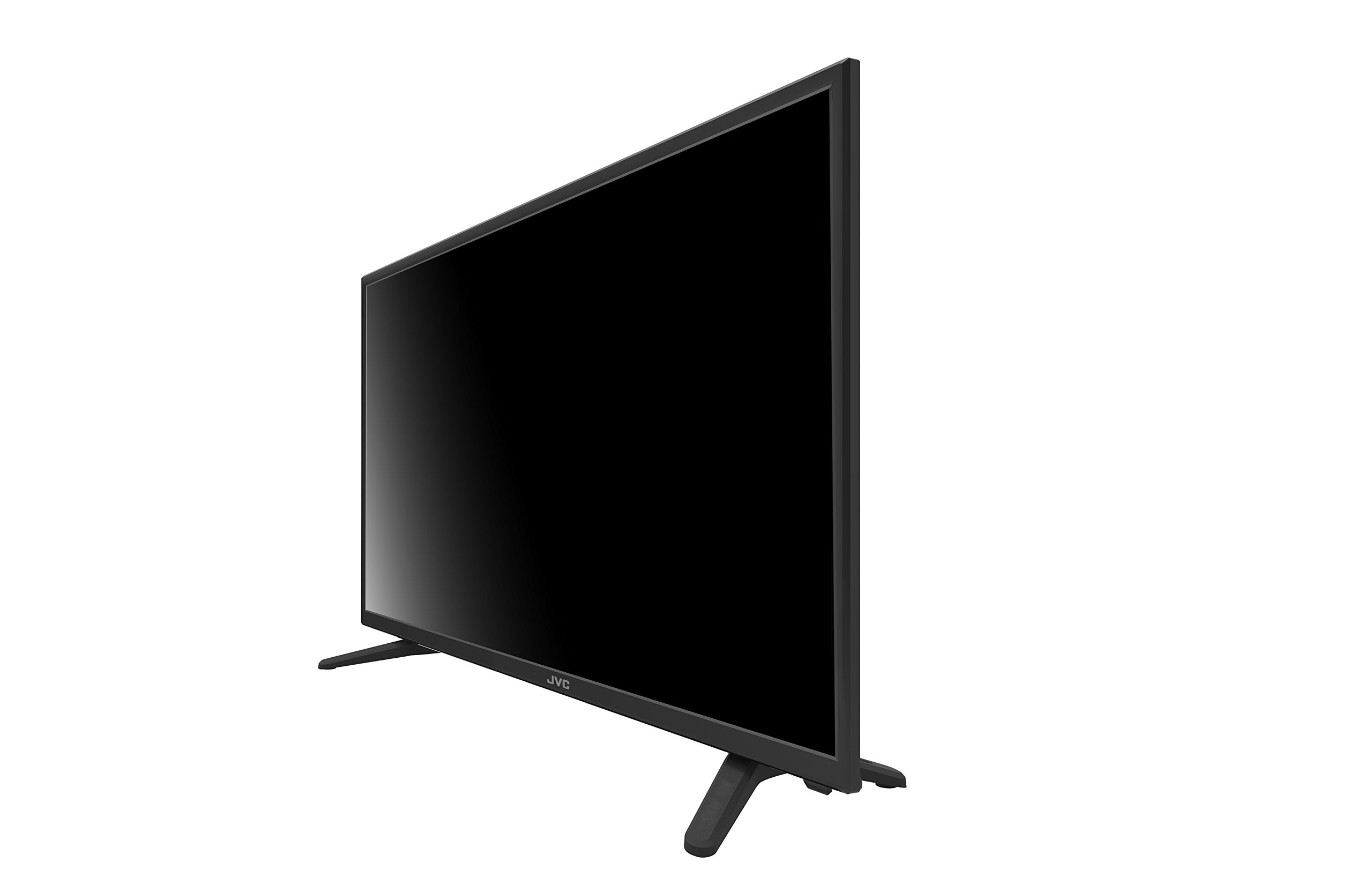
Image: JVC 39-inch HD LED TV with its table stand. This image illustrates the overall appearance of the television with the stand attached, ready for placement on a flat surface.
1.3 Connecting Devices
Connect your external devices to the TV's input ports.
- Power: Connect the power cord to the TV's power input, then plug it into a wall outlet.
- HDMI Devices: Use HDMI cables to connect devices like Blu-ray players, game consoles, or cable boxes to the HDMI ports (HDMI 1, HDMI 2, HDMI 3).
- USB Devices: Insert USB drives for media playback into the USB port.
- VGA Devices: Connect a computer or laptop using a VGA cable to the VGA port.
- Antenna/Cable: Connect an antenna or cable TV feed to the RF input for over-the-air or cable channels.
1.4 Initial Power-On
- Press the Power button on the TV or the remote control.
- The TV will guide you through the initial setup wizard, including language selection, time zone, and channel scanning.
- To connect to Wi-Fi, select your network from the list and enter the password.
2. Operating the TV
Understand the basic functions and features of your JVC SI39H TV.
2.1 Remote Control Overview
Familiarize yourself with the buttons on your remote control:
- Power: Turns the TV on or off.
- Input/Source: Selects the input source (HDMI, USB, VGA, TV).
- Volume +/-: Adjusts the volume level.
- Channel +/-: Changes TV channels.
- Menu: Opens the main menu for settings.
- Navigation Buttons (Up/Down/Left/Right) & OK: Navigate through menus and confirm selections.
- Back/Exit: Returns to the previous menu or exits the current menu.
- Netflix/YouTube: Direct access buttons for compatible internet services.
2.2 Basic Functions
- Power On/Off: Press the Power button once.
- Adjusting Volume: Use the Volume +/- buttons.
- Changing Channels: Use the Channel +/- buttons or enter channel numbers directly.
2.3 Input Selection
To switch between connected devices:
- Press the Input or Source button on the remote control.
- Use the navigation buttons to highlight the desired input (e.g., HDMI 1, USB, VGA, TV).
- Press OK to confirm your selection.
2.4 Smart TV Features
Your JVC SI39H TV includes built-in Wi-Fi and compatible internet services.
- Wi-Fi Connection: Ensure your TV is connected to your home Wi-Fi network via the setup wizard or Network settings in the main menu.
- Netflix & YouTube: Use the dedicated buttons on the remote or access these applications through the TV's smart interface. An active internet connection is required.
3. Maintenance
Proper care ensures the longevity and optimal performance of your TV.
3.1 Cleaning the TV
- Screen: Gently wipe the screen with a soft, lint-free cloth. For stubborn marks, use a screen-cleaning solution specifically designed for TVs, applied to the cloth, not directly to the screen.
- Cabinet: Wipe the TV cabinet with a soft, dry cloth. Avoid using abrasive cleaners or solvents.
- Always unplug the TV before cleaning.
3.2 Software Updates
Periodically check for software updates in the TV's settings menu to ensure you have the latest features and performance improvements. An internet connection is required for online updates.
4. Troubleshooting
Refer to this section for solutions to common issues.
| Problem | Possible Cause | Solution |
|---|---|---|
| No power | Power cord disconnected; no power from outlet. | Ensure power cord is securely plugged in. Check the power outlet with another device. |
| No picture, but sound is present | Incorrect input source selected; faulty cable connection. | Press the 'Input' button on the remote to select the correct source. Check HDMI/VGA cable connections. |
| No sound, but picture is present | Volume muted or too low; external device audio settings. | Increase volume. Check if TV is muted. Verify audio output settings on connected devices. |
| Remote control not working | Dead batteries; obstruction; remote not paired. | Replace batteries. Remove any obstructions between remote and TV. Ensure remote is pointed at the TV's IR sensor. |
| Cannot connect to Wi-Fi | Incorrect password; router issues; TV too far from router. | Re-enter Wi-Fi password carefully. Restart your router. Move TV closer to the router or use a Wi-Fi extender. |
5. Specifications
Key technical specifications for the JVC SI39H TV.
| Feature | Description |
|---|---|
| Brand | JVC |
| Model Name | SI39H |
| Screen Size | 39 Inches |
| Display Technology | LED |
| Resolution | 720p HD |
| Special Features | HDMI Input, USB Input |
| Connectivity Technology | Built-in Wi-Fi |
| Compatible Internet Services | Netflix, YouTube |
| Mounting Type | Table Stand |
| Product Weight | 6000 Grams (approx. 13.2 lbs) |
| Screen Finish | Matte |
| Total HDMI Ports | 3 |
| Hardware Interface | HDMI, USB, VGA |
| Control Method | Remote Control |
| Model Year | 2017 |
| Manufacturer | Comarket SA de CV |
| UPC | 841848100206 |
| ASIN | B06XC85V8J |
6. Warranty and Support
6.1 Product Warranty
Your JVC SI39H TV comes with a 1-year limited warranty from the date of purchase. This warranty covers manufacturing defects under normal use. Please retain your proof of purchase for warranty claims.
6.2 Customer Support
For technical assistance, troubleshooting beyond this manual, or warranty service, please contact JVC customer support. Refer to the contact information provided with your purchase documentation or visit the official JVC website for support details.


