
SHARP LC-40U45
SHARP AQUOS LC-40U45 40-inch 4K HDR LCD TV User Manual
Model: LC-40U45 | Brand: SHARP
1. Introduction
This manual provides essential information for the safe and efficient operation of your SHARP AQUOS LC-40U45 40-inch 4K HDR LCD TV. Please read these instructions thoroughly before using the product and retain them for future reference.
The LC-40U45 features a 4K low-reflection panel to minimize glare, 120-speed backlight technology for smooth motion, and the AQUOS 4K-Master Engine PRO II for high-definition image processing. Experience enhanced audio with the bass-reflex speaker box, Sound by ONKYO collaboration, and Eilex PRISM technology. The TV also includes a swivel stand for flexible viewing angles.
2. Safety Information
Always follow basic safety precautions when using this television to reduce the risk of fire, electric shock, and injury.
- Do not expose the TV to rain or moisture.
- Do not block ventilation openings.
- Ensure proper grounding of the power plug.
- Unplug the TV during lightning storms or when unused for long periods.
- Keep small parts and batteries out of reach of children.
3. What's in the Box
Verify that all the following items are included with your television:
- SHARP AQUOS LC-40U45 4K HDR LCD TV
- Remote Control (with 2 AAA batteries)
- Power Cord
- Table-Top Stand (if applicable)
- AV Terminal Conversion Cable
- User Manual (this document)
4. Setup
4.1 Physical Placement and Dimensions
Ensure the TV is placed on a stable surface or mounted securely. The dimensions of the TV with the stand are approximately 90.1 cm (width) x 27.1 cm (depth) x 55.8 cm (height). The weight is approximately 20.5 kg.

Figure 4.1: TV dimensions (Width: 90.1cm, Height: 55.8cm, Depth: 27.1cm) and recommended viewing distance of approximately 150cm.
4.2 Connecting Peripherals
Your TV offers various connection ports on the rear panel for external devices.

Figure 4.2: Rear panel connections including HDMI inputs, USB ports, headphone jack, AV input, LAN port, and antenna inputs.
- HDMI Inputs (x4): Connect Blu-ray players, game consoles, or other HDMI-compatible devices. Input 1 supports HDR.
- USB Ports (x2): Connect USB storage devices for media playback or external HDD for recording.
- PC Input (x1): Connect a computer.
- LAN Port (10BASE-T/100BASE-TX): For wired internet connection.
- Headphone Jack (3.5mm stereo mini-jack): For private listening.
- AV Input: Use the provided AV terminal conversion cable for older devices.
- Antenna Inputs: Connect terrestrial digital and BS/CS digital antennas.
- B-CAS Card Slot: Insert the B-CAS card to decrypt digital broadcasts.
4.3 Network Connection
The TV supports both wired and wireless (Wi-Fi) network connections. Built-in Wi-Fi allows for easy connection to your home network.
4.4 Swivel Stand
The TV features a swivel stand that allows you to adjust the screen angle left and right by 30 degrees. This provides flexibility for optimal viewing from various positions in the room and makes accessing rear ports easier for cleaning or connecting devices.

Figure 4.3: The swivel stand allows for 30-degree left/right adjustment, simplifying cleaning and access to rear connections.
5. Operating Your TV
5.1 Remote Control Functions
Use the provided remote control to navigate menus, change channels, adjust volume, and access smart TV features. The remote includes dedicated buttons for popular streaming services.
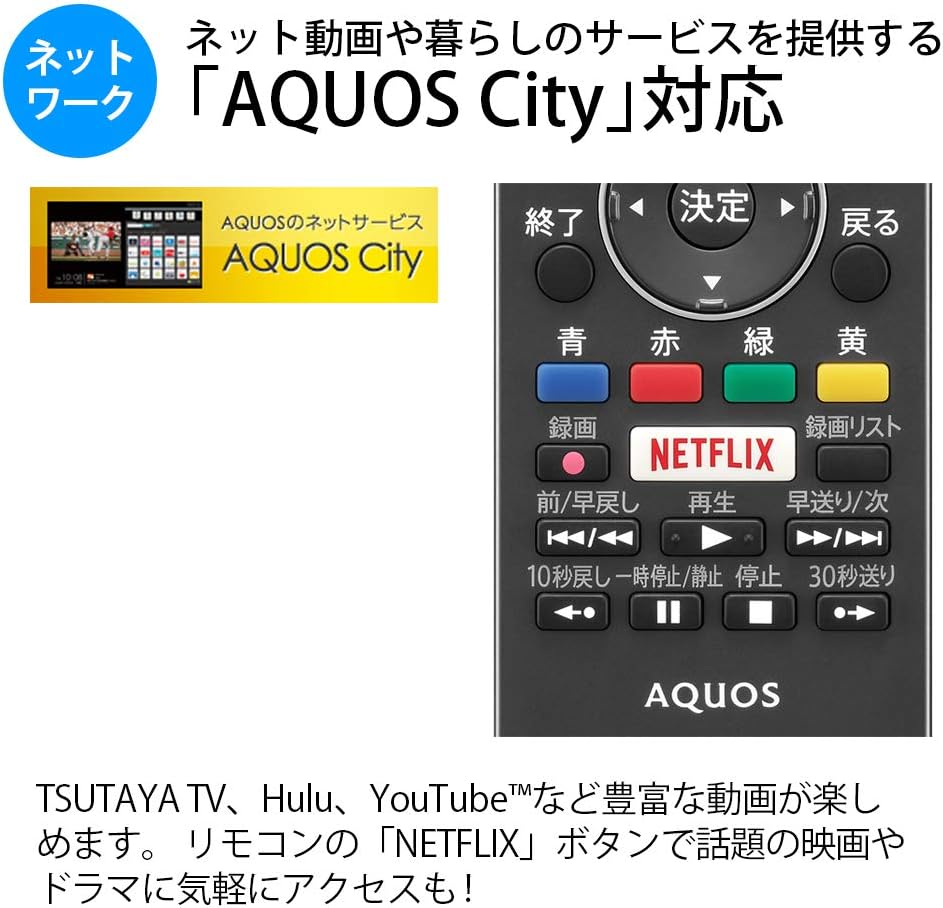
Figure 5.1: Remote control with a dedicated Netflix button and a view of the AQUOS City interface.
5.2 Smart TV Features (AQUOS City)
Your AQUOS TV supports "AQUOS City," providing access to various internet video services and lifestyle applications. Enjoy streaming content from platforms like NETFLIX, YouTube, Hulu, and TSUTAYA TV. Simply press the dedicated "NETFLIX" button on your remote for quick access.
5.3 4K Image Processing
The AQUOS 4K-Master Engine PRO II is a high-definition image processing circuit specifically designed for 4K LCD panels. It reduces noise and enhances contrast for a more immersive 4K viewing experience.

Figure 5.2: The AQUOS 4K-Master Engine PRO II enhances 4K images by reducing noise and improving contrast.
5.4 Audio Features
The TV is equipped with a bass-reflex type speaker box, developed in collaboration with ONKYO, to deliver high-quality sound with enhanced high-frequency pressure and rich bass. Eilex PRISM technology expands the listening position and creates a sense of audio depth.

Figure 5.3: Illustration of the bass-reflex speaker box, designed for superior sound quality.
5.5 Low-Reflection Panel
The 4K low-reflection panel minimizes reflections from room lighting and external light sources, ensuring clear and comfortable viewing even in bright environments.

Figure 5.4: Visual comparison demonstrating how the low-reflection panel reduces glare compared to a conventional LCD panel.
5.6 Video Mirroring (Fire TV)
You can mirror your smartphone screen to the TV using Fire TV mirroring. This allows you to display photos, videos, or smartphone apps on the large TV screen. To use this feature, connect a Fire TV device to one of the TV's HDMI ports and ensure both devices are on the same Wi-Fi network. Refer to your Fire TV device's manual for specific mirroring instructions.
6. Maintenance
To ensure the longevity and optimal performance of your TV, follow these maintenance guidelines:
- Cleaning the Screen: Gently wipe the screen with a soft, lint-free cloth. For stubborn marks, slightly dampen the cloth with water or a specialized screen cleaner. Do not spray liquid directly onto the screen.
- Cleaning the Cabinet: Use a soft, dry cloth to wipe the TV cabinet. Avoid using abrasive cleaners or solvents.
- Ventilation: Ensure the ventilation openings on the TV are not blocked to prevent overheating.
- Power Cord: Regularly check the power cord for any damage. If damaged, contact qualified service personnel.
7. Troubleshooting
If you encounter issues with your TV, refer to the following common problems and solutions:
| Problem | Possible Cause / Solution |
|---|---|
| No power | Check if the power cord is securely plugged into the TV and the wall outlet. Press the power button on the remote or TV. |
| No picture, but sound is present | Ensure the correct input source is selected. Check cable connections to external devices. |
| No sound, but picture is present | Check volume level and mute status. Ensure audio cables are correctly connected. |
| Remote control not working | Replace batteries. Ensure there are no obstructions between the remote and the TV's IR sensor. |
| Cannot connect to Wi-Fi | Check your Wi-Fi router and network settings. Ensure the TV is within range of the router. |
8. Specifications
| Feature | Specification |
|---|---|
| Screen Size | 40 inches |
| Display Technology | LCD |
| Resolution | 3840 x 2160 (4K) |
| HDR Support | HDR compatible (HDMI Input 1) |
| Refresh Rate | 120 Hz (120 Speed backlight technology) |
| Tuners | Terrestrial Digital x3, BS/CS Digital x3 |
| Audio Output | 20W (10W + 10W) |
| Speaker Features | Bass-reflex type, Sound by ONKYO, Eilex PRISM |
| HDMI Ports | 4 |
| USB Ports | 2 (USB-HDD recording compatible) |
| PC Input | 1 |
| Network Connectivity | Wi-Fi built-in, LAN port |
| Wireless Type | Bluetooth, Wi-Fi, Miracast |
| Power Consumption | Approx. 106W (Annual: 96Kwh/year) |
| Dimensions (W x D x H) | 90.1 x 27.1 x 55.8 cm (with stand) |
| Weight | 20.5 kg |
| VESA Mount Standard | 600 x 400 mm |
| Recommended Network Services | NETFLIX, YouTube, Hikari TV 4K, Hulu, TSUTAYA TV |
9. Warranty and Support
For warranty information, please refer to the warranty card included with your product or visit the official SHARP website. For technical support, troubleshooting assistance, or service requests, please contact SHARP customer service. Contact details can be found on the official SHARP website or in your product documentation.
Related documentsLC-40U45


Ask a question about this manual
Ask about setup, troubleshooting, compatibility, parts, safety, or missing instructions. Manuals+ will review the question and use this page’s manual context to help answer it.