
EMEET E3138
EMEET PIXY Dual-Camera AI-Powered PTZ 4K Webcam Instruction Manual
Model: E3138
1. Introduction
The EMEET PIXY is a sophisticated dual-camera AI-powered PTZ (Pan-Tilt-Zoom) 4K webcam designed for high-quality video streaming, online meetings, and content creation. It integrates advanced AI features for intelligent tracking, autofocus, and audio processing to enhance your visual and auditory experience.

Image: EMEET PIXY Dual-Camera AI-Powered PTZ 4K Webcam overview.
2. Setup
2.1 What's in the Box

Image: Contents of the EMEET PIXY product packaging.
- EMEET PIXY Webcam x 1
- Webcam Clip x 1
- 5 ft USB 2.0 C-C Cable x 1
- Type-C to A adapter x 1
- User Manual x 1
2.2 Physical Installation
The EMEET PIXY can be mounted using the included webcam clip or a tripod (sold separately).
- Using the Webcam Clip: Attach the webcam clip to the bottom of the PIXY camera. Place the camera with the clip securely on top of your monitor or laptop screen. Adjust the angle as needed.
- Using a Tripod: The camera base features a standard tripod screw mount. Attach the PIXY directly to a compatible tripod for flexible positioning.

Image: Demonstrates various mounting options and adjustable heights for the EMEET PIXY.
2.3 Connection
Connect the EMEET PIXY to your computer using the provided USB-C to C cable. If your computer only has USB-A ports, use the included Type-C to A adapter.
- Plug the USB-C end of the cable into the camera.
- Plug the other end (USB-C or USB-A with adapter) into an available USB port on your computer.
- The camera is plug-and-play and should be recognized by your operating system automatically.
2.4 Software Installation
For full control and advanced features, download and install the EMEET STUDIO software from the official EMEET website. EMEET STUDIO is compatible with Windows 10+ (64-bit) and macOS 10.14+.

Image: EMEET PIXY connected to a laptop, showing the EMEET STUDIO software interface and USB connection.
3. Operating Instructions
3.1 Dual-Camera AI-Powered PTZ Features
The EMEET PIXY features a unique dual-camera system for enhanced performance:
- 4K Main Imaging Camera: Equipped with a 1/2.55" Sony sensor and PDAF focus for ultra-clear UHD 4K@30FPS video.
- Auxiliary AI Camera: Detects face position to optimize autofocus and exposure, ensuring flawless skin tones in various lighting conditions.
- PDAF & AI Autofocus: Combined for rapid 0.2s focusing, significantly faster than conventional webcams.

Image: Diagram highlighting the 4K imaging camera and AI-assisted camera components of the EMEET PIXY.

Image: Visual comparison demonstrating the rapid 0.2s autofocus speed of EMEET PIXY.
3.2 Intelligent Tracking and Gesture Control
The PIXY utilizes a 3-chip AI system for smooth and responsive tracking:
- 3-Chip AI: Dedicated chips for imaging, AI assistance (motion prediction, lighting), and PTZ control (310° pan / 180° tilt).
- Gesture Control: Activate features by holding an open palm centered for 2 seconds.

Image: EMEET PIXY showcasing its intelligent auto-tracking capabilities and effortless gesture control.

Image: EMEET PIXY demonstrating face tracking for seamless Switch 2 gameplay, with PTZ movement indicated.
3.3 EMEET STUDIO Control Software
The EMEET STUDIO software provides comprehensive control over your PIXY webcam:
- Preset Positions: Instantly switch between predefined camera angles.
- Whiteboard Mode: Automatically detects whiteboards for optimal framing; manual adjustment available.
- Privacy Mode: Activate by tilting the PIXY downward, or via timer/app settings.
- FOV Adjustment: Field of View is adjustable in 1080P & 2K 30FPS modes; locked in 4K 30FPS & 1080P 60FPS for stability.
- AIGC: Built-in Artificial Intelligence Generated Content for creating shot lists and movements.
- Portrait Mode: Instantly rotate PIXY and flip the image for mobile-ready content.

Image: EMEET STUDIO software interface displaying preset positions and PTZ control options for the EMEET PIXY.

Image: EMEET PIXY in whiteboard mode, showing automatic identification and manual adjustment features.

Image: EMEET PIXY demonstrating privacy mode activation by tilting the camera or through software settings.
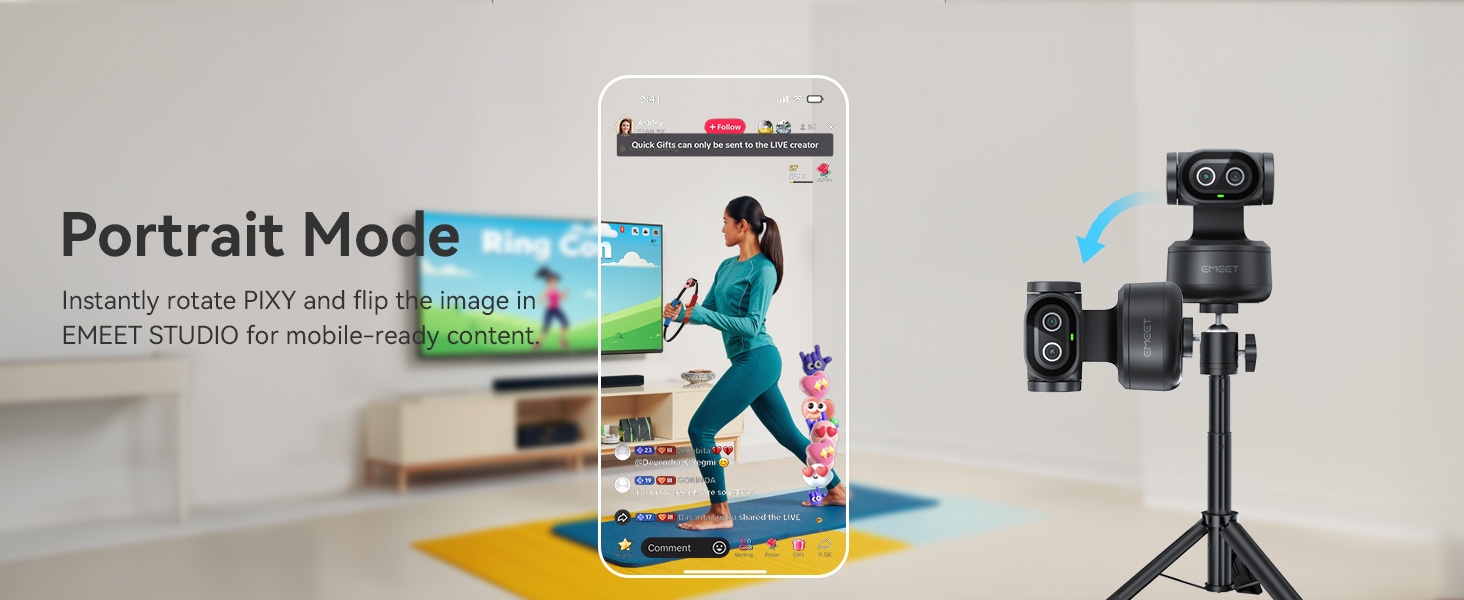
Image: EMEET PIXY in portrait mode, optimized for mobile content creation with image flipping.
3.4 3-Mic Array for Multiple Scenes
The EMEET PIXY features a triple-microphone array with various audio modes:
- Live Mode: Filters steady background noise (e.g., fans, AC) for clear live streams.
- Noise Canceling Mode: Blocks both steady hums and sudden sounds (e.g., keyboard clicks, door slams) for podcasts, courses, and recordings.
- Original Sound Mode: Captures full ambient detail for music and singing.

Image: Diagram showing the triple-microphone array and different audio modes (Live, Noise Canceling, Original Sound) of the EMEET PIXY.
3.5 Compatibility
The EMEET PIXY is compatible with a wide range of platforms and operating systems:
- Platforms: OBS, Twitch, YouTube, Facebook, XSplit, ManyCam, Switch 2 Camera, Xbox, PS5 (requires external capture card).
- System Requirements: Windows 10+ (64-bit, not ARM), macOS 10.14+.

Image: EMEET PIXY integrated into a live streaming setup, highlighting compatibility with various platforms.
4. Maintenance
To ensure optimal performance and longevity of your EMEET PIXY webcam, follow these maintenance guidelines:
- Lens Cleaning: Gently wipe the camera lenses with a soft, lint-free cloth. Avoid using harsh chemicals or abrasive materials that could scratch the lens.
- Dust Removal: Use a soft brush or compressed air to remove dust from the camera body and microphone grilles.
- Storage: When not in use, store the camera in a clean, dry place away from direct sunlight and extreme temperatures. Utilize the privacy mode or cover the lens to protect it from dust and accidental activation.
- Cable Care: Avoid bending or twisting the USB cable excessively to prevent damage.
5. Troubleshooting
If you encounter issues with your EMEET PIXY, refer to the following common troubleshooting steps:
- Camera Not Detected:
- Ensure the USB cable is securely connected to both the camera and your computer.
- Try connecting to a different USB port.
- Restart your computer.
- Check your computer's device manager (Windows) or System Information (macOS) to see if the camera is listed.
- Poor Image Quality:
- Ensure the camera lens is clean and free of smudges.
- Check your lighting conditions. Adequate lighting is crucial for optimal image quality.
- Open EMEET STUDIO and adjust brightness, contrast, and other image settings.
- Verify that the camera is set to the desired resolution (e.g., 4K) in your application settings.
- No Audio or Poor Audio Quality:
- Ensure the PIXY is selected as the default microphone in your computer's sound settings and your video conferencing application.
- Check the microphone mode in EMEET STUDIO (Live, Noise Canceling, Original Sound) and select the most appropriate one for your environment.
- Ensure the microphone is not muted.
- AI Tracking Issues:
- Ensure you are within the recommended tracking range and that your face is clearly visible to the camera.
- Avoid rapid, jerky movements that might cause the camera to lose track.
- Check EMEET STUDIO settings to ensure tracking is enabled and configured correctly.
6. Specifications
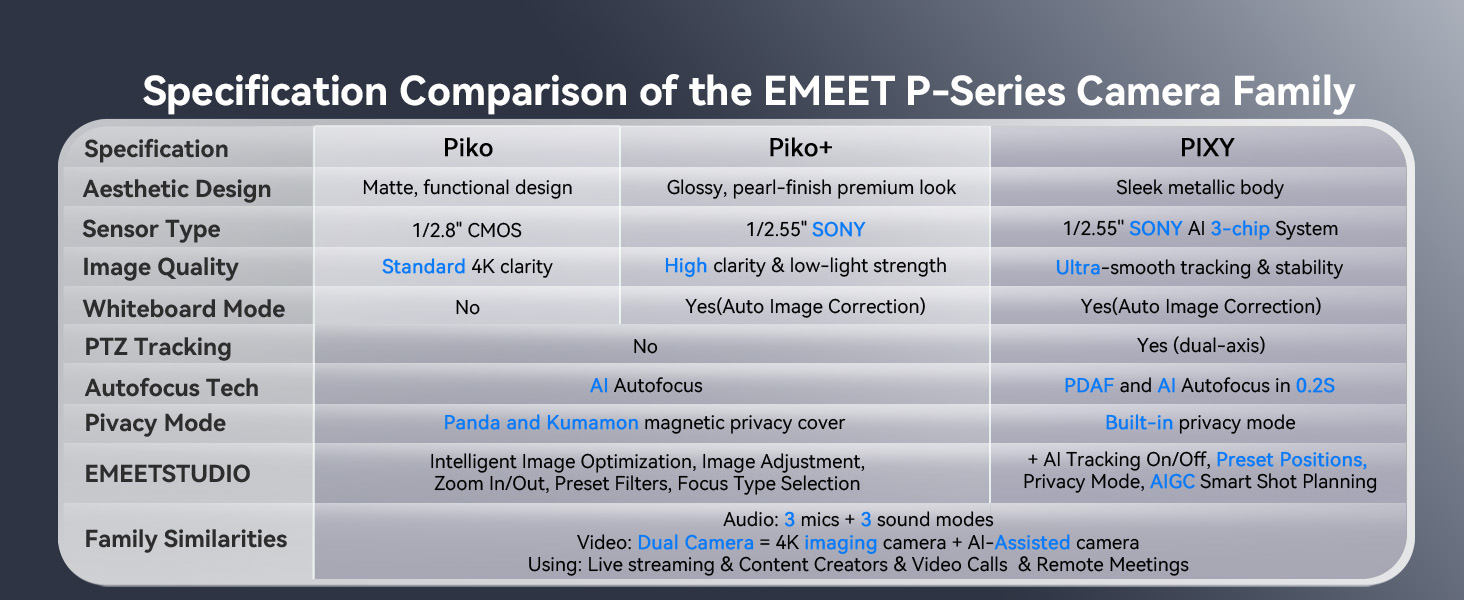
Image: Comparison table of EMEET P-Series camera specifications, including PIXY.
| Feature | Detail |
|---|---|
| Product Dimensions | 2.09 x 2.09 x 2.87 inches |
| Item Weight | 11.3 ounces |
| Item Model Number | E3138 |
| Brand | EMEET |
| Photo Sensor Technology | SONY |
| Video Capture Resolution | 4K |
| Maximum Focal Length | 3000 Millimeters |
| Maximum Aperture | 1.8 f |
| Flash Memory Type | NOT Available, Rely on Your PC/Mac |
| Video Capture Format | YUY2 / MJPEG |
| Supported Audio Format | AAC, PCM |
| Screen Size | 3.8 Inches |
| Connectivity Technology | USB |
7. Warranty and Support
- Warranty: EMEET provides a 2-year exclusive warranty for this product.
- Technical Support: Lifetime professional technical team support is available. For assistance, please visit the official EMEET website or contact their customer service.
Related documentsE3138


Ask a question about this manual
Ask about setup, troubleshooting, compatibility, parts, safety, or missing instructions. Manuals+ will review the question and use this page’s manual context to help answer it.