
1. Introduction
The Silverlit Pokibot is a portable robot designed for interactive play. It features robotic voice playback, sound-activated motions, and the ability to interact with other Pokibots. With its illuminated LED face and various movements, the Pokibot offers engaging entertainment. An accompanying app is available for extended functionalities and additional fun.

Image: A group of colorful Pokibots demonstrating their interactive capabilities.
2. Safety Information
WARNING: Not suitable for children under 3 years due to small parts which may present a choking hazard. Adult supervision is recommended during play.
- Keep away from water and excessive moisture.
- Do not attempt to disassemble or modify the robot.
- Ensure batteries are inserted with correct polarity.
- Remove batteries if the toy is not used for an extended period.
3. Getting Started
3.1. What's in the Box
Your Pokibot package should contain:
- 1x Pokibot Robot

Image: The retail packaging for the Silverlit Pokibot.
3.2. Battery Installation
The Pokibot requires 1 x AAA battery (not included).
- Locate the battery compartment on the back or bottom of the Pokibot.
- Using a small screwdriver, open the battery compartment cover.
- Insert one AAA battery, ensuring the correct polarity (+/-) as indicated inside the compartment.
- Replace the battery compartment cover and secure it with the screw.
3.3. Powering On
Once batteries are installed, locate the power switch (usually on the back or side of the robot) and slide it to the 'ON' position. The Pokibot's LED face should illuminate, indicating it is ready for use.
4. Basic Operations
4.1. Voice Recording and Playback
The Pokibot can record and play back up to 3 voice recordings with a robotic voice effect.
- Press and hold the record button (refer to the robot's specific button layout, often a small button on its head or back).
- Speak clearly into the robot's microphone.
- Release the button to stop recording. The Pokibot will then play back your recording in its robotic voice.
- To play back previous recordings, short press the record button. Each press will cycle through the stored recordings.
4.2. Sound Activated Motions
The Pokibot reacts to sound, particularly clapping hands.
- Clap your hands once to make the Pokibot move forward.
- Clap your hands twice to make the Pokibot spin.
- Clap your hands three times to make the Pokibot dance.
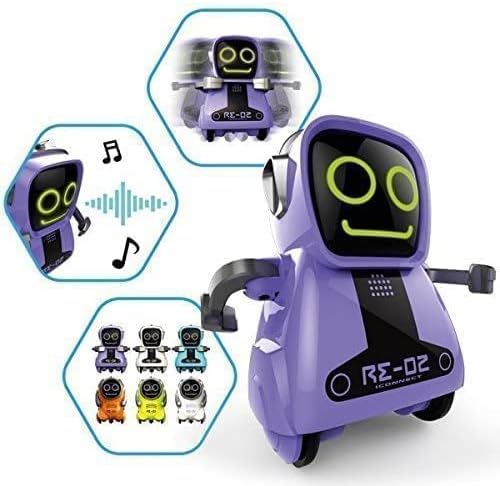
Image: A purple Pokibot highlighting its various interactive features through graphic icons.
4.3. Pokibot Interaction
Pokibots can interact and play together. Place multiple Pokibots near each other, and they will respond to each other's sounds and movements, creating a synchronized play experience.

Image: Multiple red Pokibots demonstrating their ability to move and interact together.
4.4. Movement
Beyond sound activation, the Pokibot can perform basic movements:
- Forward Movement: The robot can roll forward on its wheels.
- Spin: The robot can spin in place.
- Dance: The robot performs a series of movements and sounds.

Image: A red Pokibot in motion, illustrating its ability to move across a surface.
5. Advanced Features (App)
For extra fun and extended functionalities, download the official Pokibot app. The app provides additional control options and interactive games. Search for "Pokibot" on your device's app store (available on App Store and Google Play).
6. Care and Maintenance
6.1. Cleaning
To clean your Pokibot, use a dry cloth. Do not use water or cleaning solutions, as this may damage the electronic components. Avoid getting dust or debris into the moving parts or speaker/microphone openings.
6.2. Battery Replacement
When the Pokibot's movements become sluggish or its sounds are distorted, it's likely time to replace the battery. Follow the battery installation steps outlined in Section 3.2.
7. Troubleshooting
If you encounter issues with your Pokibot, please refer to the following common problems and solutions:
| Problem | Possible Cause | Solution |
|---|---|---|
| Pokibot does not turn on. | No battery, low battery, or incorrect battery polarity. | Ensure a fresh AAA battery is installed correctly. Check power switch is ON. |
| Voice recording is unclear or cuts off. | Microphone obstruction, speaking too far/close, or low battery. | Speak clearly and at a moderate distance from the microphone. Replace battery if low. |
| Pokibot does not respond to claps/sounds. | Ambient noise, sound too soft, or sensor obstruction. | Ensure a quiet environment. Clap firmly and clearly. Check for obstructions near sensors. |
| Pokibot does not move or moves erratically. | Low battery, wheels obstructed, or uneven surface. | Replace battery. Clear any debris from wheels. Use on a flat, smooth surface. |
8. Product Specifications
| Feature | Detail |
|---|---|
| Model Number | 7530-88529 |
| Product Dimensions | 4.5 x 2.28 x 6 cm |
| Weight | 117.93 g |
| Battery Requirement | 1 x AAA battery (not included) |
| Recommended Age | 3 years and up |
| Material Type | Plastic |
| Educational Objective | Discover, experiment |
| Release Date | 21 Feb. 2017 |
9. Warranty and Support
Information regarding product warranty is typically provided with the purchase receipt or on the manufacturer's official website. Please retain your proof of purchase for any warranty claims.
For further support, technical assistance, or inquiries, please visit the official Silverlit website or contact their customer service department. Contact details can usually be found on the product packaging or the manufacturer's website.