
1. Introduction
The ICON iKeyboard 4X is a 37-key MIDI keyboard controller designed for music production and performance. It combines a semi-weighted piano-style keyboard with a single-channel Digital Audio Workstation (DAW) controller, all housed in a durable metal enclosure. This manual provides detailed instructions for setting up, operating, and maintaining your iKeyboard 4X, ensuring optimal performance and integration with your music software.
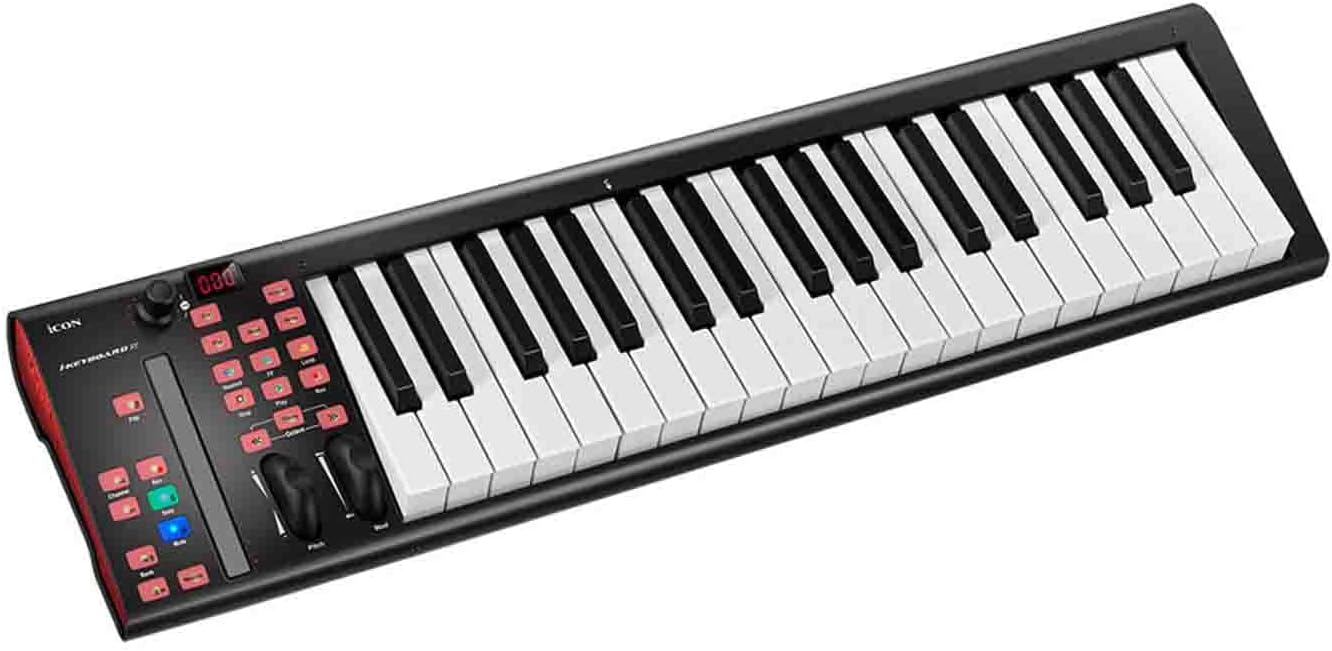
Image 1.1: Front view of the ICON iKeyboard 4X 37-Key MIDI Keyboard Controller, showcasing the 37 semi-weighted keys and integrated control panel.
2. Features
The iKeyboard 4X offers a comprehensive set of features for musicians and producers:
- 37 Semi-Weighted Keys: Full-sized, velocity-sensitive keys designed to provide a realistic piano feel.
- Integrated DAW Controller: Single-channel control section for your Digital Audio Workstation.
- Touch Fader with LED Feedback: Control and automate levels and parameters with real-time visual feedback.
- Transport Controls: Dedicated buttons for playback, recording, looping, and automation modes.
- Large Rotary Encoder: Multi-function encoder with an LED ring for panning, send levels, and plugin parameter control.
- Pitch Bend and Modulation Wheels: Standard controls for expressive performance.
- Octave and Transpose Buttons: Easily shift the keyboard's range.
- Durable Construction: Rugged metal enclosure for enhanced longevity.
- USB Connectivity: Class-compliant for macOS (M1 and Intel), Windows 10, and Windows 8/7 (32 & 64-bit).
- Mackie Control & HUI Protocols: Built-in support for popular DAW control protocols.
- iMap Software: Included software for custom MIDI mapping of all controls.
- Bundled Software: Includes Cubase LE and other production software.
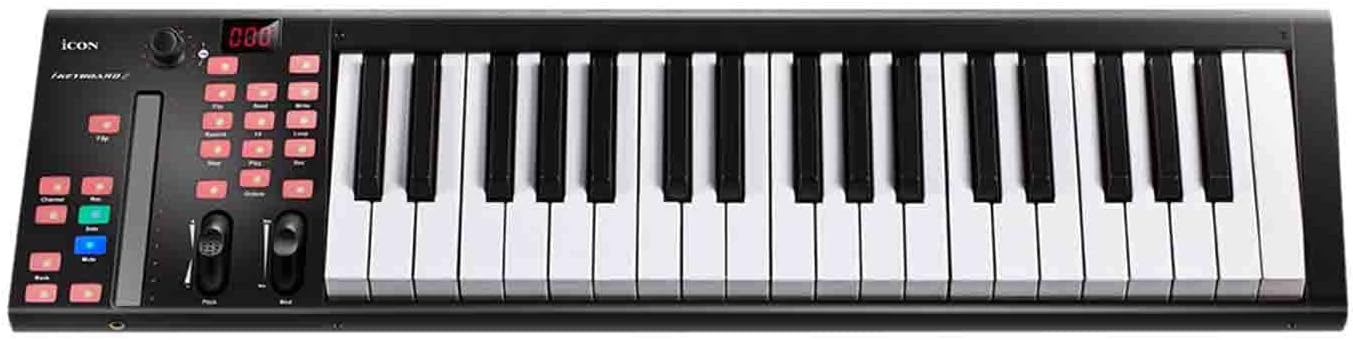
Image 2.1: Top view of the ICON iKeyboard 4X, highlighting the layout of the keys and the integrated control surface.
3. Package Contents
Please verify that all items are present in your iKeyboard 4X package:
- ICON iKeyboard 4X 37-Key MIDI Keyboard Controller
- USB Cable
- Cubase LE Software (download access)
- iMap Software (download access)
- Factory Presets (for various DAWs)
- User Manual (this document)
4. Setup
4.1. Physical Connection
- Unpack: Carefully remove the iKeyboard 4X from its packaging.
- Placement: Place the controller on a stable, flat surface.
- USB Connection: Connect one end of the supplied USB cable to the USB port on the rear of the iKeyboard 4X and the other end to an available USB port on your computer. The iKeyboard 4X is USB bus-powered.
- Optional External Power: While the unit is USB bus-powered, for optimal stability, especially with certain computer setups or if experiencing intermittent issues, an optional external 9V DC power adapter (not included) can be connected to the DC IN port.
- MIDI Out (Optional): If connecting to external MIDI hardware, use a standard MIDI cable to connect the MIDI OUT port on the iKeyboard 4X to the MIDI IN port of your external device.

Image 4.1: Rear panel of the ICON iKeyboard 4X, illustrating the USB, MIDI OUT, and DC IN ports for connectivity.
4.2. Driver Installation
The ICON iKeyboard 4X is a class-compliant device. This means that for most modern operating systems (macOS, Windows 10/8/7), no specific driver installation is required. Your computer should automatically recognize the device when connected via USB.
- Windows: The operating system will typically install generic USB MIDI drivers automatically.
- macOS: The operating system provides built-in MIDI support.
For advanced customization and firmware updates, download the latest iMap software from the official ICON Pro Audio website.
5. Operating Instructions
5.1. Basic Keyboard Functions
- Keys: The 37 semi-weighted keys respond to velocity, allowing for dynamic musical expression.
- Pitch Bend Wheel: Located on the left side, this wheel allows for real-time pitch modulation.
- Modulation Wheel: Also on the left, this wheel typically controls vibrato or other assignable parameters within your software.
- Octave Up/Down Buttons: Use these buttons to shift the keyboard's playable range up or down in octaves. The current octave setting is usually indicated on the display.
- Transpose Up/Down Buttons: These buttons allow you to transpose the keyboard's pitch in semitone increments.
5.2. DAW Control Section
The iKeyboard 4X features an integrated control surface for seamless interaction with your DAW.

Image 5.1: Detailed view of the iKeyboard 4X's control panel, showing the touch fader, transport controls, and rotary encoder.
- Touch Fader: This backlit LED touch fader controls channel levels, automation, and other parameters. It synchronizes with your DAW, reflecting current values when switching tracks.
- Mute, Solo, Rec Buttons: Dedicated buttons for controlling track mute, solo, and record arm functions.
- Track/Bank Selection: Buttons to navigate between tracks or banks of tracks in your DAW.
- Transport Controls: Play, Stop, Record, Loop, and other transport functions for controlling your DAW's timeline.
- Large Rotary Encoder: This versatile knob, surrounded by an LED ring, can be assigned to control various parameters such as panning, send levels, or plugin parameters. Its function often changes based on the selected mode or DAW context.
6. Software Integration
6.1. DAW Setup
The iKeyboard 4X is designed to integrate seamlessly with most major DAWs using Mackie Control and HUI protocols. Refer to your DAW's manual for specific instructions on setting up a MIDI controller and control surface.
- General Steps:
- Open your DAW's preferences or settings.
- Navigate to the MIDI or Control Surfaces section.
- Add a new control surface, selecting "Mackie Control" or "HUI" if available.
- Select "iKeyboard 4X" as the input and output MIDI device for the control surface.
- Ensure "iKeyboard 4X" is also enabled as a standard MIDI input device for playing notes.
- Factory Presets: The iKeyboard 4X includes factory presets for popular DAWs such as Cubase, Nuendo, Logic Pro, Pro Tools, Ableton Live, Samplitude, and Studio One. These presets optimize the controller's functions for each specific DAW.
6.2. iMap Software
The iMap software allows you to customize the MIDI assignments of all controls on your iKeyboard 4X. This is useful for creating custom mappings for applications that do not fully support Mackie Control or HUI, or for personalizing your workflow.
- Download and install iMap from the ICON Pro Audio website.
- Connect your iKeyboard 4X via USB.
- Launch iMap and follow the on-screen instructions to configure your controller.
6.3. Bundled Software
Your iKeyboard 4X comes with access to a suite of powerful music production software:
- Cubase LE: A streamlined version of Steinberg's popular DAW, providing essential tools for recording, editing, and mixing.
- Bitwig Studio 8-Track: A trim and effective digital audio workstation for producing, performing, and designing sounds.
- Harrison 32C Vocal Intensity Processor: A collection of features from Harrison's analog console heritage, including AVA plugins and Mixbus32C workstation.
- Tracktion DAW Essentials: A collection of 16 contemporary FX plugins for use with any DAW.
- Dotec Audio Plugins: Tools for streaming, podcasting, recording, and mixing.
Registration of your iKeyboard 4X on the ICON Pro Audio website is typically required to access these software downloads.
Image 6.1: Interface of Bitwig Studio 8-Track, included with your iKeyboard 4X.

Image 6.2: Examples of Dotec Audio plugins, part of the bundled software package.
7. Maintenance
To ensure the longevity and optimal performance of your ICON iKeyboard 4X, follow these maintenance guidelines:
- Cleaning: Use a soft, dry cloth to wipe down the surface of the controller. For stubborn dirt, a slightly damp cloth can be used, but ensure no liquid enters the device. Avoid abrasive cleaners or solvents.
- Storage: When not in use, store the iKeyboard 4X in a clean, dry environment, away from direct sunlight, extreme temperatures, and excessive dust.
- Handling: Avoid dropping or subjecting the unit to strong impacts. Do not place heavy objects on the keyboard.
- Connectivity: Always connect and disconnect USB and MIDI cables carefully to prevent damage to the ports.
8. Troubleshooting
If you encounter issues with your iKeyboard 4X, refer to the following common troubleshooting steps:
- No Power/Unit Not Responding:
- Ensure the USB cable is securely connected to both the iKeyboard 4X and your computer.
- Try connecting to a different USB port on your computer.
- If using a USB hub, try connecting directly to the computer or use a powered USB hub.
- Consider using an optional external 9V DC power adapter if available, as some USB ports may not provide sufficient power.
- No Sound/MIDI Output:
- Verify that the iKeyboard 4X is recognized by your operating system (check Device Manager on Windows or Audio MIDI Setup on macOS).
- In your DAW, ensure the iKeyboard 4X is selected as a MIDI input device and that the track you are playing on is armed for recording or monitoring MIDI input.
- Check that the correct virtual instrument or sound source is loaded and active in your DAW.
- Ensure the Octave and Transpose settings are not set to an extreme range that would produce inaudible notes.
- DAW Control Functions Not Working:
- Confirm that you have correctly set up the iKeyboard 4X as a Mackie Control or HUI control surface in your DAW's preferences.
- Ensure no other control surfaces are conflicting with the iKeyboard 4X.
- Check for firmware updates for the iKeyboard 4X and update if available.
- Use the iMap software to verify or reconfigure MIDI assignments if custom mapping is desired.
- Keys Feel Stiff or Unresponsive:
- The keys are semi-weighted and will have more resistance than synth-action keys. This is normal.
- Ensure no debris is lodged between the keys.
- If velocity response seems inconsistent, check your DAW's velocity curve settings or use iMap to adjust the controller's velocity response.
9. Specifications
| Feature | Description |
|---|---|
| Model Name | iKeyboard 4X |
| Number of Keys | 37 |
| Key Type | Semi-weighted, velocity-sensitive |
| Connectivity | USB, MIDI Out |
| Hardware Interface | USB |
| Compatible Devices | Laptop, PC, macOS (M1 and Intel), Cubase, Nuendo, Logic Pro, Pro Tools, Ableton Live, Samplitude, Studio One |
| Supported Software | Ableton Live, Cubase LE, Bitwig Studio 8-Track, Harrison 32C, Tracktion DAW Essentials, Dotec Audio plugins |
| Control Protocols | Mackie Control, HUI |
| Material Type | Metal enclosure |
| Color | Black |
| Item Weight | 7 pounds (3.17 kg) |
| Product Dimensions | 28 x 8 x 3 inches (71.12 x 20.32 x 7.62 cm) |
| Power | USB Bus-powered, optional 9V DC external power (not included) |
10. Warranty and Support
For warranty information, please refer to the warranty card included with your product or visit the official ICON Pro Audio website. ICON provides technical support for their products. If you require assistance beyond the scope of this manual, please contact ICON Pro Audio customer support through their website or the contact information provided in your product documentation.
Keep your purchase receipt as proof of purchase for warranty claims.


