
1. Introduction
The Tenda AC1300 (U12) is a dual-band wireless USB adapter designed to provide Wi-Fi connectivity to desktop PCs and laptops. It supports the 802.11ac standard, offering data transfer rates up to 867Mbps on the 5GHz band and 400Mbps on the 2.4GHz band. The adapter utilizes a USB 3.0 interface for faster data transfer compared to USB 2.0.
2. Package Contents
Verify that all items are present in your package:
- AC1300 USB Adapter (U12)
- Installation Guide
- USB Extension Cable
- Installation CD
3. Setup
3.1 Driver Installation
Before connecting the adapter, install the necessary drivers. The drivers can be found on the included CD or downloaded from the official Tenda website. For optimal performance and compatibility, it is recommended to download the latest drivers from the Tenda support page.
- Insert the Installation CD into your computer's CD/DVD drive, or download the driver package from the Tenda website.
- Follow the on-screen instructions to complete the driver installation.
- Restart your computer if prompted.
3.2 Connecting the Adapter
The U12 adapter uses a USB 3.0 interface. For best performance, connect it to a USB 3.0 port on your computer. USB 3.0 ports are typically blue.
- Locate an available USB 3.0 port on your desktop PC or laptop.
- Insert the Tenda U12 USB WiFi Adapter directly into the USB port.
- Alternatively, use the provided USB extension cable for flexible placement to optimize signal reception. Connect the adapter to one end of the extension cable and the other end to your computer's USB port.
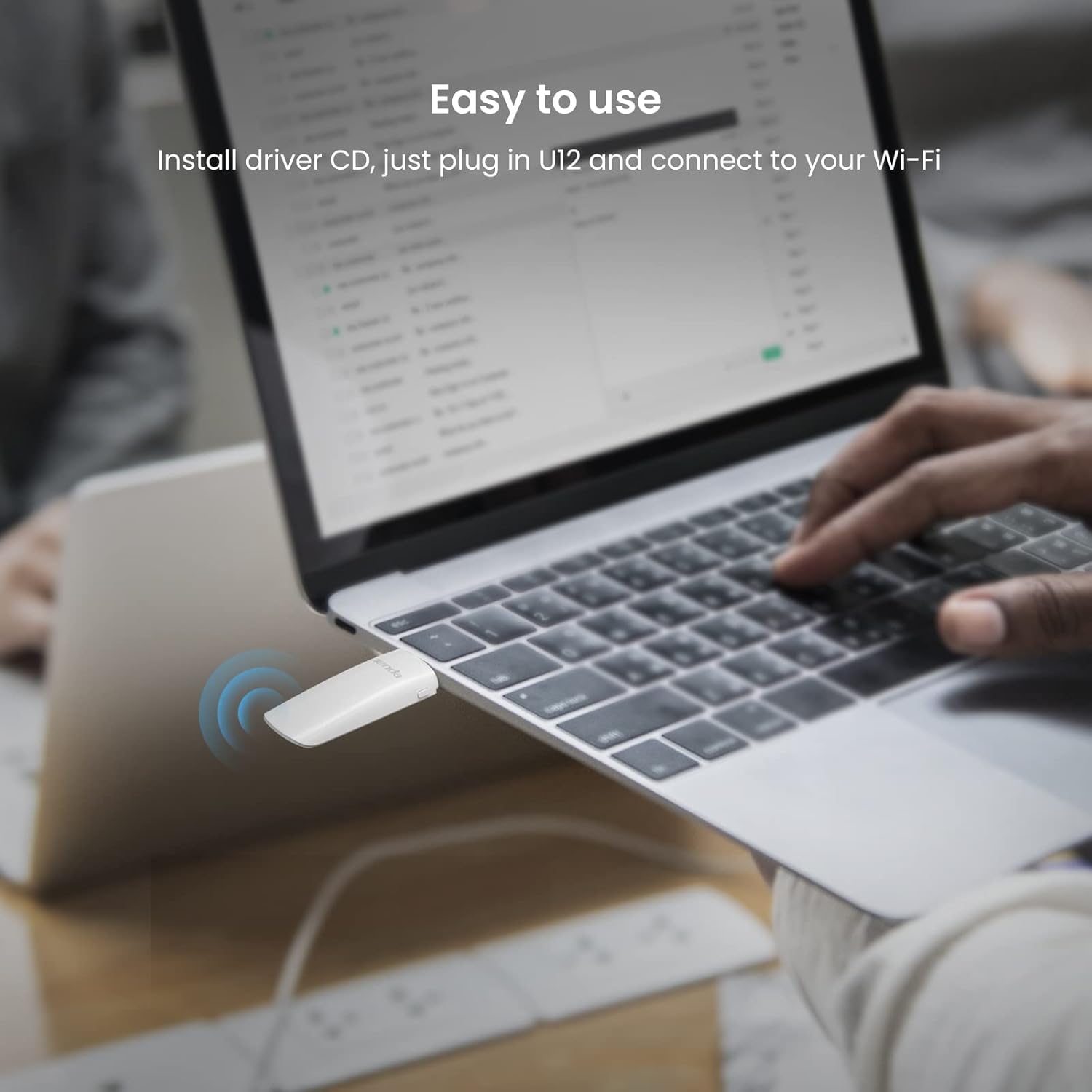
Image: Tenda U12 adapter plugged into a laptop USB port, illustrating easy setup.

Image: Tenda U12 adapter connected to a desktop computer's USB port.
3.3 Connecting to a Wi-Fi Network
- Once the adapter is connected and drivers are installed, your operating system should detect it.
- Open your computer's Wi-Fi settings.
- Select your desired Wi-Fi network from the list of available networks.
- Enter the network password (if required) and click 'Connect'.
4. Operating Instructions
4.1 Dual-Band Functionality
The Tenda U12 supports both 2.4GHz and 5GHz Wi-Fi bands. The 5GHz band offers higher speeds (up to 867Mbps) and is ideal for activities like HD video streaming and online gaming, while the 2.4GHz band provides wider coverage (up to 400Mbps) and is suitable for general internet use.
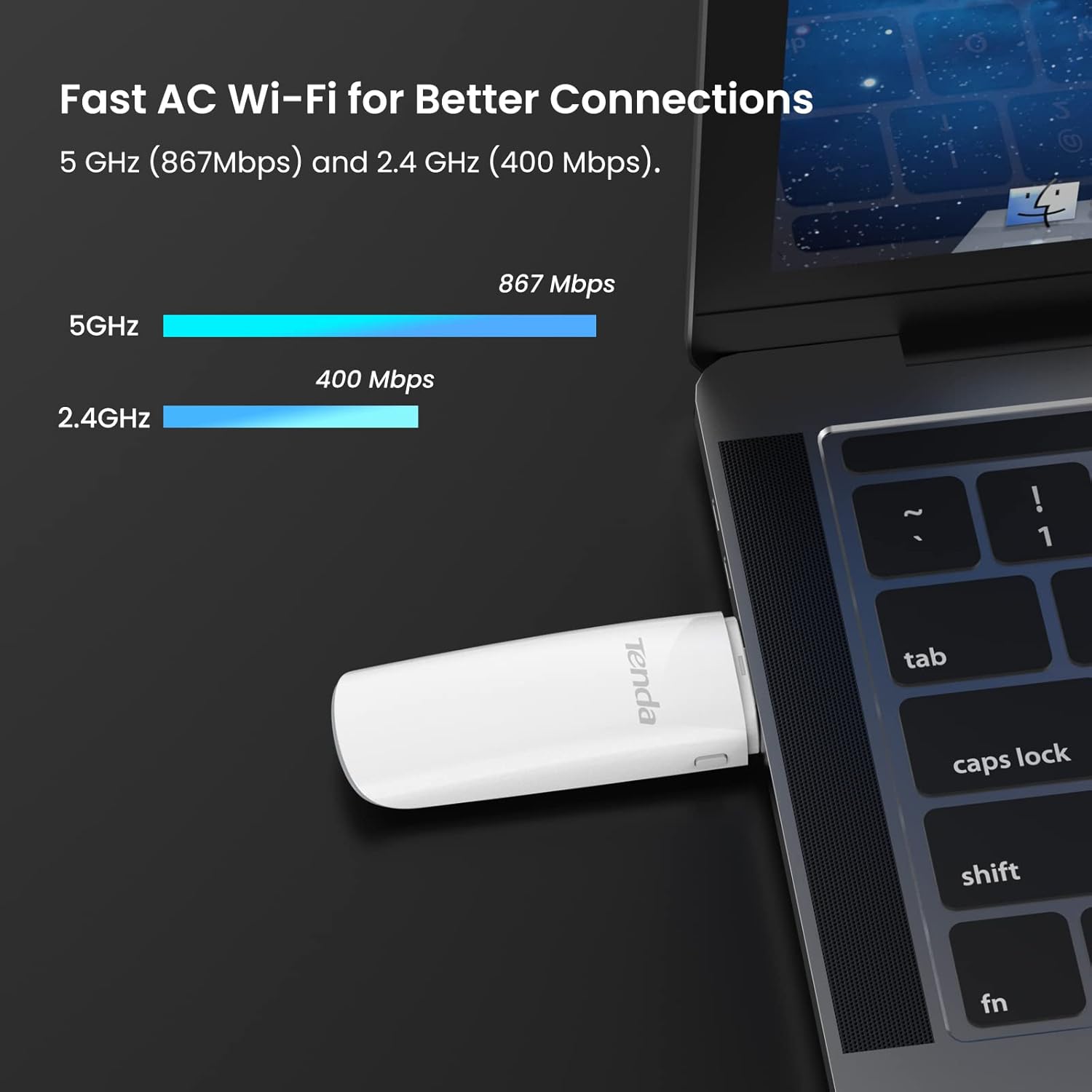
Image: Tenda U12 adapter showing 5GHz and 2.4GHz speed capabilities.
4.2 WPS Button
The adapter features a WPS (Wi-Fi Protected Setup) button for easy and secure wireless network encryption. If your router supports WPS, you can establish a secure connection without manually entering the password:
- Press the WPS button on your wireless router.
- Within two minutes, press the WPS button on the Tenda U12 adapter.
- The adapter will automatically connect to the network.
5. Maintenance
- Keep the adapter clean and free from dust.
- Avoid exposing the adapter to extreme temperatures or humidity.
- Ensure the latest drivers are installed for optimal performance and security updates. Regularly check the Tenda website for driver updates.
6. Troubleshooting
6.1 Adapter Not Detected or Not Working
- Check USB Port: Ensure the adapter is firmly inserted into a functioning USB port. Try a different USB port, preferably a USB 3.0 port.
- Driver Installation: Verify that the correct drivers are installed. Reinstall drivers from the provided CD or the official Tenda website.
- Reboot System: Restart your computer after driver installation or if the adapter is not recognized.
6.2 Slow Connection Speed or Frequent Disconnections
- Adapter Placement: Use the USB extension cable to position the adapter away from obstructions and closer to your Wi-Fi router for better signal strength.
- USB 3.0 Port: Ensure the adapter is connected to a USB 3.0 port for maximum speed. USB 2.0 ports will limit performance.
- Router Band: Connect to the 5GHz band if available and within range, as it generally offers higher speeds and less interference.
- Interference: Keep the adapter away from devices that may cause interference, such as microwaves, cordless phones, or other wireless devices.
- Router Settings: Check your router's settings for channel optimization or firmware updates.
6.3 Adapter Heats Up
It is normal for the adapter to generate some heat during operation. Ensure it is not covered or placed in an enclosed space to allow for proper ventilation.
7. Specifications
| Feature | Specification |
|---|---|
| Model Number | U12 |
| Wireless Standards | IEEE 802.11ac, IEEE 802.11a, IEEE 802.11n, IEEE 802.11g, IEEE 802.11b |
| Data Transfer Rate (5GHz) | Up to 867Mbps |
| Data Transfer Rate (2.4GHz) | Up to 400Mbps |
| Hardware Interface | USB 3.0 |
| Wireless Security | WPA-PSK/WPA2-PSK, WPA/WPA2, WEP, WPS |
| Compatible Operating Systems | Windows 10/8.1/8/7/XP (32/64bits), Mac OS X 10.6-10.12, Linux |
| Dimensions | 1.19 x 0.53 x 3.7 inches |
| Item Weight | 1.76 ounces (50 Grams) |
| Color | White |

Image: Tenda U12 adapter showing compatibility with Windows, Mac OS, and Linux.
8. Warranty and Support
The Tenda U12 USB WiFi Adapter typically comes with a 3-year warranty. For warranty claims, technical support, or further assistance, please visit the official Tenda website or contact their customer service. Keep your purchase receipt for warranty validation.
9. Important Safety Information
- Do not disassemble or modify the device.
- Keep the device away from water, fire, and high temperatures.
- Use only the provided accessories or those recommended by the manufacturer.


