1. Introduction
This manual provides detailed instructions for the setup, operation, maintenance, and troubleshooting of your KuWFi C900-L 4G LTE Dual Band Gigabit Wi-Fi Router. Please read this manual thoroughly before using the device to ensure optimal performance and longevity.
2. Package Contents
Verify that all items listed below are included in your package:
- Router Device
- AC/DC Adapter
- User Manual
- Network Cable
- Antennas (3x)
- SIM Card Adapter (if applicable)

Image: KuWFi C900-L Router with included accessories: router unit, power adapter, Ethernet cable, three antennas, and user manual.
3. Hardware Overview
Familiarize yourself with the router's ports, buttons, and indicators.

Image: Front, back, and side views of the KuWFi C900-L router, highlighting the power button, WPS button, SIM card slot, full Gigabit Ethernet ports, DC power input, and reset button.
LED Indicators:
| Indicator | Status | Description |
|---|---|---|
| POW | Solid Red | Power On |
| WIFI | Solid Blue | Wi-Fi On |
| W/LAN | Solid Blue | Wireless/LAN Connected |
| LAN1-3 | Solid Blue | LAN Port Connected |
| 4G | Solid Blue | 4G LTE Connected |
4. Setup Instructions
4.1. Installing Antennas
- Unpack the three antennas from the packaging.
- Identify the labeled antenna ports on the back of the router: 5.8G, LTE, and 2.4G.
- Carefully screw each antenna into its corresponding port. Ensure they are securely fastened but do not overtighten.
Video: Demonstrates the correct installation of the 2.4G, 5.8G, and LTE antennas into their respective ports on the KuWFi C900-L router. The video also shows the power-on sequence and initial web interface access.
4.2. Inserting a SIM Card (Optional)
The KuWFi C900-L router supports vSIM technology, meaning it can operate without a physical SIM card. However, it also includes a standard SIM card slot for users who prefer to use their own SIM card.
- Locate the SIM card slot on the side of the router.
- If using a Nano or Micro SIM, use the provided SIM card adapter to fit it into a standard SIM size.
- Insert the SIM card into the slot with the gold contacts facing down until it clicks into place.

Image: A hand inserting a standard-sized SIM card into the dedicated slot on the side of the KuWFi C900-L router.
4.3. Powering On the Router
- Connect the AC/DC adapter to the DC IN port on the back of the router.
- Plug the adapter into a power outlet.
- Press and hold the power button on the side of the router for approximately 3 seconds until the POW LED illuminates red.
- Observe the LED indicators. The WIFI, W/LAN, LAN, and 4G LEDs should eventually turn solid blue, indicating successful connection.
5. Operating Instructions
5.1. Activating vSIM Data (No SIM Card Required)
The KuWFi C900-L utilizes vSIM technology for data access without a physical SIM card. Follow these steps to activate and manage your data plan:
- Ensure the router is powered on and placed in an area with good signal reception.
- Locate the QR code on the router body.
- Use your phone's camera to scan the QR code. This will direct you to the online store for data plan activation. Alternatively, manually enter the URL: http://manage.gloableconnect.com
- Follow the on-screen instructions to enter the ICCID number (if prompted) and confirm activation.
- Once activated, you can select and purchase data packages.
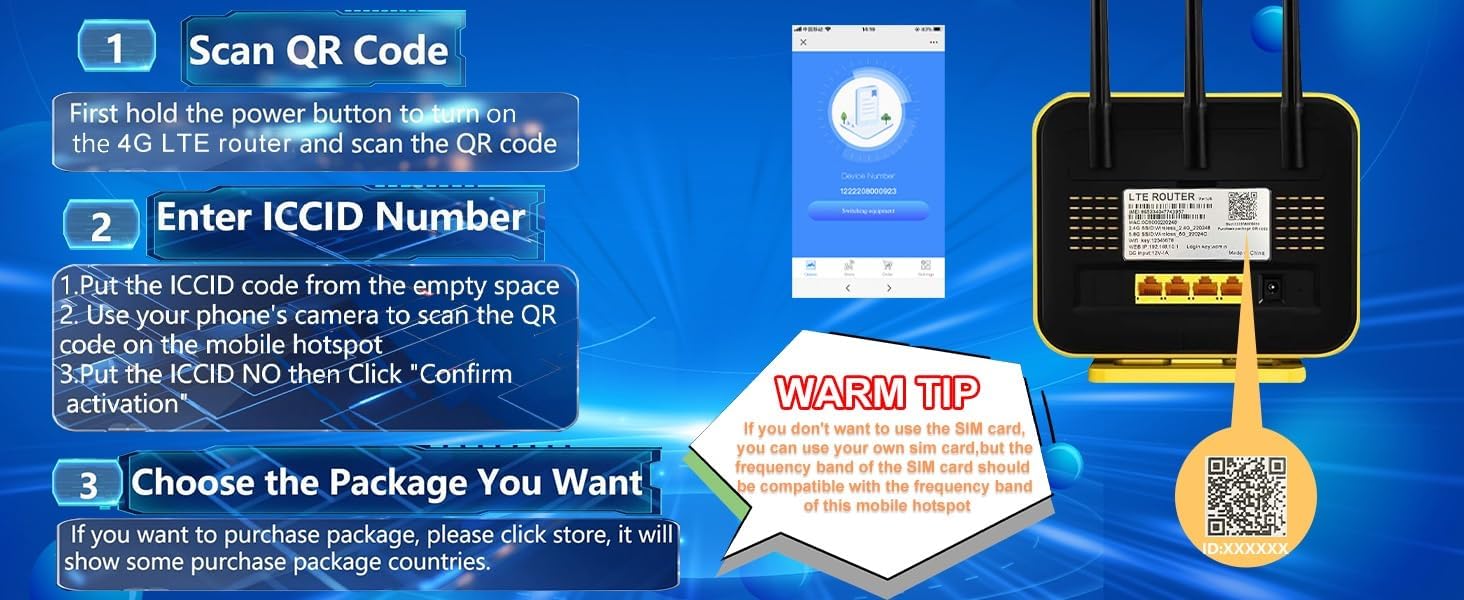
Image: Visual guide showing the steps to scan the QR code on the router, enter the ICCID number, and choose a data package for vSIM activation.
5.2. Connecting Devices via Wi-Fi
- On your device (smartphone, tablet, laptop), open Wi-Fi settings.
- Look for Wi-Fi networks named "Wireless_2.4G_XXXX" or "Wireless_5G_XXXX" (where XXXX are the last four digits of the router's MAC address).
- Select the desired network and enter the default password "12345678".
- Once connected, you can access the internet.

Image: The KuWFi C900-L router broadcasting 2.4G and 5.8G Wi-Fi signals to various devices, illustrating its dual-band capability.
5.3. Connecting Devices via Ethernet
The router features full Gigabit Ethernet ports for wired connections.
- Connect one end of the provided network cable to any of the LAN ports (LAN1, LAN2, LAN3) on the back of the router.
- Connect the other end of the network cable to the Ethernet port of your device (e.g., computer, gaming console, smart TV).
- The corresponding LAN LED on the router will illuminate blue, indicating a successful wired connection.

Image: The back of the KuWFi C900-L router showing Ethernet cables connected to its Gigabit ports, illustrating wired connectivity for devices like gaming consoles, 4K HDTVs, and computers.
5.4. Accessing Router Web Interface
To customize settings such as Wi-Fi name (SSID) and password, access the router's web interface:
- Connect your device to the router via Wi-Fi or Ethernet.
- Open a web browser and enter the default IP address: 192.168.10.1
- When prompted, enter the default password: admin
- Navigate to the WLAN or Security settings to change Wi-Fi name and password.
6. Maintenance
- Cleaning: Use a soft, dry cloth to clean the router. Do not use liquid or aerosol cleaners.
- Placement: Place the router in a well-ventilated area, away from direct sunlight, heat sources, and obstructions that could block Wi-Fi signals.
- Firmware Updates: Regularly check the KuWFi official website for firmware updates to ensure optimal performance and security.
- Resetting: If the router is unresponsive, use a pin to press and hold the reset button on the back for 5-10 seconds to restore factory settings.
7. Troubleshooting
7.1. No Internet Connection
- Check SIM/vSIM Activation: Ensure your SIM card is properly inserted and activated, or your vSIM data plan is active.
- Signal Strength: Verify the 4G LED is solid blue. If not, reposition the router to an area with better cellular signal.
- APN Settings: If using a physical SIM, ensure the APN settings are correctly configured in the router's web interface (Network > APN Settings). You may need to manually enter the APN provided by your carrier.
- Reboot: Power off the router, wait 10 seconds, then power it back on.
7.2. Wi-Fi Connection Issues
- Incorrect Password: Double-check the Wi-Fi password. The default is "12345678".
- SSID Visibility: Ensure the Wi-Fi network (SSID) is not hidden. Check WLAN settings in the web interface.
- Signal Interference: Move the router away from other electronic devices that might cause interference.
7.3. Slow Internet Speed
- Network Congestion: Reduce the number of connected devices or active downloads.
- Signal Strength: Improve 4G signal by relocating the router or adjusting antennas.
- Band Selection: For faster speeds, connect to the 5.8G Wi-Fi band if your device supports it and is within close range.
8. Specifications
- Model Name: C900-L
- Brand: KuWFi
- Product Dimensions: 6.5 x 1.02 x 5.71 inches
- Item Weight: 1.34 pounds
- Wireless Communication Standard: 802.11ac, 802.11b, 802.11g
- Frequency Band Class: Dual-Band (2.4G & 5.8G)
- Special Feature: 4G LTE Connectivity, vSIM Technology
- Connectivity Technology: Wi-Fi, Ethernet
- Compatible Devices: Universal
- Recommended Uses: Portable broadband access, Rural areas, RVs, Pleasure boats, Travel, Business, Home
- DC Input: 12V-1A
9. Warranty and Support
The KuWFi C900-L router is backed by a 30-day money-back guarantee, a month of free replacement, and a 1-year manufacturer warranty. Professional technical support is available 24/7 to assist with any issues, including poor data signal or no data connection.
For customer service inquiries, please contact KuWFi support directly.


