
1. Introduction
Thank you for purchasing the DIGITNOW M422 Portable Vintage Suitcase Vinyl Record Player. This manual provides essential information for the safe and efficient operation of your device. Please read it thoroughly before use and retain it for future reference.
2. Safety Instructions
- Do not expose the unit to rain or moisture.
- Do not open the casing. Refer all servicing to qualified personnel.
- Ensure the power adapter matches your local power supply.
- Place the unit on a stable, level surface.
- Keep the unit away from direct sunlight, heat sources, and strong magnetic fields.
- Clean the unit only with a soft, dry cloth.
3. Package Contents
Verify that all items are present in the package:
- DIGITNOW M422 Record Player
- USB Cable
- Mains Power Cable
- CD with Audacity Audio Software (for PC recording)
- User Manual
- 45-RPM Adapter
- Extra Stylus
4. Product Overview
Familiarize yourself with the components of your record player.

Image: Top view of the DIGITNOW M422 record player, highlighting the control panel, turntable, and built-in speakers.
- Tone Arm: Holds the stylus and tracks the record grooves.
- AUX-IN Port: For connecting external audio devices.
- Auto Stop ON/OFF Switch: Controls automatic stopping of the turntable.
- Mode Selection Knob: Switches between PHONO, AUX, and Bluetooth modes.
- Speed Selector: Adjusts playback speed (33, 45, 78 RPM).
- Tone Arm Lifter: Manually raises and lowers the tone arm.
- Power Switch & Volume Control: Turns the unit ON/OFF and adjusts speaker volume.
- Mode Indicator: LED light indicating current mode.
- Headphone Jack: For private listening with headphones.
- Built-in Speakers: Integrated stereo speakers for audio output.

Image: Rear view of the DIGITNOW M422 record player, showing the DC 5V power input and RCA (R & L) Line Out ports.
- DC 5V Power Input: Connect the power adapter here.
- RCA (R & L) Line Out: Connect to external speakers or an amplifier.
5. Setup
Follow these steps for initial setup:
- Unpack: Carefully remove the record player from its packaging.
- Placement: Place the unit on a flat, stable surface away from dust and vibrations.
- Power Connection: Connect the mains power cable to the DC 5V input on the rear of the unit, then plug the adapter into a wall outlet.
- Lid: Open the lid of the suitcase to access the turntable.
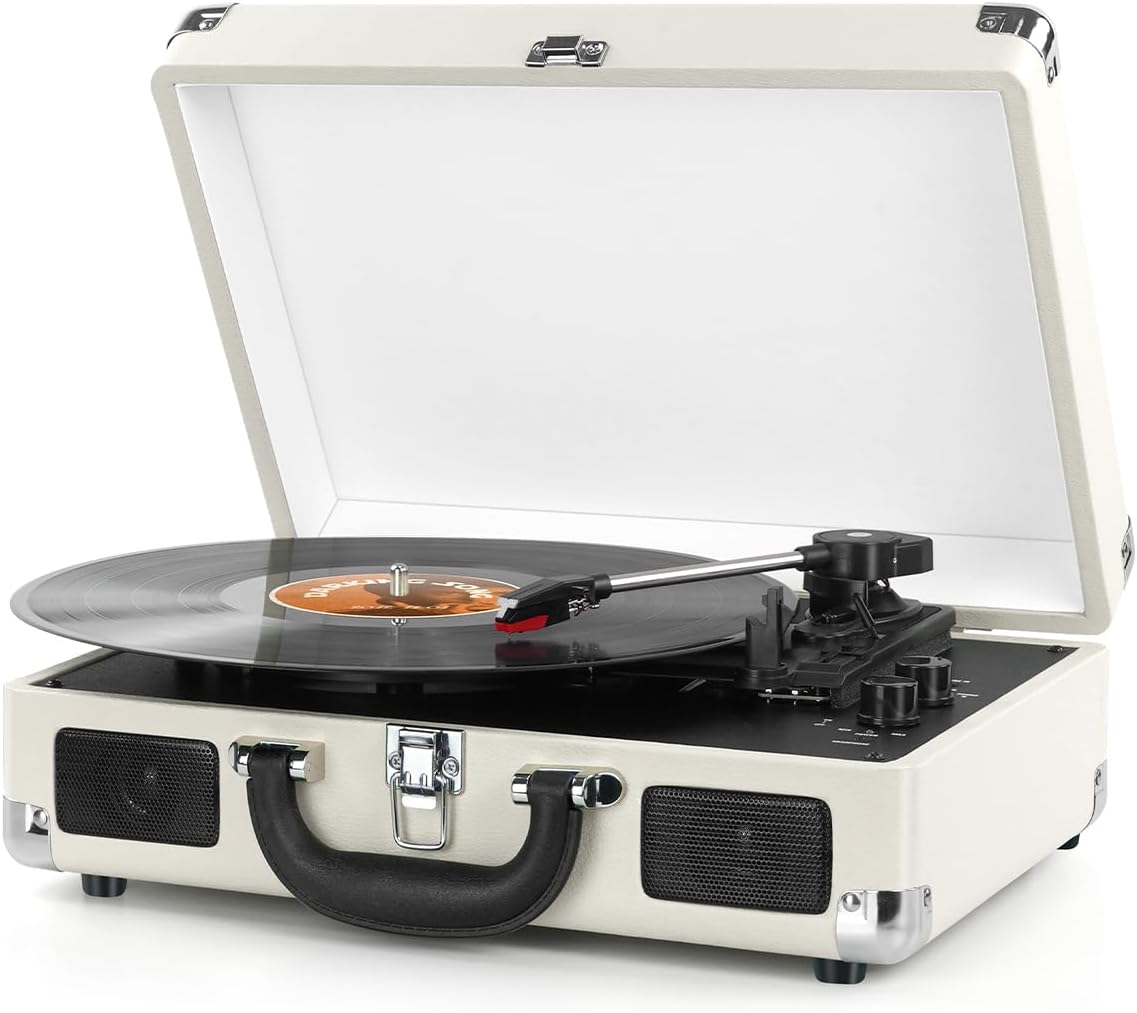
Image: The DIGITNOW M422 record player with its lid open, showing a vinyl record on the platter and the tonearm in position.
6. Operating Instructions
6.1 Playing Vinyl Records (PHONO Mode)
- Power On: Turn the Power Switch/Volume Control knob clockwise to power on the unit.
- Select Mode: Turn the Mode Selection knob to 'PHONO'.
- Place Record: Place a vinyl record on the turntable platter. If playing a 45 RPM single, place the 45 RPM adapter on the center spindle first.
- Select Speed: Set the Speed Selector to the correct speed (33, 45, or 78 RPM) for your record.
- Auto Stop: Set the Auto Stop ON/OFF switch to ON if you want the turntable to stop automatically when the record finishes. Set to OFF for continuous play.
- Lower Tonearm: Gently lift the Tone Arm using the Tone Arm Lifter. Move the tonearm over the desired starting point of the record. Slowly lower the tonearm onto the record.
- Adjust Volume: Adjust the volume using the Power Switch/Volume Control knob.

Image: Close-up views of the record player's stylus, showing its stable design, and the belt-driven platter, designed to absorb vibrations for smooth music playback.
6.2 Bluetooth Mode
The record player can function as a Bluetooth speaker to play audio from your smartphone or other Bluetooth-enabled devices.
- Power On: Turn the Power Switch/Volume Control knob clockwise to power on the unit.
- Select Mode: Turn the Mode Selection knob to 'BT' (Bluetooth). The mode indicator light will flash, indicating pairing mode.
- Pair Device: On your Bluetooth-enabled device (e.g., smartphone), search for 'DIGITNOW' in the Bluetooth settings and select it to pair.
- Confirmation: Once paired, the mode indicator light will stop flashing and remain solid. You can now play audio from your device through the record player's speakers.
- Adjust Volume: Adjust the volume using the Power Switch/Volume Control knob on the record player and/or your connected device.

Image: A diagram illustrating the Bluetooth wireless connection feature, showing a smartphone connecting to the record player to stream audio.
6.3 AUX-IN Mode
Connect external audio sources like MP3 players to the record player.
- Power On: Turn the Power Switch/Volume Control knob clockwise to power on the unit.
- Select Mode: Turn the Mode Selection knob to 'AUX'.
- Connect Device: Connect your external audio device to the AUX-IN port using a 3.5mm audio cable (not included).
- Play Audio: Start playback on your external device.
- Adjust Volume: Adjust the volume using the Power Switch/Volume Control knob on the record player and/or your connected device.
6.4 RCA Output
Connect the record player to external speakers or an amplifier for enhanced sound.
- Connect RCA cables (not included) from the 'RCA (R & L) Line Out' ports on the back of the record player to the corresponding audio input ports on your external audio system.
- Ensure the record player's volume is set appropriately to avoid distortion.
6.5 Headphone Jack
For private listening, plug 3.5mm headphones into the headphone jack on the front panel.
- Connecting headphones will mute the built-in speakers.
- Adjust volume using the Power Switch/Volume Control knob.
7. Maintenance
7.1 Cleaning the Stylus
- Use a soft brush (not included) to gently clean the stylus tip. Brush from back to front.
- Avoid touching the stylus with your fingers.
7.2 Cleaning the Unit
- Wipe the exterior of the unit with a soft, dry cloth.
- Do not use abrasive cleaners, waxes, or solvents.
7.3 Storage
- When not in use, ensure the tonearm is secured with its clip.
- Close the lid to protect the turntable from dust.
- Store in a cool, dry place.
8. Troubleshooting
| Problem | Possible Cause | Solution |
|---|---|---|
| No power | Power adapter not connected; Power outlet not active | Ensure power adapter is securely connected and plugged into a working outlet. |
| No sound from speakers | Volume too low; Headphones connected; Incorrect mode selected | Increase volume; Disconnect headphones; Select correct mode (PHONO, AUX, BT). |
| Record skips or sound distortion | Dirty or damaged record; Dirty or worn stylus; Unit not level | Clean record; Clean or replace stylus; Place unit on a level surface. |
| Bluetooth not connecting | Incorrect mode; Device too far; Device already paired elsewhere | Ensure 'BT' mode is selected; Move device closer; Disconnect from other Bluetooth devices. |
| Turntable not spinning | Power off; Auto Stop engaged (if record finished) | Turn power on; Check Auto Stop switch. |
9. Specifications
| Feature | Specification |
|---|---|
| Model Number | M422 |
| Playback Speeds | 33 1/3, 45, 78 RPM |
| Record Sizes Supported | 7'', 10'', 12'' |
| Connectivity | Bluetooth, AUX-IN, RCA Line Out, 3.5mm Headphone Jack |
| Speakers | Built-in Stereo Speakers |
| Drive Type | Belt-driven |
| Power Input | DC 5V |
| Dimensions (L x W x H) | 13.78 x 11.02 x 4.92 inches |
| Weight | 5.72 pounds (2.6 Kilograms) |
| Material | Leather |
10. Warranty and Support
This product comes with a standard manufacturer's warranty. Please refer to the warranty card included in your package for specific terms and conditions.
For technical support, troubleshooting assistance, or warranty claims, please contact DIGITNOW customer service. Contact information can typically be found on the product packaging or the official DIGITNOW website.
