
1. Introduction
This manual provides essential information for the proper setup, operation, and maintenance of your CHUWI Hi10 Plus tablet. The Hi10 Plus is a versatile 2-in-1 device featuring a dual-boot system with Windows 10 and Android 5.1, offering flexibility for both productivity and entertainment. Please read this manual thoroughly before using your device.
2. Product Overview
The CHUWI Hi10 Plus combines the functionality of a laptop with the portability of a tablet. It features a 10.8-inch Full HD display, an Intel X5 Cherry Trail processor, 4GB RAM, and 64GB internal storage. Its key feature is the ability to switch between Windows 10 and Android 5.1 operating systems.

Image: The CHUWI Hi10 Plus tablet showcasing its dual-boot capability, with one screen displaying Windows 10 and the other Android 5.1. This illustrates the tablet's versatility in operating systems.

Image: The CHUWI Hi10 Plus tablet, depicted as ultra-light and thin, hanging on a clothesline with a beach scene in the background. This image emphasizes the device's portable and sleek design, measuring 686.5g in weight and 8.5mm in thickness.
3. Setup
3.1 Initial Power On
- Press and hold the power button located on the side of the tablet until the screen illuminates.
- Follow the on-screen prompts to complete the initial setup for your preferred operating system (Windows 10 or Android 5.1).
3.2 OS Selection (Dual Boot)
Upon startup, you will be presented with an option to choose between Windows 10 and Android 5.1. Select your desired operating system using the touch screen or an attached keyboard.
3.3 Charging the Device
Connect the provided USB-C charger to the USB-C port on the tablet and plug the adapter into a power outlet. The battery indicator will show charging status. A full charge typically takes approximately 3 hours.

Image: A close-up view of the CHUWI Hi10 Plus tablet's side, highlighting the USB-C charging port with a charger connected. The image also displays key battery specifications: 8400mAh capacity, 3A fast charge capability, and an estimated endurance of 6-8 hours.
4. Operating Instructions
4.1 Windows 10 Usage
Navigate Windows 10 using the touch screen, an external mouse, or the optional magnetic keyboard. The interface is optimized for both touch and desktop modes. Ensure all Windows updates are installed for optimal performance and security.
4.2 Android 5.1 Usage
The Android 5.1 Lollipop operating system provides a familiar mobile experience. Use the touch screen for navigation and app interaction. You can customize the launcher and keyboard for a personalized experience.
4.3 Connecting Peripherals
- Keyboard: The CHUWI Hi10 Plus supports a magnetic keyboard case that connects directly to the tablet's contacts.
- Stylus Pen: For precise input and drawing, a compatible stylus pen can be used with the touch screen.
- External Display: Use the Micro-HDMI port to connect the tablet to an external monitor or TV.
- USB Devices: Connect USB devices via the Micro USB 2.0 port or the USB-C port (with an adapter if needed).
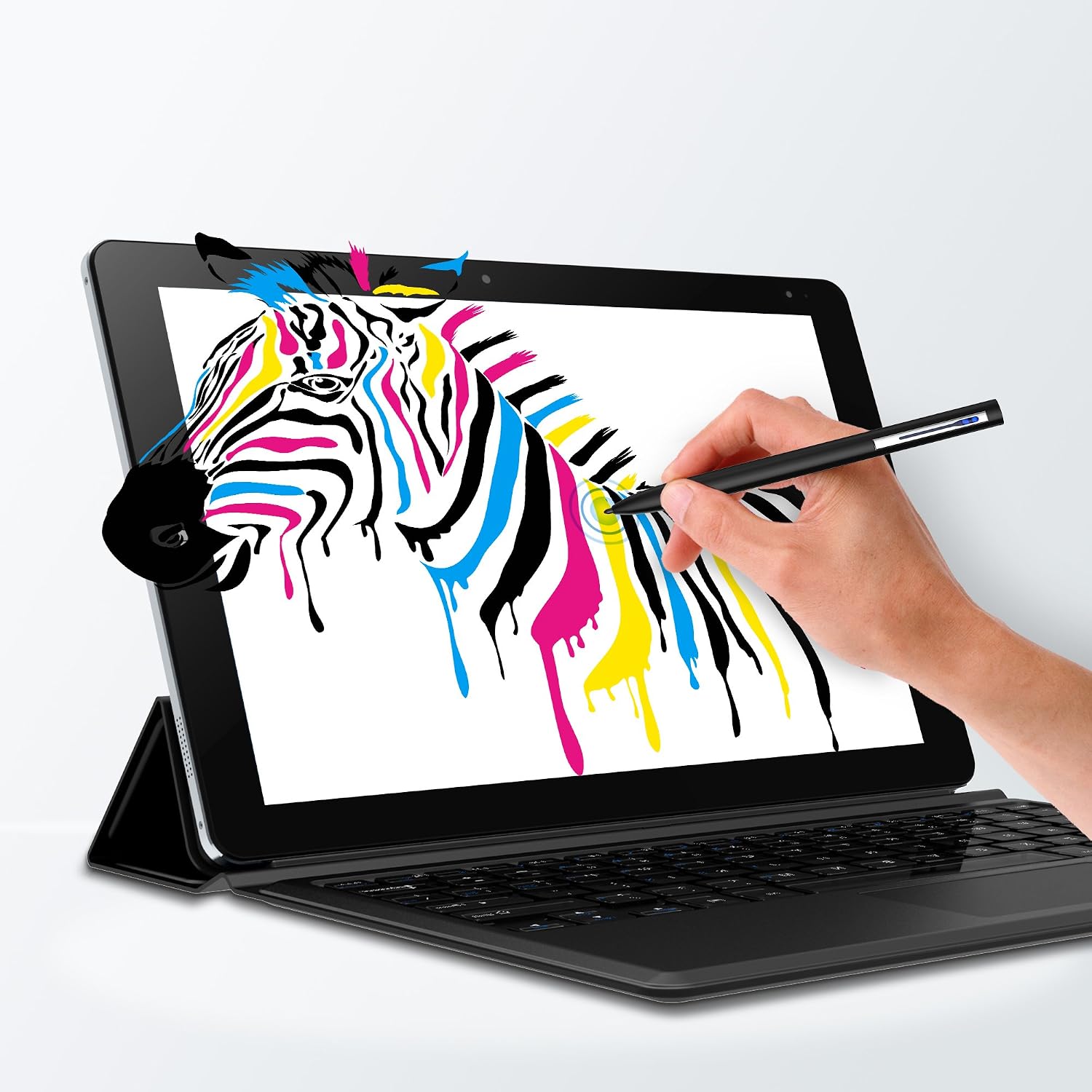
Image: A hand demonstrating the use of a stylus pen on the CHUWI Hi10 Plus tablet, drawing a vibrant zebra image. The tablet is shown connected to its optional keyboard case, illustrating its utility for creative and productive tasks.
4.4 Connectivity
- Wi-Fi: Connect to wireless networks for internet access. Go to network settings in your chosen OS to configure Wi-Fi.
- Bluetooth: Pair with Bluetooth-enabled devices such as headphones, speakers, or keyboards.
4.5 Camera Usage
The tablet is equipped with front and rear 2MP cameras. Access the camera application within either Windows 10 or Android 5.1 to capture photos or record videos.
5. Maintenance
5.1 Cleaning
Use a soft, lint-free cloth to clean the screen and exterior of the tablet. Avoid using harsh chemicals or abrasive materials that could damage the surfaces.
5.2 Software Updates
Regularly check for and install software updates for both Windows 10 and Android 5.1 to ensure optimal performance, security, and access to the latest features.
5.3 Storage Management
The tablet comes with 64GB of internal storage. You can expand storage capacity using a microSD card (up to 128GB). Periodically manage files and applications to free up space and maintain performance.
6. Troubleshooting
This section addresses common issues you might encounter with your CHUWI Hi10 Plus tablet.
- Device not powering on: Ensure the tablet is sufficiently charged. Connect the charger and wait a few minutes before attempting to power on again.
- Charging issues in Windows 10: If the screen flickers or the battery indicator cycles between charging/not charging while in Windows 10, try using a high-quality USB-C charger. Charging typically works reliably when the device is off or in Android mode.
- Poor Wi-Fi range: Ensure you are within reasonable proximity to your Wi-Fi router. If issues persist, try restarting your router or the tablet.
- Touch screen sensitivity: If you experience issues with touch registration, especially with quick swipes or small button presses, ensure the screen is clean. Some applications or games may require more deliberate touch input.
- MicroSD card not detected: If Android does not detect your microSD card, try formatting the card or testing it in Windows 10. Ensure the card is properly inserted.
- System freezing or unresponsiveness: Press and hold the power button for approximately 10-15 seconds to force a shutdown. Then, restart the device.
- Factory Reset: As a last resort for persistent software issues, you may perform a factory reset. Be aware that this will erase all data on the device. Consult the respective operating system's settings for factory reset options.
7. Specifications
| Brand | CHUWI |
| Model Name | Hi10 Plus |
| Operating System | Windows 10; Android 5.1 Lollipop |
| Screen Size | 10.8 Inches |
| Display Resolution | 1920x1280 |
| Aspect Ratio | 3:2 |
| Processor Brand | Intel |
| Processor Description | Intel X5 Cherry Trail |
| RAM Memory Installed | 4 GB |
| Memory Storage Capacity | 64 GB |
| Expandable Storage | MicroSD (up to 128GB) |
| Cameras | Front 2 MP, Rear 2 MP |
| Battery Capacity | 8400 mAh (24.05 Watt Hours) |
| Charging | 3A Fast Charging (USB-C) |
| Connectivity | Wi-Fi (802.11bgn), Bluetooth, Micro-HDMI, Micro USB 2.0, USB-C |
| Item Weight | 1.5 Pounds (approx. 686.5g) |
| Dimensions | 8.5mm Thin |
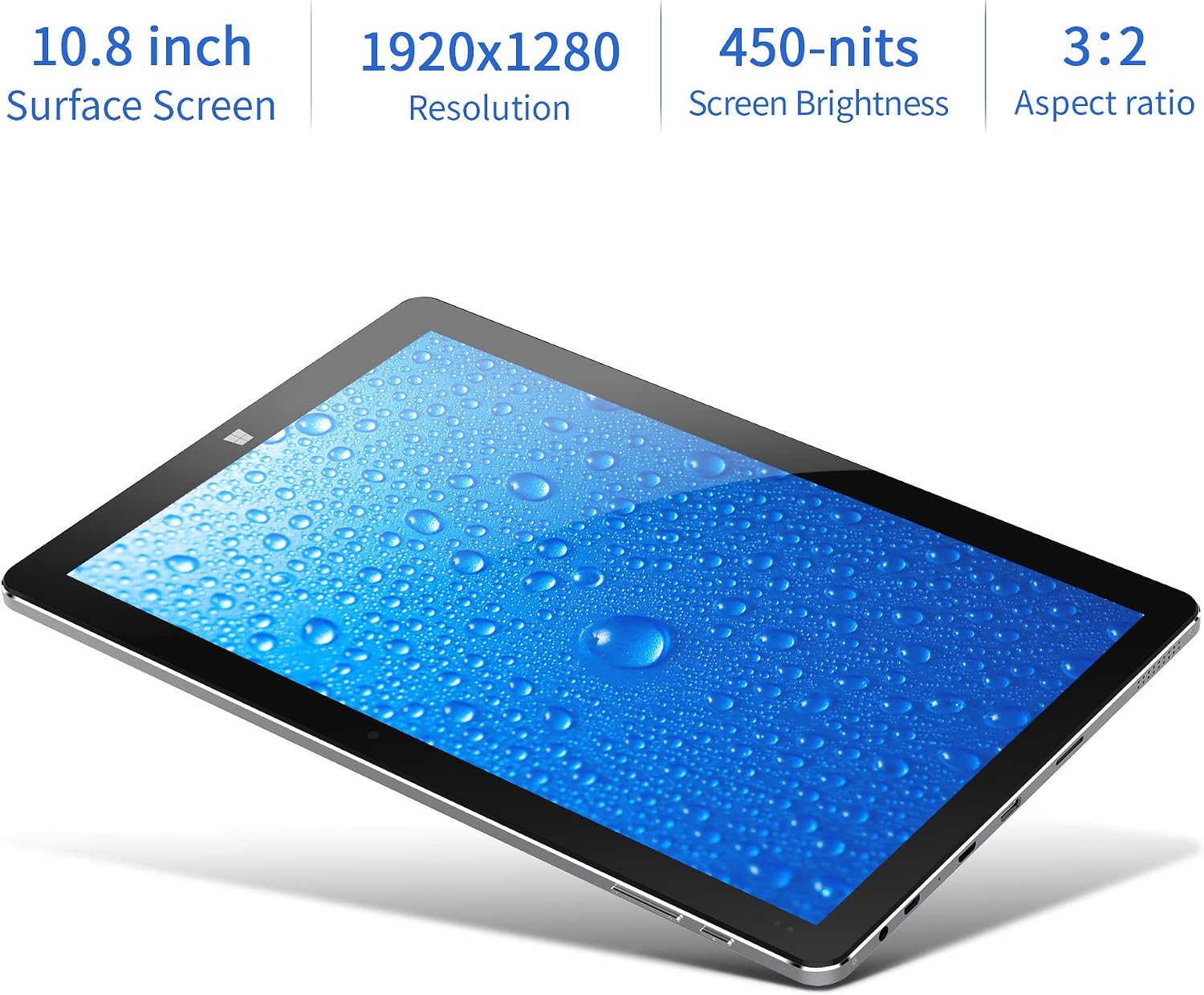
Image: The CHUWI Hi10 Plus tablet shown at an angle, with text overlays detailing its display specifications: 10.8-inch Surface Screen, 1920x1280 Resolution, 450-nits Screen Brightness, and a 3:2 Aspect ratio.

Image: The CHUWI Hi10 Plus tablet with a visual representation of its internal Intel Cherry Trail CPU. Key processor specifications are highlighted: Intel x5, 14nm Process technology, and a clock speed range of 1.4GHz to 1.92GHz.
8. Warranty and Support
8.1 Warranty Information
The CHUWI Hi10 Plus tablet comes with a Limited Warranty. Please refer to the warranty card included with your product for specific terms, conditions, and duration of coverage.
8.2 Customer Support
For technical assistance, troubleshooting beyond this manual, or warranty claims, please contact CHUWI customer support. Visit the official CHUWI website for contact information, FAQs, and driver downloads.


