
1. Product Overview
The Force1 U34W Dragonfly is a compact, high-definition FPV mini drone designed for beginners and indoor flying. It features a 720p HD camera for live video streaming and photo capture, offering an immersive First-Person View (FPV) experience. Its small size and stable flight characteristics make it ideal for learning drone piloting.

Image: The Force1 U34W Dragonfly Mini Drone, showcasing its compact design and integrated camera.
Key Features:
- 720p HD Camera: Records crisp 720p HD video and captures high-resolution photos.
- WiFi FPV Capability: Connects to a mobile app for live video streaming and FPV flying.
- Altitude Hold: Maintains a consistent altitude for stable flight.
- Headless Mode: Simplifies controls by eliminating the need to adjust drone orientation.
- Gravity Mode: Allows control by tilting your smartphone.
- 1-Key Lift/Land: Simplifies takeoff and landing with a single button press.
- 360 Flips: Performs aerial stunts with ease.
- Propeller Guards: Integrated guards protect propellers during indoor flight.
2. What's in the Box
Before starting, please ensure all components are present in the package:
- U34W Dragonfly Wi-Fi FPV RC Quadcopter Drone
- 720p HD Drone Camera (integrated)
- 2.4Ghz Transmitter (Remote Control)
- Extra Propellers (4)
- 7.4v 350mAh Li-Po Battery (2)
- USB Charger
- Screwdriver
- User Manual (this document)
3. Setup Guide
3.1 Charging the Battery
- Connect the Li-Po battery to the provided USB charger.
- Plug the USB charger into a compatible USB power source (e.g., computer, USB wall adapter).
- The indicator light on the charger will show the charging status. Refer to the charger's specific instructions for light indications (typically red for charging, green for fully charged).
- Charging time is approximately 60-90 minutes. Do not overcharge the battery.
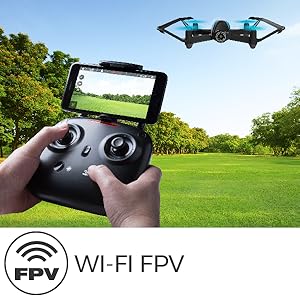
Image: The drone battery, highlighting the importance of charging for extended flight time.
3.2 Installing Drone Battery
- Ensure the drone's power switch is in the OFF position.
- Carefully insert the fully charged Li-Po battery into the drone's battery compartment.
- Secure the battery compartment cover.
3.3 Transmitter Setup
- Install 4 AA batteries (not included) into the 2.4Ghz transmitter. Ensure correct polarity.
- Close the battery cover.
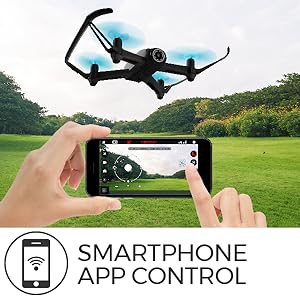
Image: The U34W Dragonfly drone alongside its 2.4 GHz transmitter, ready for control.
3.4 Pairing Drone and Transmitter
- Place the drone on a flat, level surface.
- Turn on the drone's power switch. The drone's indicator lights will flash.
- Turn on the transmitter.
- Push the left joystick (throttle) all the way up, then all the way down. The drone's lights will stop flashing and become solid, indicating successful pairing.
3.5 Mobile App Installation (for FPV and VR)
- Scan the QR code in the quick start guide or search for the "UDIRC FPV" app in your smartphone's app store (iOS/Android).
- Download and install the app.
- Turn on the drone and connect your smartphone to the drone's Wi-Fi network (usually named "UDIRC-XXXXXX").
- Open the app to access live FPV feed and advanced controls.
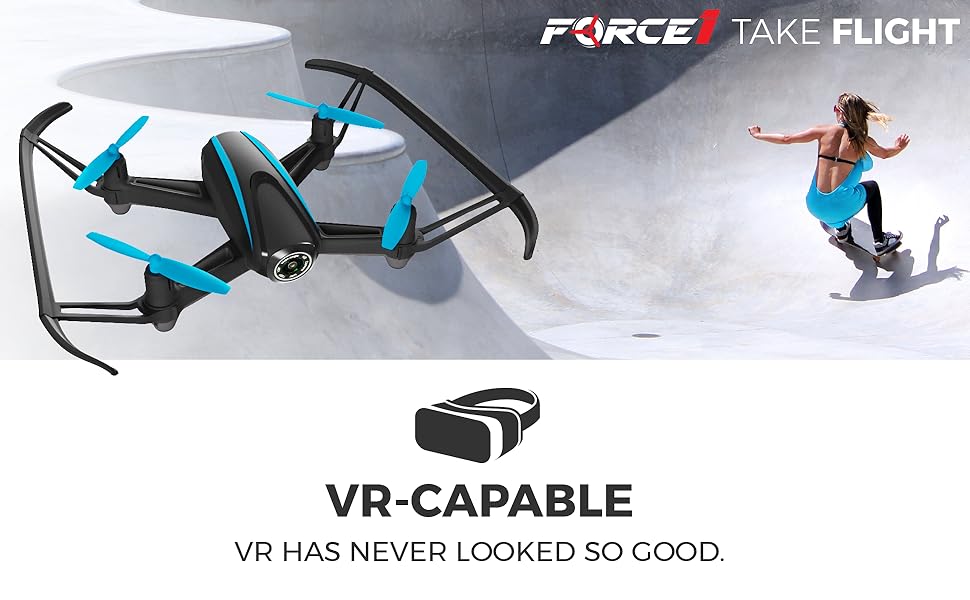
Image: A father and son enjoying live video feed from the drone on a smartphone, demonstrating the FPV feature.
4. Operating Instructions
4.1 Basic Flight Controls
- Takeoff/Landing: Press the 1-Key Lift/Land button on the transmitter or app. Alternatively, push both joysticks down and out to start motors, then slowly push the left joystick up to ascend.
- Ascend/Descend: Use the left joystick (throttle) up or down.
- Forward/Backward: Use the right joystick up or down.
- Left/Right Sideways Flight: Use the right joystick left or right.
- Turn Left/Right (Yaw): Use the left joystick left or right.
4.2 Special Flight Modes
- Altitude Hold: The drone automatically maintains its current altitude. Use the left joystick only for ascending/descending.
- Headless Mode: Press the Headless Mode button. The drone will orient itself relative to the pilot, regardless of its actual front direction. Press again to exit.
- Gravity Mode (via App): In the app, select Gravity Mode. Tilt your smartphone to control the drone's direction.
- Path Mode (via App): In the app, draw a flight path on your screen, and the drone will follow it automatically.
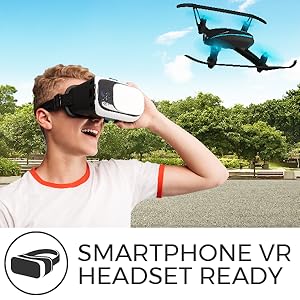
Image: A smartphone screen displaying the 'Path Mode' feature, allowing users to draw a flight path for the drone.
4.3 Camera Operation
- Take Photo: Press the photo button on the transmitter or in the app.
- Record Video: Press the video button on the transmitter or in the app to start/stop recording.
- FPV Viewing: Ensure your smartphone is connected to the drone's Wi-Fi and the app is open for live video feed.
- VR Capability: For an immersive experience, place your smartphone into a compatible VR headset while using the FPV app.
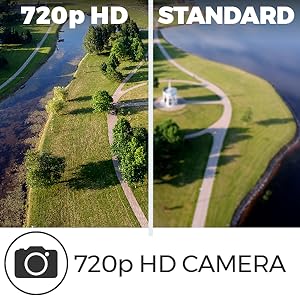
Image: A person wearing a VR headset, experiencing real-time FPV flight with the U34W Dragonfly drone.
4.4 Flight Safety Tips
- Always fly in open areas, away from people, animals, and obstacles.
- Do not fly in strong winds or adverse weather conditions.
- Maintain line of sight with the drone at all times.
- Ensure batteries are fully charged before each flight.
- Respect local drone regulations and privacy laws.
Video: An overview of the Force1 U34W Dragonfly Drone's features, including Altitude Hold, 1-Key Lift/Land, and its 720p HD camera.
5. Maintenance
5.1 Propeller Replacement
If a propeller is damaged, replace it with a new one from the spare parts kit. Ensure the correct propeller (A or B) is installed on the corresponding motor. Use the included screwdriver for removal and installation.
5.2 Cleaning
Use a soft, dry cloth to clean the drone. Avoid using water or harsh chemicals, which can damage electronic components.
5.3 Battery Care
- Store batteries in a cool, dry place.
- Do not leave batteries fully charged or fully discharged for extended periods.
- If the drone will not be used for a long time, remove the batteries from both the drone and the transmitter.
6. Troubleshooting
| Problem | Possible Cause | Solution |
|---|---|---|
| Drone does not respond to transmitter. | Not paired; low battery in drone or transmitter. | Re-pair the drone and transmitter. Charge drone battery; replace transmitter batteries. |
| Drone flies erratically or drifts. | Uncalibrated gyroscope; damaged propeller. | Calibrate the gyroscope (refer to quick start guide). Replace damaged propellers. |
| No FPV video feed. | Not connected to drone's Wi-Fi; app not open. | Ensure phone is connected to drone's Wi-Fi. Open the UDIRC FPV app. |
| Short flight time. | Battery not fully charged; old battery. | Fully charge the battery. Consider replacing old batteries. |
7. Specifications
| Feature | Detail |
|---|---|
| Brand | Force1 |
| Model Name | Dragonfly (U34W) |
| Special Features | App-controlled, FPV-capable, Integrated-camera, Wi-Fi |
| Age Range (Description) | Kid |
| Color | Black |
| Video Capture Resolution | 720p (1280x720 pixels) |
| Connectivity Technology | USB, Wi-Fi |
| Skill Level | Beginner |
| Item Weight | 1.6 Pounds |
| Battery Capacity | 350 Milliamp Hours (7.4v Li-Po) |
| Video Capture Format | MP4 |
| Control Type | Remote Control, App Control |
| Wireless Communication Technology | Wi-Fi |
| Battery Cell Composition | Lithium Polymer |
| Supported Image Format | JPEG |
| Optical Sensor Technology | CMOS |
| Material | Nylon, Plastic |


