
PROSCAN PBTW360-BLACK
PROSCAN PBTW360-BLACK Bluetooth Smartwatch User Manual
Model: PBTW360-BLACK
1. Introduction
This user manual provides detailed instructions for the proper use and care of your PROSCAN PBTW360-BLACK Bluetooth Smartwatch. Please read this manual thoroughly before using the device to ensure optimal performance and to prevent damage. This smartwatch is designed to sync with your smartphone, enabling communication, media control, and fitness tracking directly from your wrist.
2. Safety Information
- Do not expose the device to extreme temperatures, direct sunlight, or high humidity.
- Avoid dropping or subjecting the device to strong impacts.
- Do not attempt to disassemble or modify the device. This will void the warranty and may cause damage.
- Keep the device away from water and liquids unless explicitly stated as waterproof.
- Use only the charging accessories provided or recommended by the manufacturer.
- Consult a professional for any repairs.
3. Package Contents
Please check the package for the following items:
- PROSCAN PBTW360-BLACK Bluetooth Smartwatch
- USB Charging Cable
- User Manual (this document)
If any items are missing or damaged, please contact your retailer.
4. Product Overview
Familiarize yourself with the components of your PROSCAN PBTW360-BLACK Smartwatch.
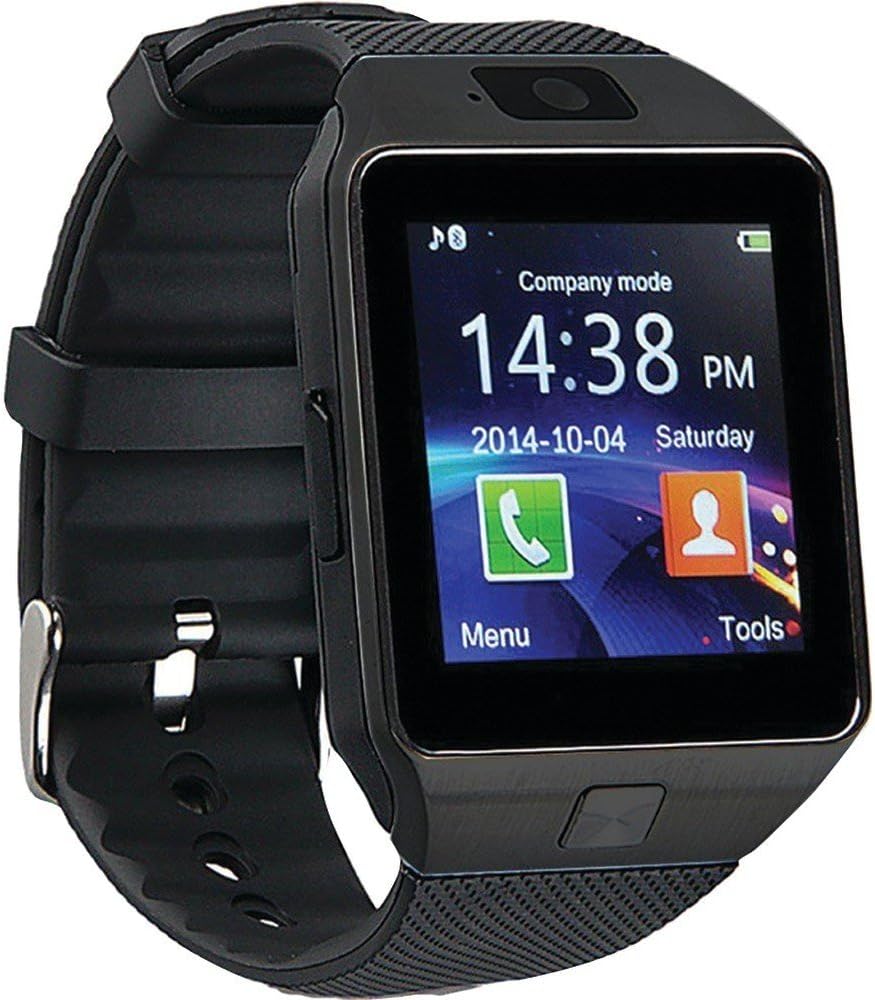
Figure 4.1: Front view of the PROSCAN PBTW360-BLACK Smartwatch, displaying the 1.5-inch OLED touchscreen with time, date, and application icons.
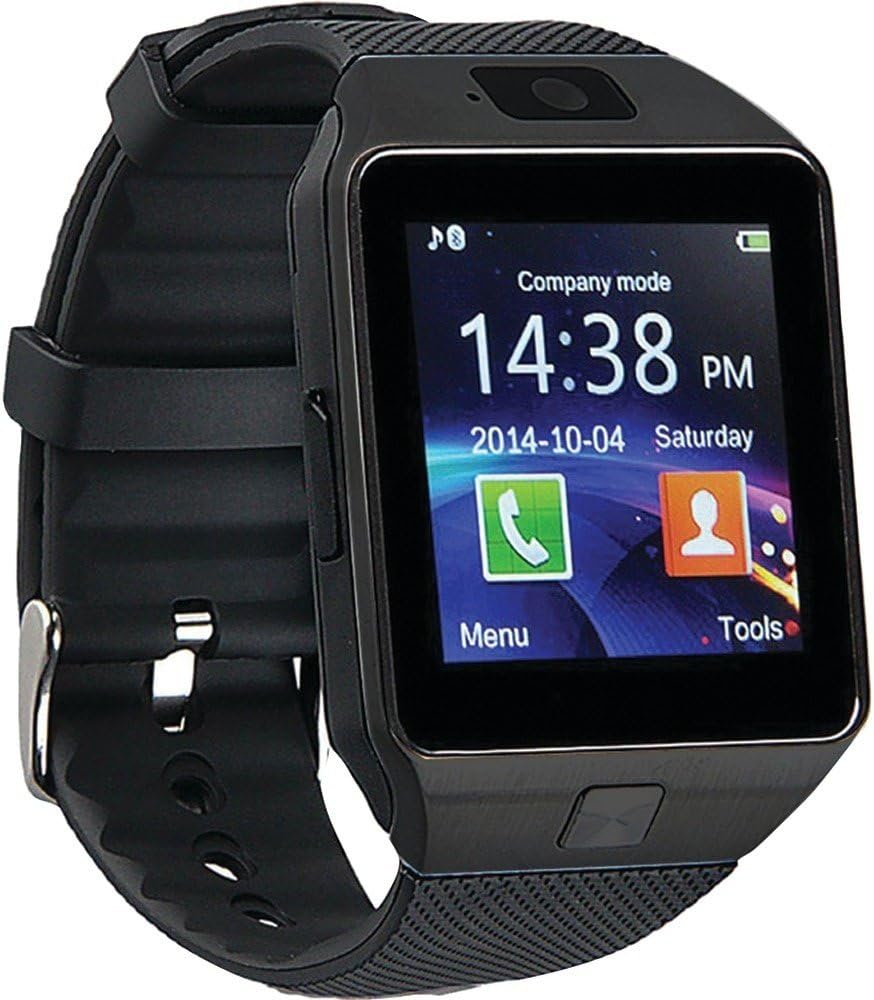
Figure 4.2: Various views of the PROSCAN PBTW360-BLACK Smartwatch, showing the side profile with buttons and the back panel with sensors and charging contacts.
Key Features:
- 1.5" OLED glass touchscreen with 240 x 240 full-color display.
- Integrated microphone and speaker for calls.
- Physical button for power/menu navigation.
- Bluetooth connectivity for smartphone synchronization.
5. Setup
5.1 Charging the Smartwatch
Before first use, fully charge your smartwatch. Connect the provided USB charging cable to the charging port on the smartwatch and plug the other end into a USB power adapter (not included) or a computer's USB port. The charging indicator on the screen will show the charging status. A full charge may take several hours.
5.2 Powering On/Off
To power on the smartwatch, press and hold the power button until the screen lights up. To power off, press and hold the power button until the power-off option appears on the screen, then confirm.
5.3 Bluetooth Pairing with Smartphone
To unlock the full functionality of your smartwatch, you need to pair it with your Android or iOS smartphone via Bluetooth.
- Ensure your smartwatch is powered on and Bluetooth is enabled on both your smartwatch and smartphone.
- On your smartphone, go to Bluetooth settings and search for available devices.
- Select "PBTW360-BLACK" or a similar name from the list of found devices.
- Confirm the pairing request on both devices if prompted.
- For full notification and feature integration, you may need to download a companion application (e.g., "Notifier" software) from your smartphone's app store. Follow the app's instructions for setup.
6. Operating Instructions
6.1 Navigating the Interface
The smartwatch features a touchscreen display. Swipe left, right, up, or down to navigate through menus and applications. Tap an icon to open an application or select an option. The physical button typically acts as a power button or a back/home button depending on the context.
6.2 Making and Receiving Calls
Once paired with your smartphone, you can make and receive calls directly from your smartwatch. Use the dialer on the smartwatch to initiate calls or answer incoming calls by tapping the green phone icon.
6.3 Sending and Receiving SMS Messages
View incoming SMS messages on your smartwatch. Depending on the companion app and smartwatch capabilities, you may be able to send quick replies or compose new messages.
6.4 Music Control
Control music playback on your paired smartphone. You can play, pause, skip tracks, and adjust volume directly from your smartwatch's music control interface.
6.5 Email and Social Media Notifications
Receive notifications for emails and social media updates directly on your wrist. Ensure the companion app on your smartphone has the necessary permissions enabled for these notifications.
6.6 Fitness Tracking
Utilize built-in or downloadable fitness tracker applications to monitor your daily activity, including steps taken, distance covered, and calories burned. Refer to the specific app's instructions for detailed usage.
7. Maintenance
- Cleaning: Wipe the smartwatch screen and body with a soft, dry, lint-free cloth. Do not use abrasive cleaners or solvents.
- Storage: When not in use for extended periods, store the smartwatch in a cool, dry place.
- Battery Care: To prolong battery life, avoid fully discharging the battery frequently. Charge the device regularly.
8. Troubleshooting
| Problem | Possible Cause / Solution |
|---|---|
| Smartwatch does not power on. |
|
| Cannot pair with smartphone. |
|
| Notifications are not received. |
|
| Touchscreen is unresponsive. |
|
9. Specifications
| Feature | Detail |
|---|---|
| Brand | PROSCAN |
| Model Name | PBTW360-BLACK |
| Display Type | OLED |
| Screen Size | 1.5 Inches |
| Resolution | 240 x 240 |
| Operating System | Android/iOS Compatible |
| Connectivity Technology | Bluetooth |
| Cellular Technology | 2G |
| Human Interface Input | Touchscreen, Microphone |
| Battery Cell Composition | Lithium Ion |
| Product Dimensions | 5.72 x 6.99 x 12.7 cm; 113.4 g |
| Material Type | Other Materials |
10. Warranty and Support
For warranty information, please refer to the warranty card included with your product or contact your point of purchase. PROSCAN provides customer support for product inquiries and technical assistance. Please visit the official PROSCAN website or contact their customer service line for further assistance.
This product is manufactured by Proscan.
Related documentsPBTW360-BLACK

Ask a question about this manual
Ask about setup, troubleshooting, compatibility, parts, safety, or missing instructions. Manuals+ will review the question and use this page’s manual context to help answer it.