
1. Introduction
The Discover D712 Dual Speaker Wired Office Headset is designed for professional use, offering clear audio for calling environments. This headset is compatible with a wide range of corded desk phones, including models from Avaya, Polycom, Cisco, Shoretel, Yealink, and Mitel. It features a comfortable over-ear design with faux leather ear cushions and a lightweight build, making it suitable for extended wear in office settings. This manual provides comprehensive instructions for setting up, operating, maintaining, and troubleshooting your D712 headset.
2. What's in the Box
Upon unboxing your Discover D712 headset, please verify that all components listed below are present:
- Discover D712 Dual Speaker Wired Office Headset
- Ear Cushions (pre-installed or separate)

Figure 2.1: The Discover D712 Dual Speaker Wired Office Headset, showing the headset itself and a diagram illustrating the quick disconnect feature.
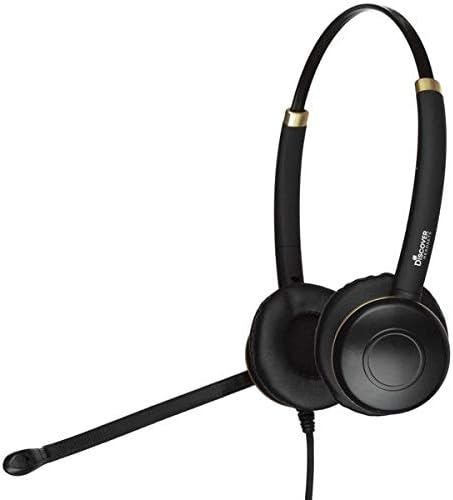
Figure 2.2: A side view of the Discover D712 headset, highlighting its dual speakers and microphone boom.
3. Setup Instructions
The Discover D712 headset requires a compatible direct connect cable to function with your specific desk phone. This cable is sold separately and is essential for connectivity. Please ensure you have the correct cable for your phone model before proceeding.
3.1 Connecting the Headset
- Identify the Quick Disconnect (QD) Cable: The D712 headset features a Quick Disconnect (QD) end, which allows you to easily detach the headset from the direct connect cable without disconnecting the cable from the phone.
- Connect the Direct Connect Cable: Plug the appropriate direct connect cable (sold separately) into the headset port on your desk phone. Refer to your phone's manual for the exact location of the headset port.
- Attach the Headset to the QD Cable: Align the Quick Disconnect end of your D712 headset with the Quick Disconnect end of the direct connect cable. Push them firmly together until you hear or feel a click, indicating a secure connection.
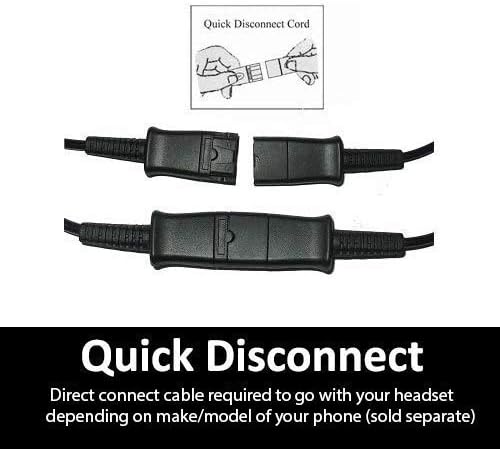
Figure 3.1: A detailed view of the Quick Disconnect (QD) cable connection, showing how the two parts snap together.

Figure 3.2: An individual wearing the Discover D712 headset, demonstrating its typical use in an office environment.
3.2 Adjusting for Comfort
- Headband Adjustment: Extend or retract the headband to fit comfortably over your head. The headset should feel secure without being too tight.
- Microphone Positioning: Position the microphone boom approximately two fingers' width from the corner of your mouth. This ensures optimal voice pickup and clarity. The microphone boom is flexible and can be adjusted.
- Ear Cushion Placement: Ensure the ear cushions fully cover your ears for the best audio experience and comfort.
4. Operating the Headset
Once connected, the Discover D712 headset is ready for use with your desk phone. The primary controls for calls (answer/end, volume, mute) are typically managed directly on your desk phone or via the inline controls on your direct connect cable (if equipped).
4.1 Making and Receiving Calls
- To Make a Call: Lift the handset or press the headset button on your desk phone, then dial the desired number.
- To Receive a Call: Press the headset button on your desk phone or lift the handset when the phone rings.
- To End a Call: Press the headset button again or replace the handset.
4.2 Volume Control and Mute
Volume adjustments and muting the microphone are typically handled by the controls on your desk phone or the inline controls on your specific direct connect cable. Consult your direct connect cable's instructions or your phone's manual for details on these functions.

Figure 4.1: An individual using the Discover D712 headset, illustrating its comfortable fit and professional appearance during a call.
5. Maintenance and Care
Proper care and maintenance will extend the lifespan of your Discover D712 headset and ensure optimal performance.
5.1 Cleaning Instructions
- Ear Cushions: The faux leather ear cushions can be gently wiped with a soft, damp cloth. Avoid using harsh chemicals or abrasive cleaners. Ensure they are completely dry before use.
- Headset Body: Wipe the headset body and microphone boom with a dry or slightly damp, soft cloth. Do not immerse the headset in water or any cleaning solutions.
- Microphone Windscreen: If your microphone has a foam windscreen, it can be carefully removed and cleaned with mild soap and water, then air-dried completely before reattaching.
5.2 Storage
When not in use, store your headset in a clean, dry place, away from extreme temperatures and direct sunlight. Avoid tangling the cable to prevent damage.
6. Troubleshooting
If you encounter issues with your Discover D712 headset, please refer to the following common problems and solutions:
| Problem | Possible Cause | Solution |
|---|---|---|
| No sound from headset / Cannot hear caller |
|
|
| Microphone not working / Caller cannot hear me |
|
|
| Headset is uncomfortable |
|
|
If the issue persists after trying these solutions, please contact Discover customer support for further assistance.
7. Specifications
Below are the technical specifications for the Discover D712 Dual Speaker Wired Office Headset:
| Feature | Detail |
|---|---|
| Model Name | D712 |
| Connectivity Technology | Wired |
| Headphones Jack | 3.5 mm Jack (Note: Requires specific direct connect cable for desk phones) |
| Included Components | Headset, Ear Cushions |
| Material | Faux Leather (Ear Cushions) |
| Specific Uses For Product | Office/Professional Use |
| Recommended Uses For Product | Calling |
| Compatible Devices | Desk Phones (with compatible direct connect cable) |
| Control Type | Touch Control (via compatible direct connect cable or phone) |
| Cable Feature | Retractable (referring to the Quick Disconnect feature) |
| Water Resistance Level | Not Water Resistant |
| Style | Modern |
| Earpiece Shape | On Ear |
| Special Feature | Lightweight |
| Product Dimensions | 6 x 6 x 4 inches |
| Item Weight | 6.9 ounces |
| Manufacturer | Discover |
| Color | Black |
| Noise Control | Active Noise Cancellation (for microphone) |
8. Warranty and Support
For warranty information, technical support, or further assistance with your Discover D712 headset, please contact Discover customer service or visit their official website.
- Online Support: Visit the Discover Store on Amazon for product information and support resources.
- Return Policy: This product typically has a 30-day return policy from the date of purchase. Please refer to the retailer's return policy for specific terms and conditions.