
1. Introduction
The EMEET PIXY is a state-of-the-art dual-camera AI-powered PTZ (Pan-Tilt-Zoom) 4K webcam designed for enhanced video communication and content creation. It features a 4K main camera with PDAF and a 1/2.55" Sony sensor for clear imaging, complemented by an auxiliary AI lens for improved face detection and exposure. With 0.2s fast focus and tripod-mounted stability, it is suitable for streaming, demonstrations, fitness sessions, teaching, and meetings.
2. What's in the Box
Carefully unpack the box and ensure all items are present:
- EMEET PIXY Webcam x 1
- Webcam Clip x 1
- USB C-A Adapter x 1
- 5 ft USB C-C Cable x 1
- Mini Tripod Clip Base x 1
- Product Quick Start Guide x 1
- Quality Manual (Printed on Box for Convenience) x 1
- User Manual x 1

Figure 2.1: EMEET PIXY package contents.
3. Product Overview
3.1 Dual-Camera System
The EMEET PIXY features a dual-camera setup. The primary 4K imaging camera utilizes a 1/2.55" Sony sensor for ultra-clear video capture at up to 4K 30FPS or 1080P 60FPS, with PDAF autofocus. An additional AI-assisted camera enhances facial imaging and targets for faster, clearer, and steadier autofocus.

Figure 3.1: EMEET PIXY Dual-Camera System.
3.2 AI-Powered Features
Equipped with an advanced AI chip, the PIXY provides real-time image and tracking optimization. This includes intelligent auto-tracking and effortless gesture control for hands-free operation.

Figure 3.2: AI Chip for Tracking and Gesture Control.
3.3 Blink Focus Technology
The Pro Dual-camera Autofocus Technology, or Blink Focus, achieves a focus speed of 0.2 seconds with 95% accuracy based on 2D+3D data, significantly outperforming standard webcams.
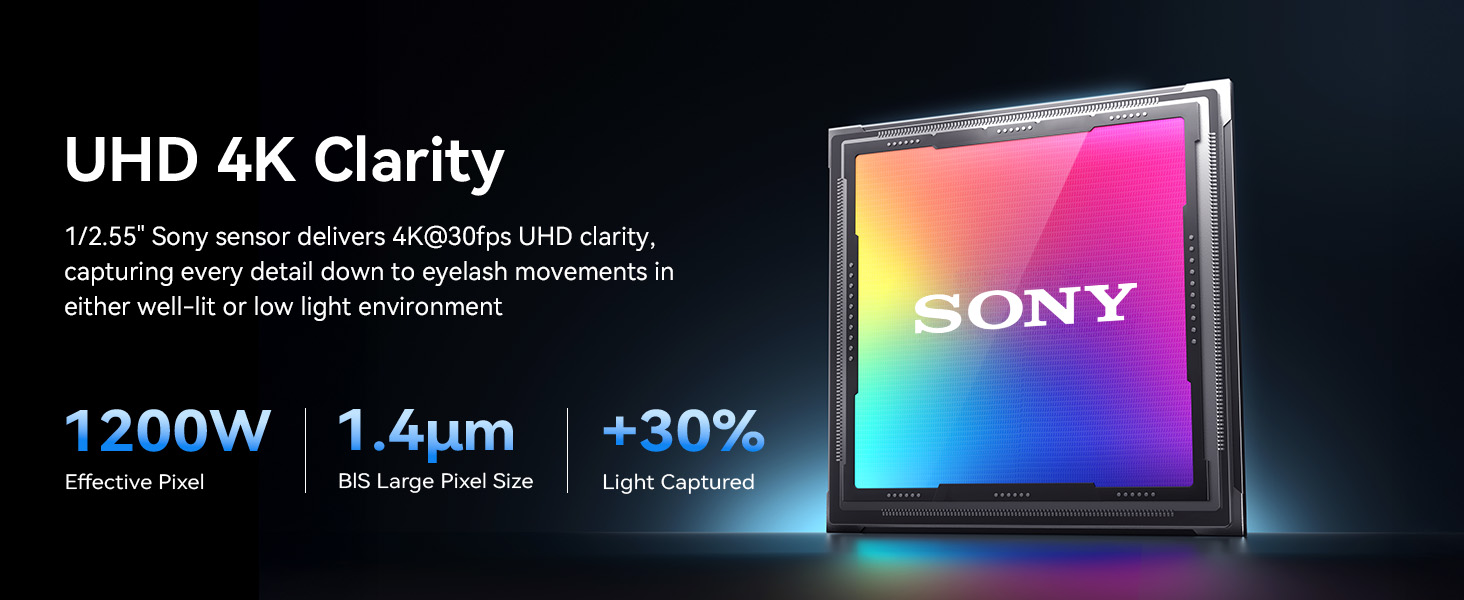
Figure 3.3: Blink Focus Speed Comparison.
3.4 3-Mic Array for Clear Audio
The integrated 3-mic array offers three sound modes: Live Mode, Noise Canceling Mode, and Original Sound Mode, ensuring crystal-clear audio capture in various environments.

Figure 3.4: EMEET PIXY 3-Mic Array.
4. Setup
4.1 Mounting the Webcam
The EMEET PIXY can be mounted using the included webcam clip or the mini tripod clip base. The webcam clip allows for secure attachment to the top of a monitor or laptop screen. The mini tripod clip base provides a stable freestanding option or can be attached to any standard 1/4 inch screw mount for tripods or other accessories.
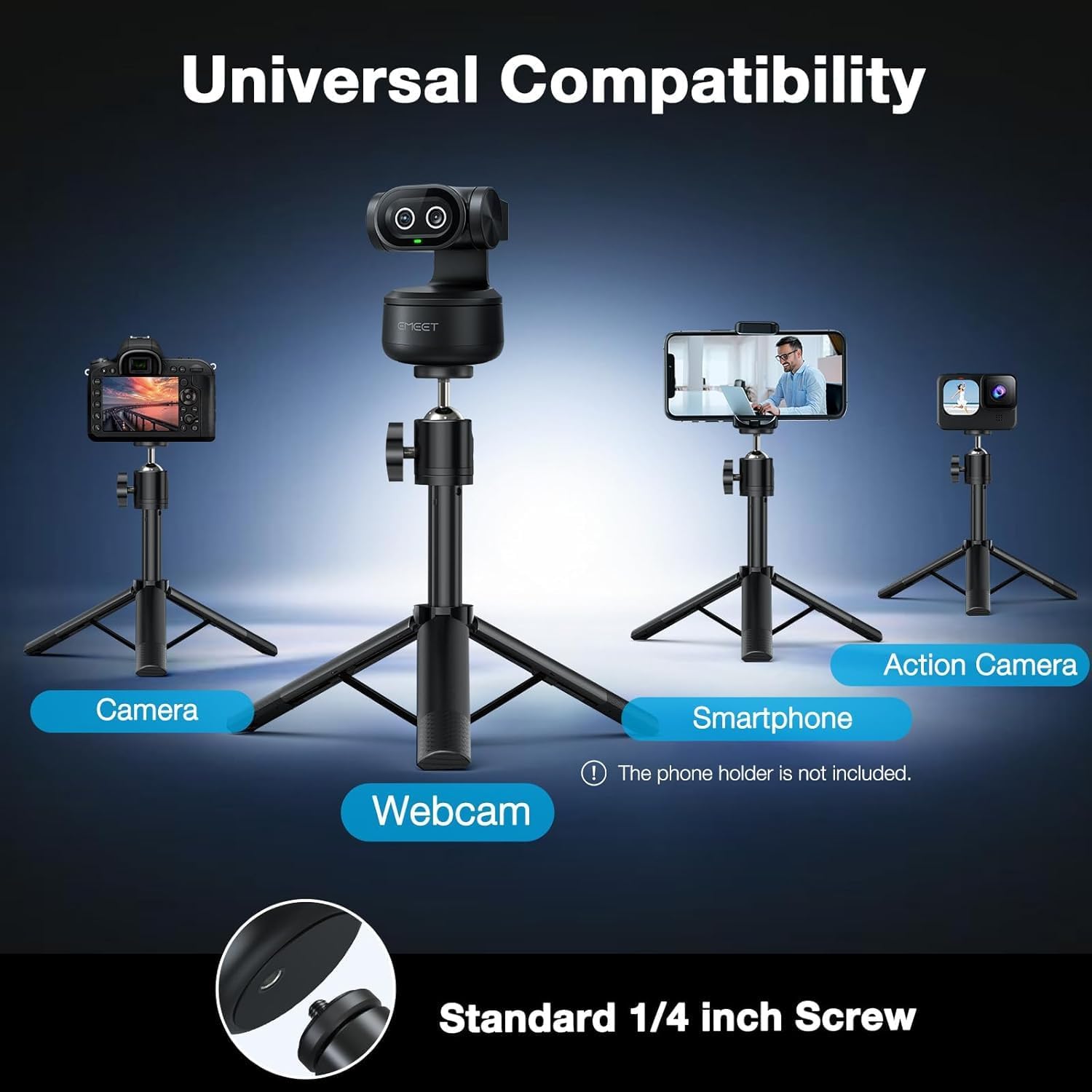
Figure 4.1: Mounting options for the EMEET PIXY.
4.2 Connecting to Your Computer
Connect the EMEET PIXY to your computer using the provided USB C-C cable. If your computer only has USB-A ports, use the included USB C-A adapter. The device is plug-and-play, requiring no additional drivers for basic functionality.
Video 4.1: Official EMEET PIXY product video demonstrating features including connection and AI tracking. This video is provided by the seller, EMEET Direct.
4.3 Software Installation (EMEET STUDIO)
For advanced features and full control, download and install the EMEET STUDIO software. This software is compatible with Windows 10+ (64-bit, not ARM) and macOS 10.14+. EMEET STUDIO allows for AI scripts, multi-cam setup, and comprehensive device control.

Figure 4.2: EMEET STUDIO Software Interface.
5. Operating Instructions
5.1 AI Tracking
The EMEET PIXY features intelligent auto-tracking that keeps you in the frame as you move. The AI-assist chip predicts motion and lighting for seamless tracking. This is particularly useful for presentations, active teaching, or dynamic content creation.
5.2 Gesture Control
Activate or deactivate AI tracking using simple hand gestures. Hold up your hand (five fingers) for approximately two seconds to toggle tracking on or off. An LED indicator near the lenses will change color to confirm the status.
5.3 PTZ Functionality
The PTZ chip allows for a 310-degree pan and 180-degree tilt, providing extensive coverage of your environment. This can be controlled via the EMEET STUDIO software or through gesture controls.

Figure 5.1: PTZ Control and Multi-person Tracking.
5.4 Preset Modes
Utilize preset modes to quickly switch between different camera positions and zoom levels. These can be configured and activated through the EMEET STUDIO software, allowing for efficient transitions during presentations or live streams.
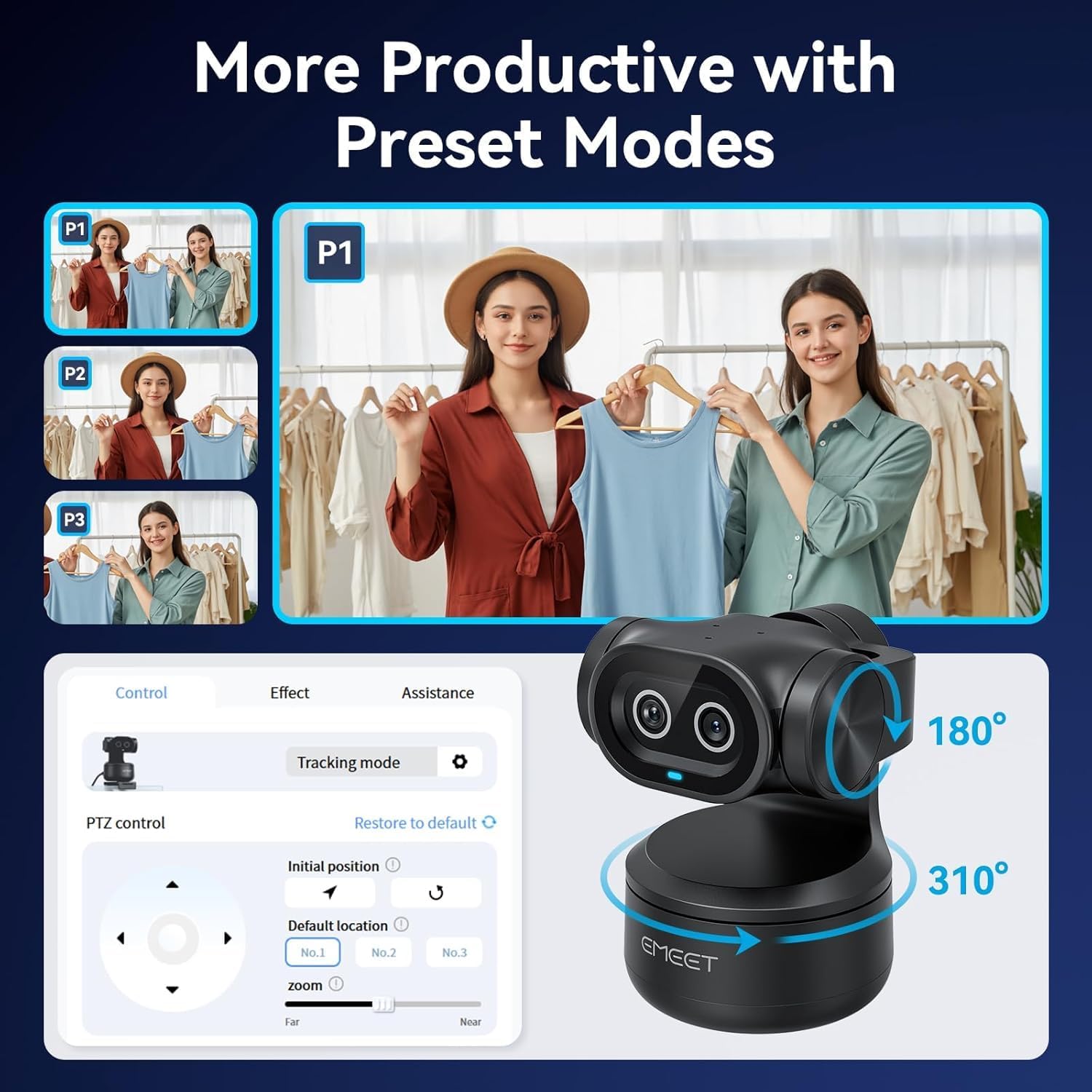
Figure 5.2: Using Preset Modes for various camera angles.
5.5 Whiteboard Mode
The Whiteboard Mode allows for smart recognition and alignment of whiteboards. This feature automatically identifies and adjusts the camera view to focus on the whiteboard content, making it ideal for educational or collaborative sessions.
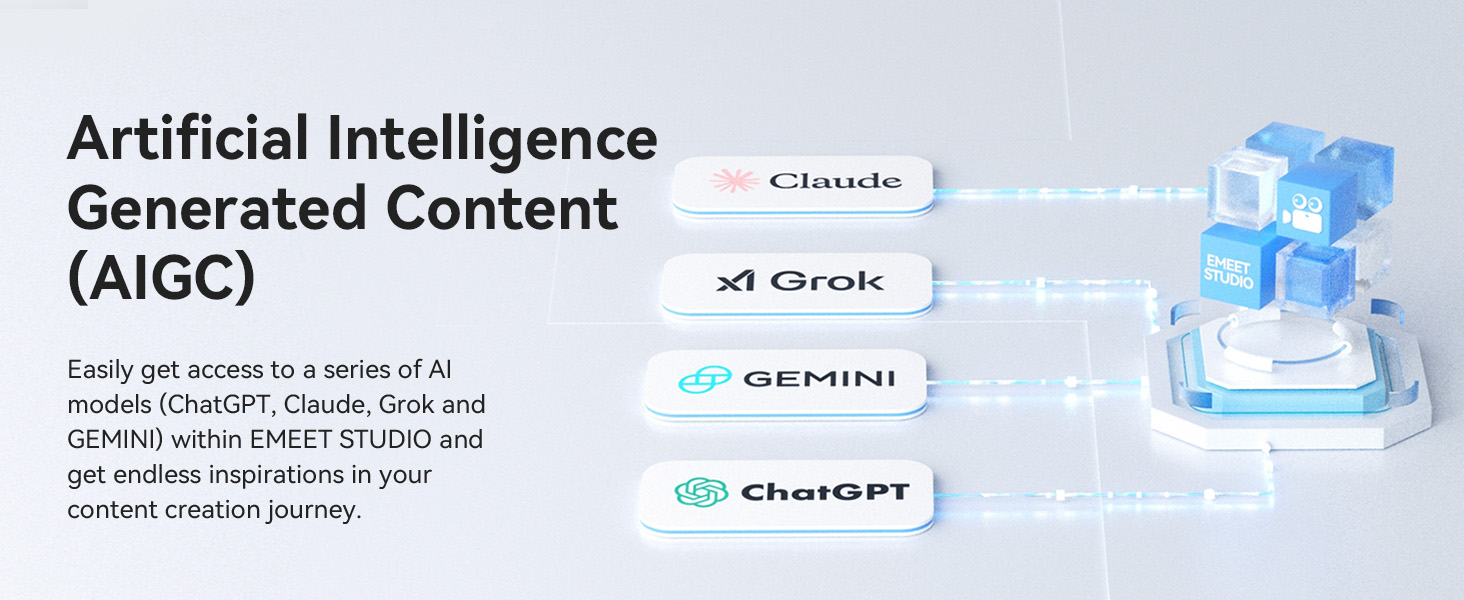
Figure 5.3: Whiteboard Mode in action.
5.6 Privacy Mode
To ensure privacy, the EMEET PIXY can be set to Privacy Mode. This can be activated by physically tilting the camera downward or by selecting Privacy Mode within the EMEET STUDIO software. In this mode, the camera will pan straight down and turn off, providing immediate privacy protection.
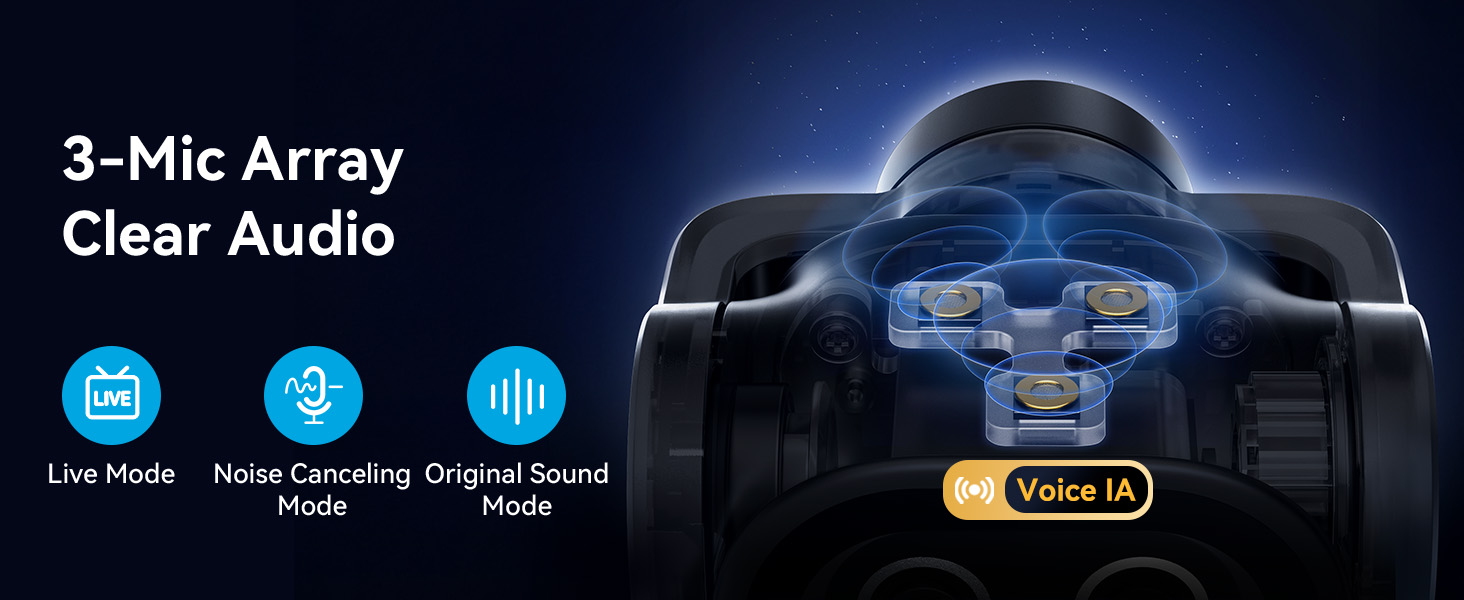
Figure 5.4: Activating Privacy Mode.
5.7 Portrait Mode
The EMEET PIXY supports Portrait Mode, allowing you to instantly rotate the camera and flip the image within EMEET STUDIO for mobile-ready content. This is ideal for vertical video platforms and social media streaming.

Figure 5.5: EMEET PIXY in Portrait Mode.
6. Maintenance
6.1 Cleaning
To clean the EMEET PIXY, use a soft, dry cloth. For the camera lenses, use a lens cleaning cloth and a specialized lens cleaning solution if necessary. Avoid using harsh chemicals or abrasive materials that could damage the device.
6.2 Storage
When not in use, store the webcam in a cool, dry place away from direct sunlight and extreme temperatures. Ensure the lenses are protected from dust and scratches.
7. Troubleshooting
7.1 No Video Output
- Ensure the USB cable is securely connected to both the webcam and your computer.
- Try a different USB port on your computer.
- Verify that the EMEET PIXY is selected as the video input device in your application (e.g., OBS, Zoom, Teams).
- Restart your computer.
7.2 AI Tracking Not Working
- Ensure you are within the recommended tracking range of the camera.
- Check lighting conditions; extreme backlighting or low light can affect tracking performance.
- Confirm that AI tracking is enabled in the EMEET STUDIO software.
- Try reactivating gesture control by holding up your hand for two seconds.
7.3 Poor Audio Quality
- Ensure the EMEET PIXY is selected as the audio input device in your application.
- Adjust the microphone settings within EMEET STUDIO or your operating system.
- Experiment with the different sound modes (Live, Noise Canceling, Original Sound) to find the best fit for your environment.
- Reduce background noise in your environment.
8. Specifications
| Feature | Detail |
|---|---|
| Brand | EMEET |
| Model Number | E3138 |
| Color | Black |
| Video Capture Resolution | 4K |
| Photo Sensor Technology | SONY (1/2.55'' Sony Sensor) |
| Special Features | 3 Mic Array & 3 Sound Modes, Gesture Control, PTZ, World's 1st Dual-Camera AI-Powered 4K Webcam |
| Connectivity Technology | USB |
| Item Weight | 1.22 pounds |
| Package Dimensions | 7.2 x 6.34 x 2.48 inches |
| Supported Audio Format | AAC, MP3 |
| Video Capture Format | MP4 |

Figure 8.1: EMEET P-Series Camera Family Specification Comparison.
9. Warranty and Support
For warranty information and technical support, please refer to the official EMEET website or contact EMEET customer service. Details can typically be found in the Product Quick Start Guide included in your package.


