1. Introduction
The Targus DEFCON Trapezoid Serialized Combo Cable Lock is a robust security device designed to protect your laptop, computer, or desktop from theft. It features a durable galvanized steel cable and a combination lock mechanism. Each lock is assigned a unique combination and serial number for enhanced security and easy retrieval of lost codes.
This manual provides essential information for the proper installation, operation, and maintenance of your DEFCON cable lock.
2. Product Components
The package for your Targus DEFCON Trapezoid Serialized Combo Cable Lock includes the following items:
- DEFCON Trapezoid Serialized Combo Cable Lock
- Security baseplate (PA400P) with adhesive and screws (for desktop security)
The lock consists of a 6.5-foot galvanized steel cable and a combination lock head with a 360-degree rotating head for flexible attachment.
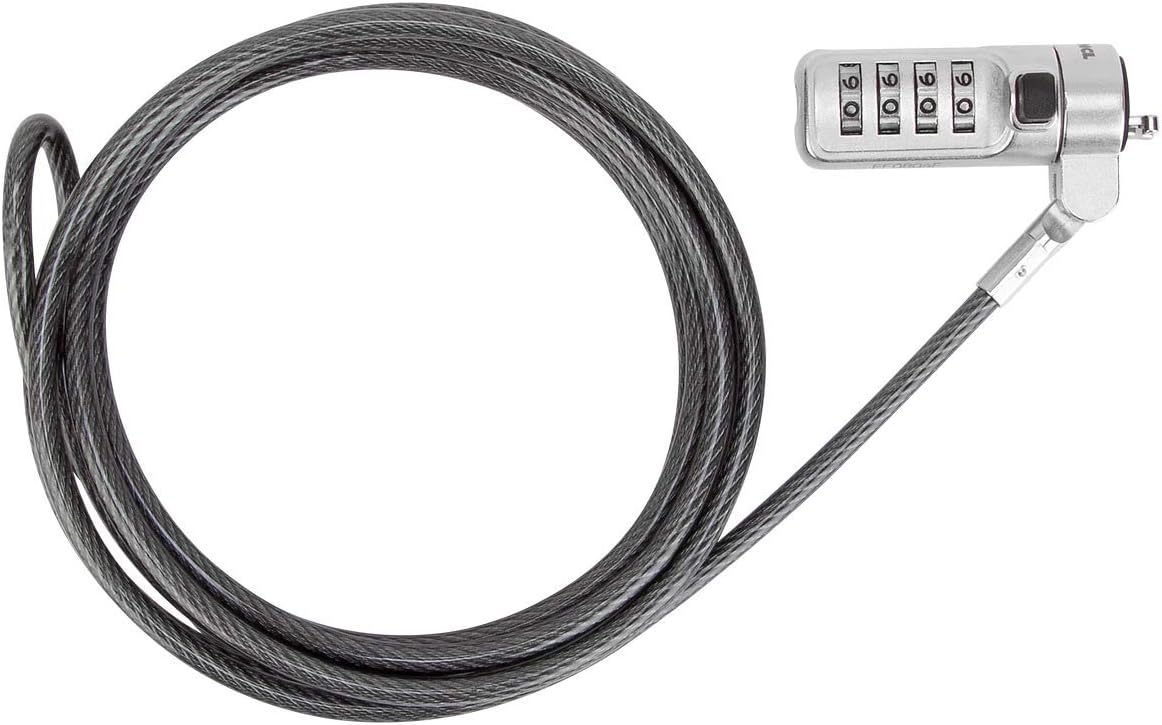
Figure 1: An overview of the Targus DEFCON Trapezoid Serialized Combo Cable Lock, featuring its galvanized steel cable and the combination lock head.
3. Installation
The DEFCON cable lock is designed for use with devices featuring a universal mini-sized security slot.
3.1 Attaching to a Laptop or Device
- Locate the mini-sized security slot on your laptop or device. This slot is typically found on the side or back of the device.
- Ensure the combination on the lock head is set to the correct, pre-assigned code.
- Insert the lock head into the security slot.
- Rotate the lock head 90 degrees to secure it within the slot. The 360-degree rotating head allows for flexible positioning.
- Scramble the combination dials to lock the device.
3.2 Securing to a Desktop (Optional)
For securing the cable to a desktop or other fixed surface, use the included security baseplate (PA400P).
- Choose a clean, flat surface on your desktop for the baseplate.
- Clean the surface thoroughly to ensure proper adhesion.
- Peel the backing from the adhesive on the baseplate and firmly press it onto the chosen surface.
- For additional security, use the provided screws to permanently attach the baseplate to the desktop.
- Loop the cable through the baseplate before attaching the lock to your device.
4. Operating Instructions
4.1 Understanding Your Combination
Each Targus DEFCON Serialized Combo Cable Lock is assigned a unique, pre-set combination and serial number. This combination cannot be changed by the user. The serial number is typically located on the lock head or on the packaging.

Figure 2: Detailed view of the lock's combination dials, illustrating the four-digit code mechanism.
4.2 Locking Your Device
- Ensure the lock head is properly inserted into the security slot of your device and rotated to the locked position.
- Scramble the combination dials to a random sequence. This prevents unauthorized access to your device.
- Verify the lock is secure by gently pulling on the cable.
4.3 Unlocking Your Device
- Align the combination dials to your unique, pre-assigned four-digit code.
- Press the release button or mechanism on the lock head (refer to Figure 3 for visual guidance).
- Once released, rotate the lock head 90 degrees and gently pull it out of the security slot.

Figure 3: A close-up of the lock head, highlighting the DEFCON branding and the push-button locking mechanism.
5. Care and Maintenance
- Cleaning: Wipe the lock and cable with a soft, dry cloth to remove dust and dirt. Avoid using harsh chemicals or abrasive cleaners.
- Storage: When not in use, coil the cable neatly and store the lock in a dry place to prevent rust or damage.
- Inspection: Periodically inspect the cable for any signs of fraying or damage. Ensure the lock mechanism operates smoothly.
- Lubrication: If the lock mechanism becomes stiff, a small amount of graphite lubricant (not oil-based lubricants) can be applied to the moving parts.
6. Troubleshooting
- Lock does not fit the security slot: Ensure your device has a universal mini-sized security slot. This lock is not compatible with all security slot types (e.g., some specific Dell or HP slots may require different lock types). Refer to your device's specifications.
- Forgotten Combination: Since the combination is pre-assigned and serialized, you can retrieve lost combination codes through a secure environment provided by Targus. Refer to the support section for contact information.
- Lock mechanism is stiff: Apply a small amount of graphite lubricant to the moving parts of the lock head. Avoid forcing the mechanism.
- Cable appears damaged: If the galvanized steel cable shows significant signs of cutting or fraying, the security of the lock may be compromised. Consider replacing the unit.
7. Technical Specifications
| Feature | Specification |
|---|---|
| Model Number | ASP66GLX-S |
| Brand | Targus |
| Cable Type | Galvanized Steel |
| Cable Length | 6.5 feet (approximately 80 inches) |
| Compatible Devices | Universal mini-sized slot |
| Lock Type | Serialized Combination Lock |
| Special Feature | 360-degree rotating head |
| Color | Black |
| Item Weight | 4.8 ounces |
| Product Dimensions (LxWxH) | 80 x 0.87 x 2.13 inches |
| UPC | 092636323240 |
8. Warranty and Support
8.1 Limited Warranty
This Targus DEFCON Trapezoid Serialized Combo Cable Lock comes with a 1-Year Limited Warranty. This warranty covers manufacturing defects and ensures the product functions as intended under normal use. Please note that the limited warranty does not cover products purchased from third-party sellers unless explicitly stated by Targus.
8.2 Combination Code Retrieval
As your lock has a unique, serialized combination, Targus provides a secure environment for retrieving lost combination codes. To initiate a retrieval, you will typically need the serial number of your lock.
8.3 Activity Reports
Activity reports may be available for registered locks. Please visit the official Targus website or contact customer support for more information on how to register your lock and access these reports.
8.4 Customer Support
For further assistance, warranty claims, or to retrieve a lost combination code, please visit the official Targus support website or contact their customer service department. Contact details can typically be found on the Targus website or product packaging.
Targus Official Website: www.targus.com


